Diagnostic Tools
Diagnostic Tools in Zoho Assist let technician to inspect, troubleshoot, and manage a remote computer's system components during both unattended access and remote support sessions. From a single panel, you can access the command prompt, task manager, and device manager, and view or manage system components such as processes, services, software, users and groups, hardware, printers, startup apps, scheduled tasks, and the registry, in real time, across Windows, Linux, and macOS remote device.
How to Access diagnostic tools
You can access diagnostic tools through any of the following methods:
From Unattended Access
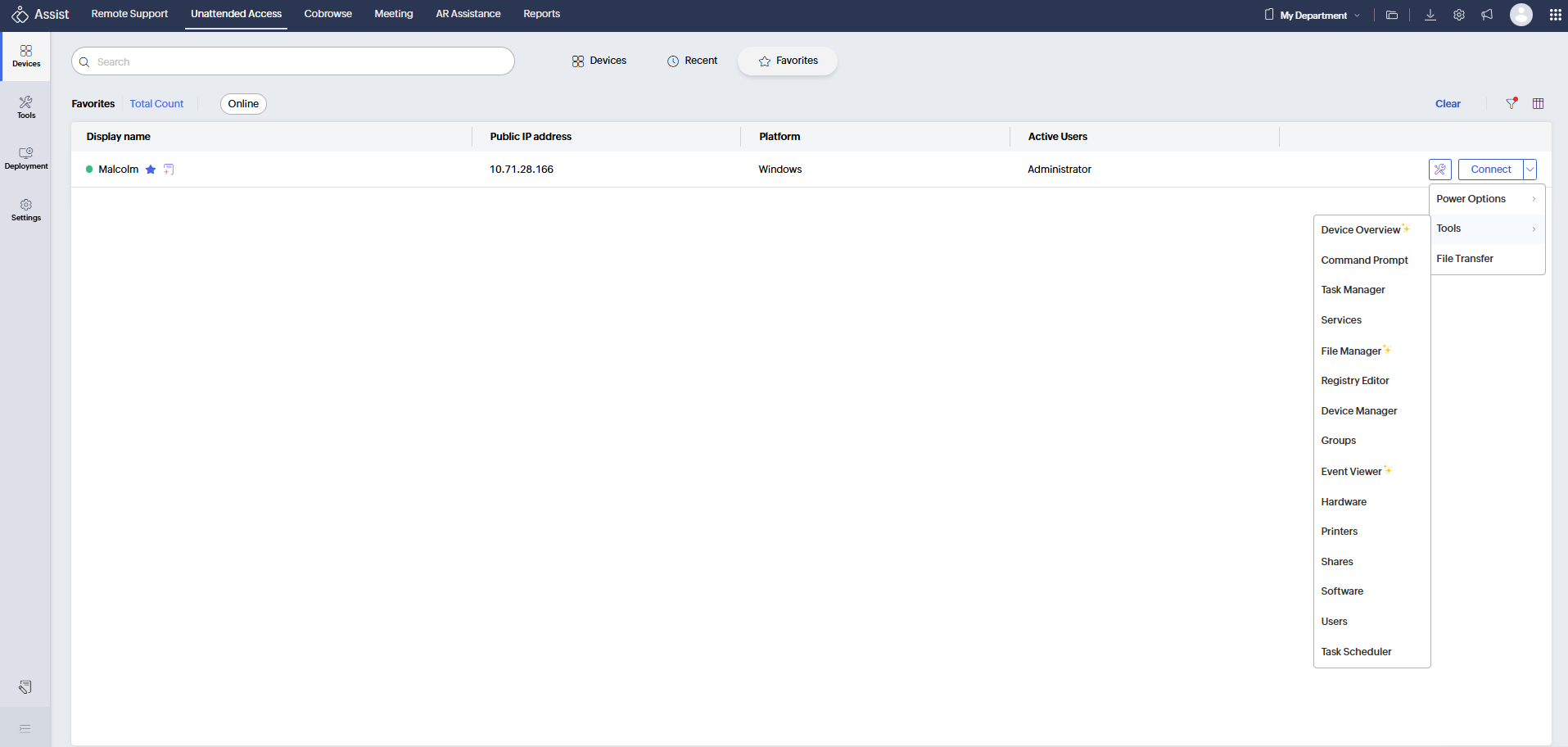
- Go to Unattended Access and locate the required device.
- Click the Tools icon next to the connect button, choose Tools from the dropdown.
- Select the required tool from Tools.
From the Tools Section
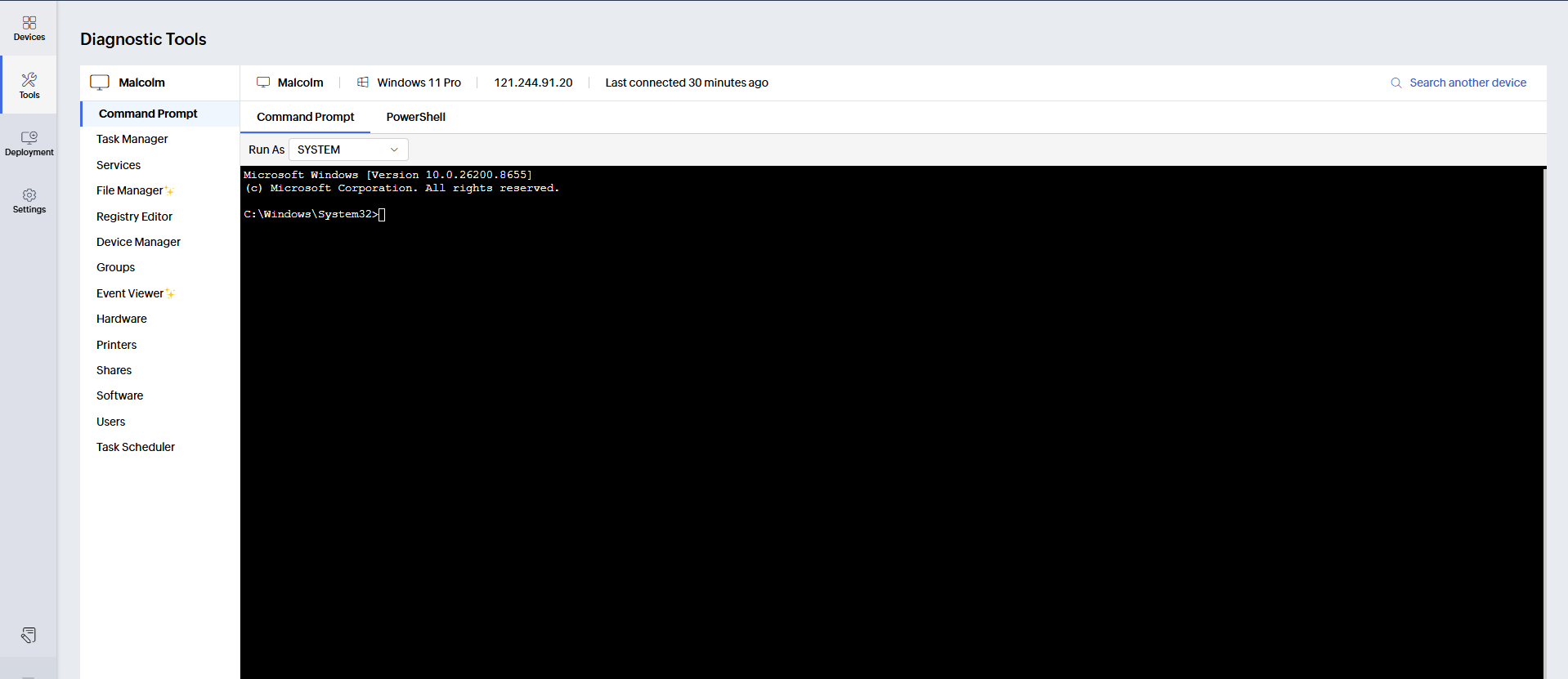
- Navigate to Unattended Access > Tools.
- Search for and select the required device.
- Click required tool from the left sidebar.
During an Active Session
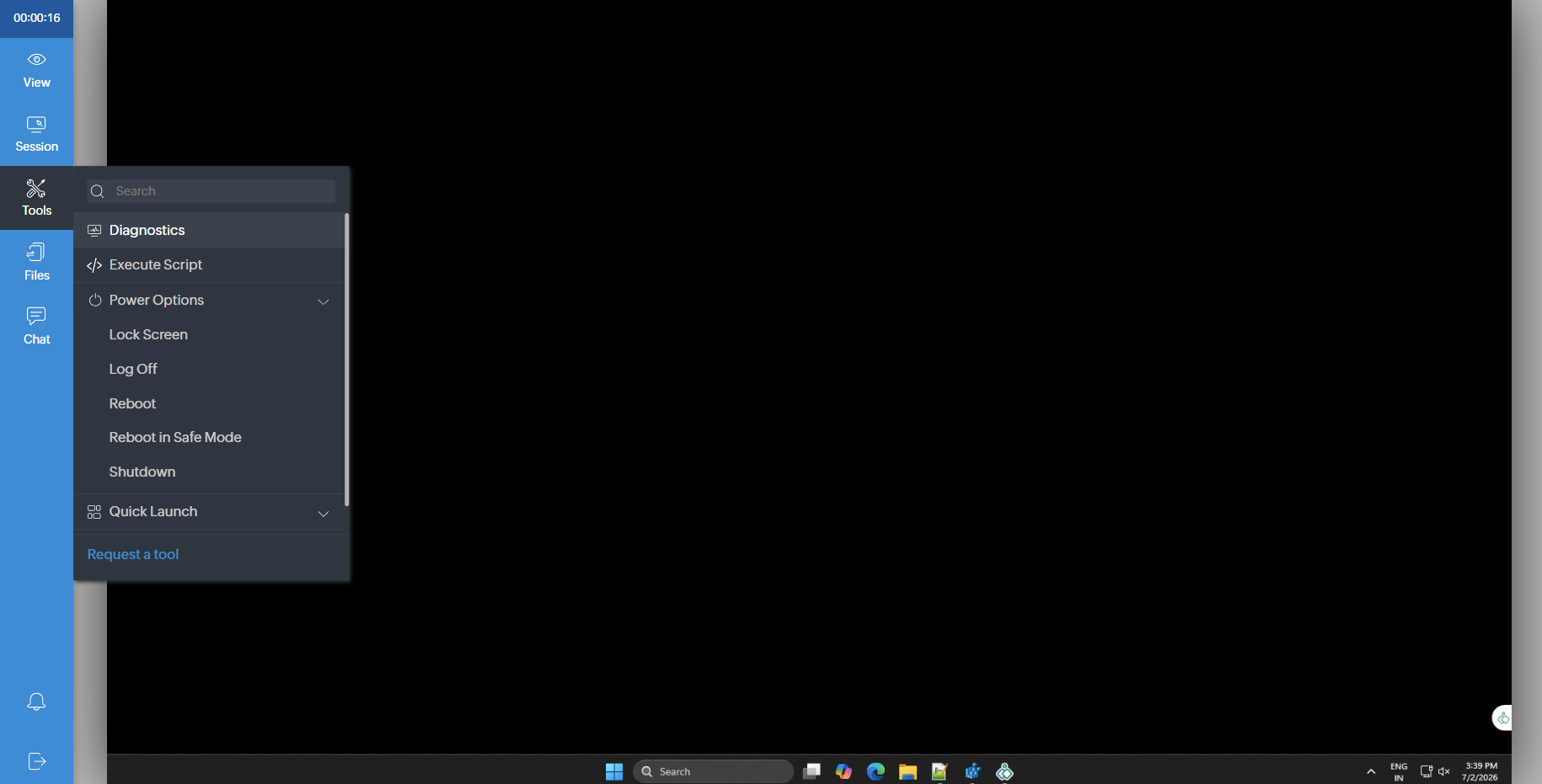
- Click Tools from the left side bar and choose Diagnostics.
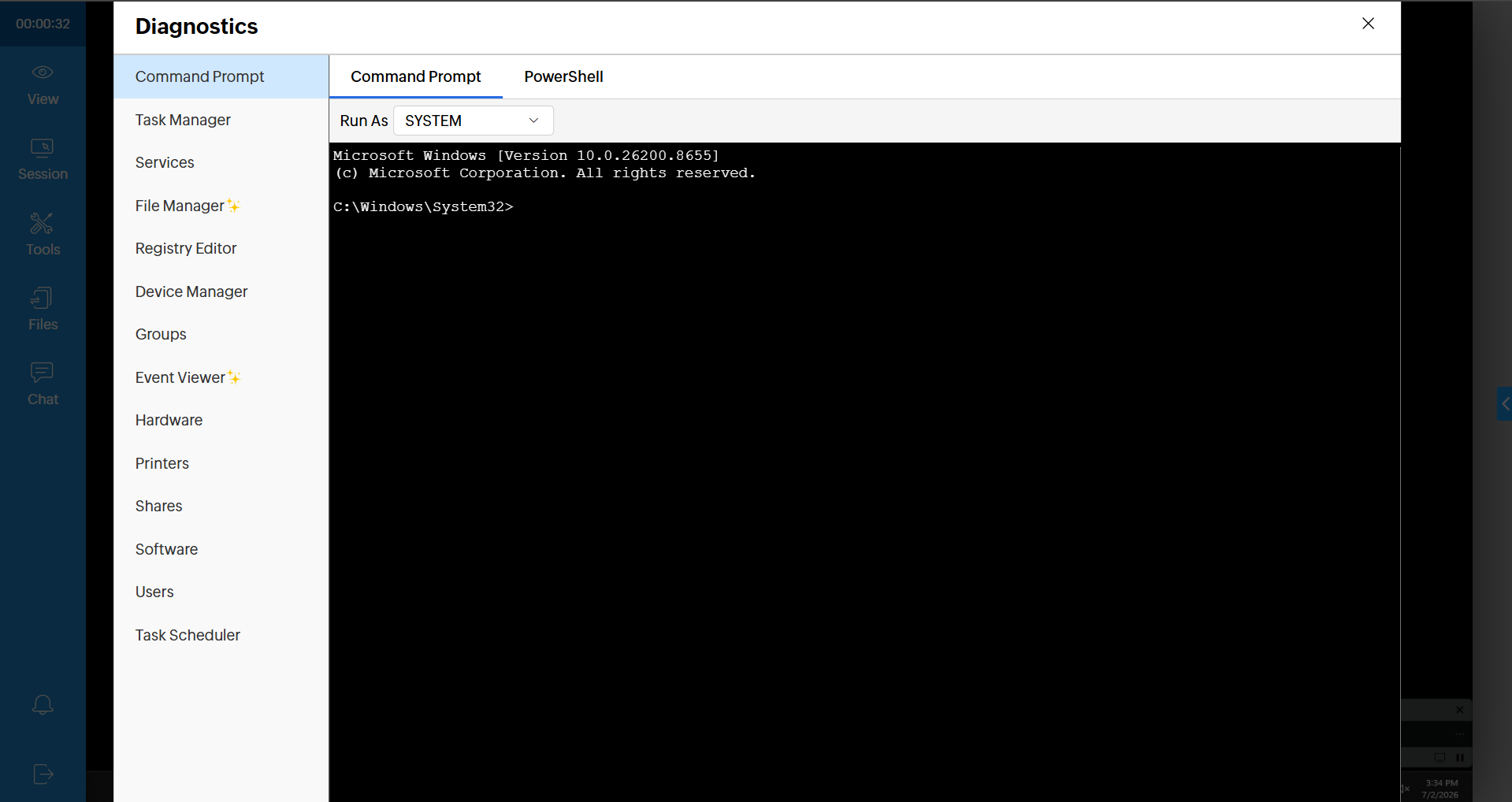
- Select the required tool.
Available tools
| Tool | Description | Supported OS |
| Command Prompt | Lets you execute commands to automate tasks via scripts and batch files, perform advanced administrative functions, and other DOS operations on managed computers. | Windows, Linux, macOS |
| Task Manager | Gives you limited control over the programs running on the remote computer. | Windows, Linux, macOS |
| Startup Apps | View and control applications that launch automatically at startup or login, and enable or disable entries without deleting them. | Windows, Linux, macOS |
| Services | Allows you to remotely perform actions to start, stop, and restart the service and set the startup mode for best performance. | Windows, Linux, macOS |
| File Manager | Browse, transfer and manage files and folders between the technician's device and the remote device. | Windows, Linux, macOS (v12+) |
| Registry Editor | Store all your application related configurations on the remote computer with the help of the Registry Editor. You can get access to complete file information, settings, and other values related to programs and hardware installed using the editor. | Windows |
| Device Manager | Displays a list of the devices associated with each computer. You can choose to enable or disable the drivers related to the devices. | Windows |
| Groups | Lets you view and manage local users and groups of the managed computer. You can also perform actions like adding a new group, removing a group, adding new members, and removing members from the group. | Windows, Linux, macOS |
| Event Viewer | View and analyze system, application, and security logs to diagnose issues and track system activity. | Windows |
| Hardware | Use this view and manage currently installed hardware on the computer. | Windows, Linux, macOS |
| Printers | Displays a list of the printers connected to the managed computer. | Windows, Linux, macOS |
| Shares | Displays a list of all shared folders for the managed computer with the path and description for each. This allows you to view and manage the shared folders with their sessions and open file details and also set restrictions for the number of users who can access. | Windows, Linux, macOS |
| Software | Use this to view and manage currently installed software on the computer. | Windows, Linux, macOS |
| Users | Lets you view a list of the users of the managed computer and their status: active or disabled. | Windows, Linux, macOS |
| Task Scheduler | Browse, create, edit, and run scheduled tasks remotely, including full configuration of triggers, actions, and conditions. | Windows |