Assigning Sessions to Internal Technicians
Admins and technicians can now effortlessly assign or schedule sessions to other technicians within their department, promoting efficient collaboration and streamlined workflow. Not only are admins and technicians able to assign a session to another technician initially, but they also enjoy the flexibility to modify it at any time by reassigning it to a different technician, if needed.
How to Schedule a Session for Another Technician
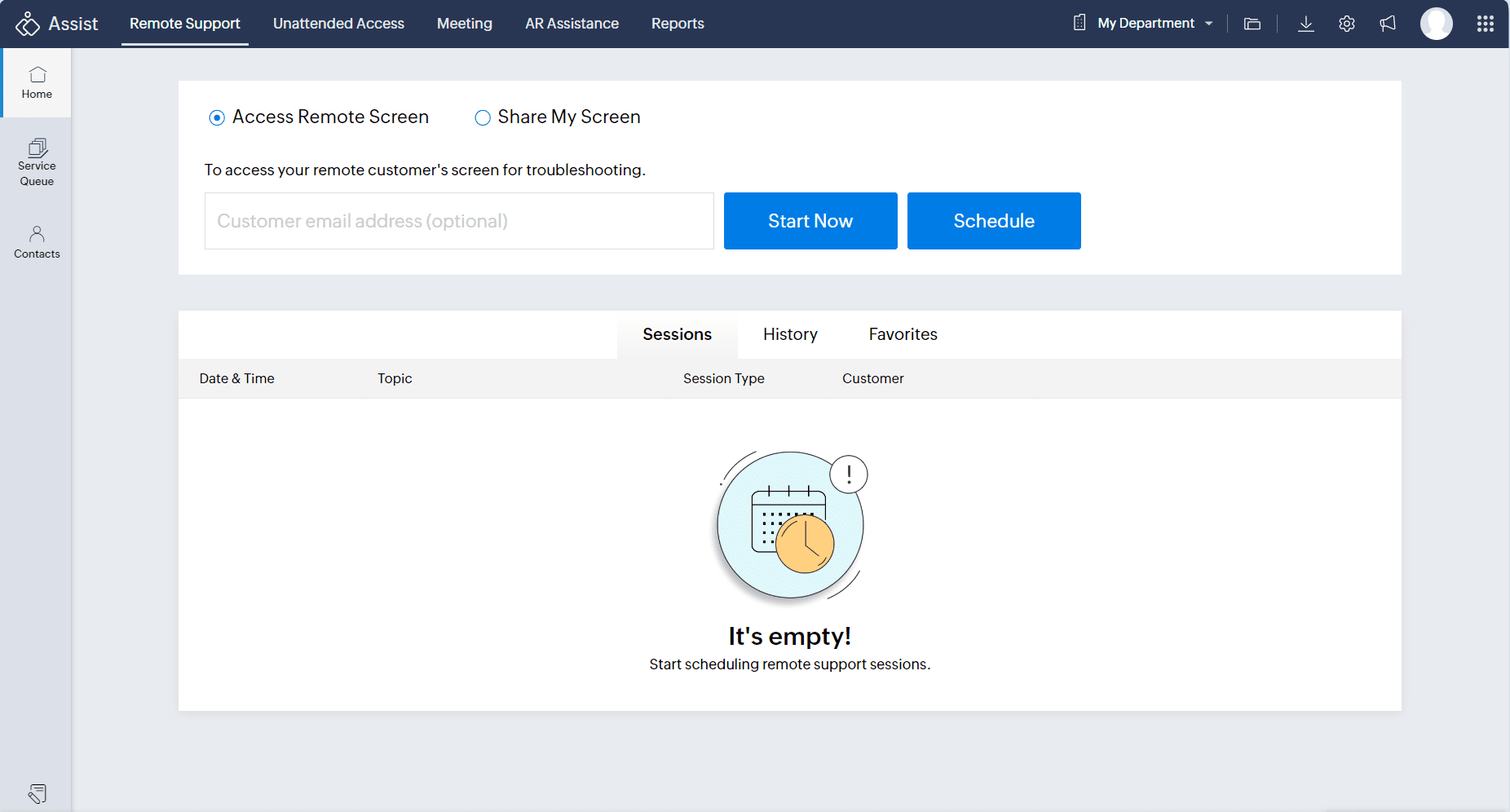
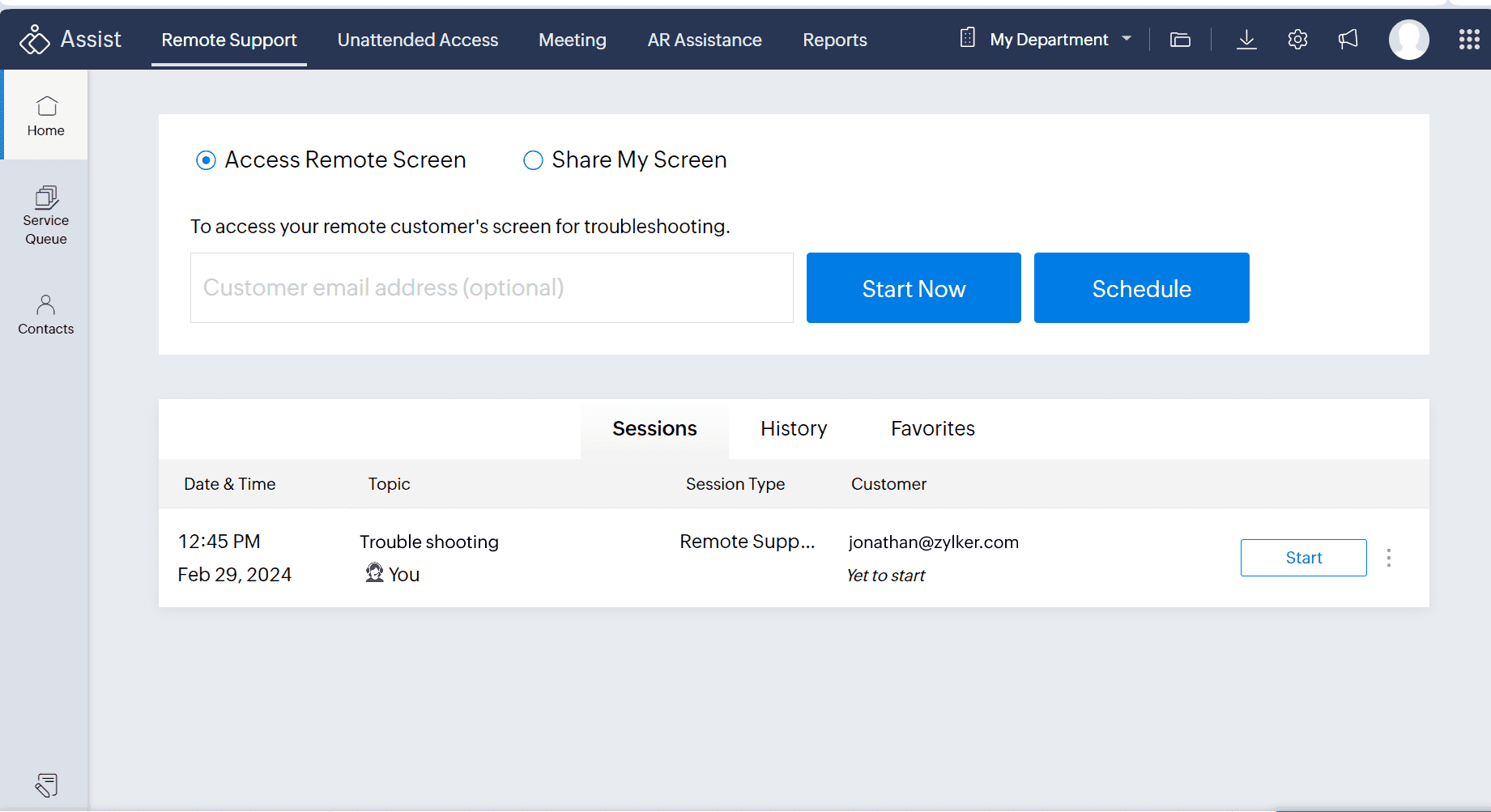
Navigate to the Assist home page and click Schedule.
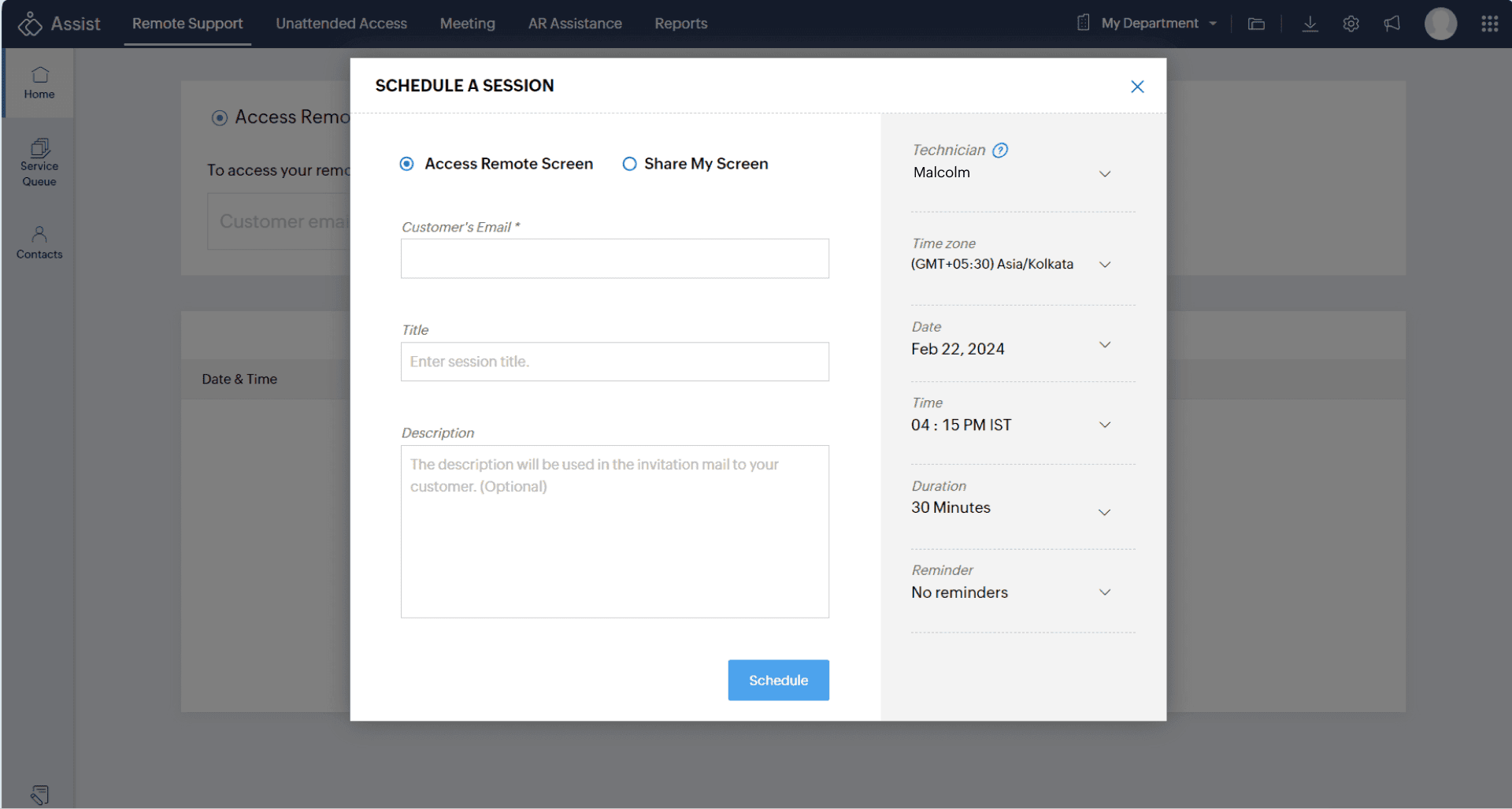
- In the SCHEDULE A SESSION window, navigate to the right pane.
Choose the details such as Technician, Time zone, Date, Time, Duration, and Reminder.
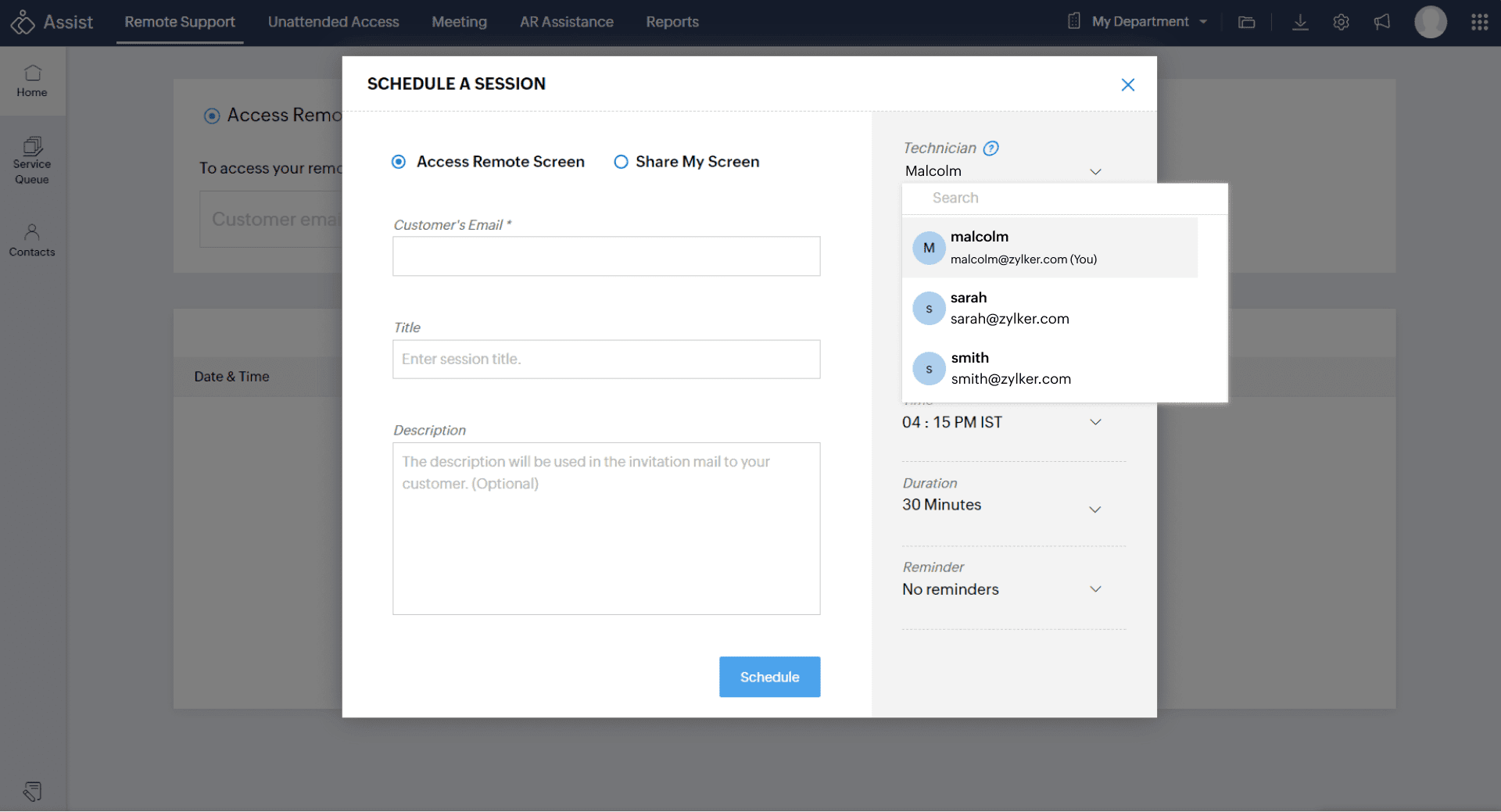
Select a technician within your department from the drop-down menu for scheduling or assigning a remote session . You can als modify the assigned technician at any point in the future.
Choose the time zone, date, and time for the session. Set the desired duration of the remote session from the available options in the drop-down menu.
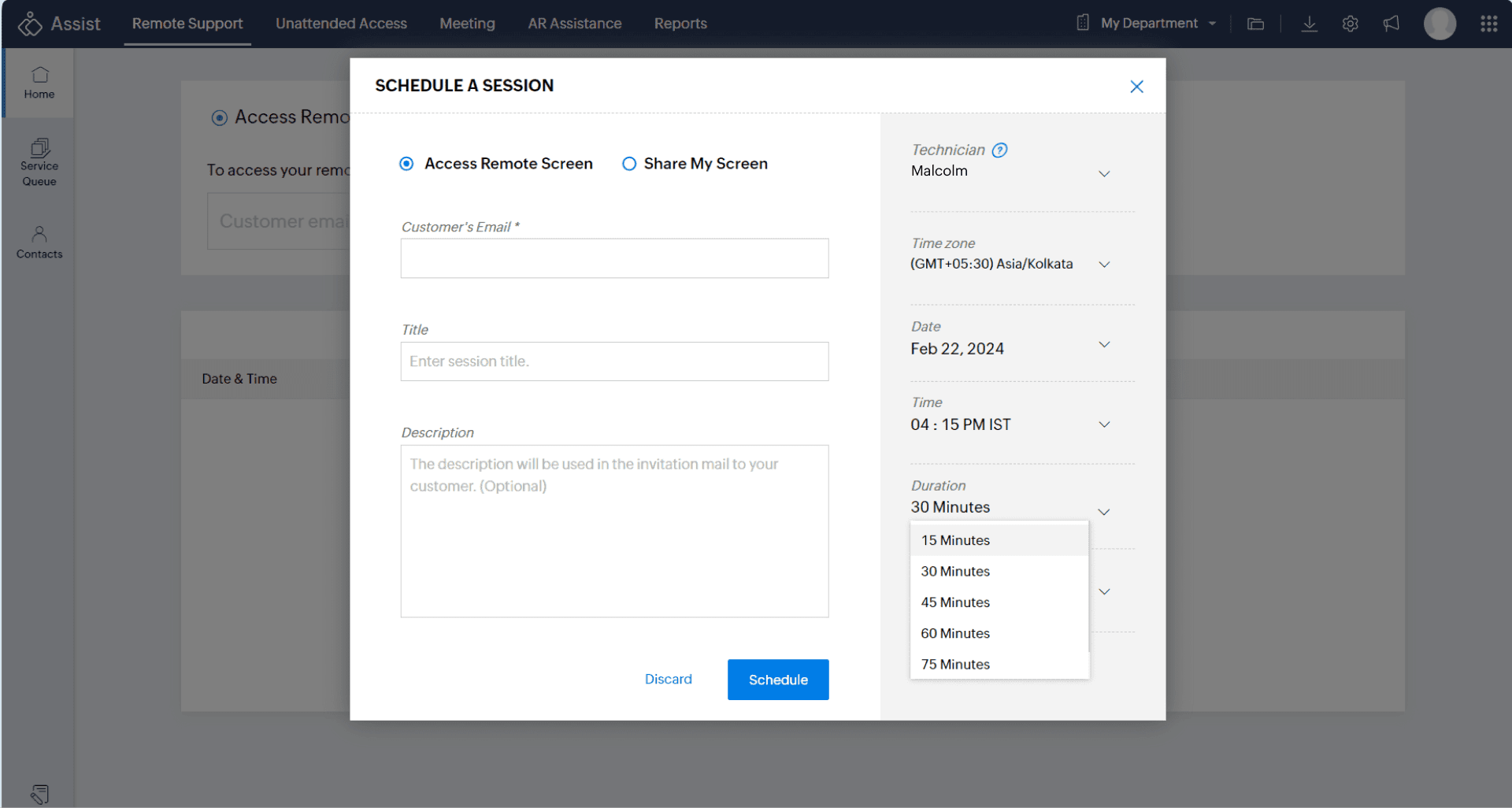
If the selected technician has another session during the same time, a warning message will be displayed. Despite the warning, technicians can proceed with the session assignment as needed.
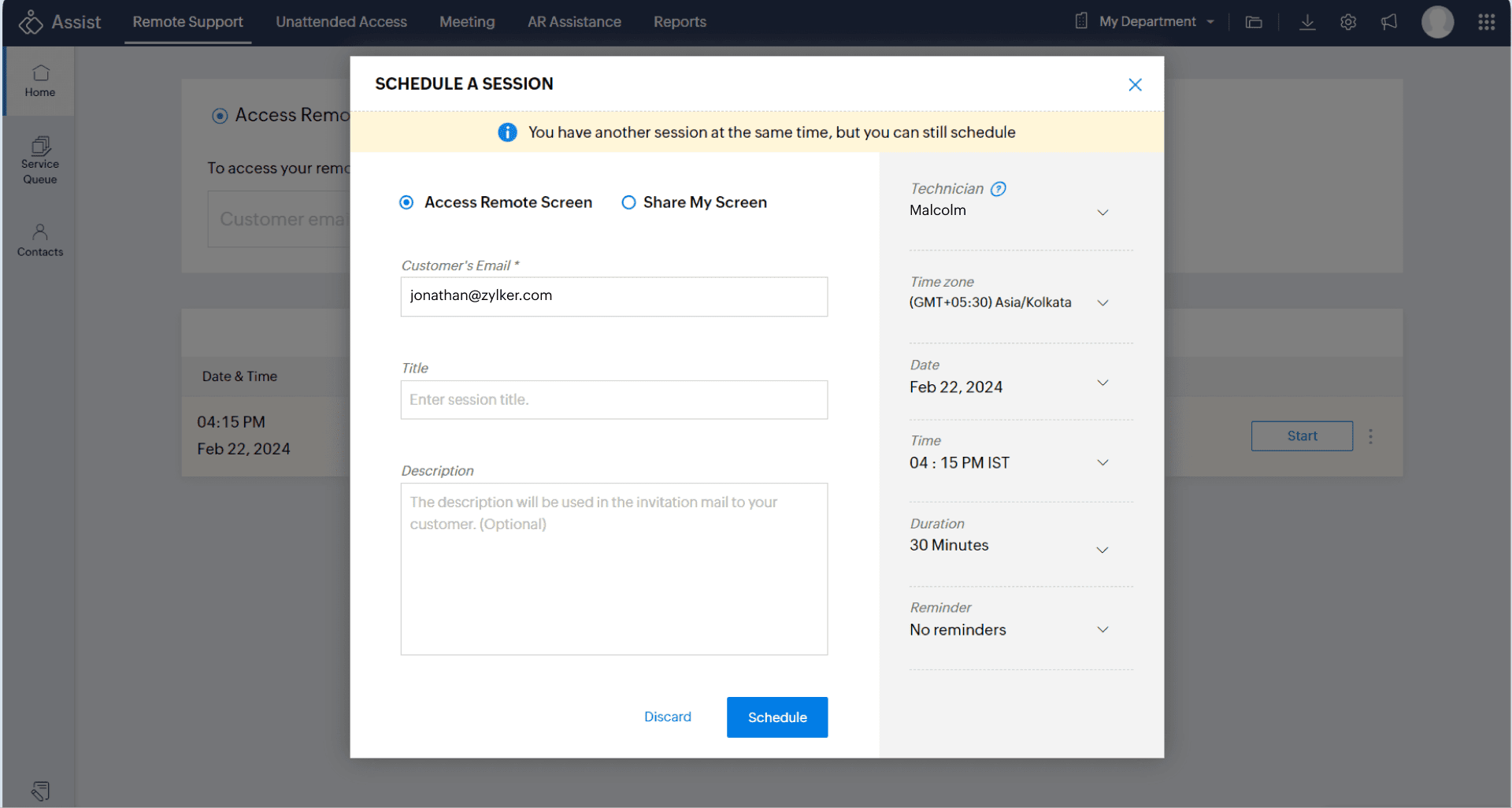
Enter customer details, including email, title, and session description. Click Schedule to confirm the session. The session has been successfully assigned to the technician.
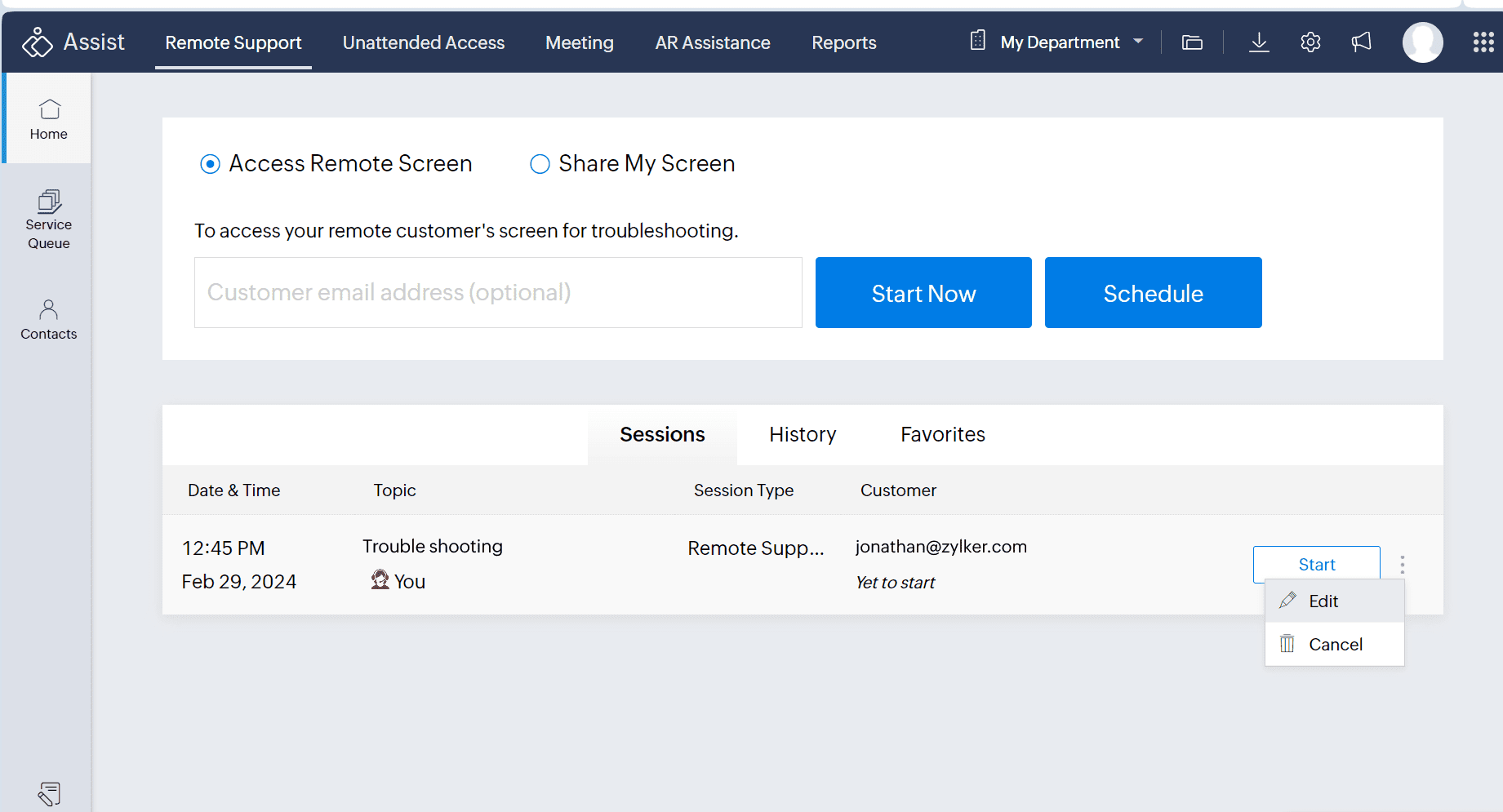
You can also modify the details of the scheduled session anytime in the future by clicking Edit.
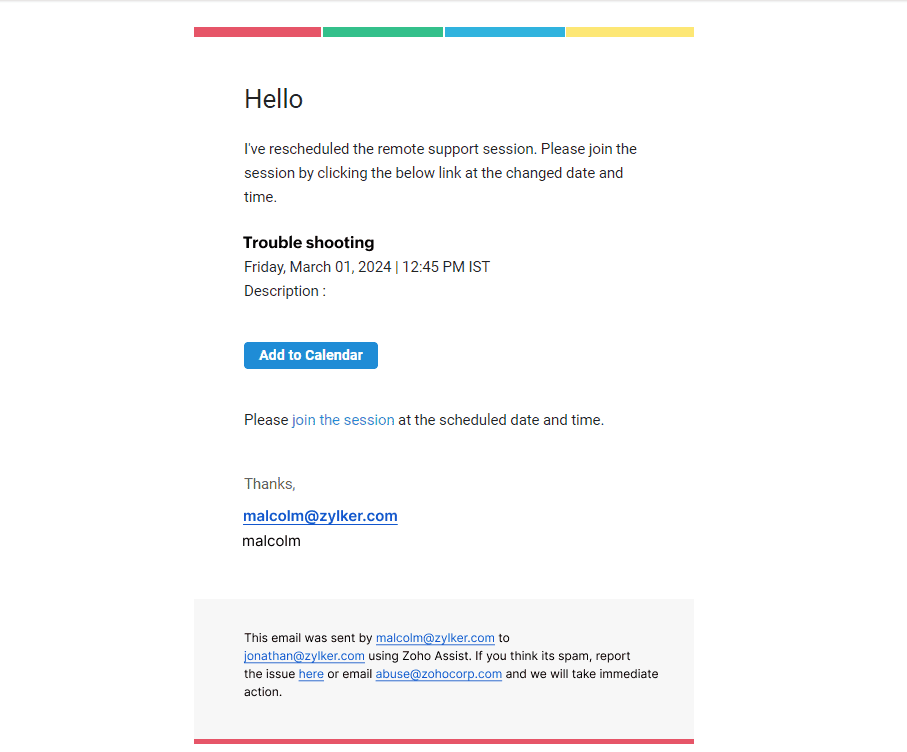
Once a session is assigned, the technician will receive an email notification. If the session is rescheduled, the same will also be notified via an email as shown below.