How to Start a Cobrowse Session
Once configured, you can start a Cobrowse session to guide your customers in real time. Depending on your widget setup, you can start a session by sharing a session key with your customer or by accepting a request they raise directly from the widget.
- In an outbound session, the technician initiates the session by sharing a session key with the customer.
- In an inbound session, the customer raises a request from the Cobrowse widget and a technician accepts it from the Inbound tab.
Start an Outbound Session
Log in to your Zoho Assist account using your credentials.
Click Cobrowse in the top menu bar and select Start Now.
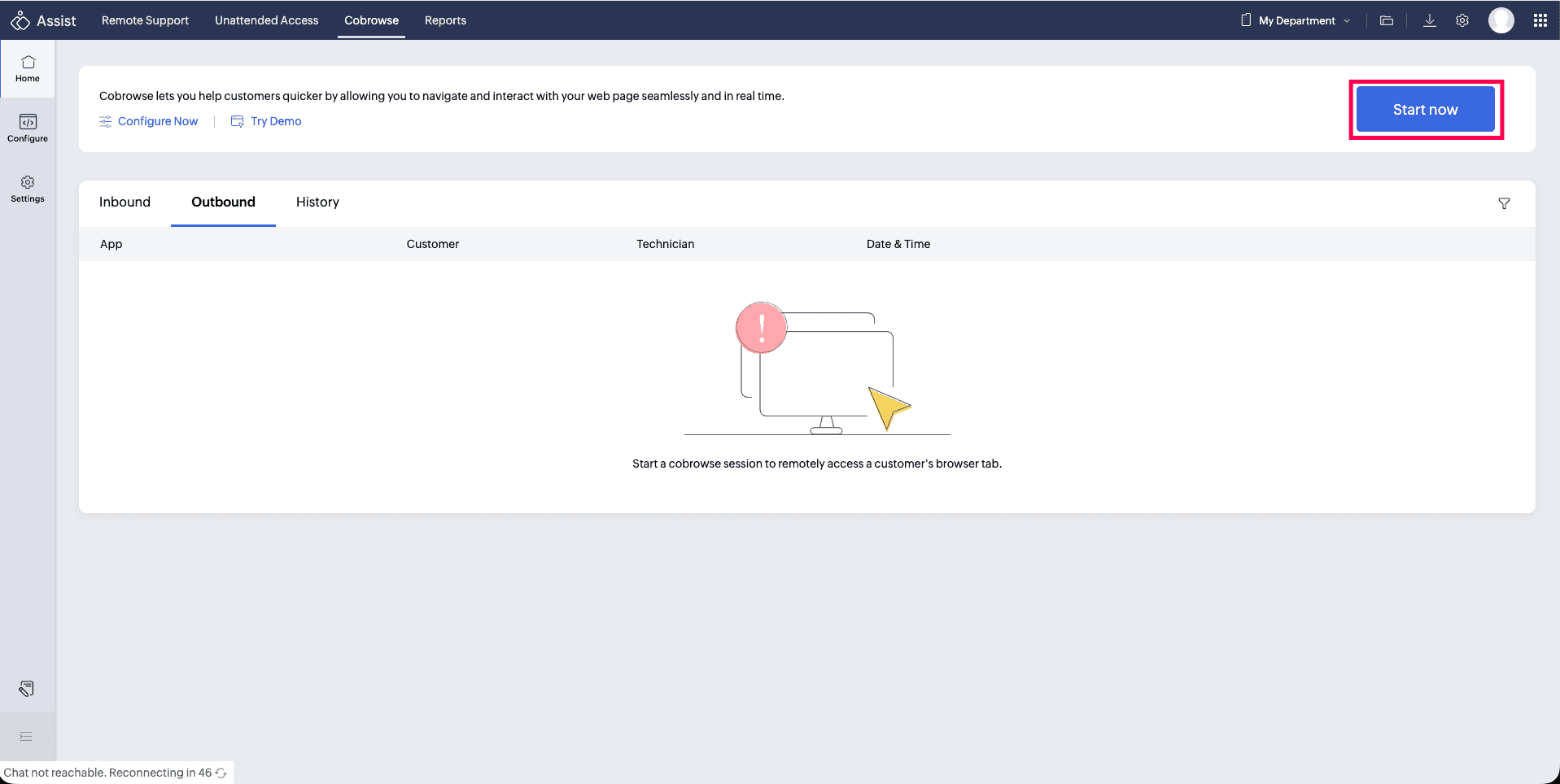
A unique session key will be generated.
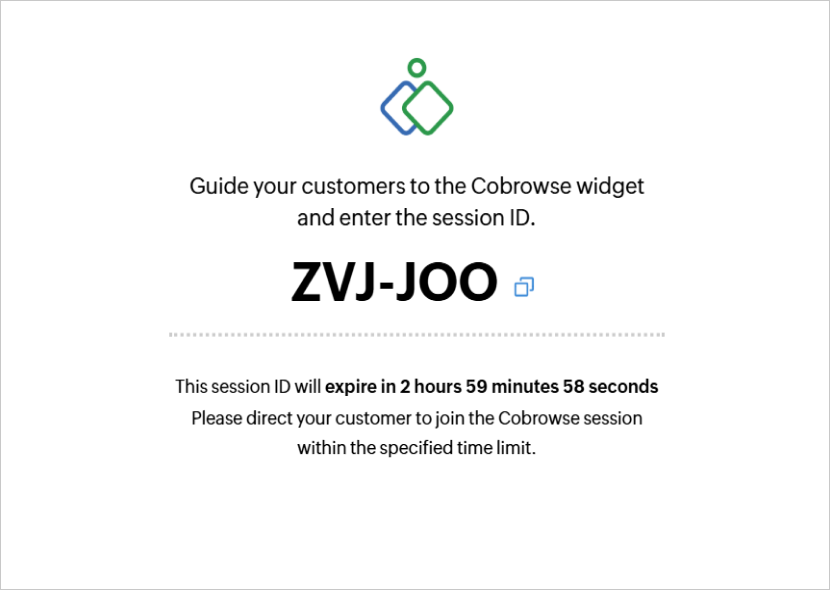
Share this session key with your customer and ask them to enter it in the Cobrowse widget on your website.
Once the customer enters the session key, a request prompt will appear on your screen. Click Proceed to start the session, or Cancel to decline it.
To end the session at any time, click the Exit icon and then click End Now on the confirmation prompt.
Accept an Inbound Session
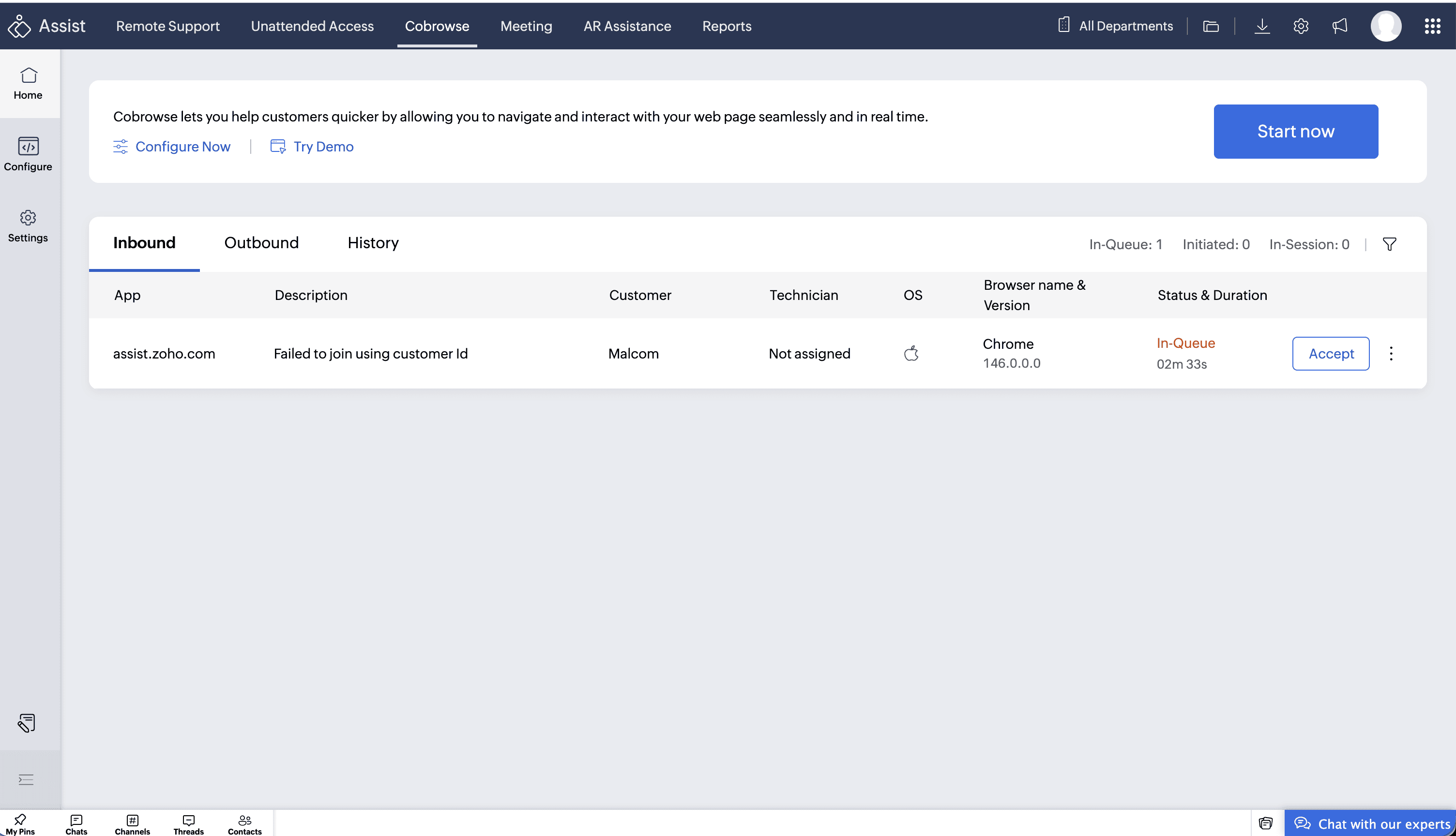
Log in to your Zoho Assist account and go to the Inbound tab. Requests raised by customers from the Cobrowse widget will be listed here along with their name and problem description.
Click Accept on the request you want to take.
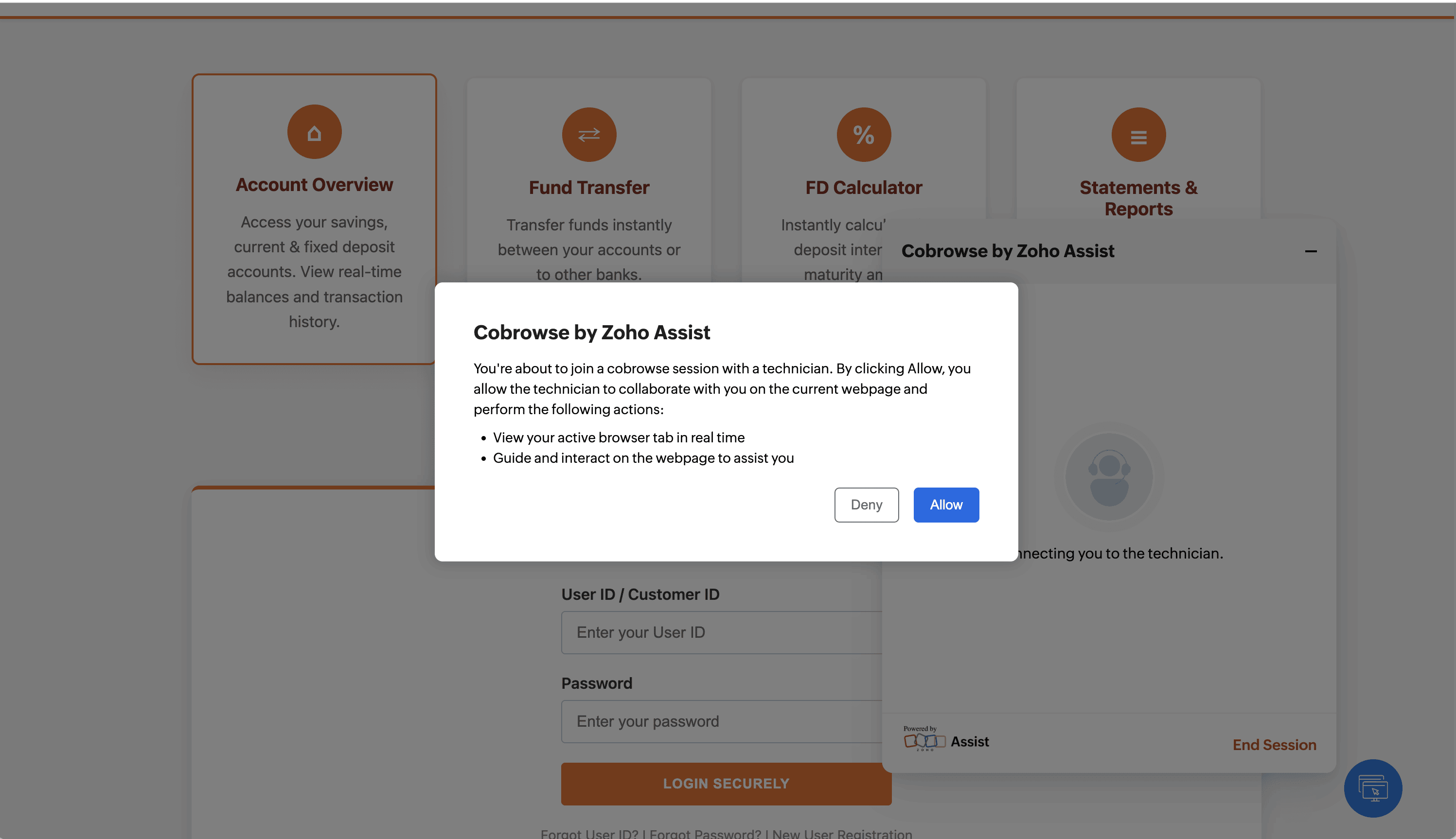
The customer receives a confirmation prompt on their end. Once they click Allow, you are connected and the Cobrowse session begins.
To end the session at any time, click the Exit icon and then click End Now on the confirmation prompt.
Note: You can view completed sessions anytime under the Session History tab.