Manage Technicians
The Manage Technicians section allows you to assign access levels and permissions to your team members based on your organizational requirements. With Cobrowse, you can either assign a predefined role (Technician – Cobrowse) or create custom roles to tailor access and permissions as needed.
Available Roles for Cobrowse
Super Admin - By default, the Super Admin has complete access to all Cobrowse functionalities, including configuration, settings, and viewing reports.
Technician – Cobrowse - A predefined role dedicated to handling Cobrowse sessions. Technicians with this role can conduct Cobrowse sessions and view their own session reports, but they cannot configure or modify Cobrowse settings.
Custom Role - You can create a custom role and enable specific Cobrowse permissions such as session access, configuration and settings access, and report viewing.
How to Create a New Custom Role
Go to Settings from the top menu bar.
Under Organization, select Manage Technicians.
Click New Role under the Role(s) section.
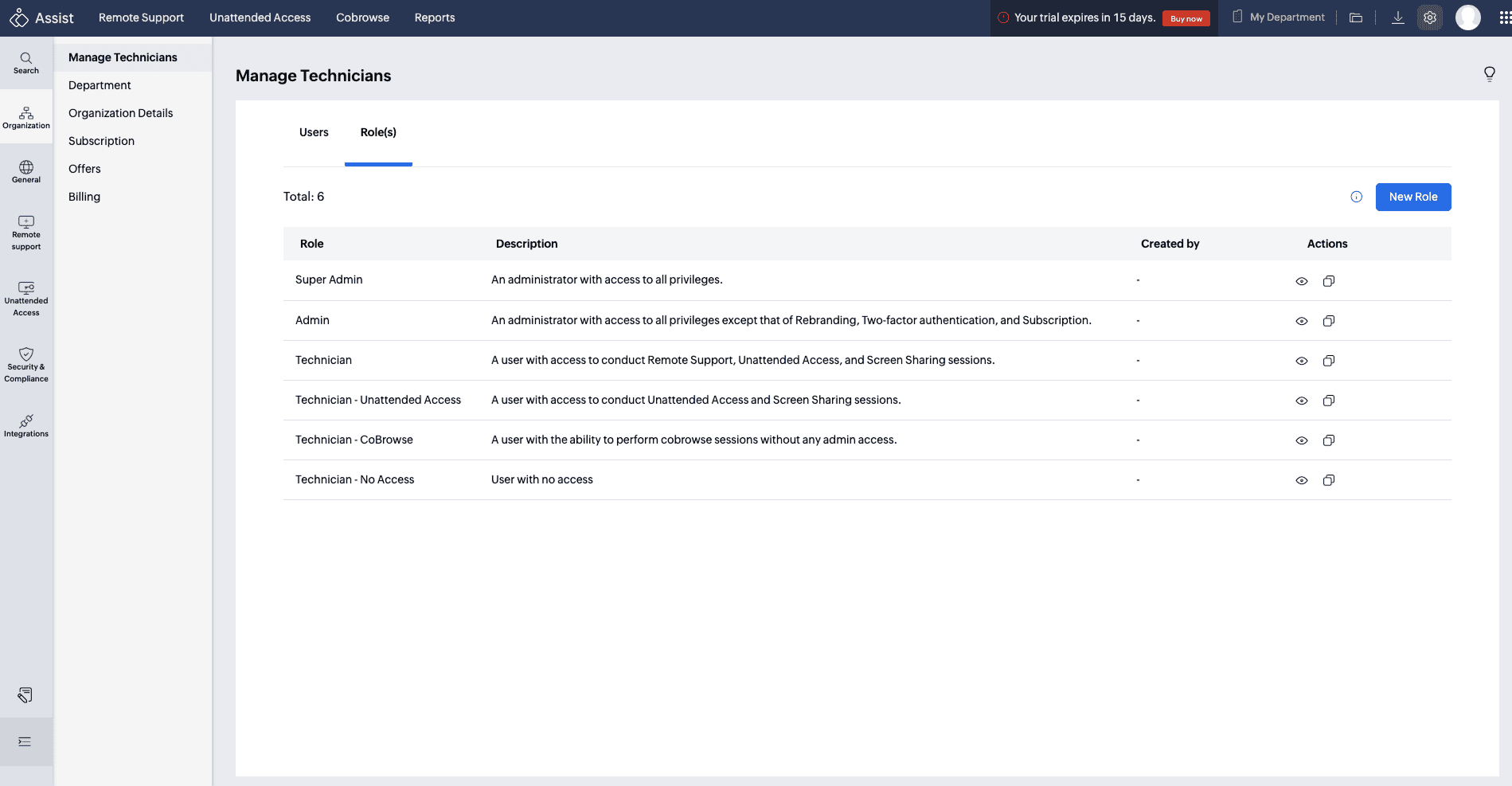
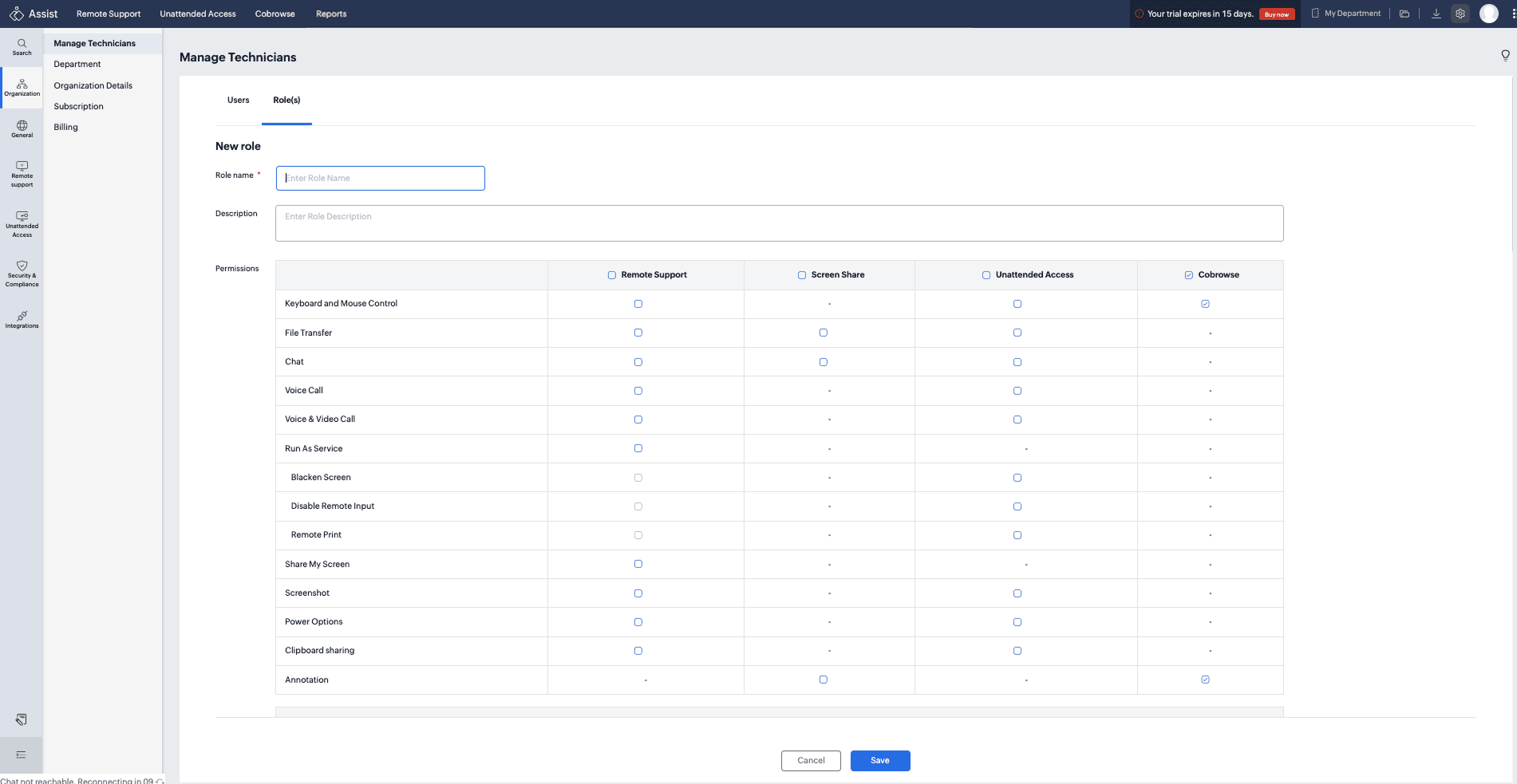
Enter the required details:
Role Name
Description
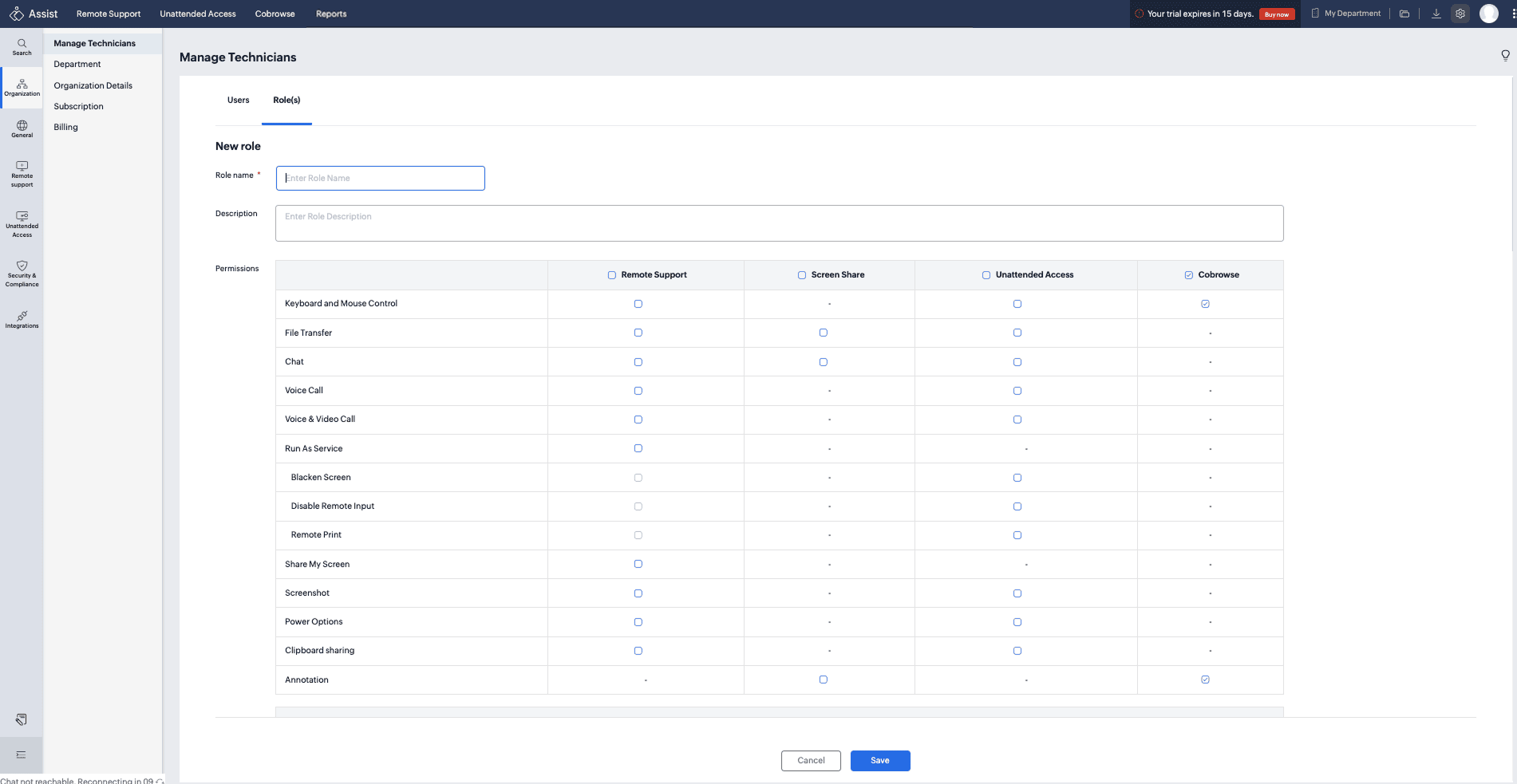
Permissions – Enable Cobrowse to allow technicians to conduct Cobrowse sessions.
Enable additional permissions such as Configuration, Settings, and Reports View under Cobrowse preferences if needed.
Click Save to create the custom role.
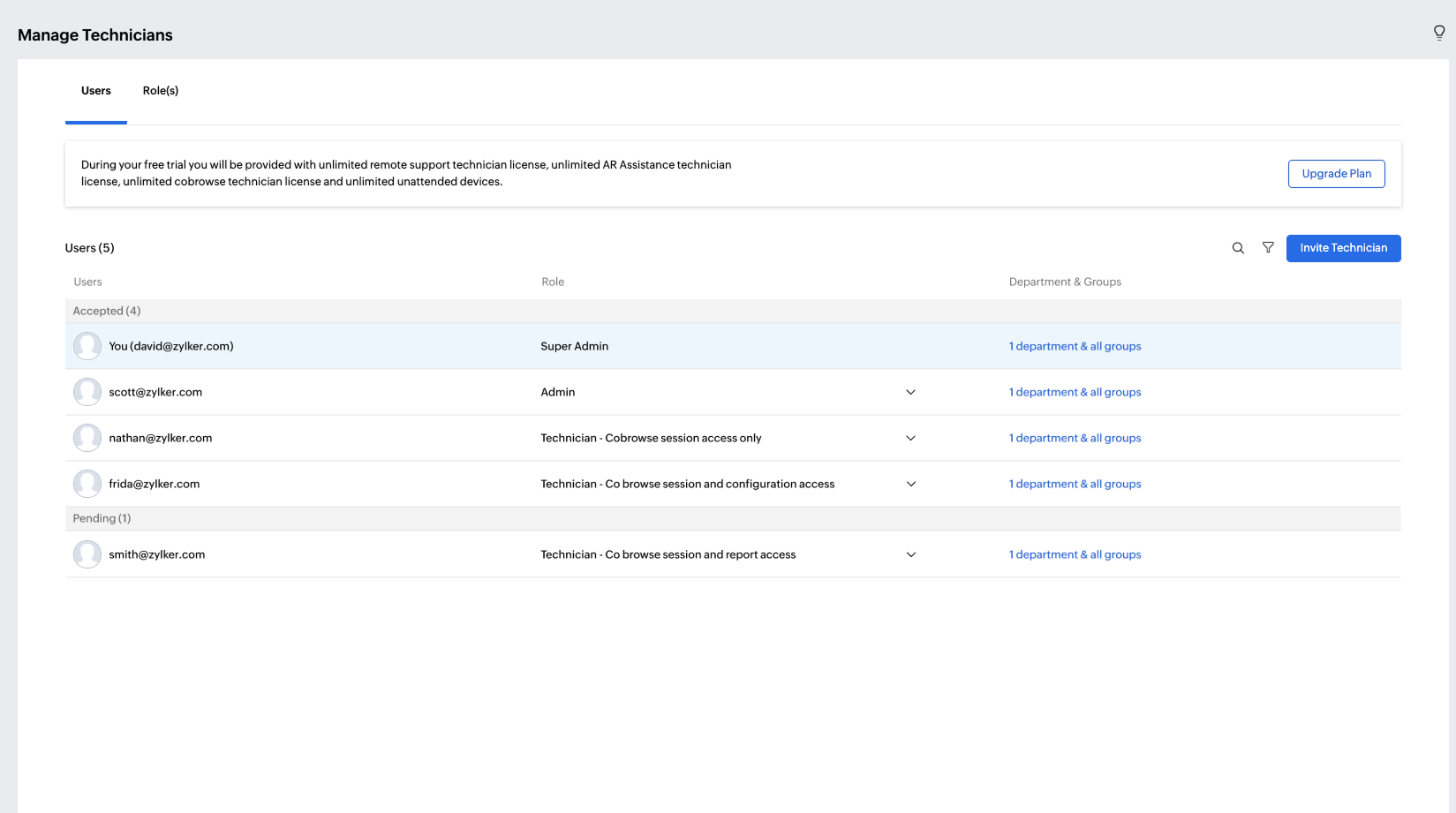
Once the role is created, you can invite a technician and assign this custom role. After the technician accepts the invitation, they’ll appear in the list with the assigned role.
How to assign a Custom Role to Technicians
Assign a Custom Role to an Existing Technician
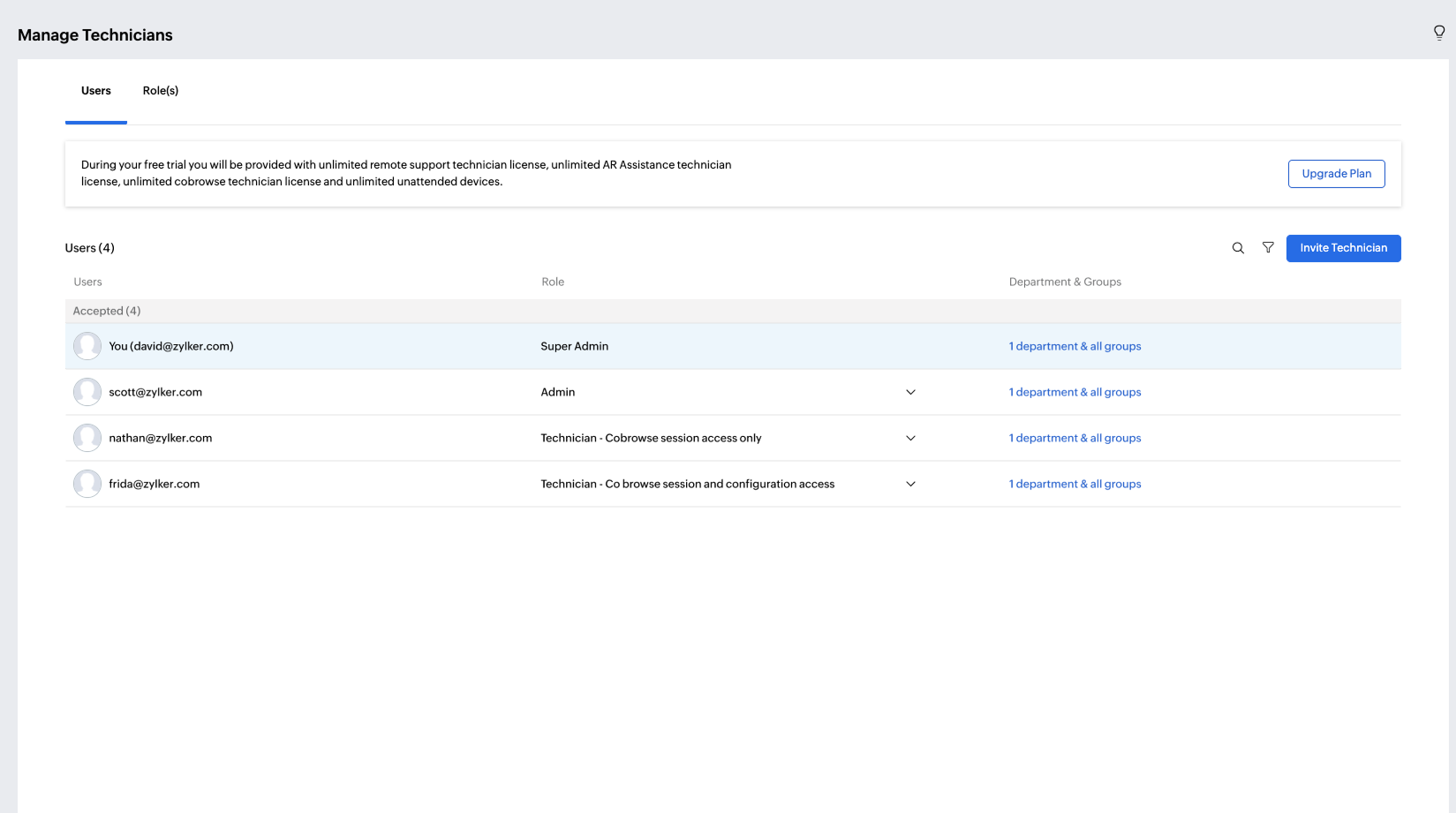
Go to Manage Technicians > Users.
Locate the technician in the list.
Under the Role column, click the dropdown next to the technician’s name.
Select the custom role you wish to assign.
Assign a Custom Role to a New Technician
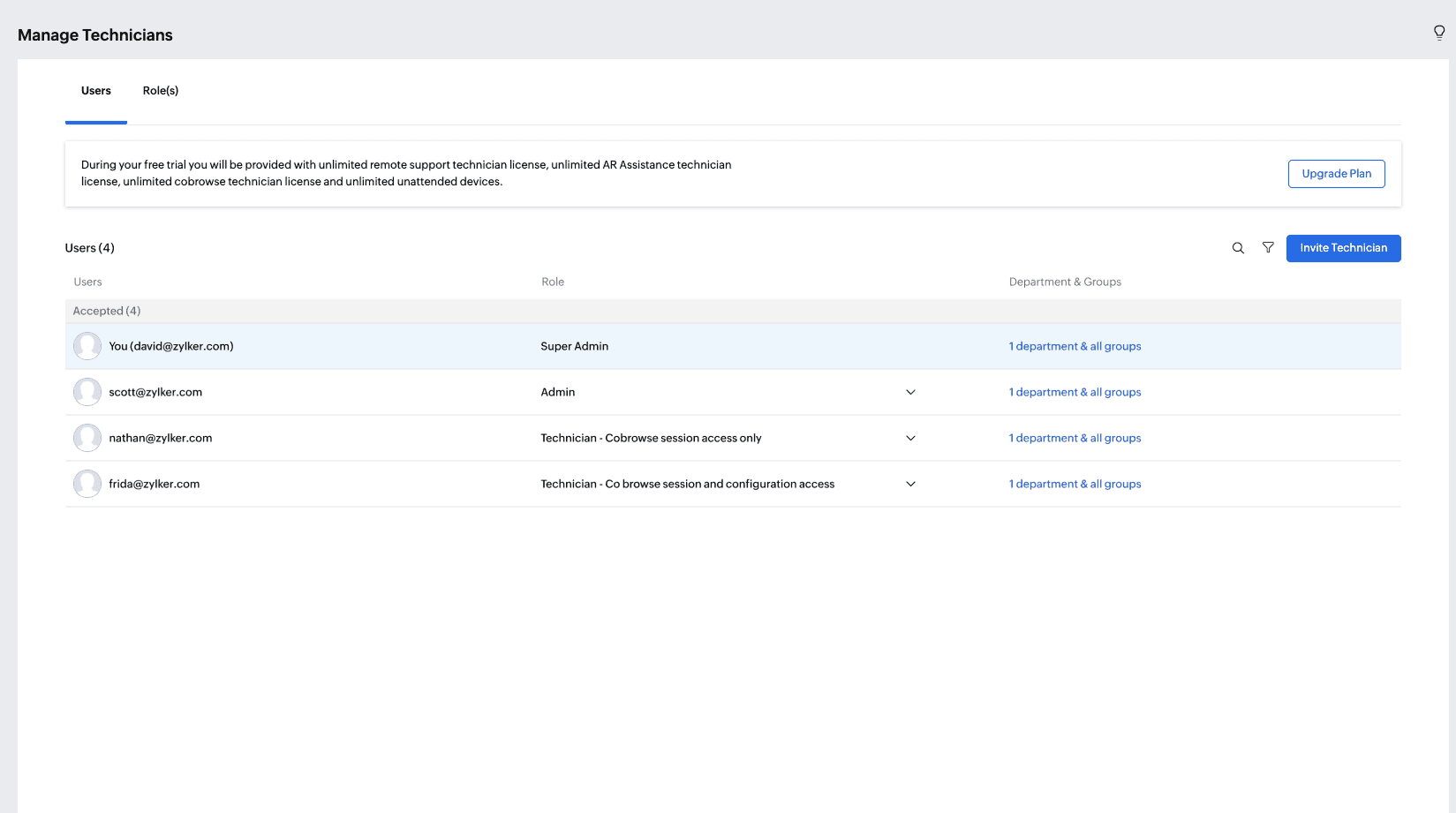
Go to Manage Technicians > Users.
Click Invite Technician. You can invite a single technician or multiple technicians at once.
Under Invite One by One, enter the technician’s email address.
From the Role dropdown, select the custom role you want to assign.
Click Invite.
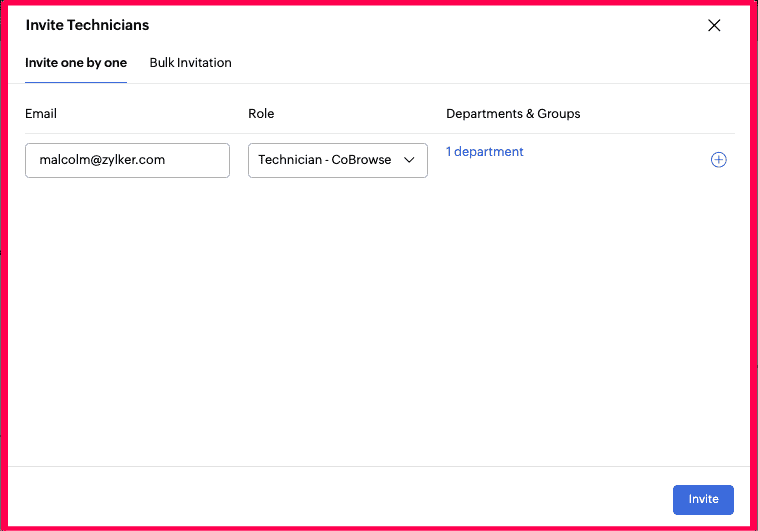
The technician will appear under the Pending tab until they accept the invitation.
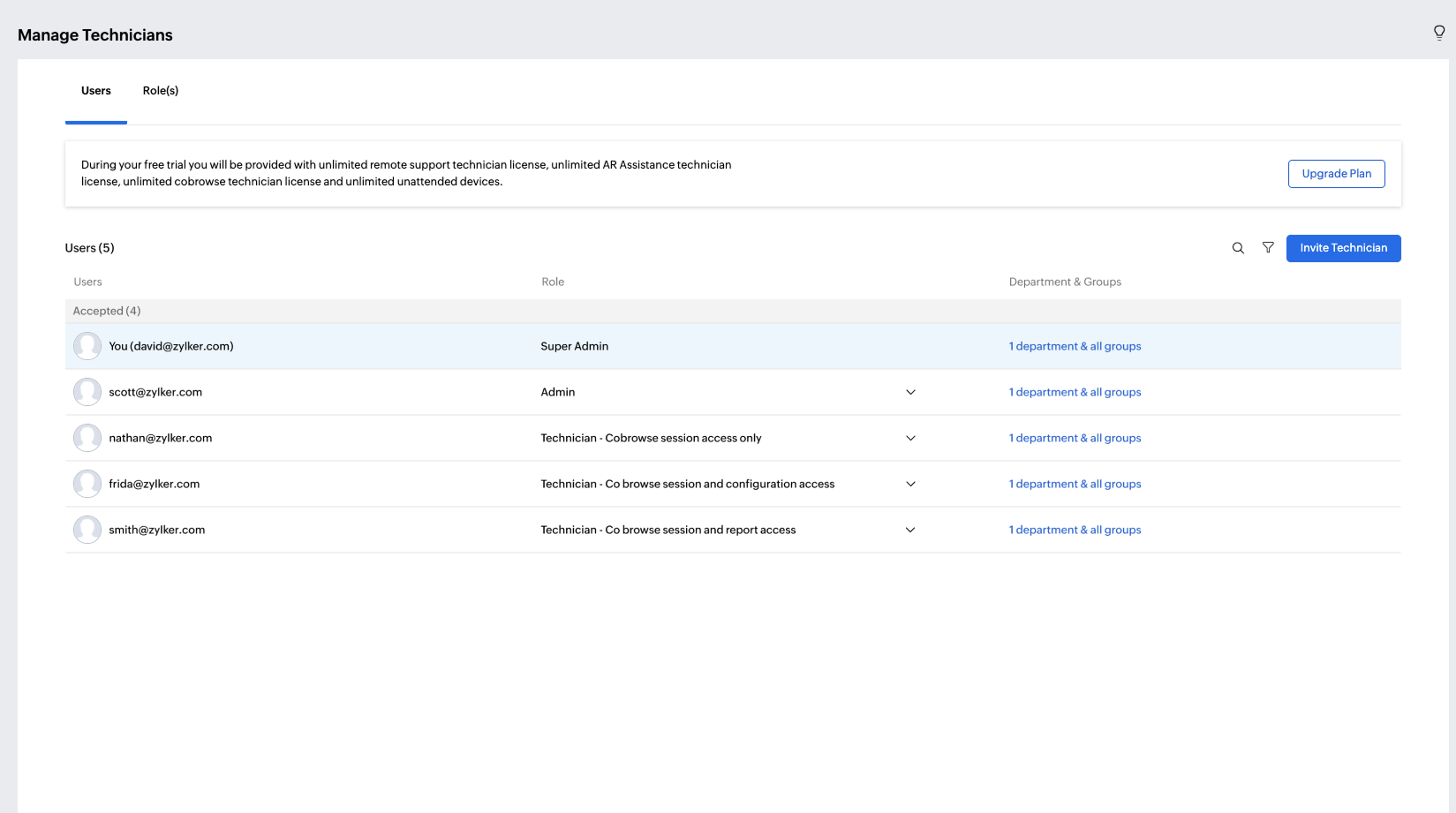
After acceptance, they will move to the Accepted list and gain access based on the assigned role’s permissions.
To grant Cobrowse session permissions
You can assign cobrowse session access to any existing role by
Navigating to Settings > Organization > Manage Technicians.
Under Roles, select the desired role and click Edit.
Under Permissions, enable the Cobrowse checkbox to grant cobrowse session access.
Click Save to apply changes.
To Provide Cobrowse Configuration and Settings Access
By default, only the Super Admin has access to Cobrowse configuration and settings.
The Technician – Cobrowse role cannot modify or configure Cobrowse settings.
While creating or editing the role. You can grant configuration access to a Custom Role by enabling Cobrowse Configuration and Cobrowse Settings in under Cobrowse Preferences permissions
Click Save to confirm the changes.

To Assign Cobrowse Session Reports View Access
Once assigned, technicians can access and view reports related to Cobrowse sessions based on the permissions assigned.
Super Admin – Can view all Cobrowse session reports across the organization.
Technician – Cobrowse – Can view only their own Cobrowse session reports.
Custom Role – Can view Cobrowse reports if the Cobrowse-Custom permission is enabled in organization settings.
To enable:
Go to Manage Technicians, under Role(s) tab, click New Role or edit an existing one.
Under Organizational Reports, enable Cobrowse-Custom.
Click Save to confirm.
