How to Join a Cobrowse Session
- Using Website Widget
- Using Browser Extension
If you’re a customer, you can join a cobrowse session using the widget on the website when the cobrowse widget is already embedded and the support agent asks you to join from that page.
- Locate the cobrowse widget on the website where you need assistance.
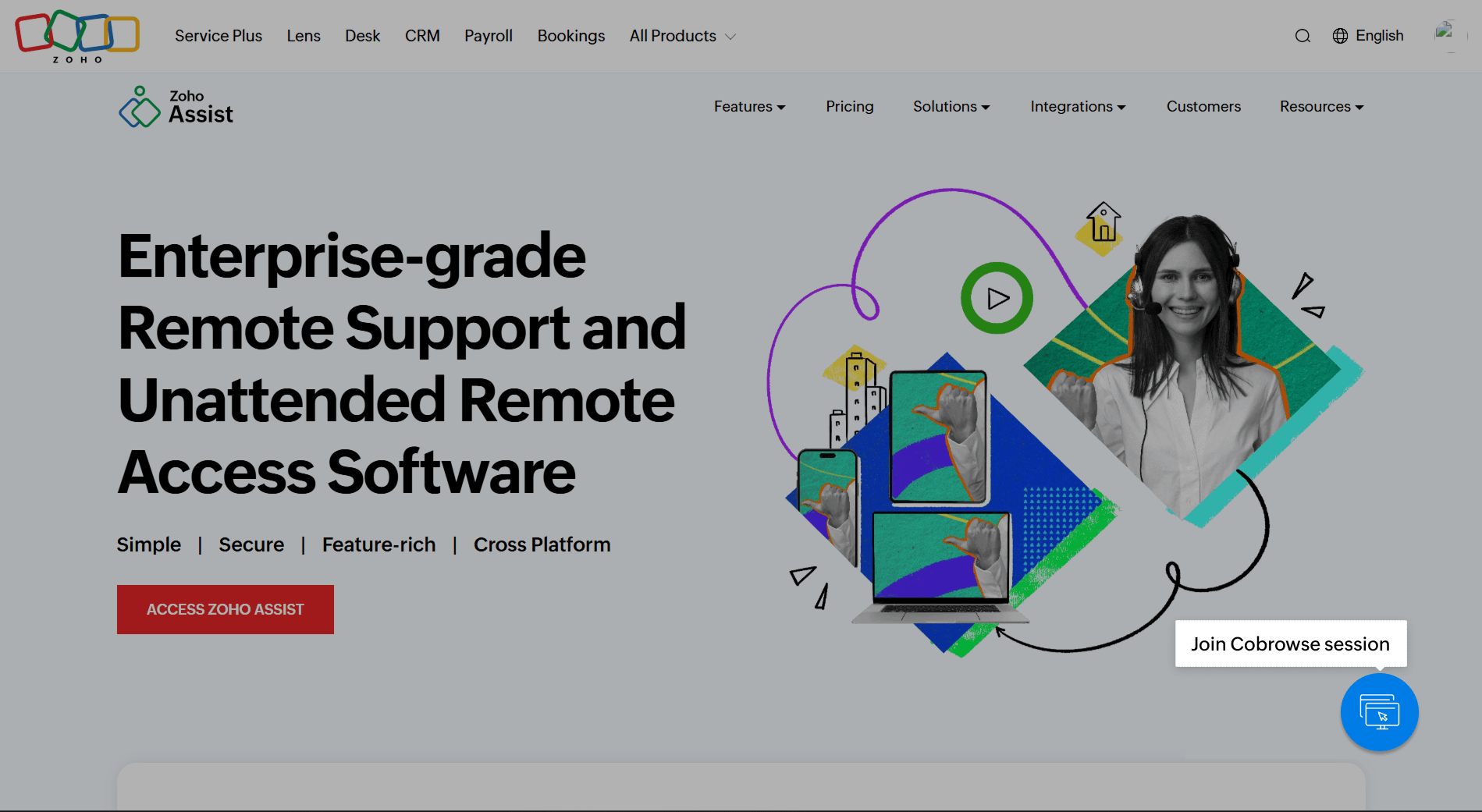
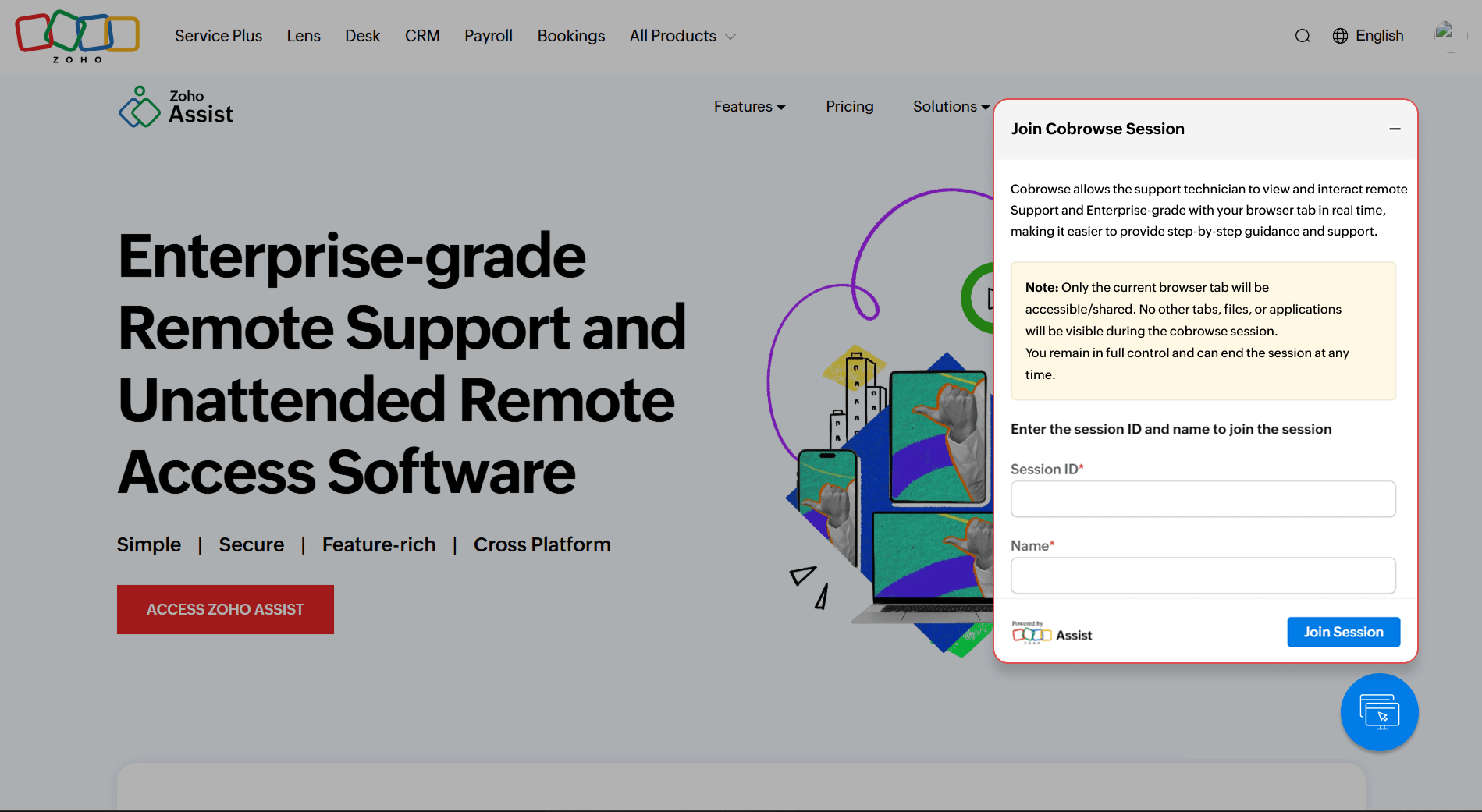
- Enter the session key provided by the support agent or technician, along with your name.
- Click Join Session to send your request to the technician.
- Wait for the technician to accept your request. Once accepted, the live cobrowse session will begin.
During the session, the technician can view your screen and guide you in real time. You can view the technician’s details anytime by clicking the widget icon.
When the session is over, you or the technician can end it at any time. To end the session yourself, click the widget icon and select End Session.
If you’re a customer, you can also join a cobrowse session using the Cobrowse by Zoho Assist browser extension when the website does not have the cobrowse widget.
Your support agent may ask you to join through the extension to get support on any webpage.
To join a cobrowse session:
- Install the Cobrowse by Zoho Assist extension for your browser (if not already installed).
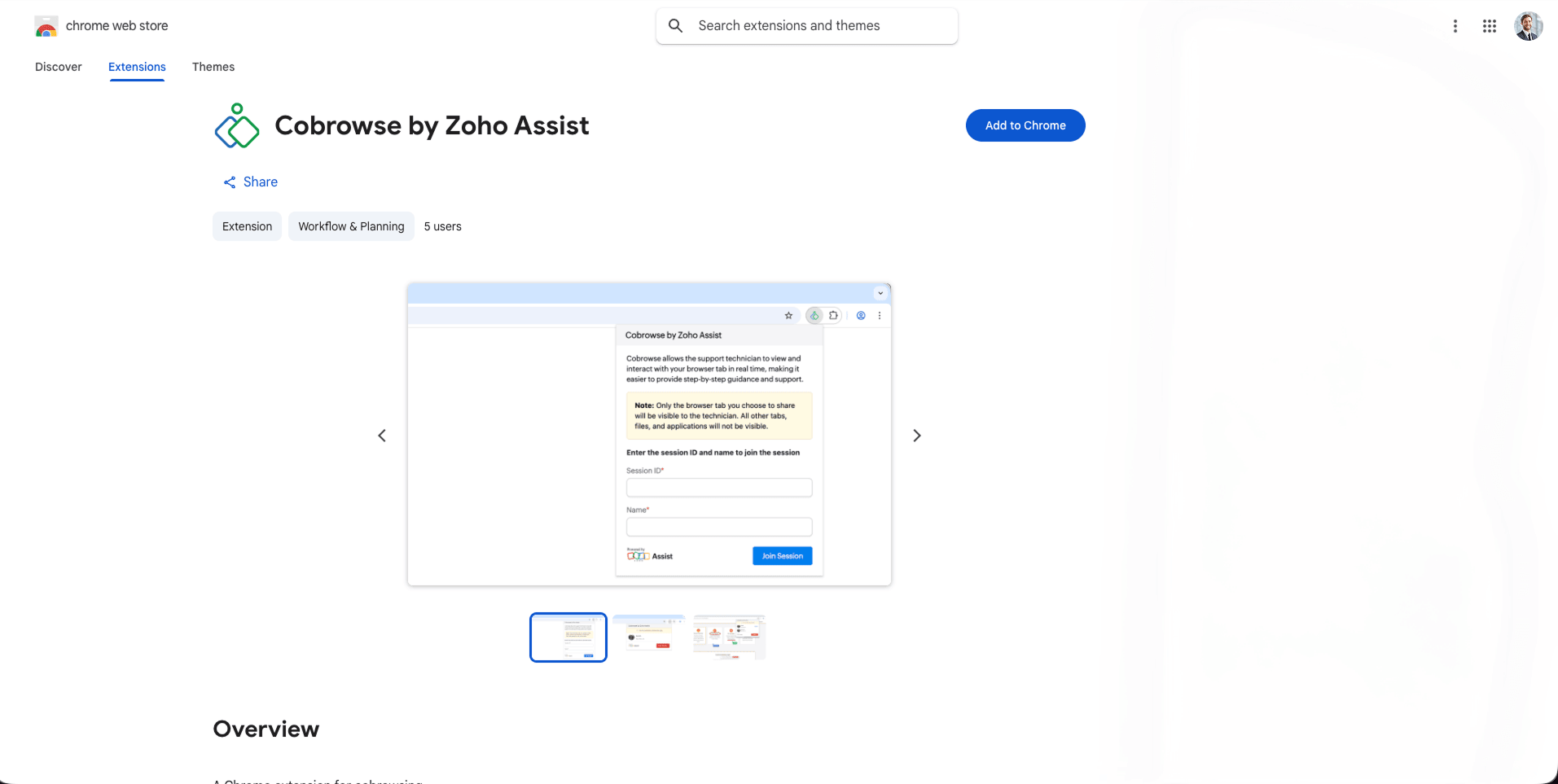
- Open the webpage where you need assistance.
- Click the Extensions icon in your browser toolbar and open Cobrowse by Zoho Assist.
- Enter the session ID shared by the technician along with your name.
- Join the session to start cobrowsing with the technician.
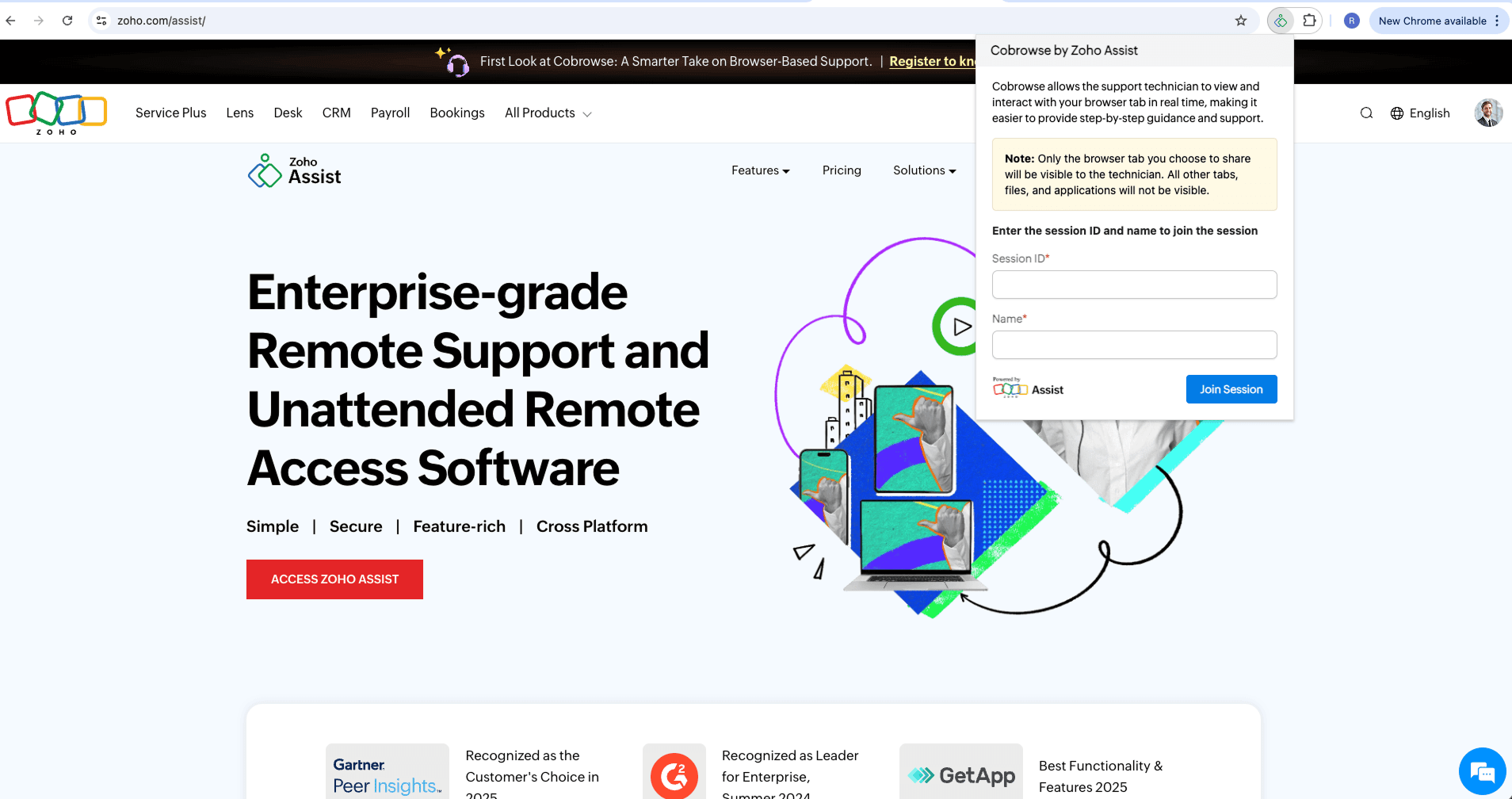
Once connected, the technician can guide you through the webpage in real time to help resolve your issue.