


What is the Departments feature?
The Departments feature allows organizations to create and manage different support teams or departments within the system. Each department can have its own set of technicians, configurations, and support resources. This ensures that incoming support requests are routed to the right group of technicians, improving response times and operational efficiency.
What are the benefits of using departments
Streamlined support routing
Automatically routes incoming requests to the right department, reducing confusion and improving resolution times.
Customizable settings
Each department can have its own unique settings, enabling tailored support for different customer segments.
Improved technician efficiency
Technicians can focus on their areas of expertise, ensuring faster and more accurate resolutions.
Efficient resource management
By organizing support teams into departments, businesses can allocate resources more effectively and monitor performance based on department-specific metrics.
How to Add Departments in Zoho Assist
- Log into Zoho Assist from https://assist.zoho.com
- Go to Settings > Organization > Departments
- Click the Add Department button to start creating a new department
- Fill in the Department Name, Display Name, and Description fields for your new department:
- Click the Add Technician button to assign technicians to this department.
- Click Configure to set up the department further. This allows you to customize email templates, email settings, and add contacts to the department.
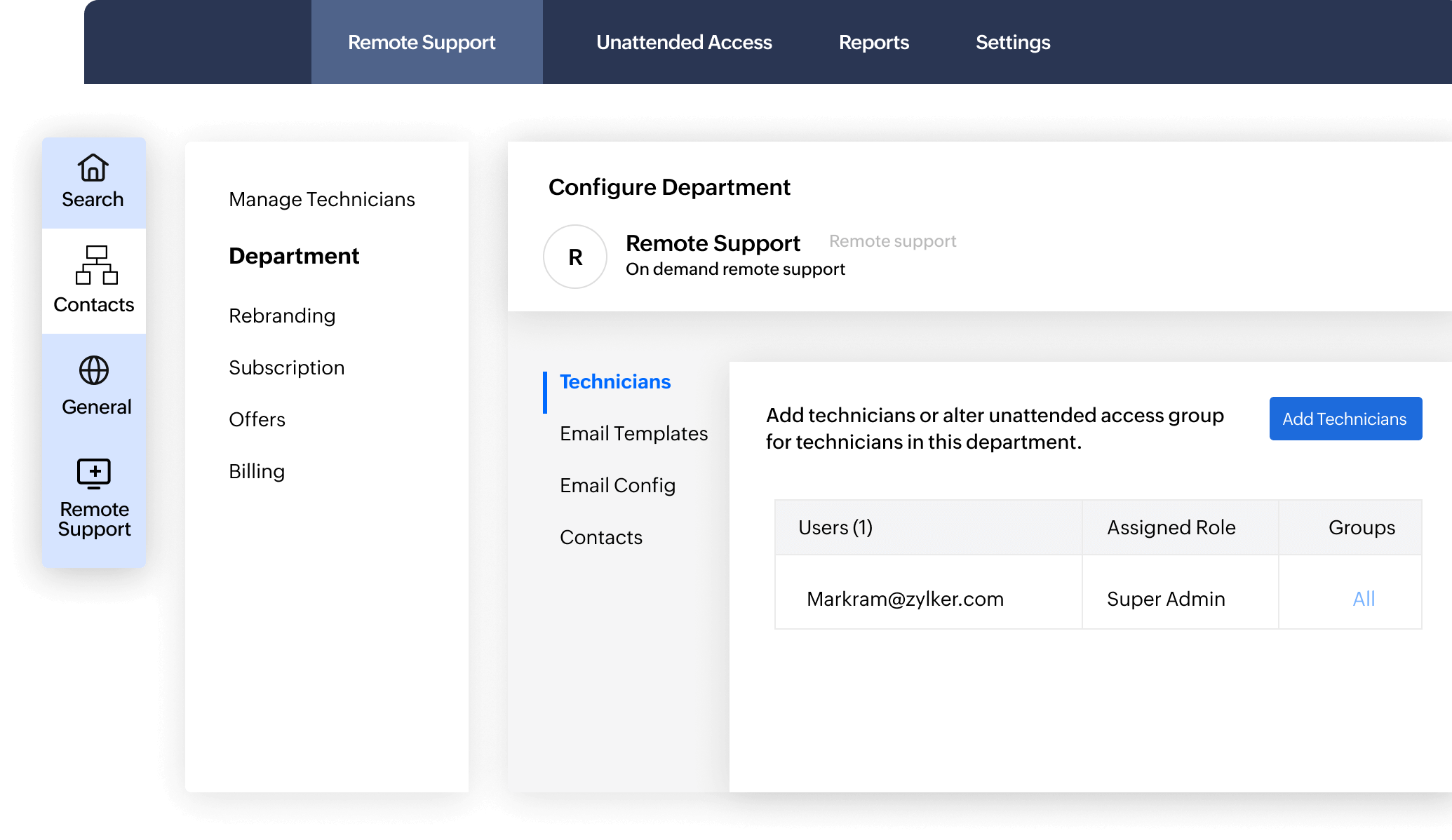
How Zoho Assist's Departments feature benefits users

Specialized support
Customers receive support from technicians who specialize in their specific issue, leading to faster and more accurate resolutions.

Optimized team management
Support managers can assign technicians to different departments based on their skills, ensuring a well-organized support structure.

Custom workflows
Each department can have its own workflows, such as different escalation paths or custom response templates, tailored to the needs of that particular team.

Segregated reporting
Reports and analytics can be generated based on departments, allowing businesses to measure performance, track KPIs, and improve support efficiency in specific areas.
Frequently Asked Questions
The primary benefit is routing incoming requests to the right group of technicians based on their expertise, which helps improve response times and ensure accurate resolutions.
You can create custom departments based on your business needs or specific support areas to organize and manage your support teams effectively.
To enable or disable a department, go to Settings > Organization > Departments, and choose either Active or Inactive for the desired department. Learn more
Yes, technicians can be assigned to multiple departments if their skillset is needed across various support areas.
Zoho Assist does not impose a strict limit on the number of departments you can create to make it flexible for both small businesses and large enterprises.
To enable or disable a department, go to Settings > Organization > Departments, and choose either Active or Inactive for the desired department. Learn more
Yes, contacts can be imported from Google or from your computer for each department by going to Settings > Organization > Departments, selecting Configure, and clicking Contacts. Learn more