Workflow Orchestration
Zoho Analytics lets you go beyond single step actions. Any trigger can kick off a fully automated, end-to-end workflow that spans multiple systems and teams. With the embedded Zoho Flow builder, you can visually design, manage, and scale complete automation pipelines directly within Zoho Analytics, without writing a single line of code.
Traditional alerts notify you when something changes, but the workflows act on it. In Zoho Analytics, workflow orchestration means that any trigger can initiate a coordinated, multi-step sequence of actions across your connected tools and teams automatically, the moment your data conditions are met.
What Workflows Make Possible
- Full Pipeline, Not Just One Action:
Every trigger sets off a complete, multi-step sequence spanning CRM updates, support tickets, notifications, and more, automatically and in sequence. - Visual, No Code required:
Drag, drop, and connect actions using the embedded Zoho Flow builder - right inside Analytics, without writing a line of code.
Supported App Categories
The broad library of connectors in Zoho Flow (for more than 1,000+ apps) allows you to link multiple ecosystems within a single workflow. Here are some of the categories supported:
- CRM & Sales – Zoho CRM, Salesforce, HubSpot CRM, Pipedrive
- Customer Support – Zoho Desk, Zendesk, Freshdesk, Help Scout
- Live Chat Platforms – Zoho SalesIQ, Intercom, LiveChat, Tidio
- Email & Marketing – Zoho Campaigns, Mailchimp, HubSpot Marketing Hub, ActiveCampaign
- Project Management – Zoho Projects, Trello, Asana, ClickUp
- Finance & Billing – Zoho Books, QuickBooks Online, Stripe, Xero
- HR & Recruitment – Zoho People, Zoho Recruit, BambooHR, Workable
- Collaboration Tools – Zoho Cliq, Slack, Microsoft Teams, Google Chat
- and many more
Creating Workflows
Workflows in Zoho Analytics attach to triggers and can run on any trigger type. Data-driven triggers such as data alerts are a natural starting point, but any trigger condition defined in Zoho Analytics can kick off a workflow.
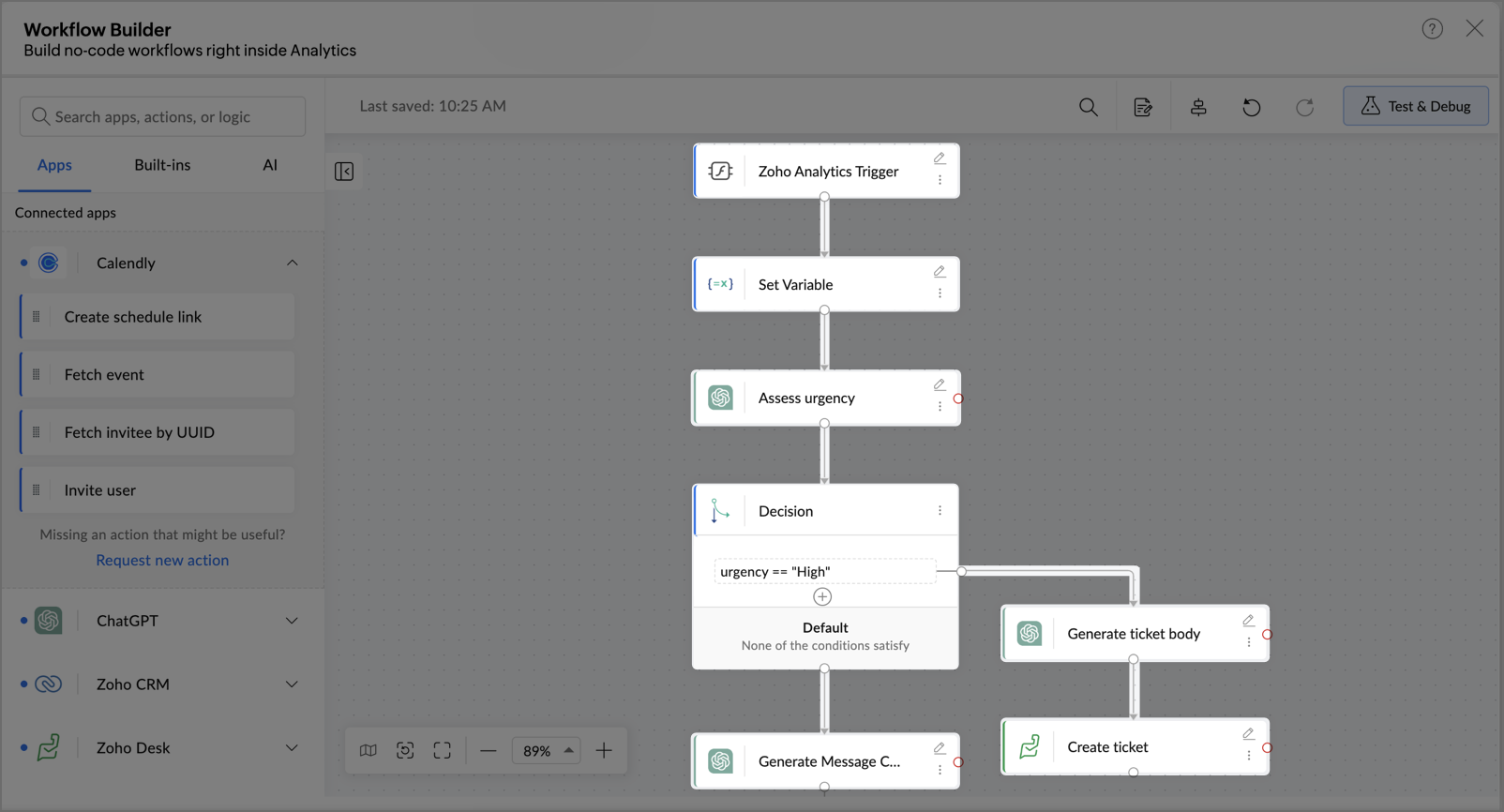
To create a workflow, navigate to Workspace Settings > Alerts and select Create/Manage Alert. In the Actions to Perform section, go to Workflows and click Edit or Configure. This opens the workflow builder directly inside Zoho Analytics — a visual, drag-and-drop canvas where you build your entire pipeline, from triggers and connectors to logic and actions, without switching tools or writing a single line of code.

Inside the Workflow Builder
1. Trigger — the starting point:
- The Trigger from Zoho Analytics is the starting point of every workflow, it defines when the orchestration kicks off.
- Once it fires, the downstream pipeline runs automatically. Nothing executes before it.
2. Drag and drop connectors:
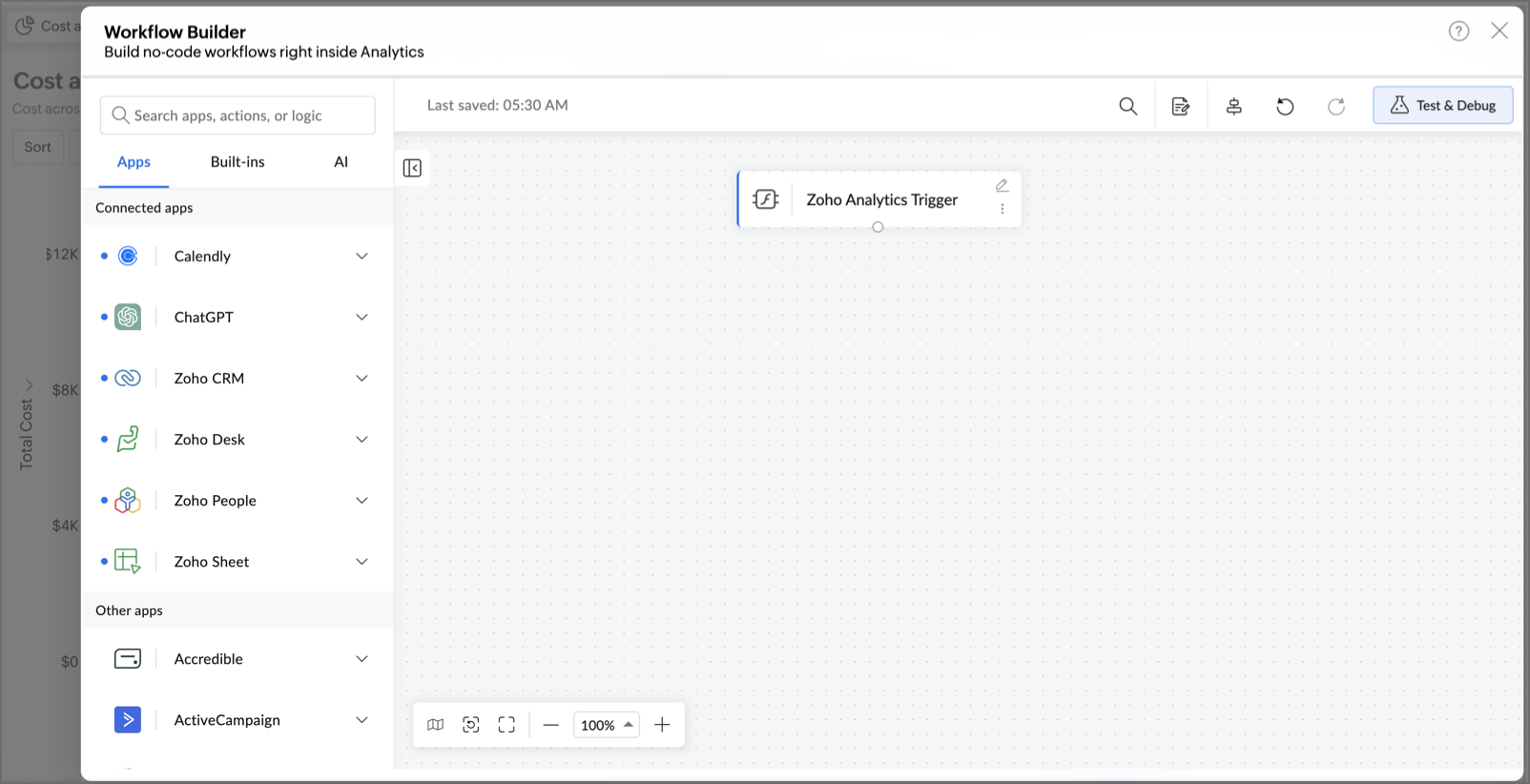
- Library of connectors
- You can drag and drop connectors onto the canvas after the trigger. Each connector represents an action in an external app or service, and chain them in sequence to define the full flow.
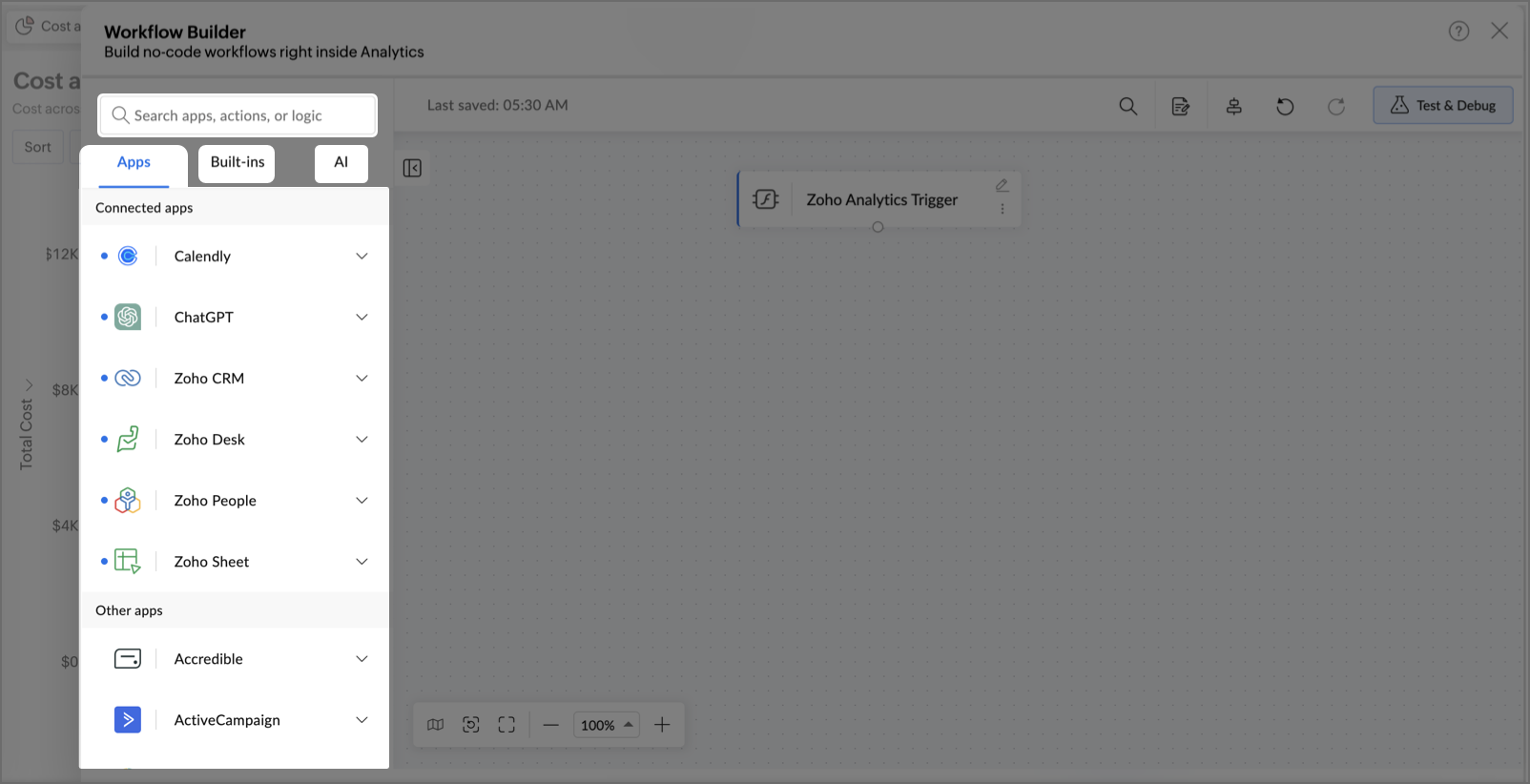
- Workflows in Zoho Analytics support a broad library of connectors across Apps, Built-in logic, and AI utilities.
- Use the Search bar on the left pane to find any app or action quickly
- Built-in logic for smarter flows:
- You can go beyond linear sequences based on your data using Flow's built-in logic controls
- Set variables
- Add conditional branching
- Introduce delays
- Define if-else paths to route actions
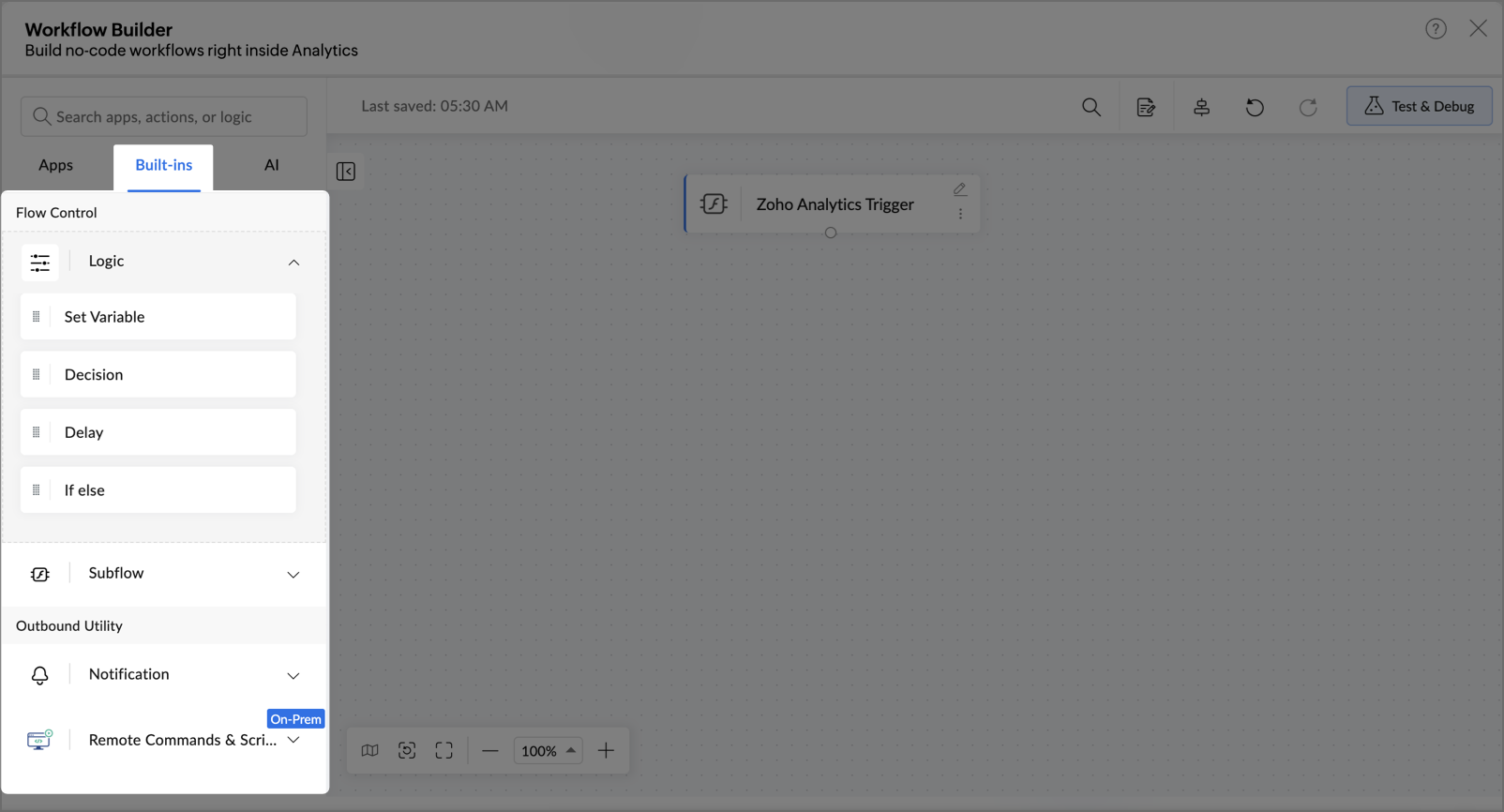
- You can go beyond linear sequences based on your data using Flow's built-in logic controls
- AI utilities for context-aware decisions:
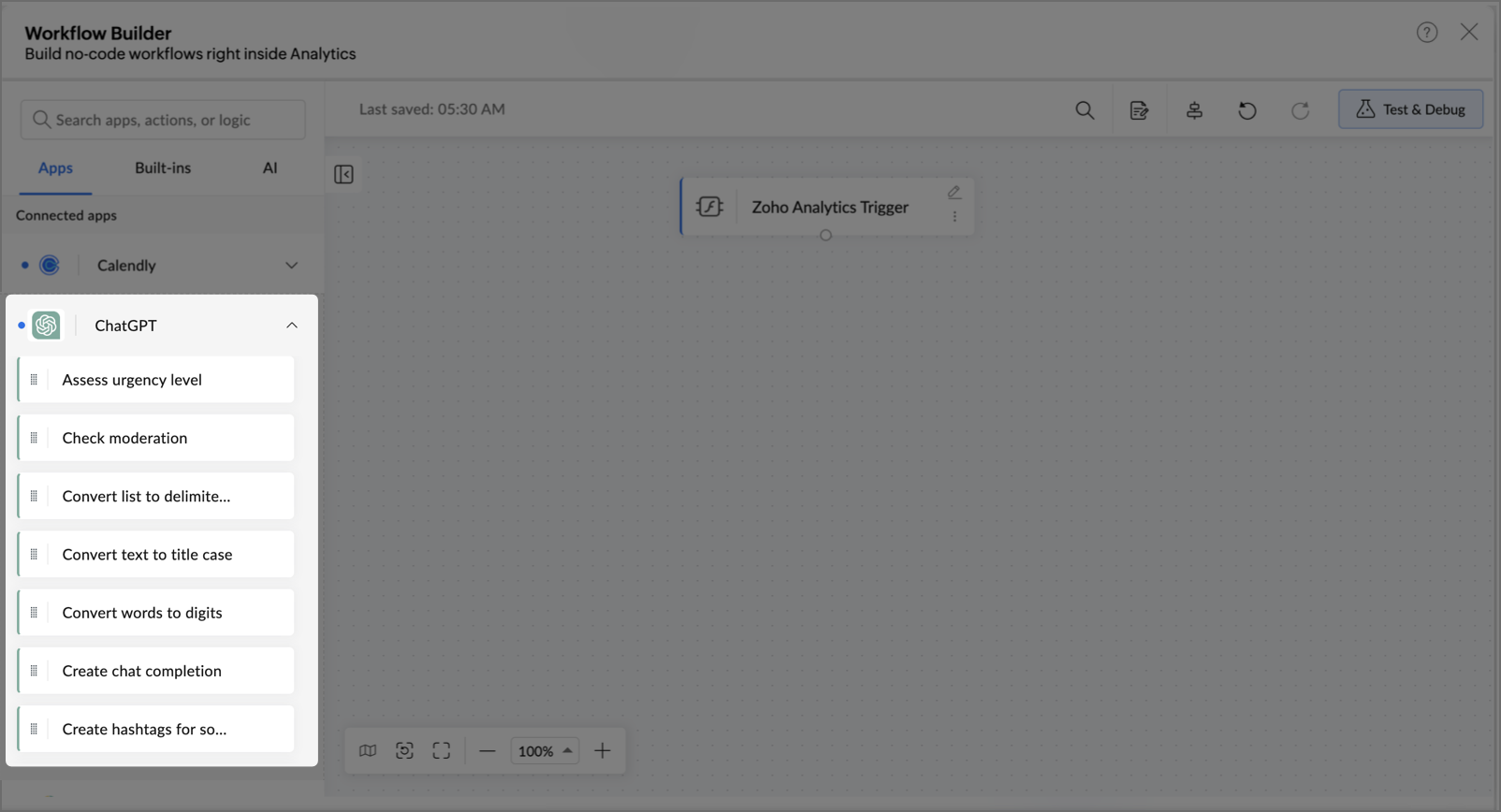
- The workflow builder includes built-in AI utilities that let you embed intelligent actions at any step, so your workflow doesn't just move data, it understands and acts on it.
- You can use AI utilities to generate content, summarize text, label and classify data, verify accuracy, mask sensitive information, and more.
- Goal-Oriented Orchestration: AI utilities evaluate context at each step — classifying, deciding, generating — so the pipeline drives toward a defined outcome, not just a sequence of actions.
- Pair these with AI app connectors like OpenAI and Claude (Anthropic) to bring large language model capabilities directly into your automation pipeline.
- These AI connectors assess the trigger context and choose the right action paths like retaining a customer, resolving an issue, or closing a revenue gap autonomously.
- For example, when support ticket volume spikes beyond a set limit, the workflow uses OpenAI to classify and prioritize incoming tickets by urgency, routing each one to the right team before anyone has to manually read through them.
3. Authorize apps and configure secure connections:
- Once you add any connector onto the canvas, a new configuration dialog will open allowing you to create a secure connection between the connector and Zoho Flow.
- Authenticate each connector before it participates in a workflow.
- Click the Edit icon next to any app, built-in, or AI utility to update its configuration.
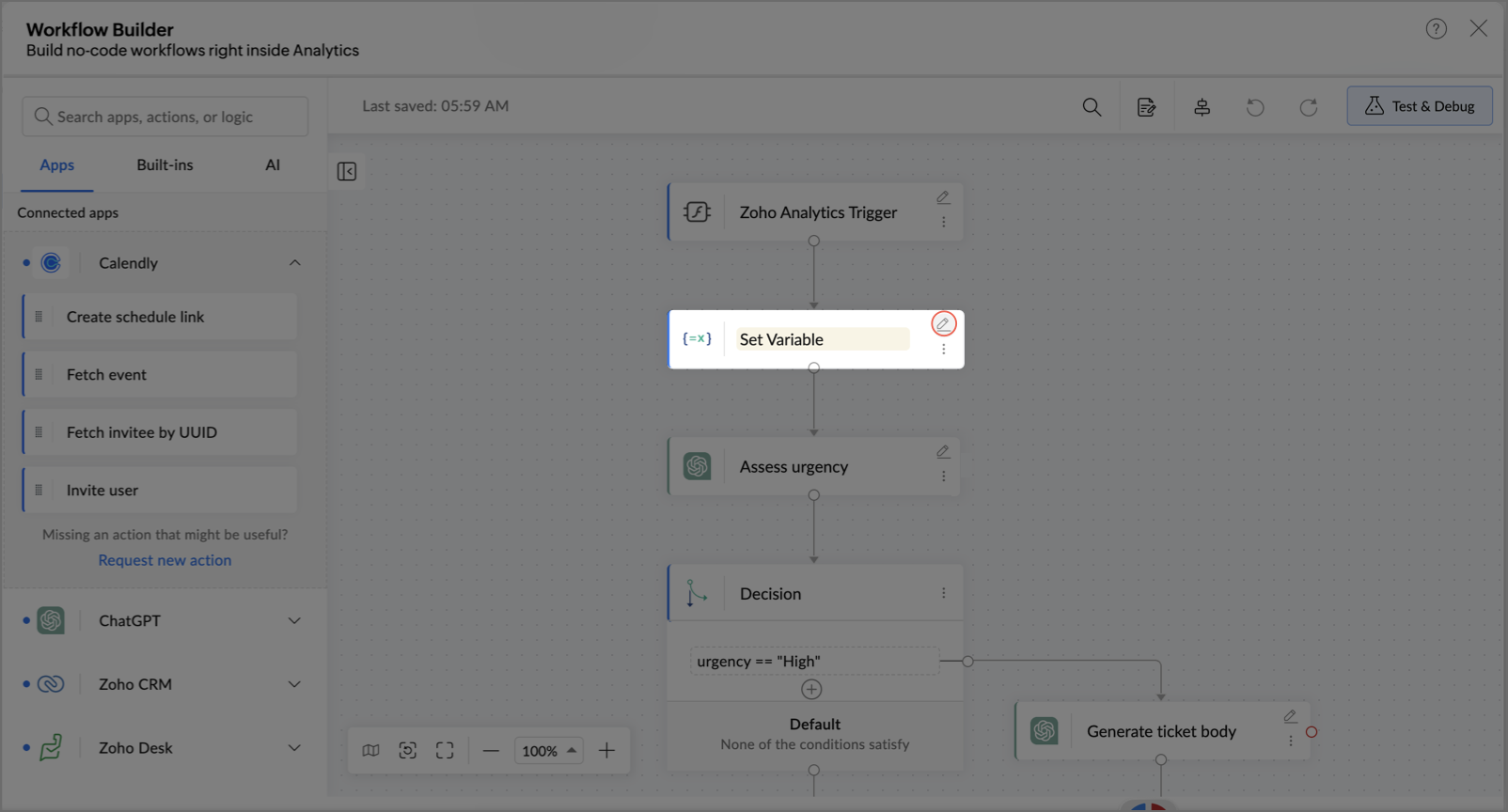
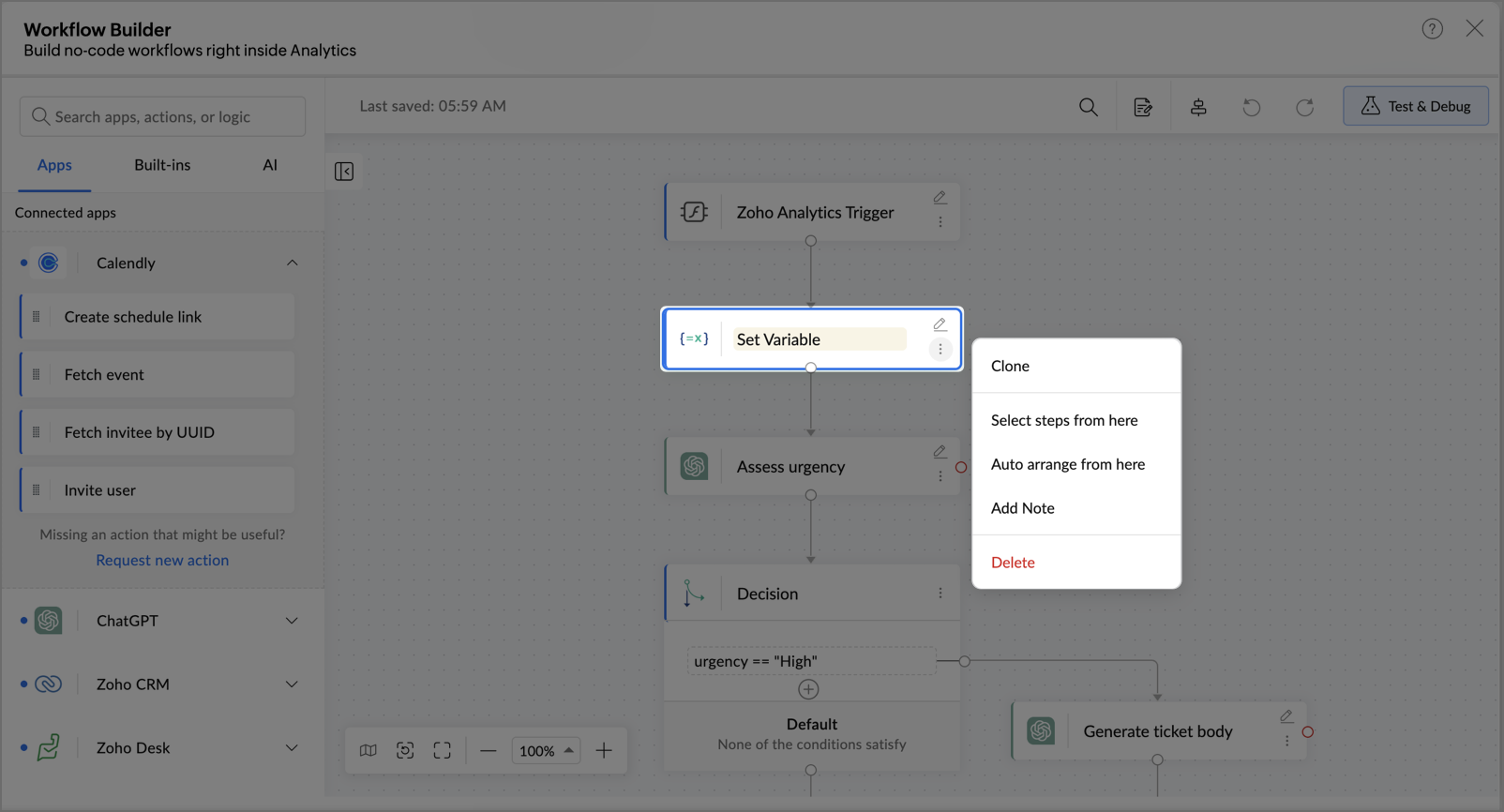
- Use the More options icon to clone a step, add a note, or remove it from the canvas.
4. Workflow Builder Tools
The Workflow canvas includes a set of tools that help you build, refine, and validate your workflow efficiently.
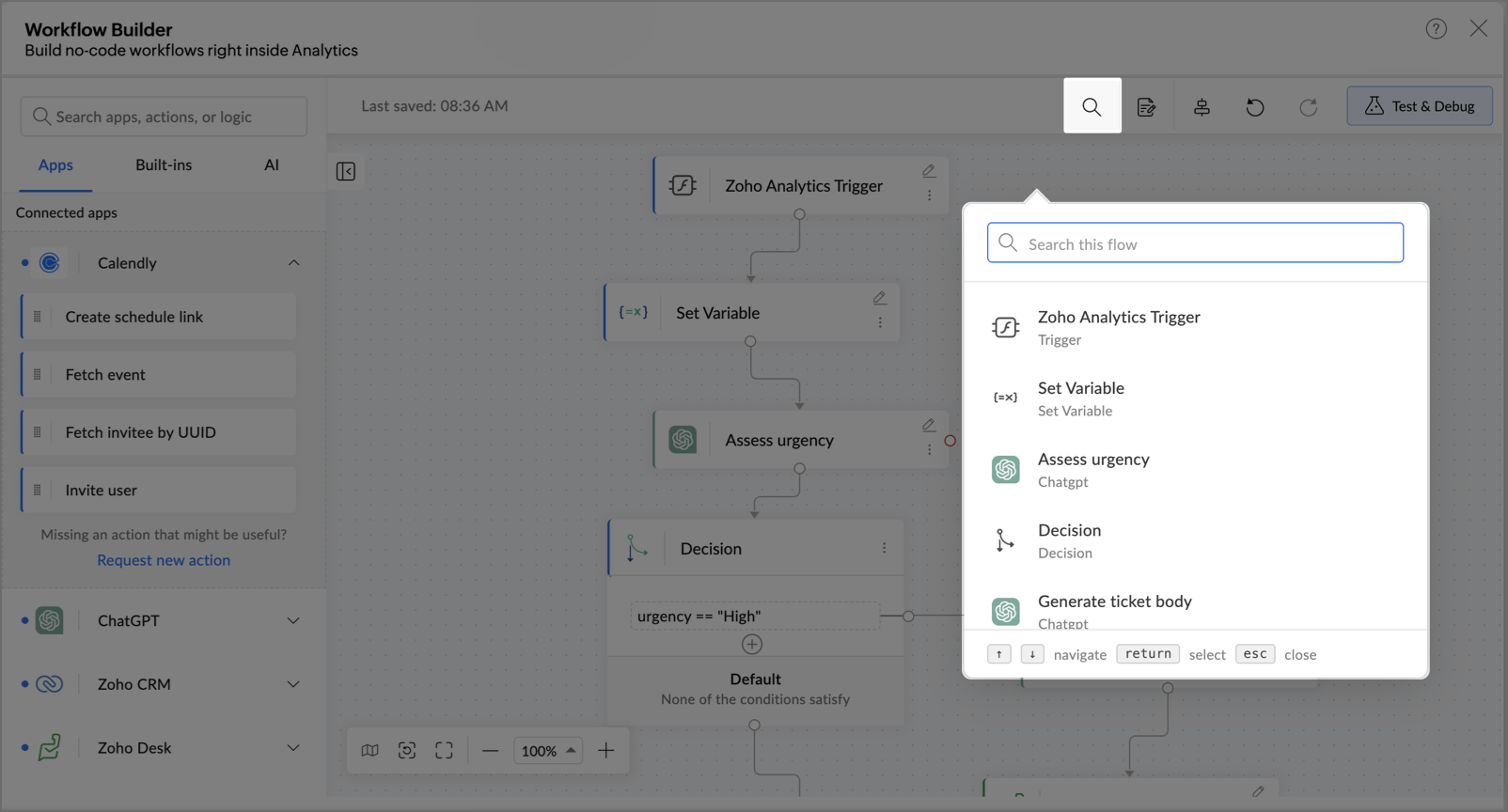
- Search Apps & Actions: Find any connector or action instantly using the search bar on the canvas, no scrolling through long lists.
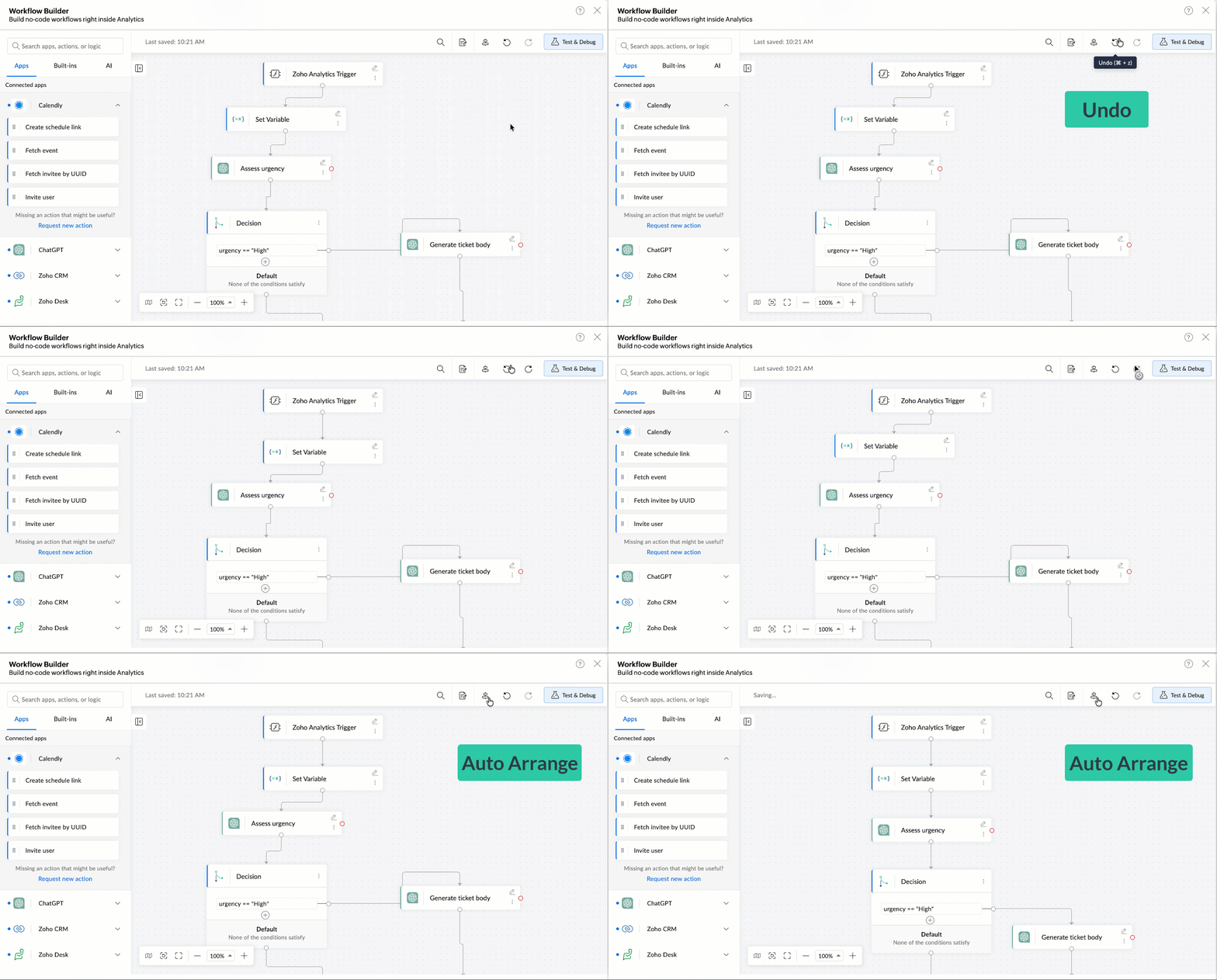
- Undo & Redo: Step backwards or forwards through your changes freely as you design and iterate.
- Auto Arrange: Automatically organize nodes on the canvas for a cleaner, easier to read layout.
- Live View & Versions: Monitor the active workflow in real time and compare it against previous versions to track changes over time.
- Zoom, Fit & Map: You can zoom in for detail, zoom out for an overview, fit the flow to the canvas, or use the mini map to navigate large workflows.
- Test & Debug: Run your workflow in test mode to validate each step before it goes live. Catch and fix issues before they affect production.
Managing and Governing Workflows
Once tested, activate the workflow directly from Zoho Analytics, no external steps needed to take it live. When a trigger fires, the entire orchestration runs on its own - every connected action executes in sequence, end to end, without any manual involvement.
Workflows are designed to be controlled, not just automated. Every pipeline comes with built-in governance capabilities to keep it reliable, observable, and auditable as it scales:
- Approvals & Human-in-the-Loop:
Insert approval checkpoints at any stage so critical actions require explicit sign-off before the workflow proceeds. - Monitoring:
Track every workflow in real time. See which steps succeeded, which failed, and where bottlenecks occurred across your entire automation stack. - Error Handling & Retries:
Configure retry logic and fallback paths so workflows recover gracefully — no silent failures, no data left incomplete. - Audit Trail via Run History:
Every execution is logged — trigger, steps, outcome, and timestamp — giving you a complete record for compliance, debugging, and accountability.