Create Workspace
Workspaces are where you create and manage all your views for reporting and analysis. This allows you to group your data sets logically (stored in entities called Tables) and create insightful reports and Dashboard over your data.
Zoho Analytics provides various options to create a workspace. This section explains the best methods for serving reports to white label instance.
- Single Workspace
- Multiple Workspace
- Blank Workspace
Single Workspace
When it comes to serving reports with the same template to all your white label users, it is recommended to create a single workspace and share it with dynamic filtering. With this option, you can share the same views with different users with different data. However, each user will only see the specific data shared with them.
This allows you to manage the workspace easily. It is not required to create the same reports repeatedly for each set of users.
Multiple Workspace
Zoho Analytics allows you to create an unlimited number of workspaces. You can create one workspace for each set of white label users. When the users access the white label instance, only views shared with them will be displayed.
This option is best when you have a unique set of analysis for each set of white label users.
Blank Workspace
You can also allow your users to create the reports as they need. Create a blank workspace and share it with the Workspace Administrator privilege. Your users will now be able to import their data and create reports and dashboards over them.
Enabling Workspace
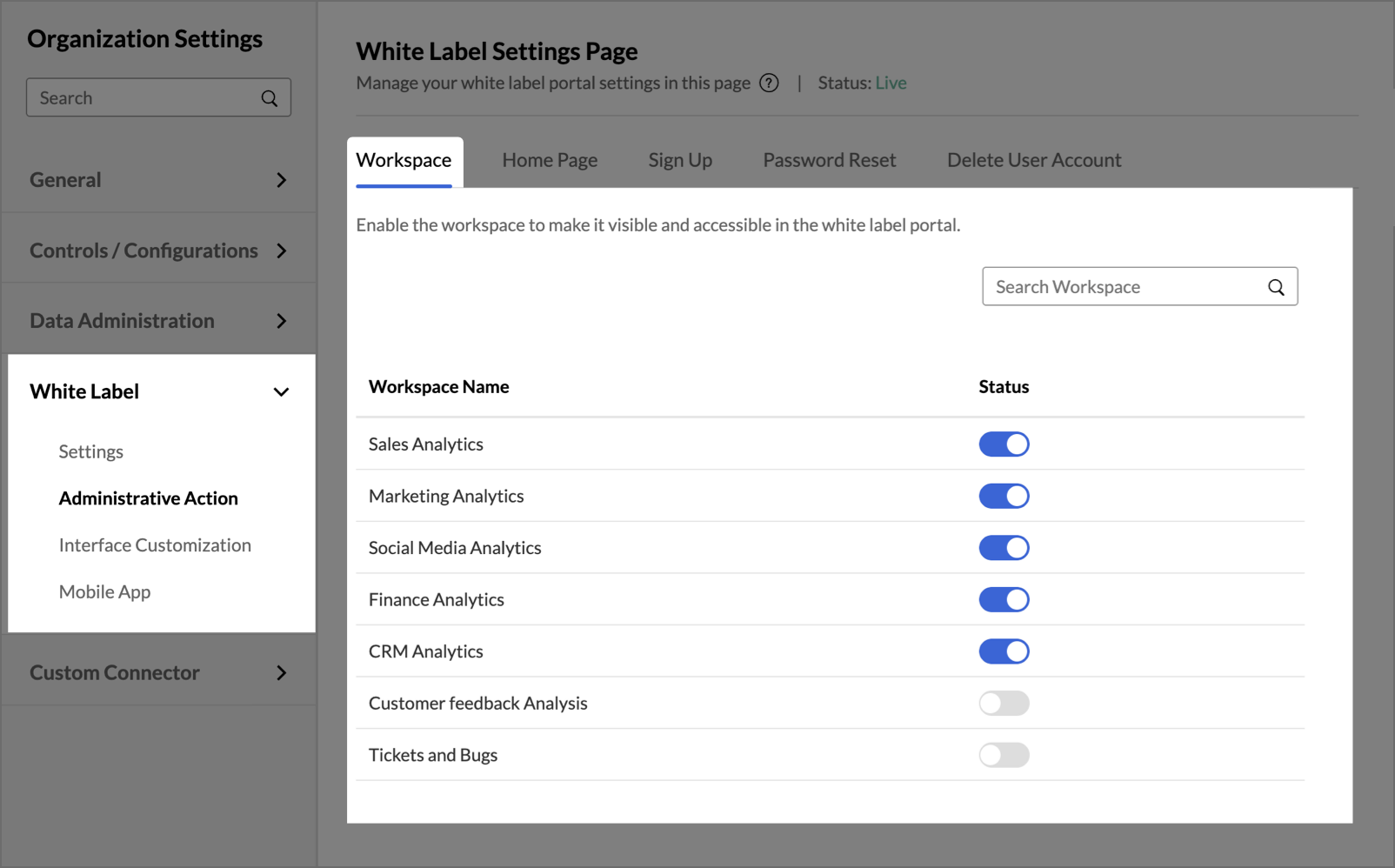
Once you have created the Workspace, you need to enable it to add it to your white label instance.
To enable a workspace:
- Open White Label settings.
- Click the Administrative Action tab.
- All Workspaces will be listed. Set the Status toggle button as Enabled. It will now be added to your white label instance, and you will be able to share it with your users.
Note: Your white label instance users will only be able to access the views shared with them and not all workspace in enabled mode.