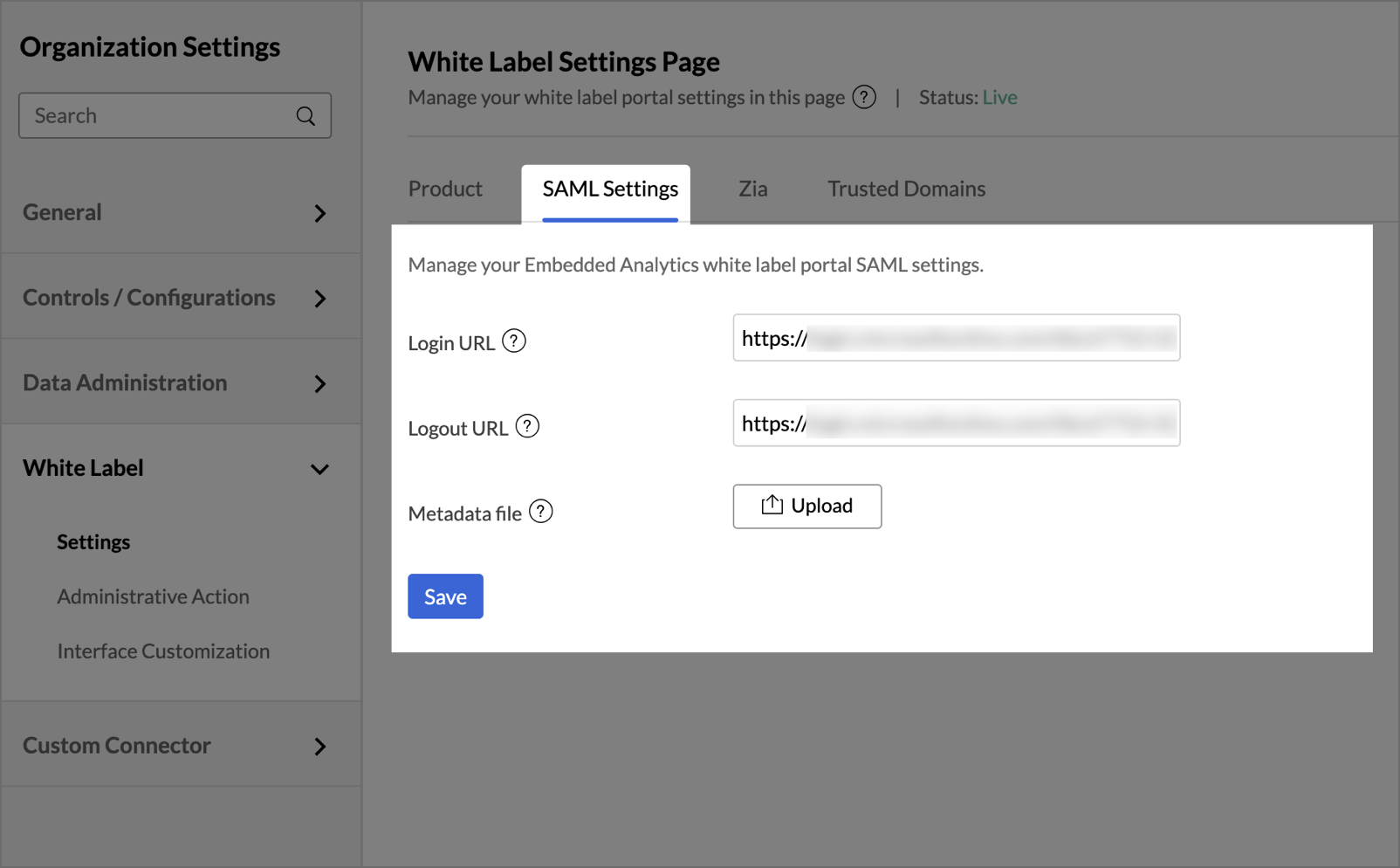
Manage Security / JWT / SAML Configuration
The configuration of this section may differ depending on the specific white label solution you have selected.
Security
Configure and manage your white label portal's authentication and password settings.
Sign-in Methods
The Sign-in Methods tab displays the authentication method currently applied to your white label portal and allows you to configure the sign-in options available to your users.
Non-SSO (Native Login)
Non-SSO (Native Login) allows your users to sign in to your white label portal with their email address and password. You can also configure social identity providers, so that your users can sign in using an existing account with those providers. Currently you can configure OAuth applications from identity providers like Google, Facebook, LinkedIn, and Microsoft.
Configured Providers: Lists the social identity providers that are currently set up for your portal.
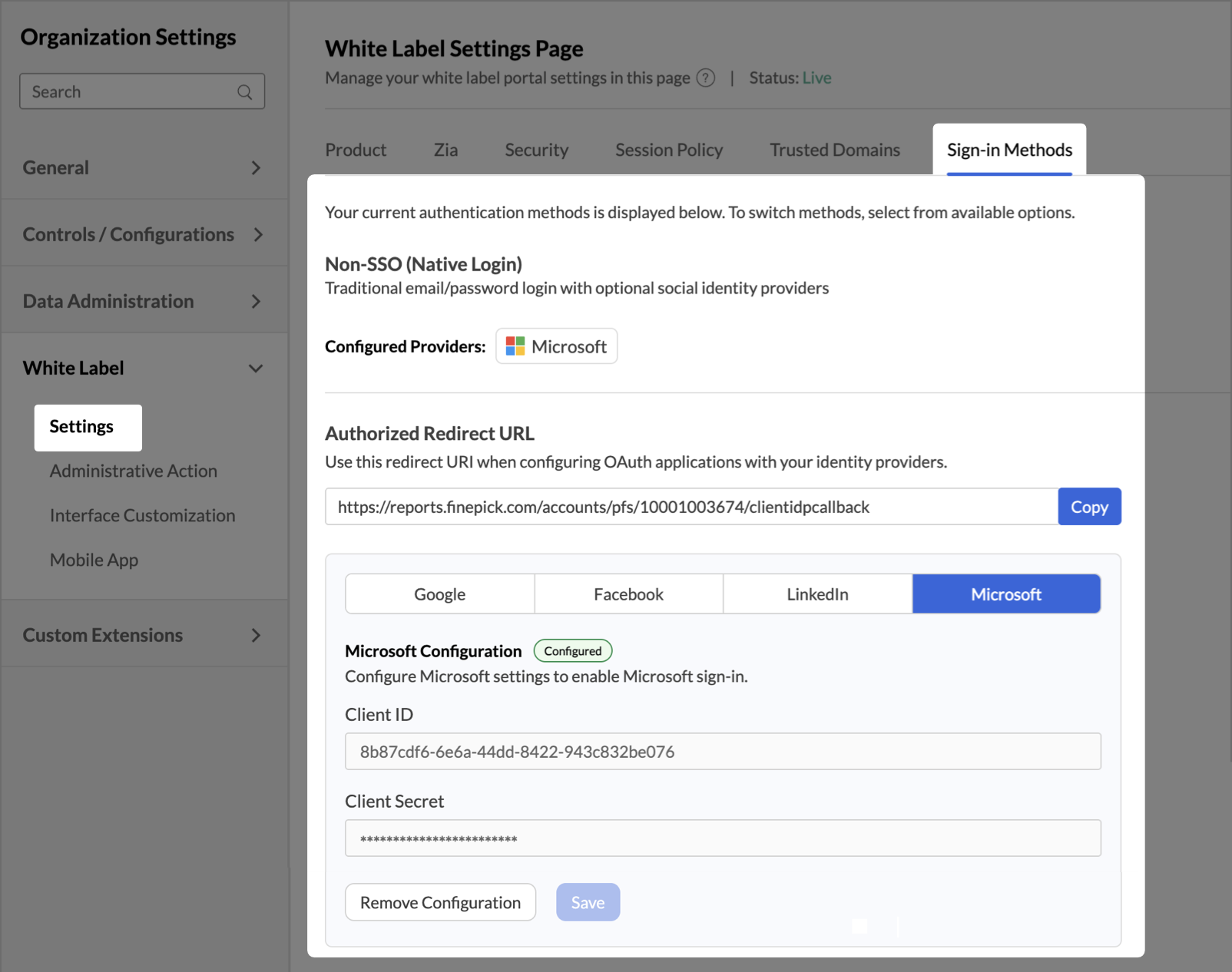
Authorized Redirect URL
The Authorized Redirect URL is the redirect URI to which your identity provider returns the user after authentication. Add this URI to the OAuth application that you create in your identity provider's console.
Click Copy to copy the redirect URI.
Note: The redirect URI is generated for your portal and cannot be edited.
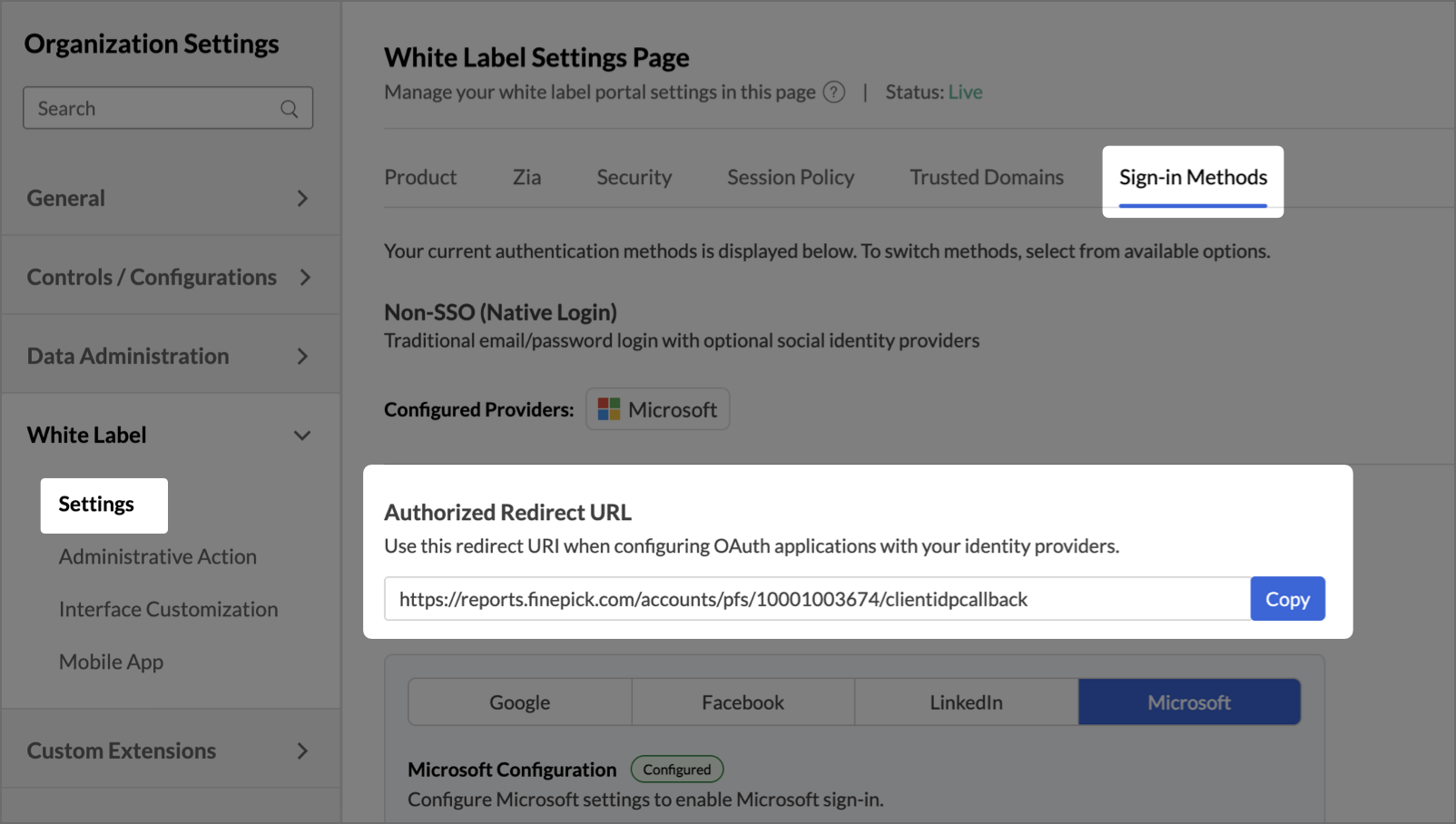
Configuring a Social Identity Provider
Zoho Analytics allows you to configure Google, Facebook, LinkedIn and Microsoft as sign-in options for your portal. Create an OAuth application in the provider's developer console using the Authorized Redirect URL, then enter the credentials that it generates.
Follow the below steps to configure a social identity provider:
- Open the White Label Settings page and click the Sign-in Methods tab.
- Click Copy next to the Authorized Redirect URL, and add the copied URI as an authorized redirect URI in the OAuth application that you create in the identity provider's console.
- Click the tab of the provider that you want to configure: Google, Facebook, LinkedIn or Microsoft.
- Enter the Client ID generated by the identity provider.
- Enter the Client Secret generated by the identity provider.
- Click Save.
The provider is marked Configured and is listed in Configured Providers.
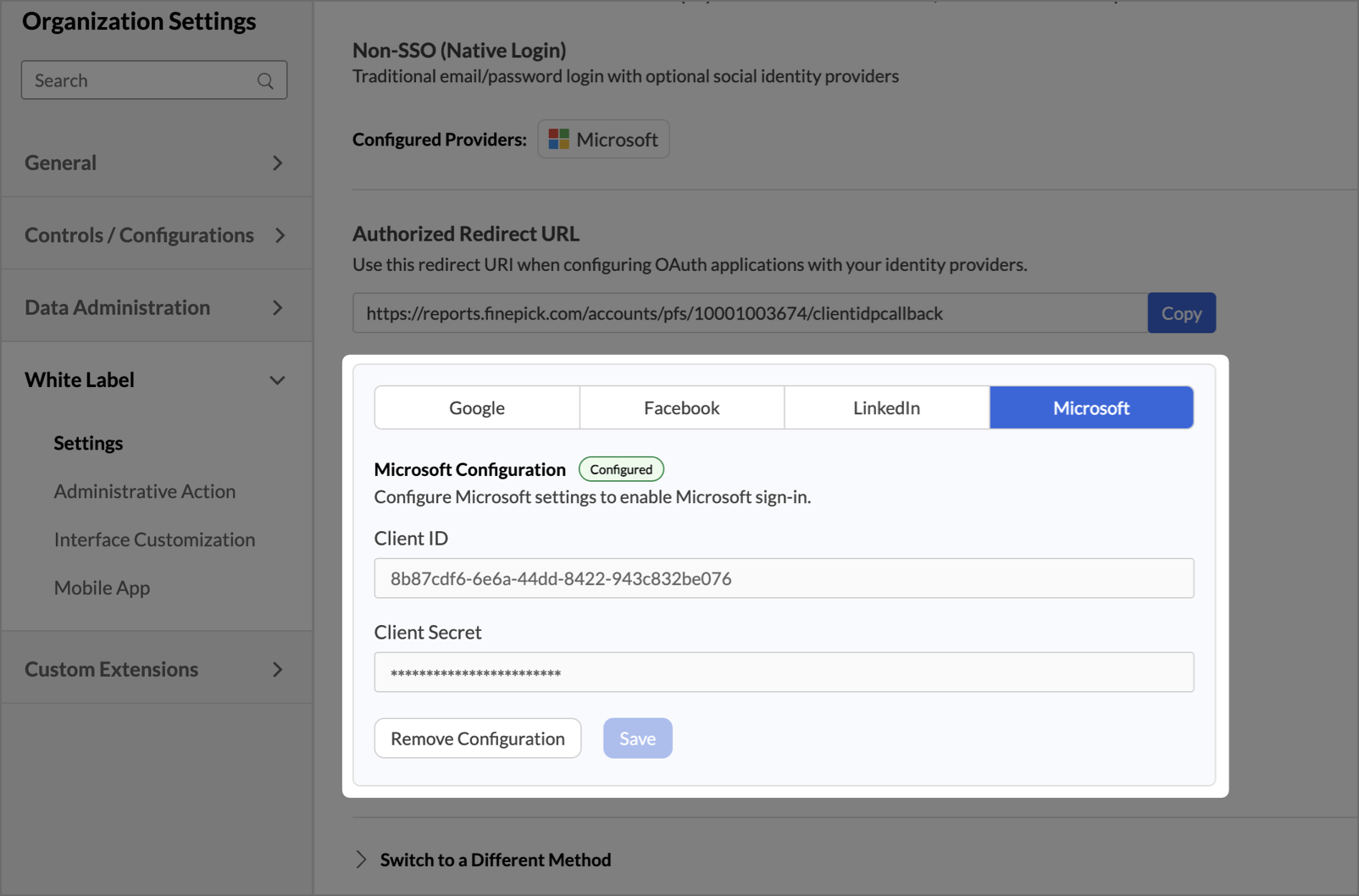
Removing a Provider Configuration
Click the tab of the provider that you want to remove, then click Remove Configuration. The provider is removed from Configured Providers and is no longer offered as a sign-in option on your portal.
Multi-Factor Authentication (MFA)
Enforce MFA Setup:
Multi-Factor Authentication (MFA) adds an extra layer of security to your white label portal by requiring users to verify their identity through an authenticator app, in addition to their password. This helps protect user accounts from unauthorized access by adding additional safeguards.
Enable this option to make MFA mandatory for all Non-SSO users of your white label portal. When enabled, users who have not yet configured MFA will be prompted to do so on their next sign-in. This applies to both existing and newly added users.

Display Name in the Authenticator: Specify the name that will be displayed to your users in their authenticator app during MFA setup. The name must be between 3 and 32 characters.
Note: MFA enforcement takes effect at login, not immediately upon enabling the toggle. Users already logged in will be prompted on their next sign-in session.
Managing MFA for Individual Users
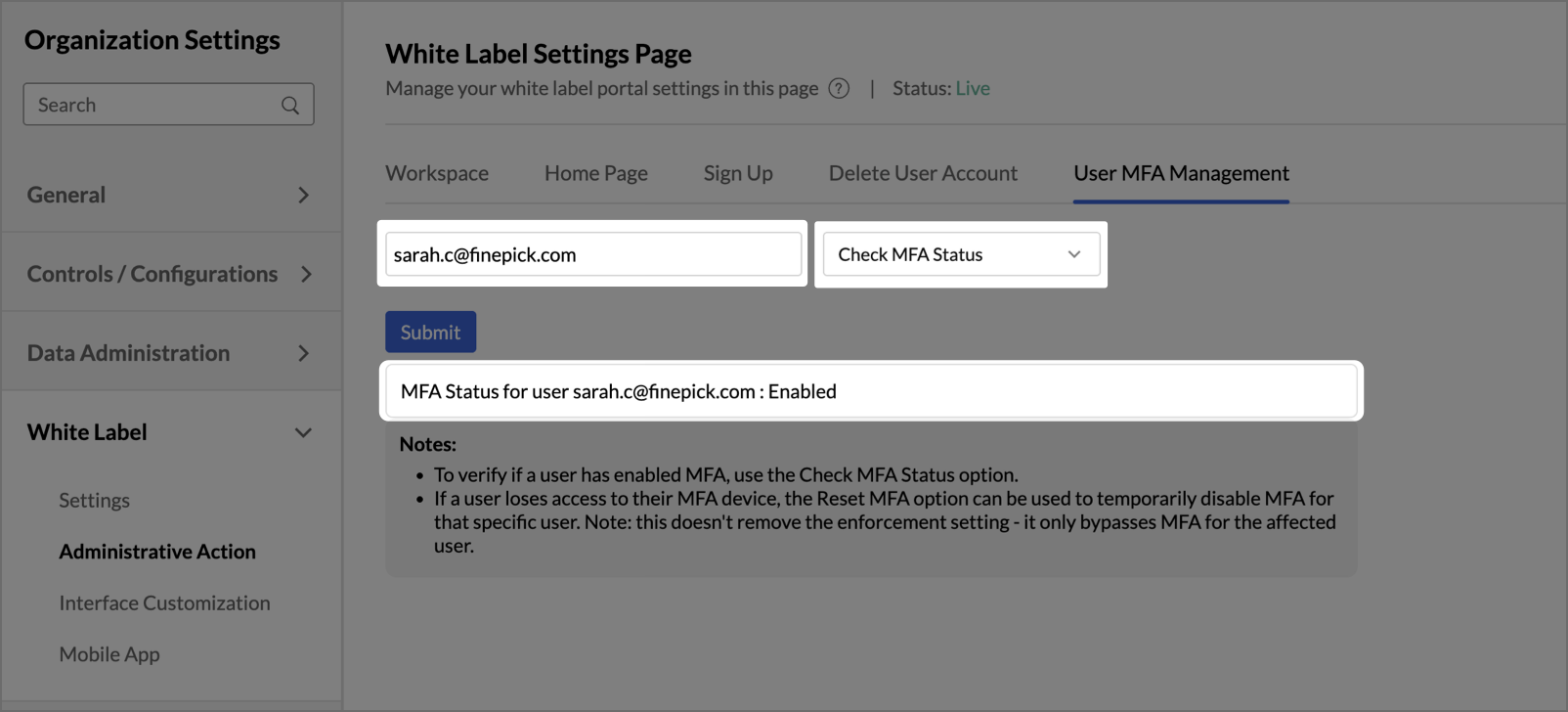
Admins can manage Multi-Factor Authentication at an individual user level from the User MFA Management tab under Administrative Action. Use the user's email address to look up and manage their MFA configuration.

- MFA Status Check: Check whether MFA is currently enabled or disabled for a specific user. The system displays the user's current MFA status after the check is performed.
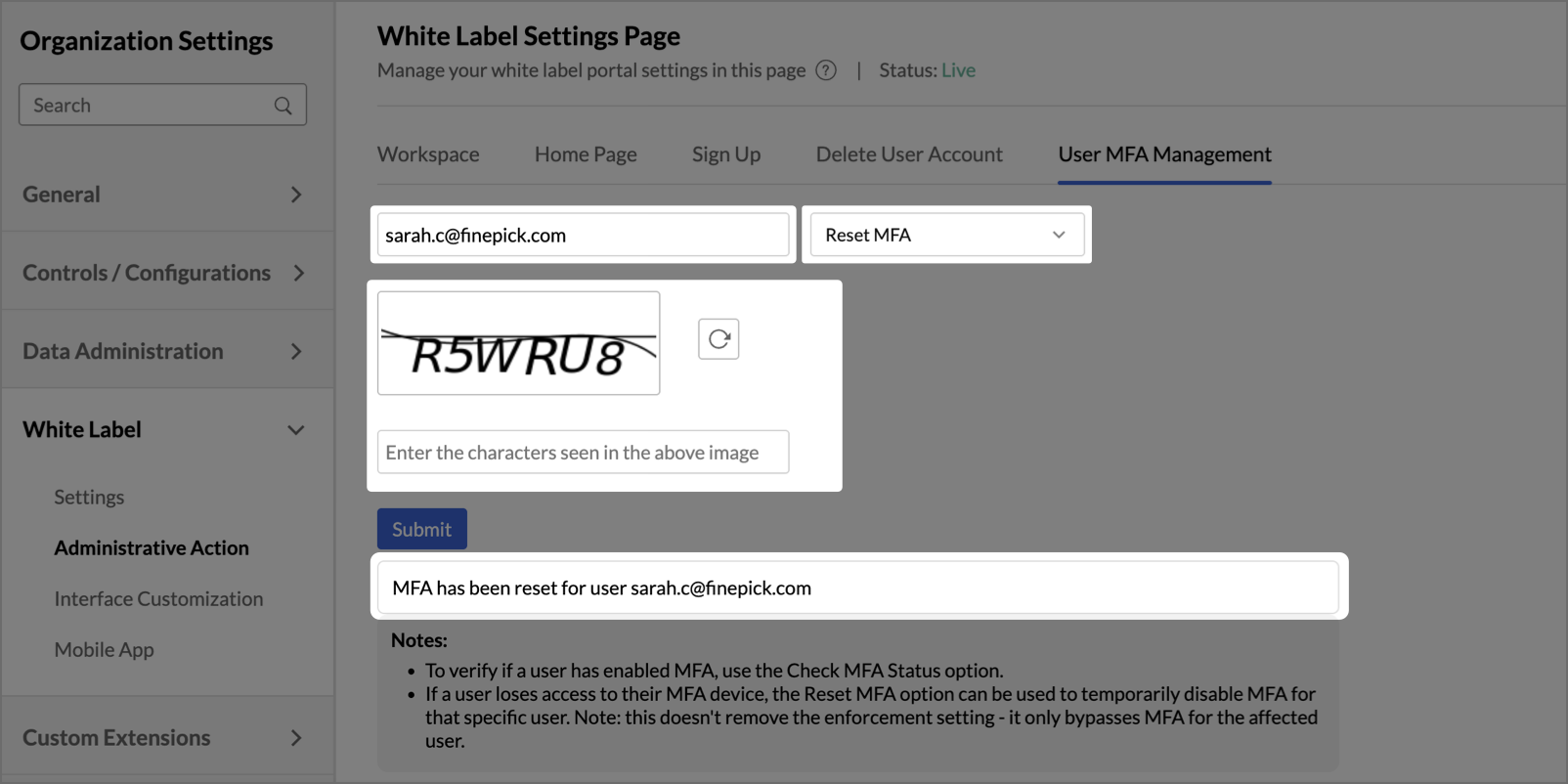
- MFA Reset: Reset MFA for a specific user who has lost access to their MFA device. This temporarily bypasses MFA for that user and allows them to log in without MFA until they reconfigure it. Resetting MFA for a user does not permanently exempt them from MFA.
Note:
MFA reset applies only to the selected user and does not affect org-level MFA enforcement or MFA configuration of any other user. If MFA enforcement is enabled, the user will be prompted to reconfigure MFA on their next successful login.
Password Policy
Enable this option to apply password policy, such as password length, password age, etc, on your webpage. This tab is subdivided into Primary and Advanced sections.
The Primary section has the following options:
- Password Length: Specify the minimum and maximum length of the password that needs to be used for your white label portal.
- Maximum Password Age: Provide a tenure for your password. After the specified tenure, the password expires, and the user must update the password.
- Enforce Password History: Enable this option to avoid the repetition of old passwords by your users.
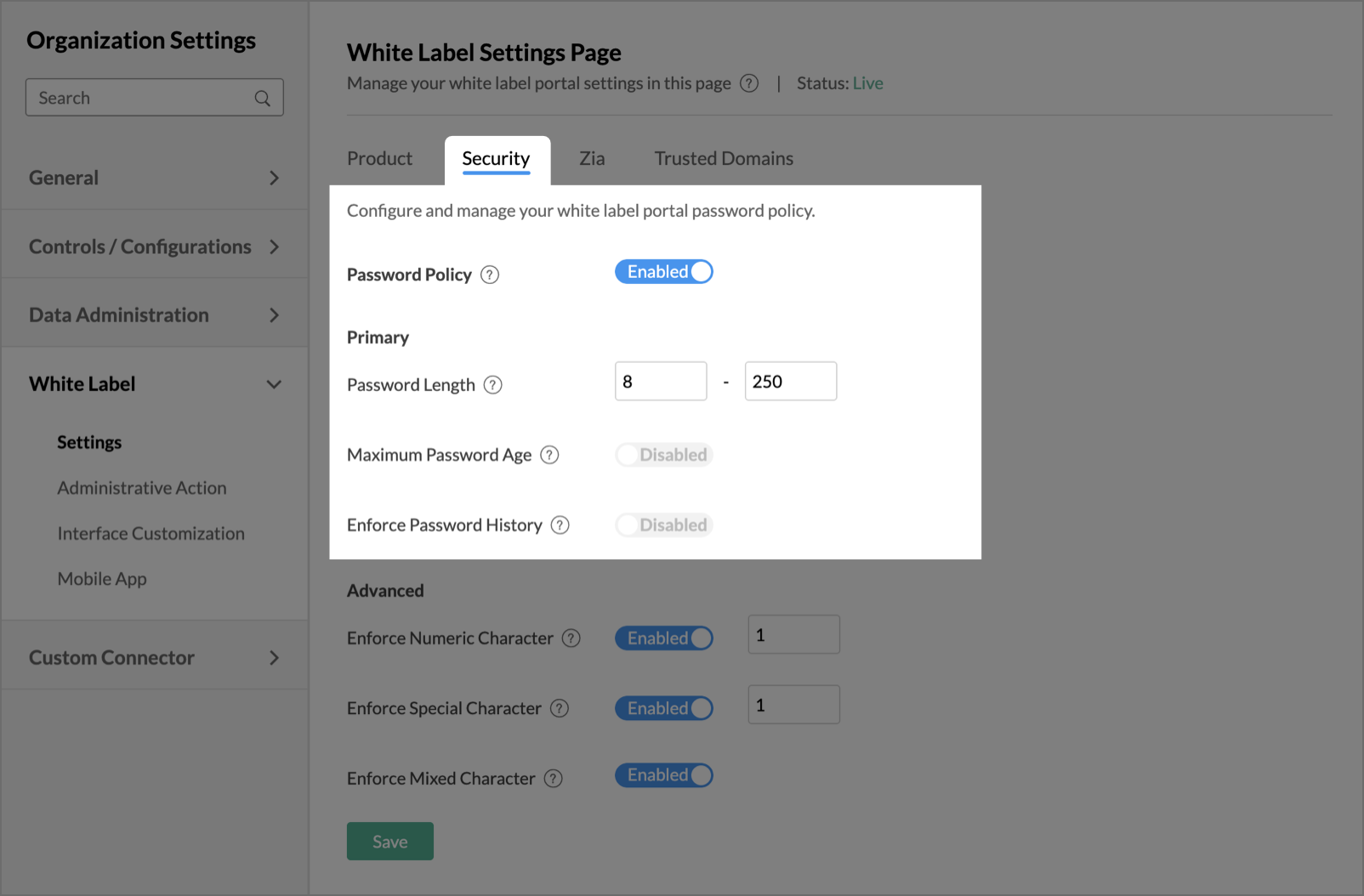
The Advanced section has the following options.
- Enforce Numeric Character: Enable this option to enforce your users to use one or more numeric characters in their password. Provide the number of numeric characters to be used in the text box available inline with the option.
- Enforce Special Character: Enable this option to enforce your users to use one or more special characters in their password. Provide the number of special characters to be used in the text box available inline with the option.
- Enforce Mixed Character: Enable this option to enforce users to use a combination of uppercase characters, lowercase characters, digits, and special characters.

Session Policy
Configure and manage session behavior for your white label portal users. Session policies control how long users can remain active, how many concurrent sessions are allowed, and when re-authentication is required. These settings apply to all Non-SSO users of your white label portal and cannot be disabled. They have to be configured.

Maximum Sessions Allowed:
Specify the maximum number of concurrent active sessions permitted for a single user. When a user reaches this limit, any new login attempt will be blocked until an existing session expires or is terminated.
Note: The allowed range is 10 to 50 sessions. The default value is 50.
Allowed Idle Time:
Specify the duration of inactivity after which a user will be automatically logged out. If a user remains idle beyond this period, their session will end and they will need to sign in again.
Note: The allowed range is 45 to 100 minutes. The default value is 45 minutes.
Session Validity:
Specify the total duration for which a user's session remains valid, regardless of activity. Once the session validity period expires, the user must re-authenticate to continue.
Note: Session validity can be configured up to 30 days or 720 hours. The default value is 1 day. Session validity and idle timeout operate independently - whichever limit is reached first will end the session.
Resetting Session Policy
Click Reset to Default to restore all session policy settings to their system default values. This takes effect immediately.
| Setting | Default | Allowed Range |
| Maximum Sessions Allowed | 50 | 10 – 50 |
| Allowed Idle Time | 45 minutes | 45 – 100 minutes |
| Session Validity | 1 Day | Up to 30 days / 720 hours |
JWT Settings
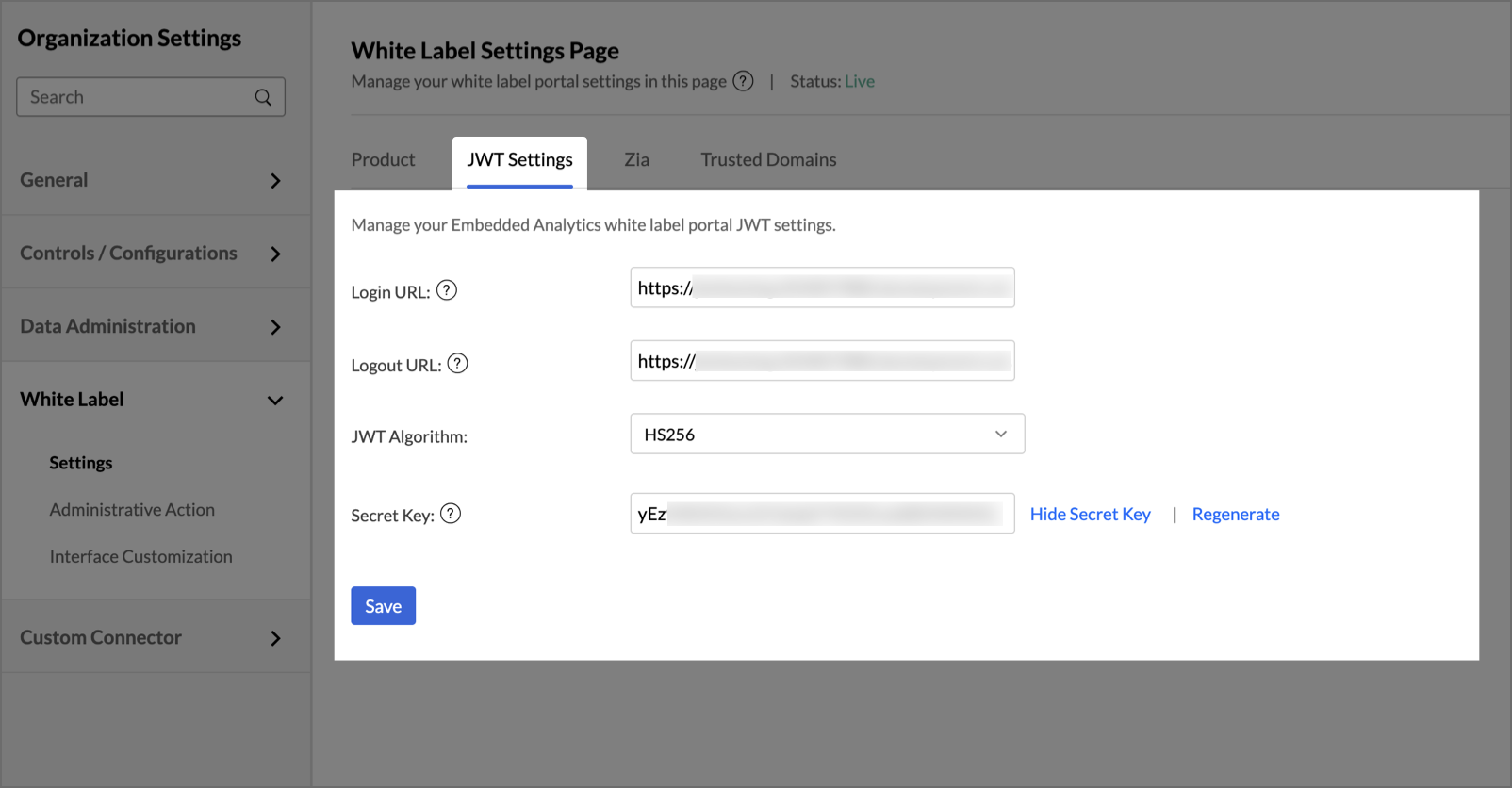
Configure and manage the JWT settings of your embedded analytics white label portal.
- Login URL: Edit the app/site URL where login happens in your application. This will be displayed to your user in case he has not logged in to your product/service that is integrated with Zoho Analytics and accesses the domain URL directly.
- Logout URL: Edit the URL to which the user has to be redirected upon logging out of your application.
- JWT Algorithm: Select the algorithm used to sign and validate JWT tokens. The portal supports the following:
- RS256: Requires uploading an RSA Public Key.
- HS256: A Secret Key will be generated
- Secret Key:
- For RS256 - Requires uploading an RSA Public Key.
- For HS256 - The key used to sign and validate JWT tokens. You can view, hide, or regenerate the key for added security.
SAML Settings
Configure and manage the SAML settings of your embedded analytics white label portal.
- Login URL: Edit the app/site URL where login happens in your application. This will be displayed to your user in case he has not logged in to your product/service that is integrated with Zoho Analytics and accesses the domain URL directly.
- Logout URL: Edit the URL to which the user has to be redirected upon logging out of your application.
- Metadata file: SAML metadata is an XML document that contains the information necessary for interaction with SAML-enabled identity or service providers. Upload your SAML metadata file here.