Standalone / Portal-Based White Label Solution
This option allows users to access the fully branded analytics portal where your clients can access ready-made reports or create ad-hoc reports on their own.
Configuring Standalone / Portal-Based White Label Solution
Once the White Label solution has been enabled for your account, easily configure it by using the following steps:
- Login to your Zoho Analytics account.
- Click the Settings icon at the top right corner.
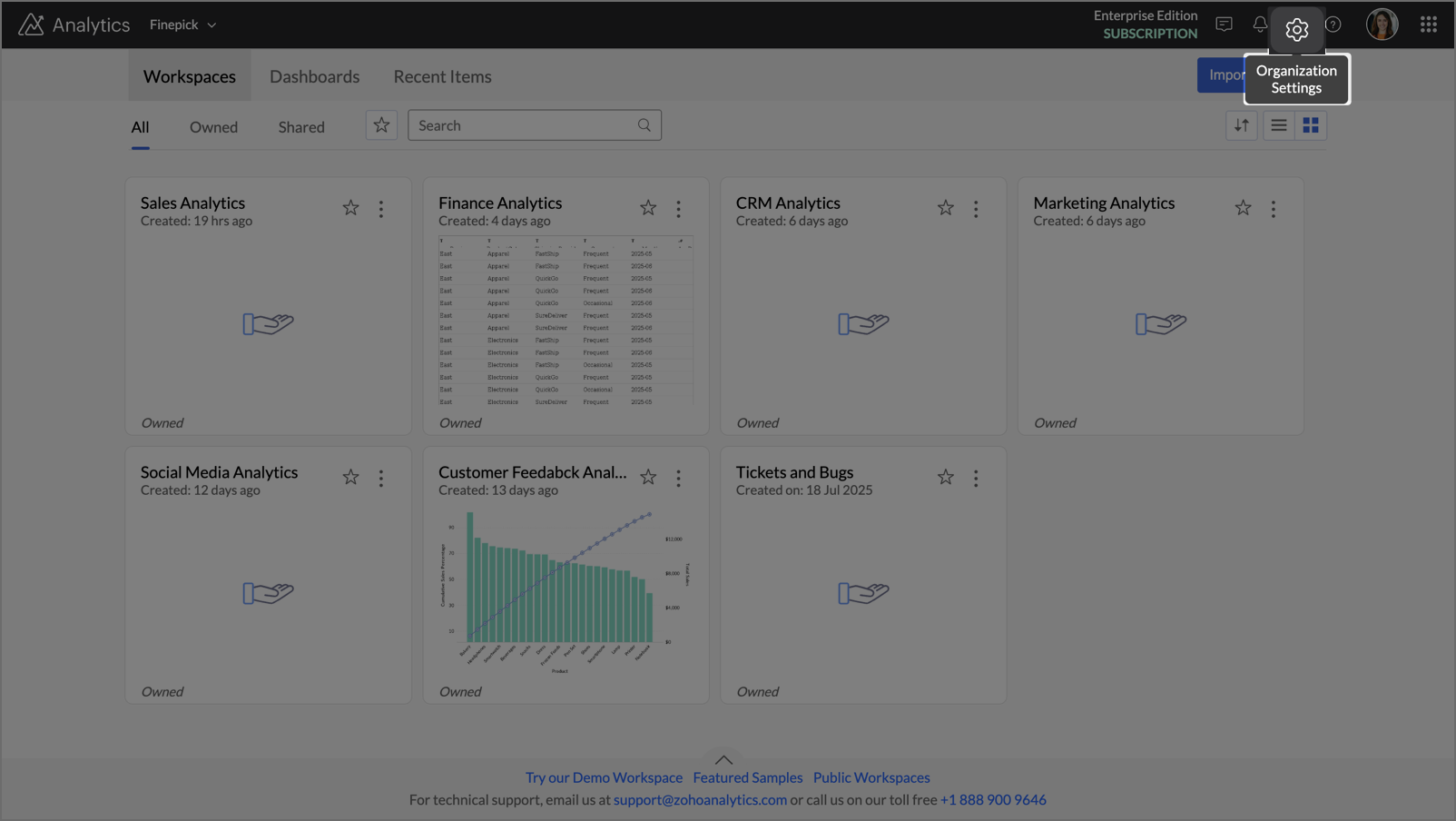
- The Settings page will open. Navigate to the White Label section on the left side pane.
- The White Label Settings page will open. Provide the following rebranding details.
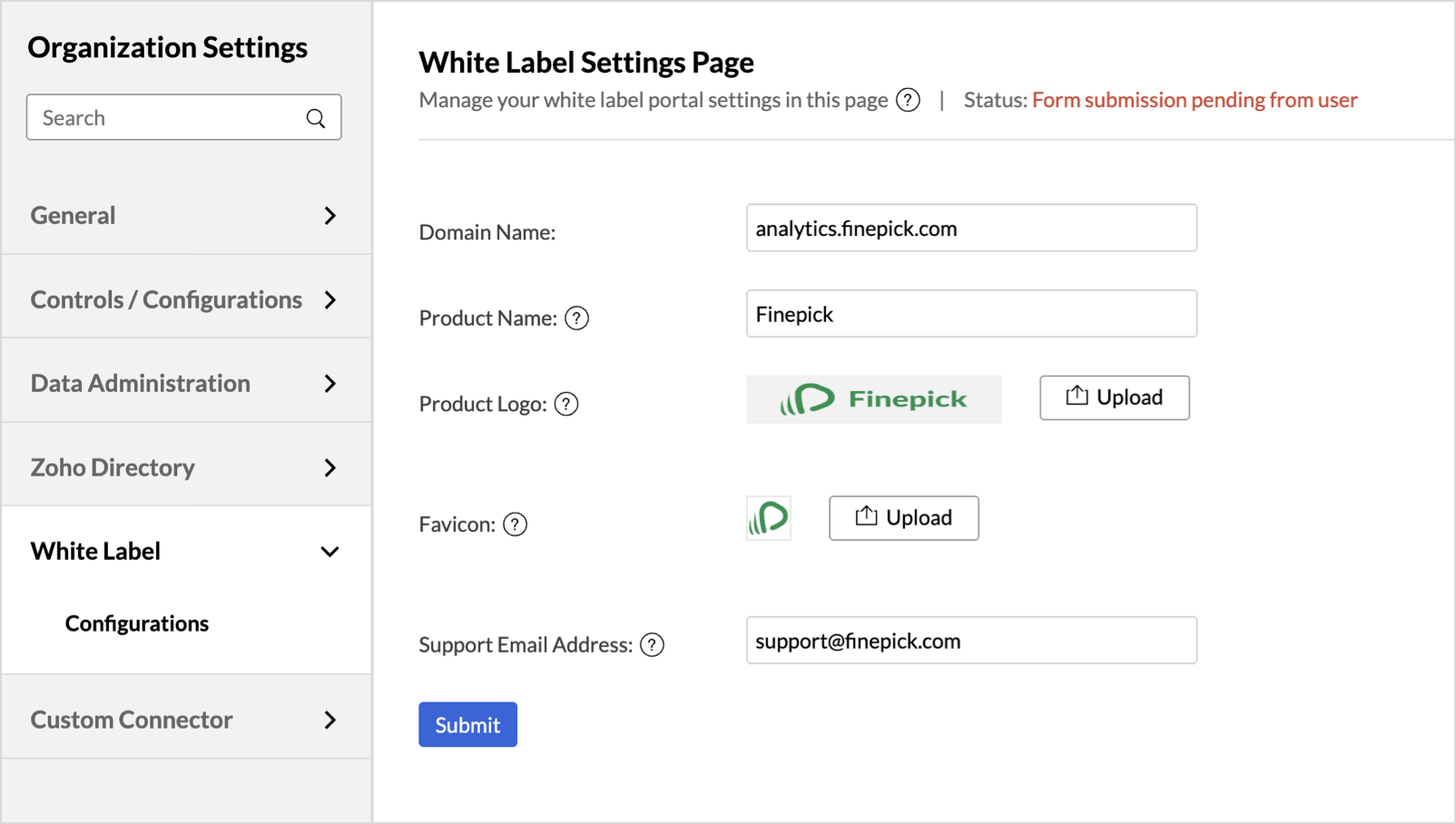
| Rebranding Details | Description |
| Domain Name | Specify the custom domain where your White Label solution will be hosted (e.g., analytics.finepick.com). Note: Once the domain is set, it cannot be modified directly by you. To request changes, please contact us at support@zohoanalytics.com. |
| Product Name | Enter the name of your product. This name will replace all instances of “Zoho Analytics” across the user interface and communications. |
| Product Logo | Upload the logo to be used in your White Label application. Supported formats: .gif, .jpg, .png, .bmp Recommended dimensions: 300 x 60 px This logo will replace the Zoho Analytics logo in the portal. |
| Favicon | Upload an icon to be displayed in the browser tab alongside the page title. Recommended dimensions: 30 x 30 px |
| Support Email Address | Provide a support email address that will be shown in all system communications, replacing the default Zoho Analytics support address (support@zohoanalytics.com). |
After completing the configuration, click Submit. You will then be prompted to complete Domain Verification. Click the link below for detailed instructions.