Archive Data
Archiving data is the process of identifying and moving historical or infrequently used data that is not required for analysis, from the active analytical environment. And at the same time, keeping it accessible for future references.
Why is archival of data important?
Over time, workspaces accumulate large volumes of historical data. While this data may no longer be actively used for day-to-day analysis, it is still queried whenever a report or dashboard is generated. This results in unnecessary processing of obsolete data, leading to slower report performance, increased storage consumption, and higher costs due to exceeding row-limits.
Data archiving helps address these challenges by moving infrequently used or outdated data to an archive, while keeping only relevant, active data readily available for analysis.
- Improved Querying & Faster Analysis: By limiting queries to relevant data, report generation and dashboard loading times are significantly reduced, resulting in faster insights and a more responsive analytics experience.
- Reduced Cost: Archiving older data helps control table size, preventing unnecessary growth and better managing row limits.
- Optimized Storage Usage: Archiving older data helps control table size, preventing unnecessary growth and better managing row limits.
On this Page
- Best Practices for Archiving Data
- How to Archive Data?
- What happens when the data model is modified after an archive schedule is executed?
- Manage Data Archives
- Frequently Asked Questions
Best Practices for Archiving Data
- Define Archiving Criteria: Review your data and identify which records are no longer required for active analysis. Clearly define the time period or conditions (e.g., older than a specific date) based on which data should be archived.
- Review Dependencies: Before archiving, verify whether the data is used in reports or dashboards. Review audit logs to identify views or reports that are accessed less frequently, and prioritize archiving data that has minimal usage.
- Plan Data Retention: Define how long data should be retained based on your organization’s data retention and compliance requirements. Ensure archived data is available for audits or historical analysis when needed.
- Review and Optimize Regularly: Periodically revisit archive rules to align with changing data usage and reporting needs. Update archive conditions and schedules as required, and remove any outdated or unused archive schedules to keep archiving management efficient.
How to Archive Data?
Users with administrator privileges like account admin, org admin, workspace admin can archive data.
Archiving data Includes 4 major steps
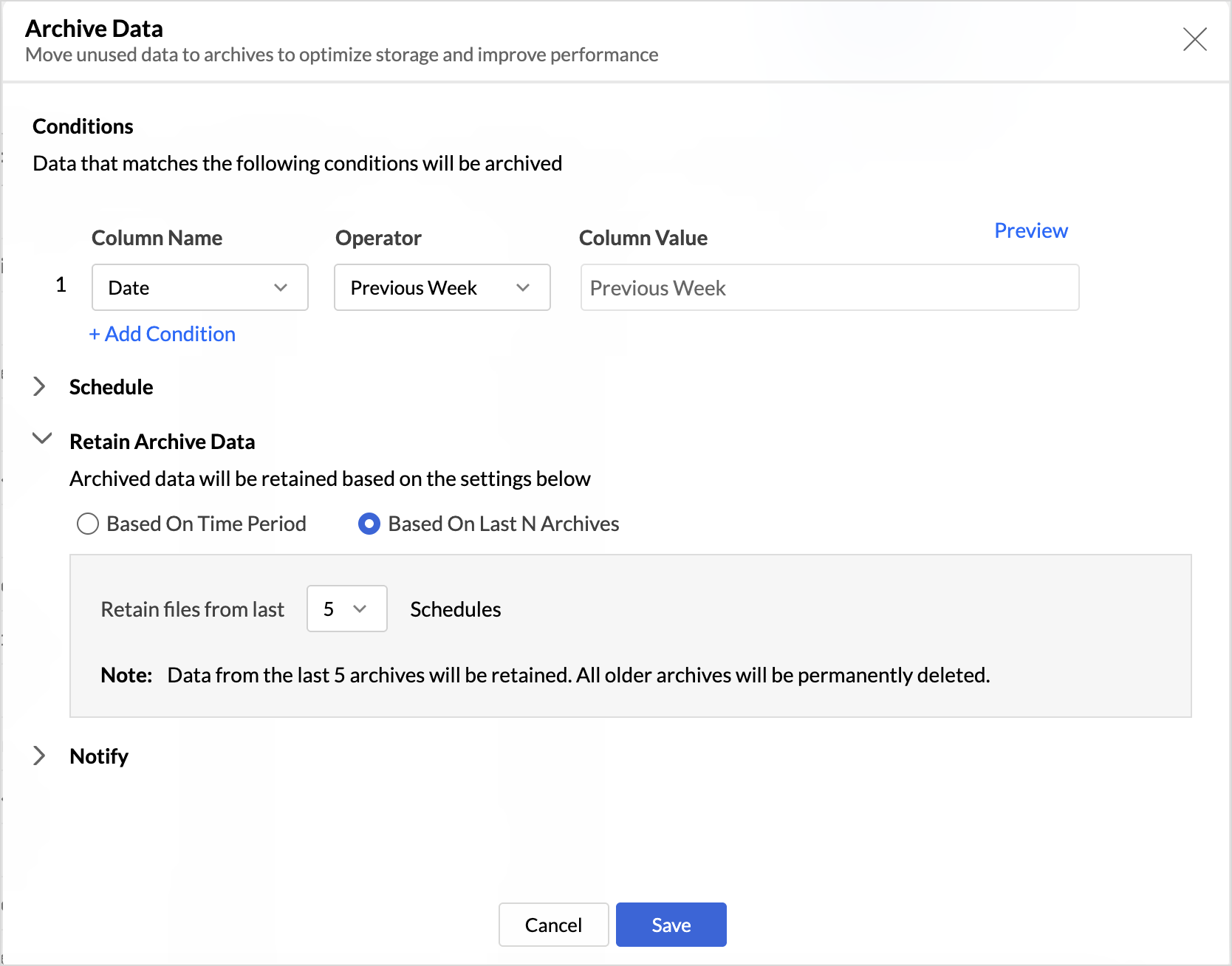
Defining Archive Conditions
- Access the table for which you require to archive the data.
- Click More > Archive Data.
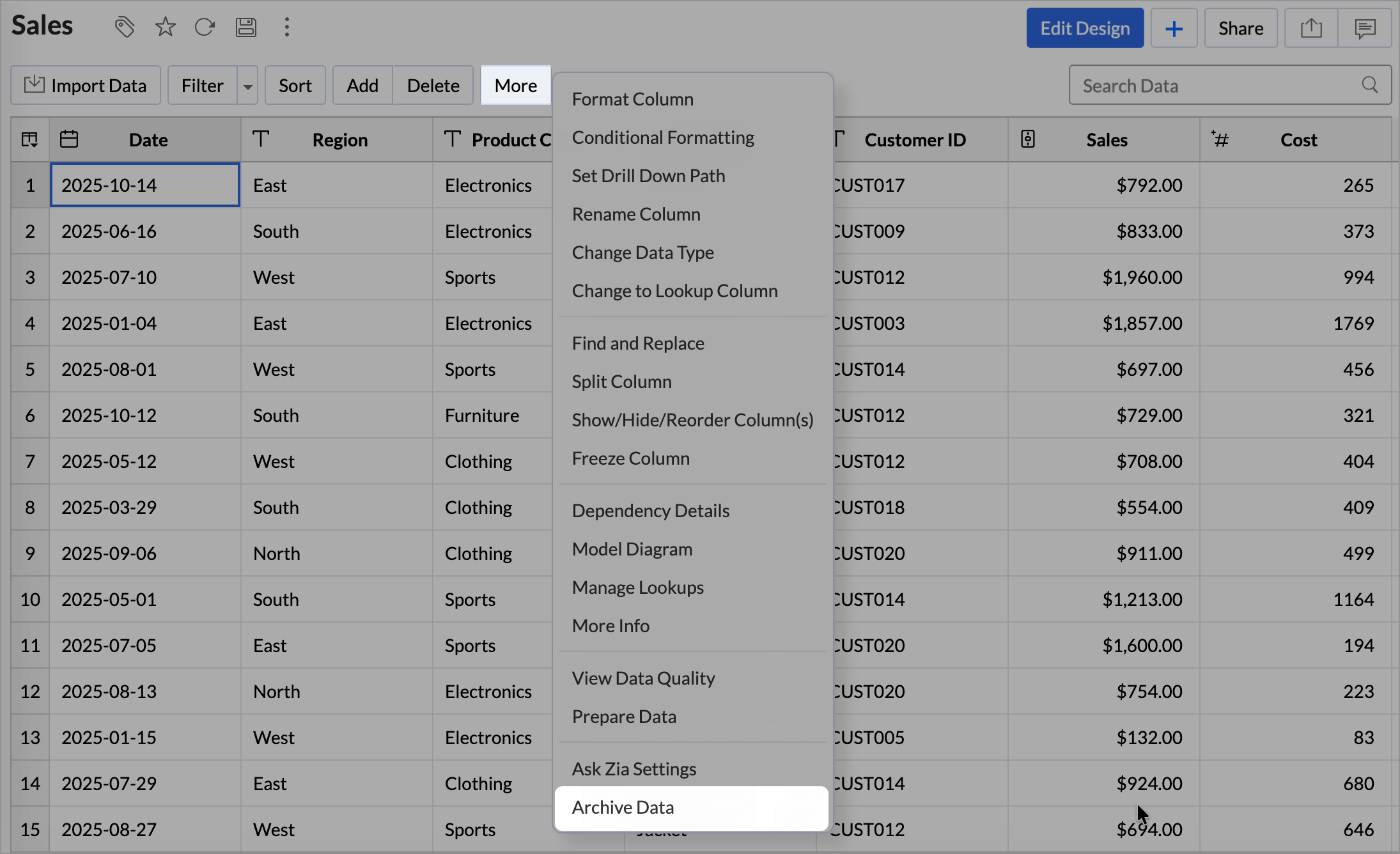
- Under Conditions, define the rules that determine the records that should be archived.
- Select the Column Name, Operator, and the Column Value.
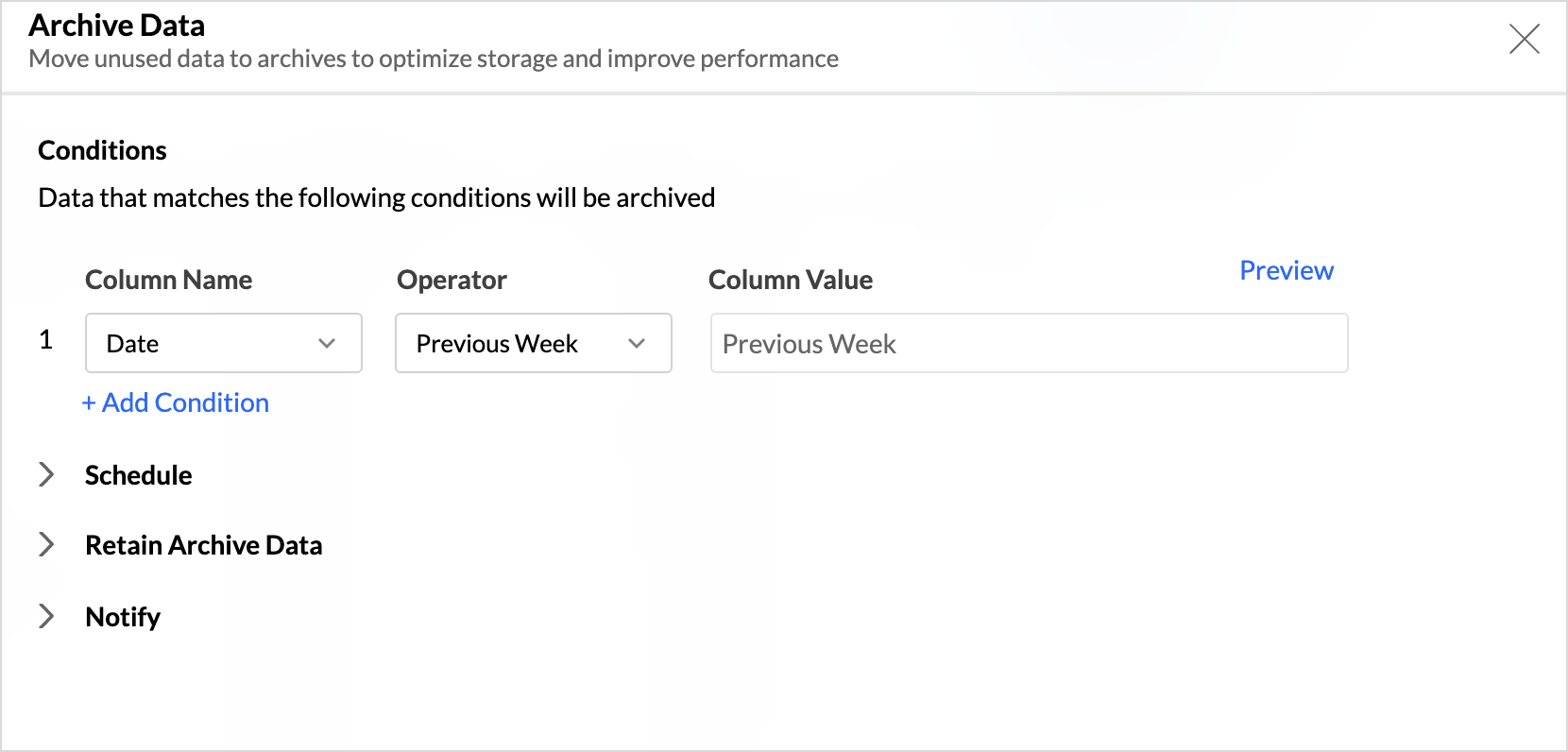
- Click Add Condition to include multiple condition and choose the suitable operator. A maximum of 10 conditions can be added to define an archive.
Scheduling Archive
Scheduling data archiving allows you to automate the archiving process, ensuring that obsolete or infrequently used data is archived at regular intervals without manual intervention.
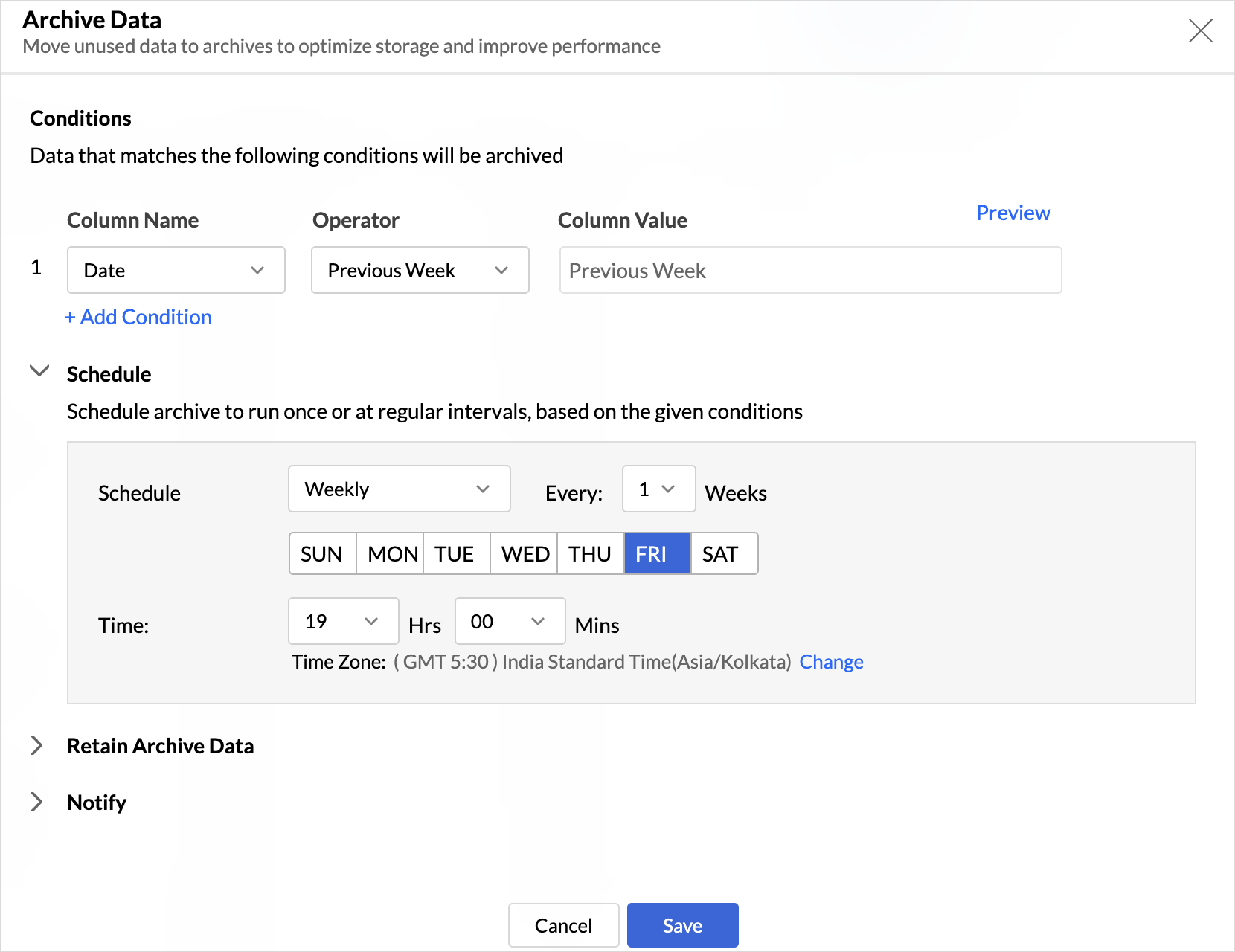
Zoho Analytics supports the following intervals:
- Once
- Weekly
- Monthly
- Yearly
Retaining Archived Data
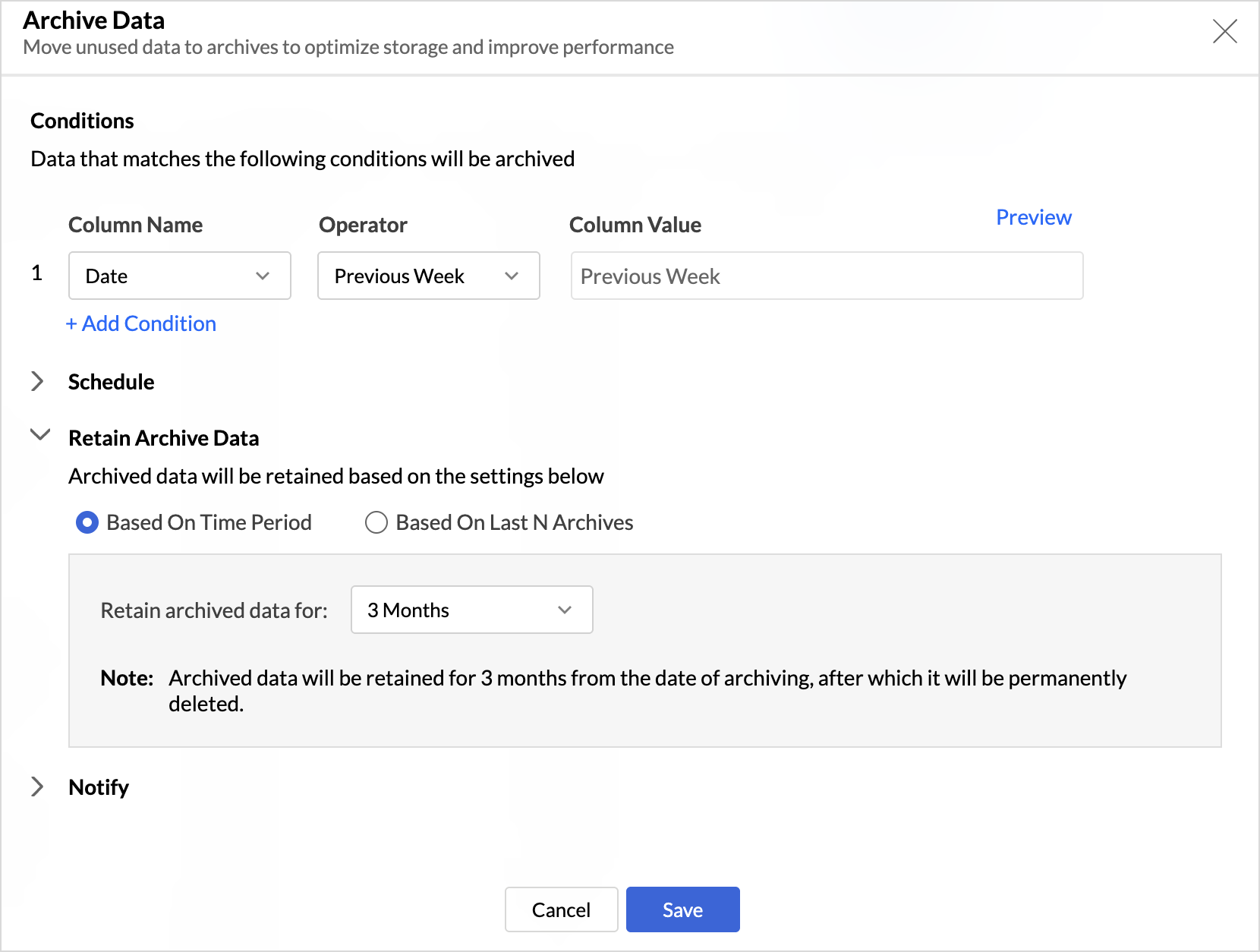
Data Retention in archiving data defines how long should the archived data in the workspace before it gets permanently deleted.
Zoho Analytics supports the following data retention options:
Based on Time Period
In this method, archived data is retained for a fixed duration. Once the specified period expires, the data is permanently deleted from Zoho Analytics.
Based on Last N Archives
In this method, only the most recent N archive sets are retained. When a new archive is created, older archive sets beyond the specified limit are automatically deleted. This option is useful when you want to keep a limited number of recent archives while continuously managing storage usage.
Notify Admins
The Notify option helps administrators stay informed about the status of archive actions. When enabled, notifications are sent for both successful and failed archive executions.
Select the user roles that should receive these notifications to ensure the right stakeholders are promptly informed and can take action if required.
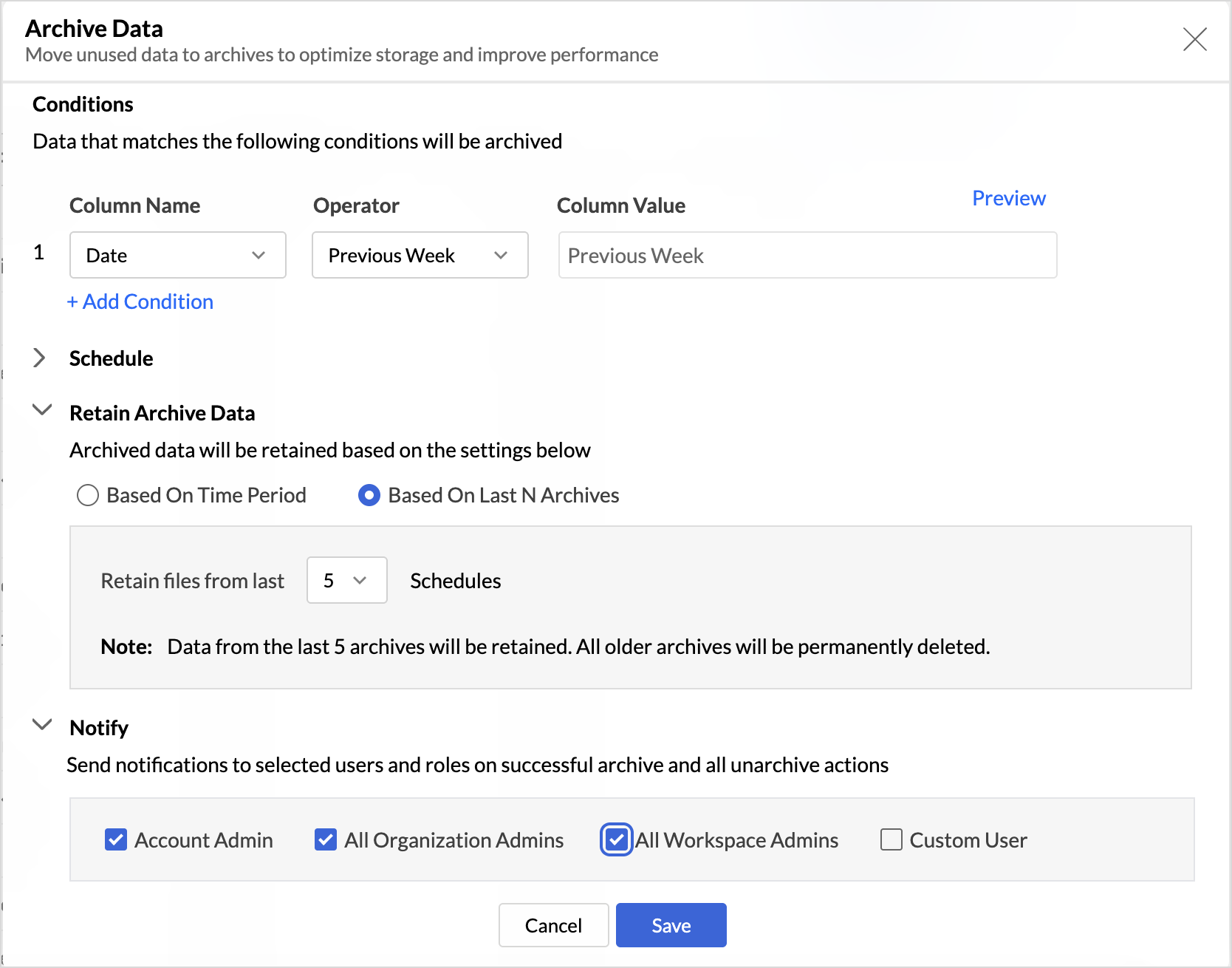
Once you have configured the above settings, Click Save. Data will be archived at the scheduled interval.
Note:
- When an archive action is triggered, records that meet the specified conditions are excluded from reports, dashboards, and filters, and are not considered during execution. As a result, only active records are reflected in all data views and calculations.
- Archive data is currently not supported for business applications and system tables.
What happens when the data model is modified after an archive schedule is executed?
When a data archive is executed, all records that match the defined archive conditions are removed from active analysis. These records are excluded from dependent reports, dashboards, and filter values, and are no longer queried as part of report execution.
If the data model of a table is modified after an archive schedule has been executed such as addition of a new column, deleting a column the following behaviors apply:
- Already archived data remains unchanged and is safely retained, even if the data model is updated.
- Changes to the data model affect only future archive executions, not previously archived data.
Note: Any column used to define an archive condition cannot be deleted from the source table. Attempting to do so will result in a dependency error, preventing the deletion.
Manage Data Archives
Manage archive settings allows you to monitor all archive activities and manage existing archive configurations. From this section, you can review archive schedules, track execution status, and modify conditions, retention policies, or notification settings as required.
Manage Archive Settings
- You can access Manage Archive Settings tab in any of the following ways.
- From the Table Designer: Click More > Manage Archive.
- From the Workspace Settings: Click the Settings icon on the side navigation panel and choose Workspace Settings.
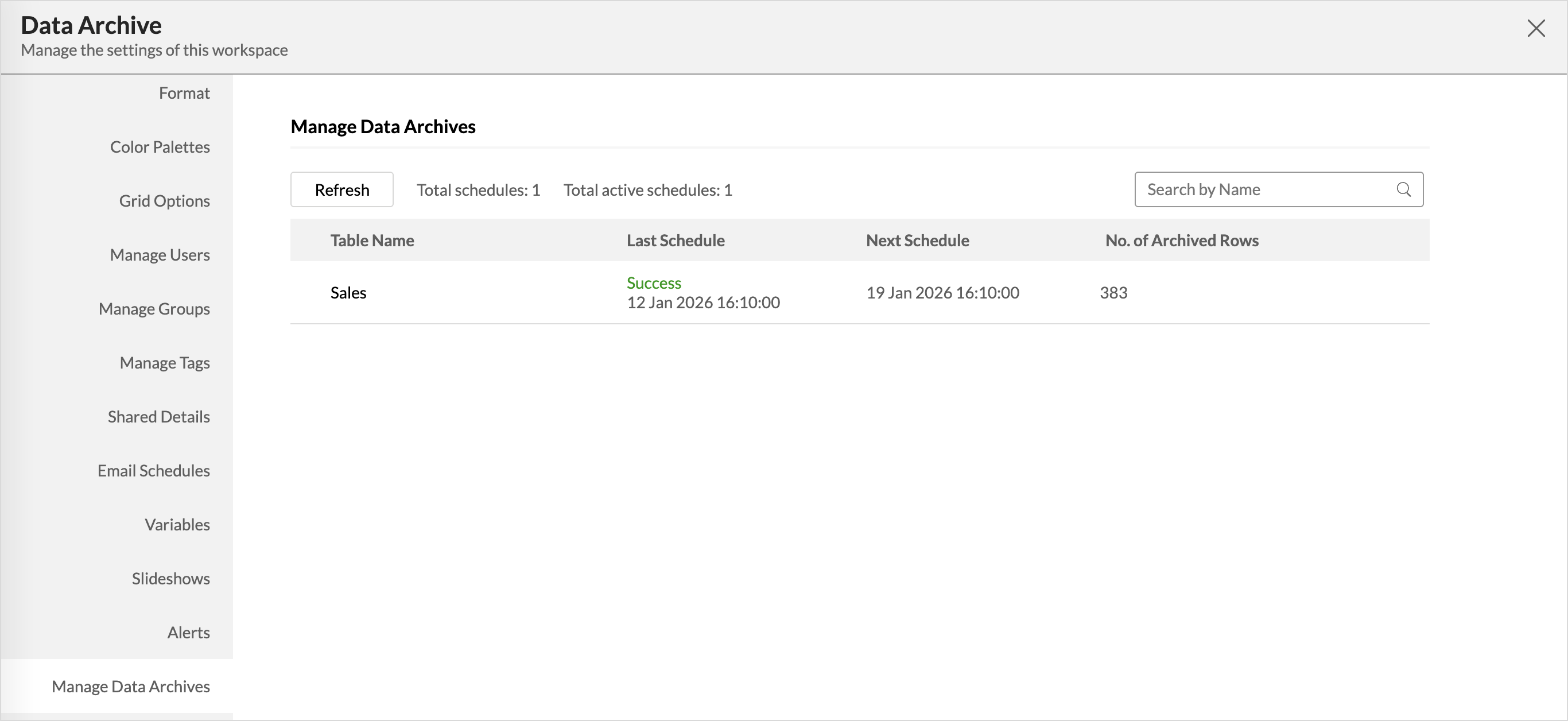
- All the Archive Schedules configured within a workspaces are listed along with the Table Name, Last Schedule and Next Schedule and the number of rows archived.
- Click the Edit icon to modify the existing Archive Settings.
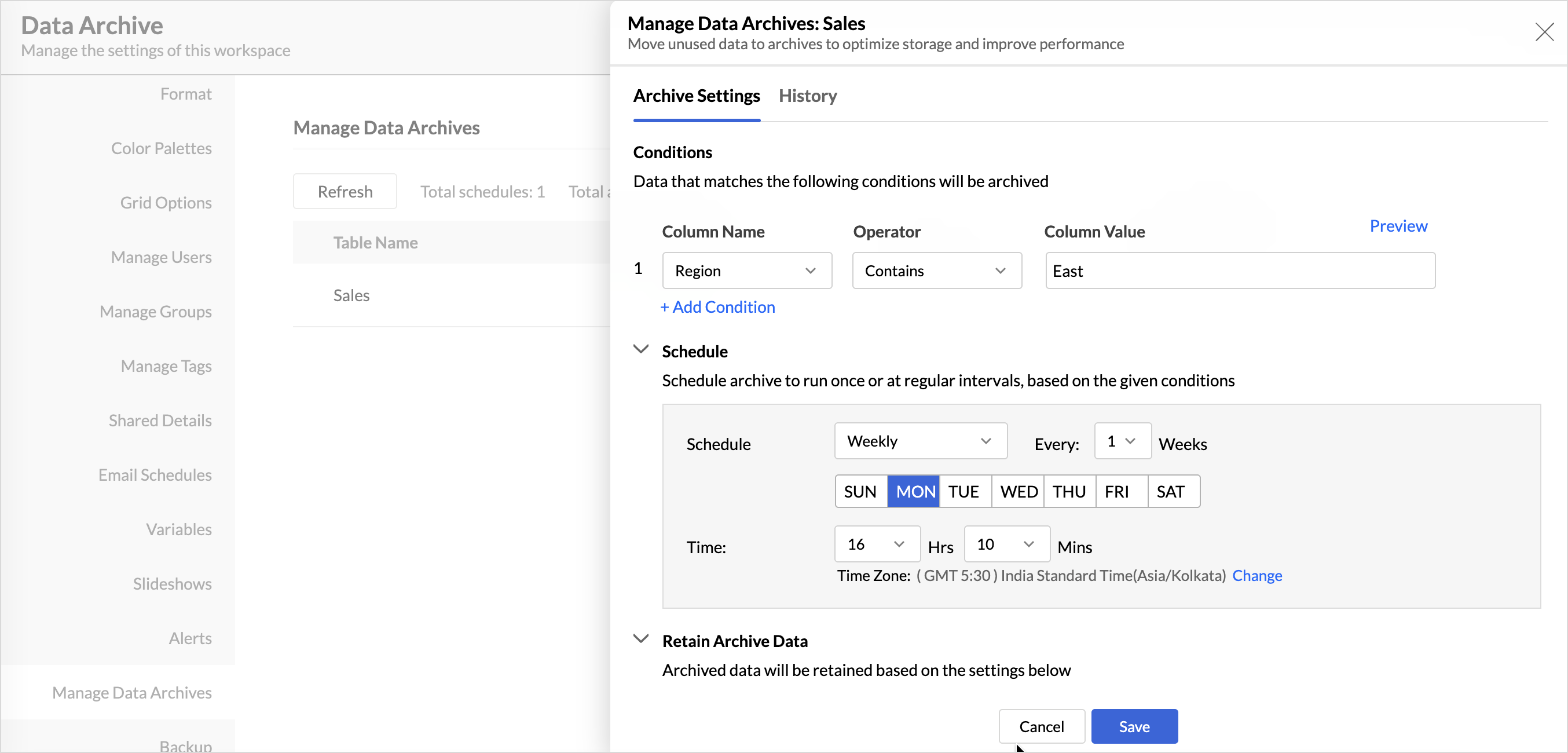
- Refer to the steps above to learn more.
Manage Archive History
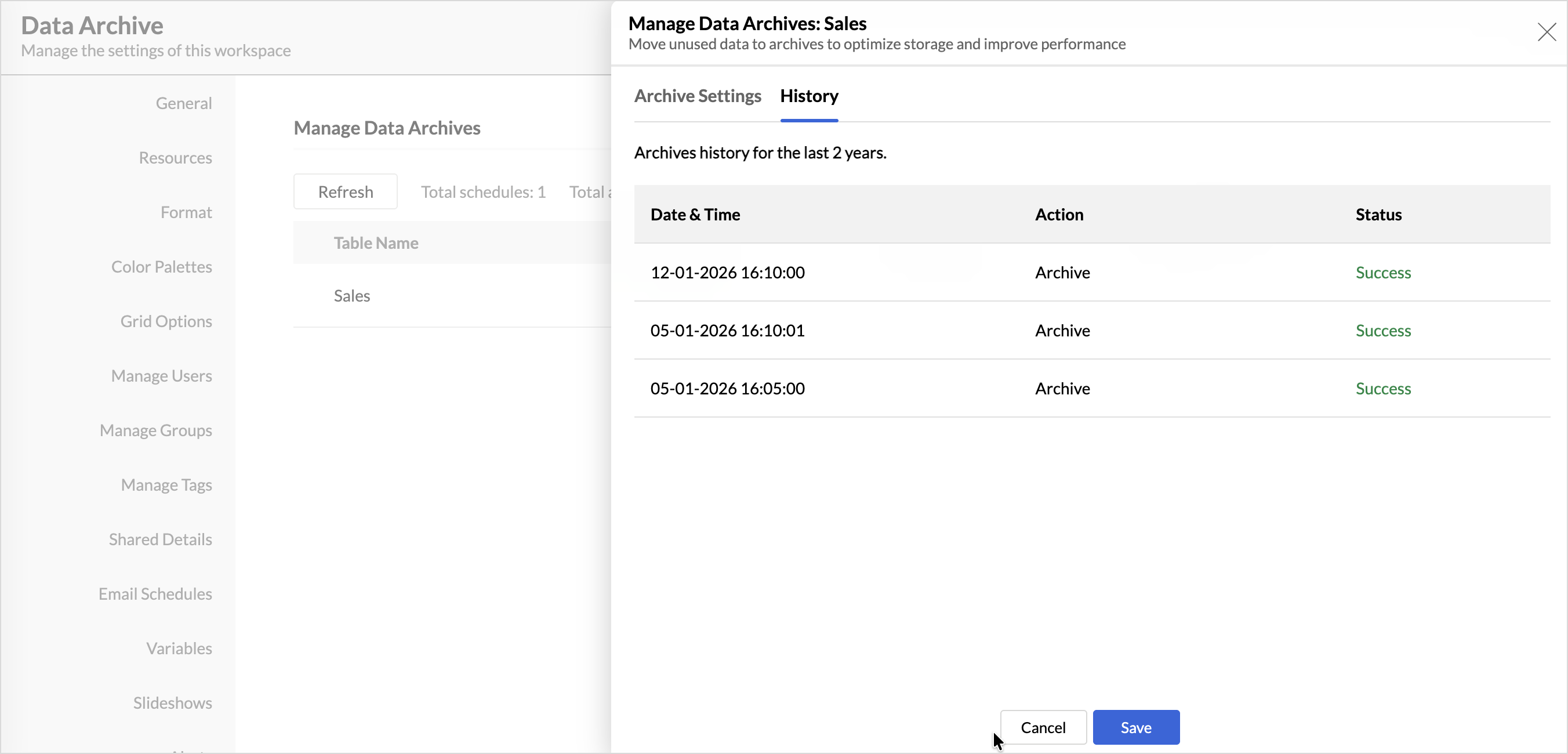
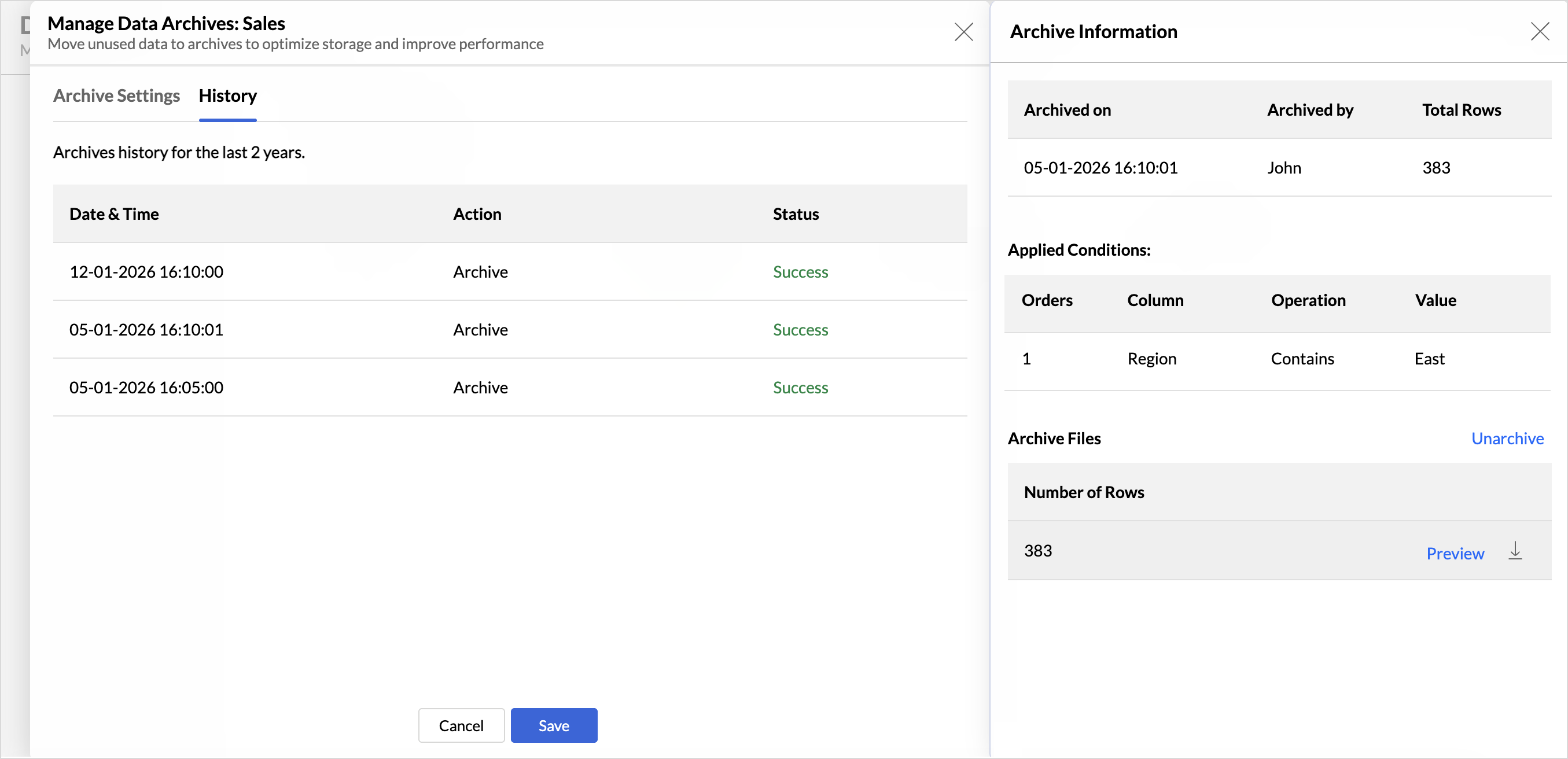
- Click any completed schedule to view the detailed Archive Information.
- The Archive Information provides details about the records archived.
- Use this view to monitor archive activity and troubleshoot issues.
Unarchive Files
Use the Unarchive option to restore previously archived data back into Zoho Analytics when it is required for analysis or reporting. Once unarchived, the data is moved back to the original table and becomes fully available for creating reports and dashboards.
Download Archived Files
Click the Download icon to get a local copy of the archived data. The archived file will be downloaded and stored on your computer for offline access or backup purposes.
Frequently Asked Questions
1. How is the Data Archiving Limit calculated? How many rows of data can be archived?
A maximum of 500K rows can be archived in the Premium plan, and 5 M rows can be archived in the Enterprise Plan.
2. In what cases can a Data Archive fail?
Data archiving may fail if the archiving limit for your current plan is exceeded.
3. How long will the archived data be present in the Zoho Analytics Workspace?
The archived data will be retained in Zoho Analytics for a specific period as configured by the user before it is permanently deleted.