System Tags
System Tags are platform-defined governance labels in Zoho Analytics that can be attached to assets to communicate their trustworthiness, freshness, and reliability. They carry built-in visual indicators and enforced behavioral consequences that guide users toward reliable data.
System Tags let you label your assets to reflect exactly that. Once applied, a tag tells every user — at a glance — whether an asset is trustworthy or stale.
System Tags improve data trust and governance by signaling whether an asset is Trusted or Outdated. Users are guided toward reliable assets while risky or stale ones are clearly flagged.
System Tag Categories
System Tags are organized into two categories, each representing a distinct governance signal:
| Tags | Category | What it tells users |
| Trusted | Certified | This asset has been reviewed and approved. Use it with confidence. |
| Outdated | Data Quality Warning | This asset may be stale or unreliable data. Use with caution. |

Notes:
- Only Account Admins, Org Admins, and Workspace Admins can Associate /Dissociate them. Check tag permissions for more details
- System Tags are available on Premium and Enterprise plans only.
Types of System Tags
Each System Tag has a specific meaning and a specific set of effects on the platform. Here’s what each one does.
- Trusted - Certified
- Outdated - Data Quality Warning
1. Trusted - Certified
The Trusted tag recommends to users that the asset has been officially reviewed and approved for use. It is reliable and accurate, making it a recommended choice when multiple similar assets exist in the workspace.
What happens when you apply it?
The tag badge appears on the asset in the workspace. Beyond the visual signal, Trusted assets get sorted to the top of selection lists when users are building new assets — so they naturally reach for the right data first.
Specifically, Trusted assets appear at the top when creating:
- Query Tables and Aggregate Formulas
- Reports and Dashboards
- Slideshows and view exports
There is no lineage propagation for the Trusted tag - tagging a table does not automatically tag the reports built from it. Each asset is tagged independently.
What it doesn’t do
The Trusted tag does not restrict or limit anything. It doesn’t affect who can access the asset or how it can be shared. It is a signal of quality, not a security control.
2. Outdated - Data Quality Warnings
The Outdated tag indicates that the data is stale and may lead to significant issues, prompting stronger warnings. The impact is much more significant than a simple advisory — the system takes stronger measures to ensure users are fully aware of the potential risks associated with using outdated information.
The Outdated tag can be applied to Data Sources and Tables. Once applied, it automatically propagates through lineage to all downstream assets Query Tables, Aggregate Formulas, Reports, and Dashboards built from that source.
What happens when you apply it?
Users see a warning badge on the asset. Beyond the visual, the system actively warns users and restricts certain actions to prevent outdated data from spreading through the organization.
Users will encounter warnings or restrictions when trying to:
- Export the asset (as CSV, XLS, PDF, or image)
- Share, schedule, embed, or publish the asset
Removing system tag from child assets
Because the Outdated tag propagates via lineage, you cannot remove it from a child asset directly. To clear it, go to the parent Data Source or Table and remove the tag there. This will clear it from all downstream assets at once.
Role based Permissions
Tag management in Zoho Analytics is role-based. Here is a summary of what each role can do:
| Action | Account Admin | Org Admin | Workspace Admin | Custom Role | Shared User | Viewer |
| Apply a tag to an asset | Yes | Yes | Yes (own workspaces) | Yes (own workspaces) | No | No |
| Remove a tag from an asset | Yes | Yes | Yes (own workspaces) | Yes (own workspaces) | No | No |
| View tags on assets | Yes | Yes | Yes | Yes | Yes | Yes |
Associating / Dissociating System Tags
Account Admins, Org Admins, Workspace Admins, and Custom Roles can apply / remove tags to assets within their workspaces. There are two ways to do it.
Adding System tags
From Report / Table Level:
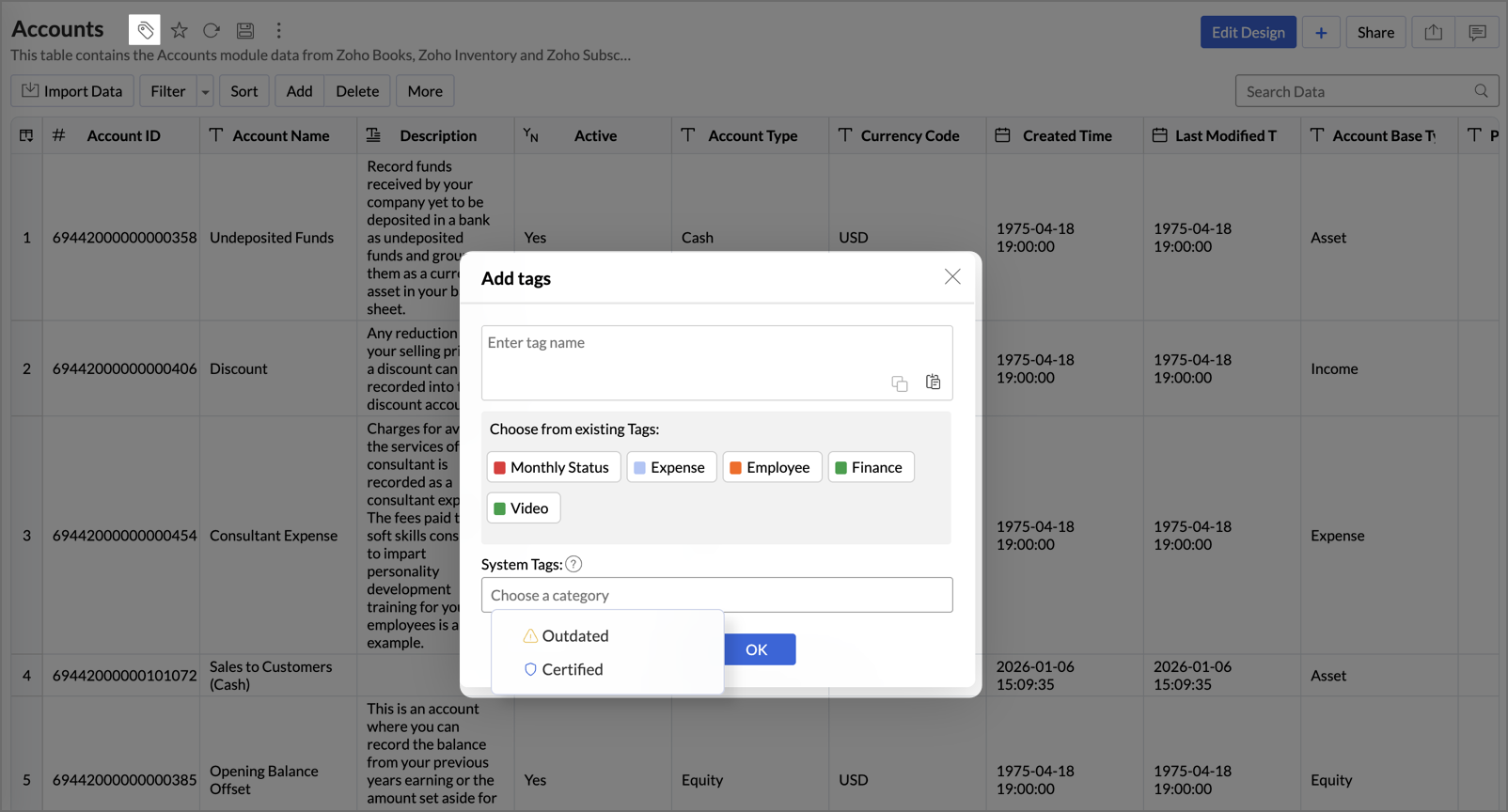
- Create or open the view you wish to tag.
- Click the Tags icon at the top.
- The Add Tags dialog will open, navigate to the System tags section.
- Select the preferred system tags from the available list. Click OK.
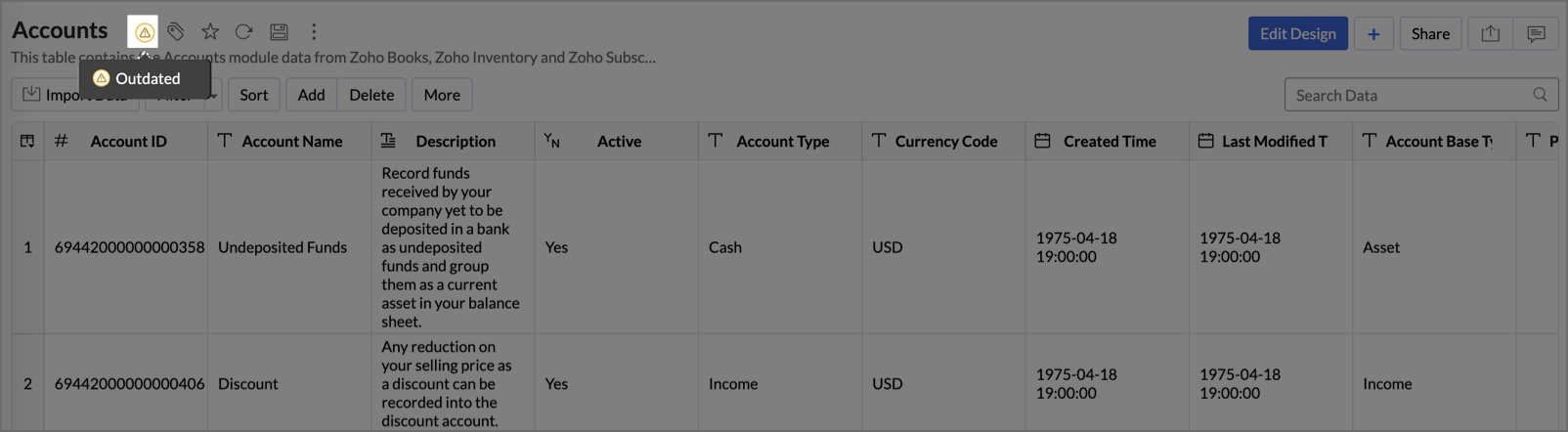
- The tags will now appear next to the view name.
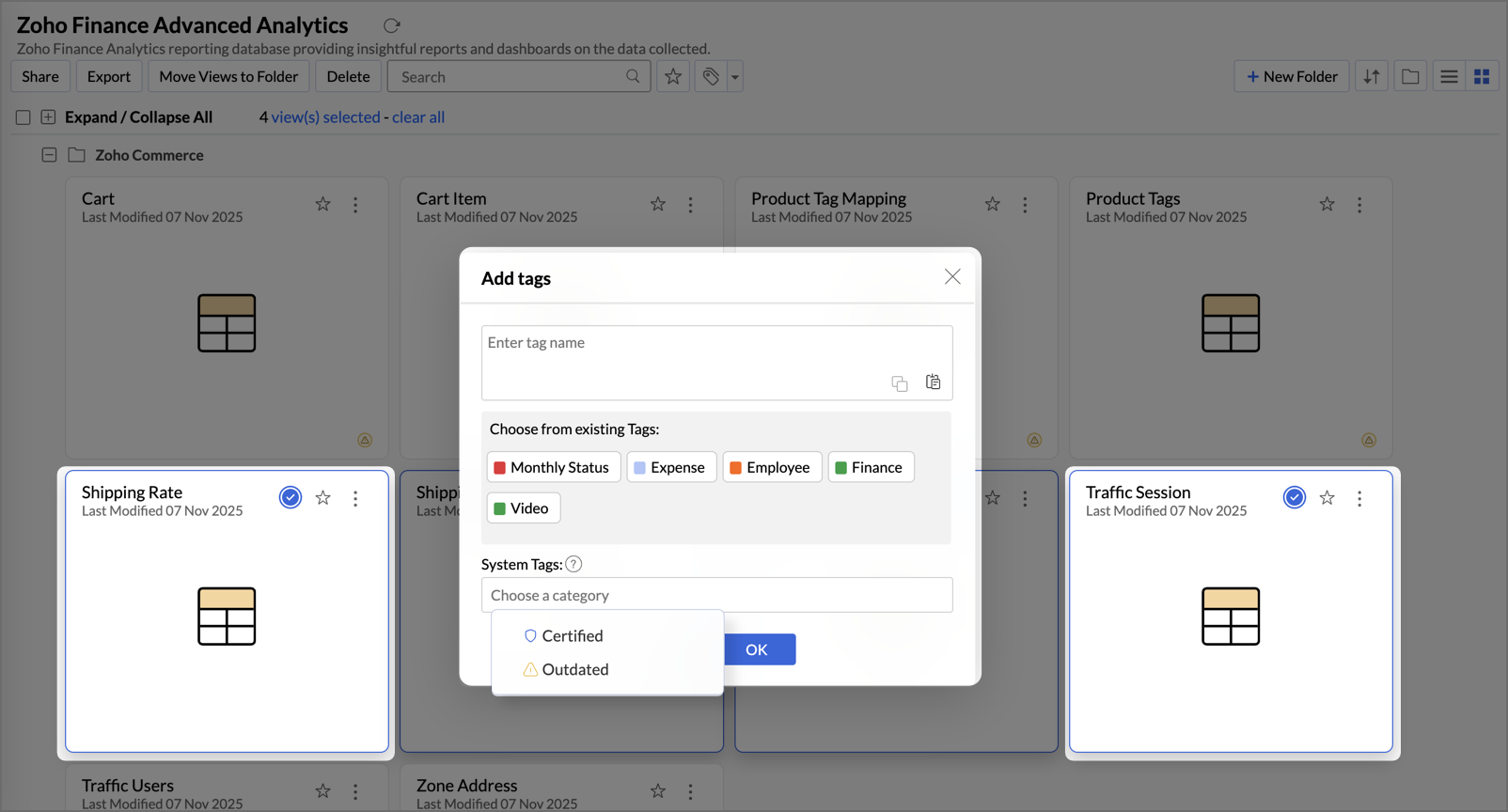
From the Explorer Page:
- Navigate to the Explorer page in your workspace.
- Locate the view, click the More icon on its card, and select Rename / Tag.
- In the Save As dialog, find the Rename View section and navigate to System tags.
- Select the preferred system tags from the available list and click OK.
Removing / Modifying System Tags
You can modify or remove (dissociate) system tags from views using the same method above where tags are added.
Editing tags from the Report level
- Open the view from which you want to edit a tag.
- Click the Tags icon.
- The Edit Tags dialog will open, navigate to the System Tags section, where you can find the System Tags associated with the view.
- You can remove or modify the system tags and click OK to update the view.
Editing tags from the Explorer page
- Go to the Explorer page.
- Find the view and click the More icon.
- Select Rename/Tag.
- In the System Tags section, you can remove or modify the system tags and click OK to update the view.
Managing System Tags
Zoho Analytics provides a centralized System Tags section that allows you to view all system tags within a workspace from a single location.
Navigate to Organization Settings and select the System Tags tab.
Once the System Tags page opens, you will see a comprehensive list of tags associated to this workspace, along with the count of views, dashboards, tables, and datasources associated with each tag.
