Exporting a Dashboard
Zoho Analytics offers exporting and emailing capabilities, which enable you to view the dashboard when you have to work offline and email them. You can export a dashboard as a HTML zip file or as a PDF.
- What are the formats I can export my Dashboard into?
- How do I export Dashboard into an HTML?
- How do I export dashboard as PPT?
- How do I export Dashboard into a PDF?
- How do I export a dashboard into CSV?
- What is Layout as in Dashboard and How do I export it?
- What is Each Report in a New Page and How do I export it?
- Can I export Dashboard with Password?
- Can I email Dashboard?
1. What are the formats I can export my Dashboard into?
Zoho Analytics allows you to export the Dashboard as PDF, PPT, or HTML zip file.
2. How do I export Dashboard into HTML?
3. How do I export a dashboard as PPT?
4. How do I export Dashboard into a PDF?
Zoho Analytics allows you to export the dashboard as PDF in two different layouts. Refer to the corresponding question to know how to export.
5. How do I export Dashboard into CSV?
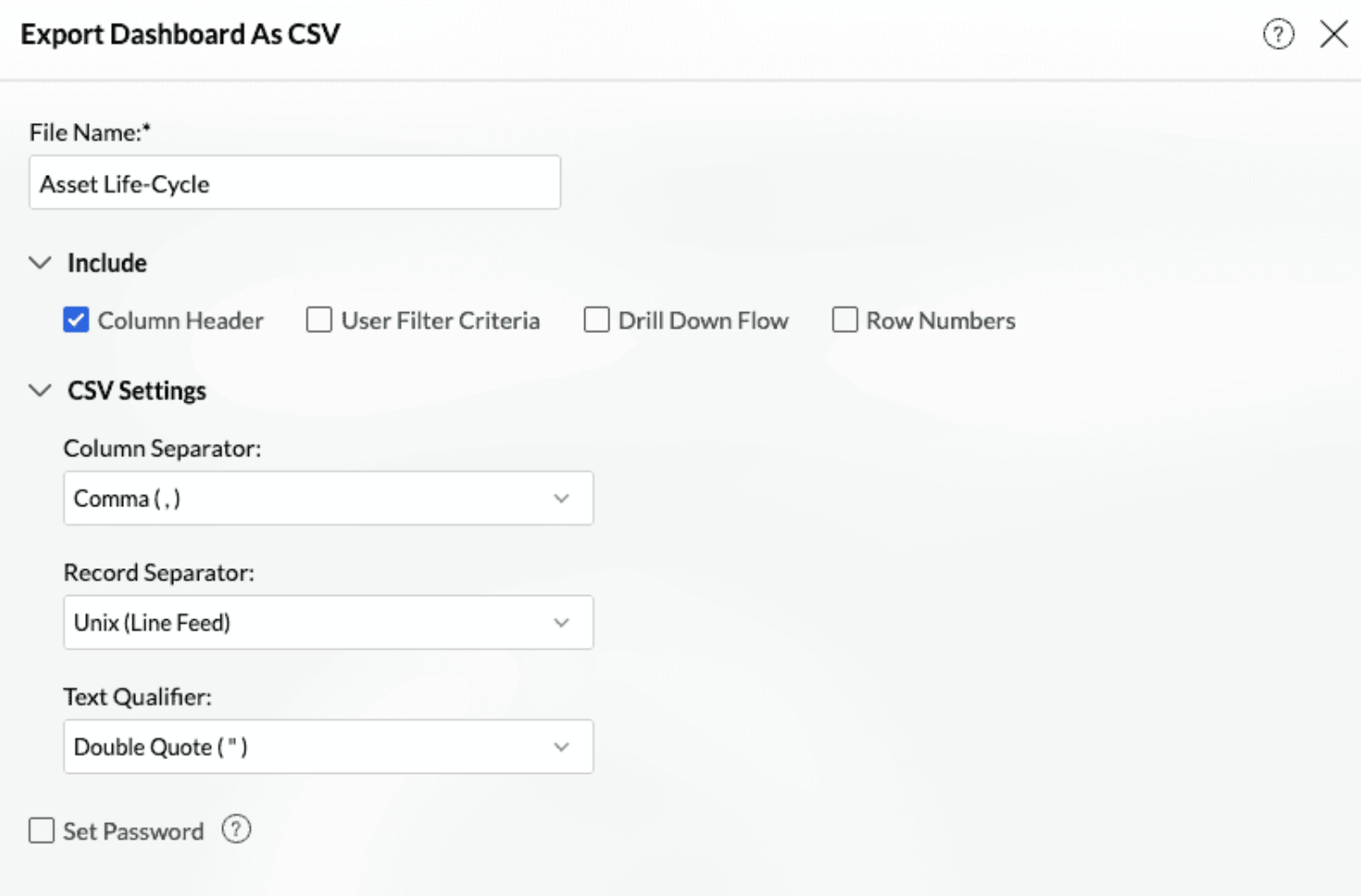
Follow the steps given below to export a dashboard as CSV.
Click the Export icon and then select Export as CSV.
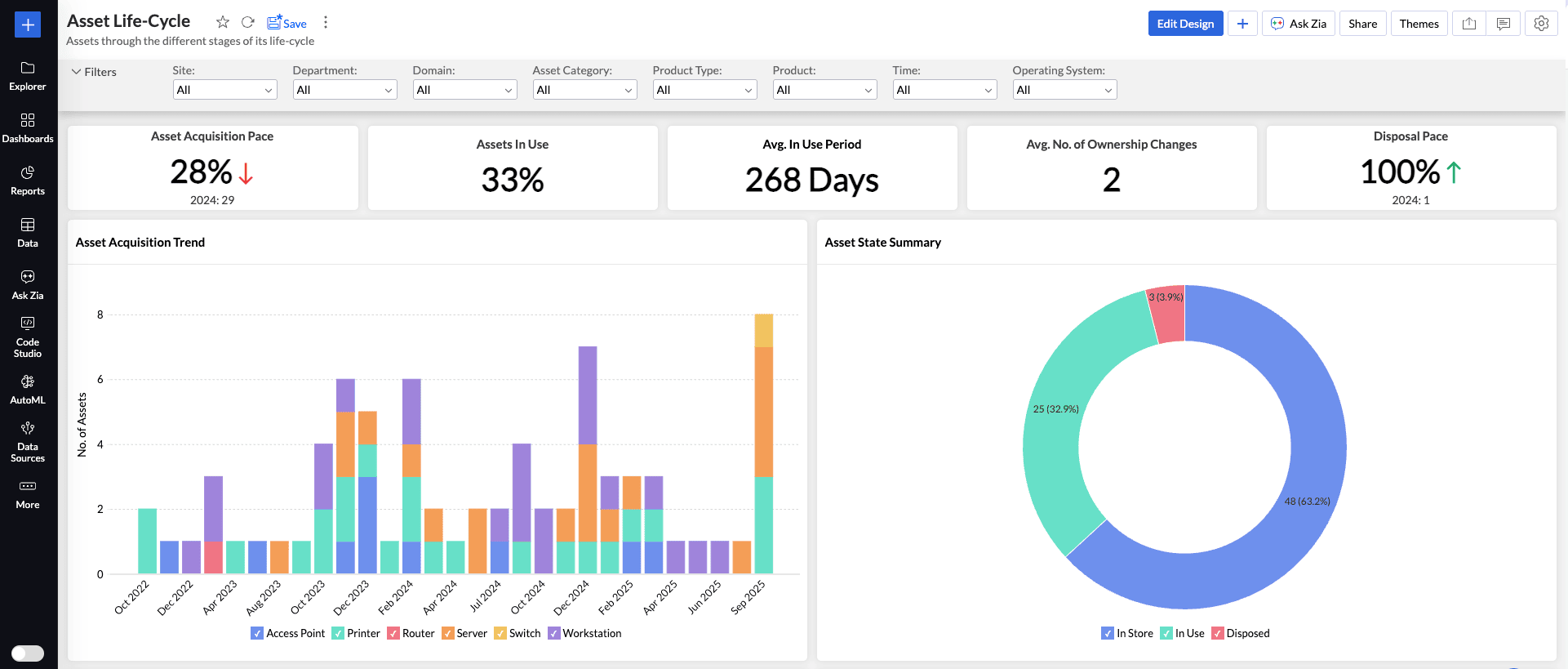
The Export As CSV : Settings page will open.
File Name — Enter the name of the table to be created in Analytics Plus. By default, the file name is used.
Column Header — Includes the first row of your CSV file as column headers in the imported table.
User Filter Criteria — Imports saved user filters along with the CSV data.
Drill Down Flow — Retains drill-down hierarchies defined in the source file.
Row Numbers — Adds a sequential row number column during import.
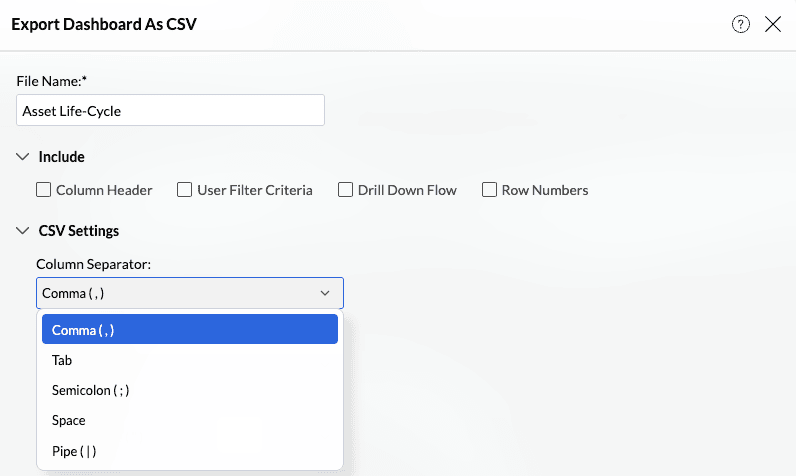
Column Separator — Defines the character used to separate values in the CSV (e.g., comma, semicolon, tab).
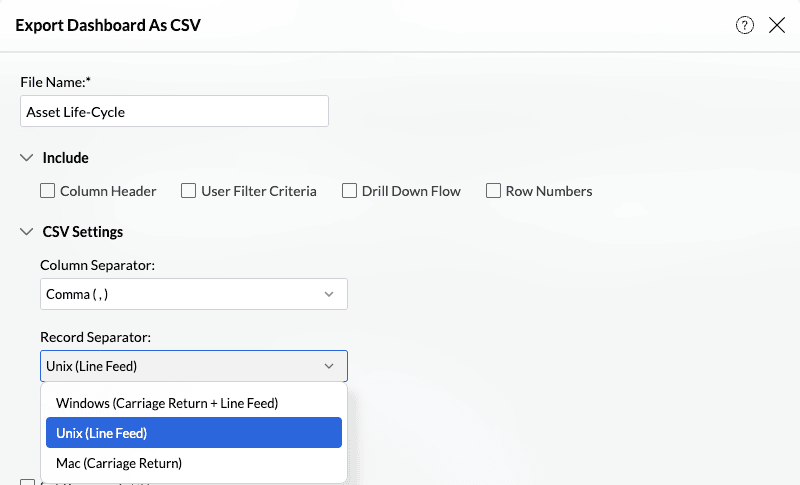
Record Separator — Specifies how rows are separated (e.g., Unix Line Feed \n or Windows Carriage Return + Line Feed \r\n).
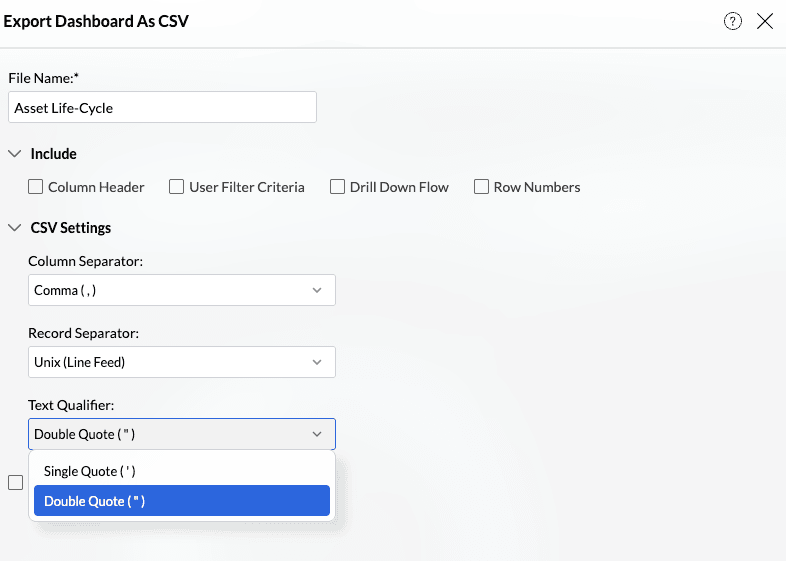
Text Qualifier — Identifies the character enclosing text values (e.g., double quotes " " or single quotes ' ').
Set Password — Allows you to import data from password-protected CSV files.
6. What is Layout as in Dashboard and How do I export it?
Export the Dashboard with the Layout as in Dashboard will export it in the same layout as arranged in the dashboard. This PDF export option is optimized for Dashboards containing charts and KPI widgets. Export dashboard with table styled reports, especially with huge data, in this layout may fail.
Refer to the below presentation to know how to export with Layout as in Dashboard:
7. What is Each Report in a New Page and how do I export it?
This layout will export the dashboard in a single column layout displaying each report in a new page of the PDF.
This type provides the following benefits:
- Supports adding a Table of Content.
- Supports adding Header and Footer in each page.
- Supports more file size for the exported PDF.
- Supports displaying filter criteria applied in the dashboard level and in the reports level.
Refer to the below presentation to know how to export Dashboard with each report in a new page.
8. Can I export Dashboard with a password?
Yes, you can secure the exported files with a password. To do this select the Set Password option in the Export Settings page and then specify the password in the given fields.

9. Can I email Dashboard?
Yes, you can email the Dashboard using the Email tab. Refer to the Emailing Reports section to learn more on this.