PMML Model
Zoho Analytics allows you to import machine learning models built in external tools into your workspace using the PMML (Predictive Model Markup Language) format. PMML is an industry-standard, XML-based format for representing predictive models, enabling models trained in platforms such as Python, R, SAS, or SPSS to be used in Zoho Analytics without retraining or rewriting code.
Invoke AutoML
- Click AutoML from the side navigation panel.
- Click Create New Analysis.
- Choose PMML model.
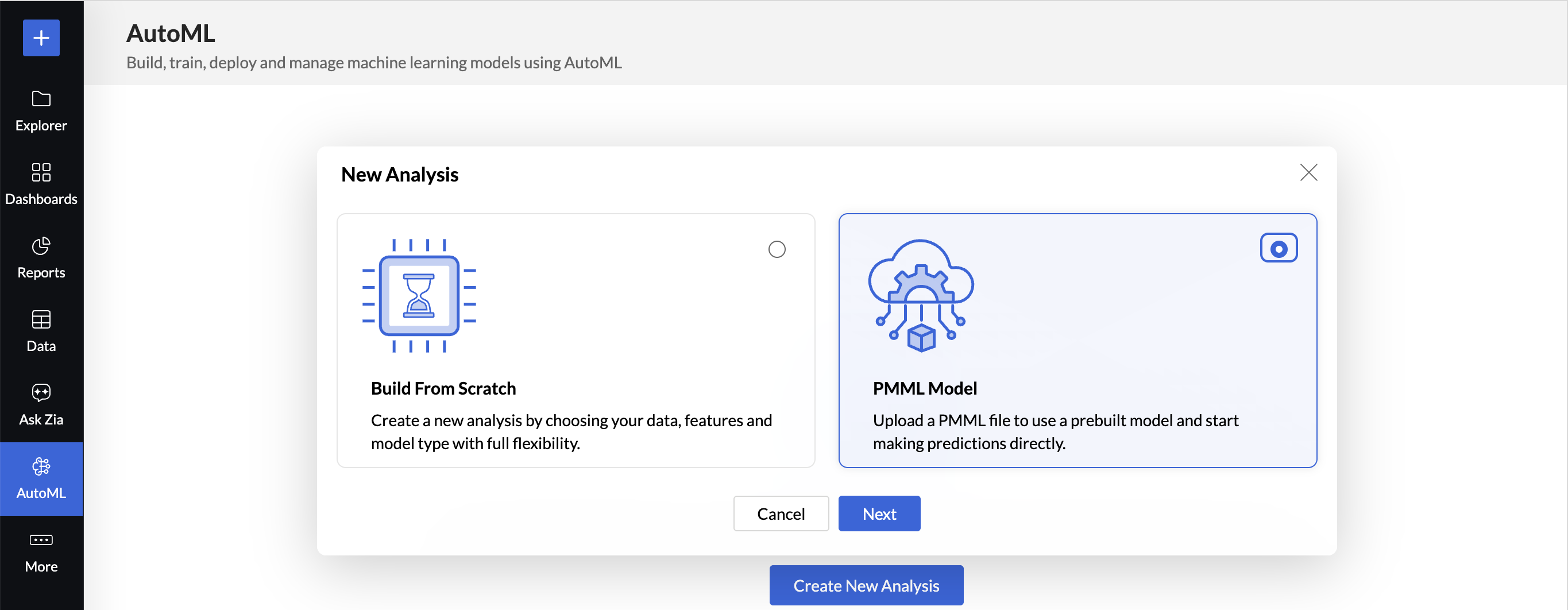
- Click Next.
Analysis Details
- Give a suitable Name and Description for the analysis
- Upload the XML file.
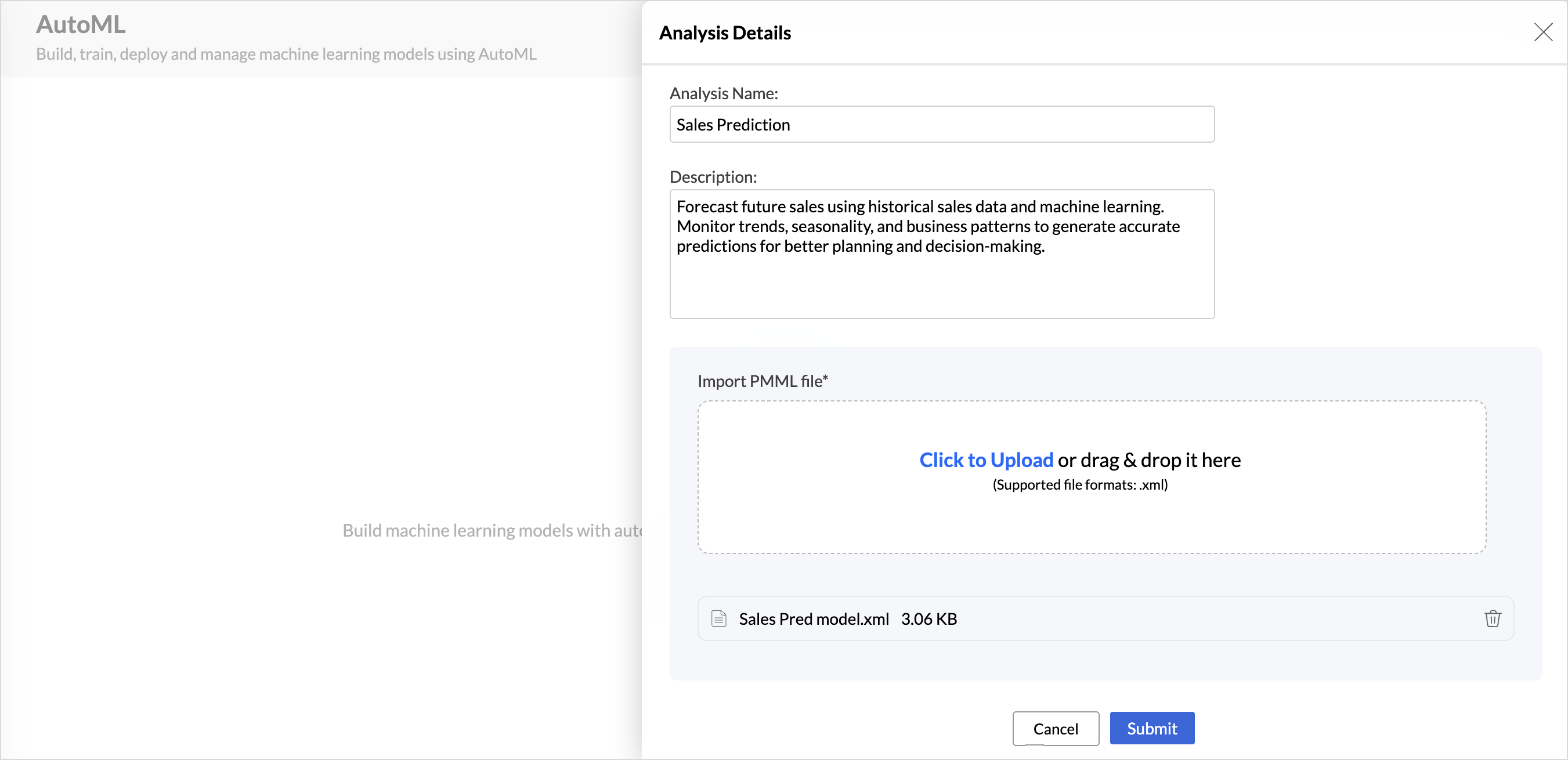
- Click Submit.
Validate the ML model
Once the training is complete, a result tab will be provided to know about the performance and accuracy of each algorithm that was used for training. The Results tab will give an overview of each model's performance, such as the Model Score, Training Status, Trained on, Deployment Status, and Deployment Time.
Deploy the ML model
Once you have assessed the quality and fine-tuned the ML model, you can deploy it on a production dataset to which the trained model should be deployed.
To Deploy the ML model,
- Click Deploy button on the top right corner.
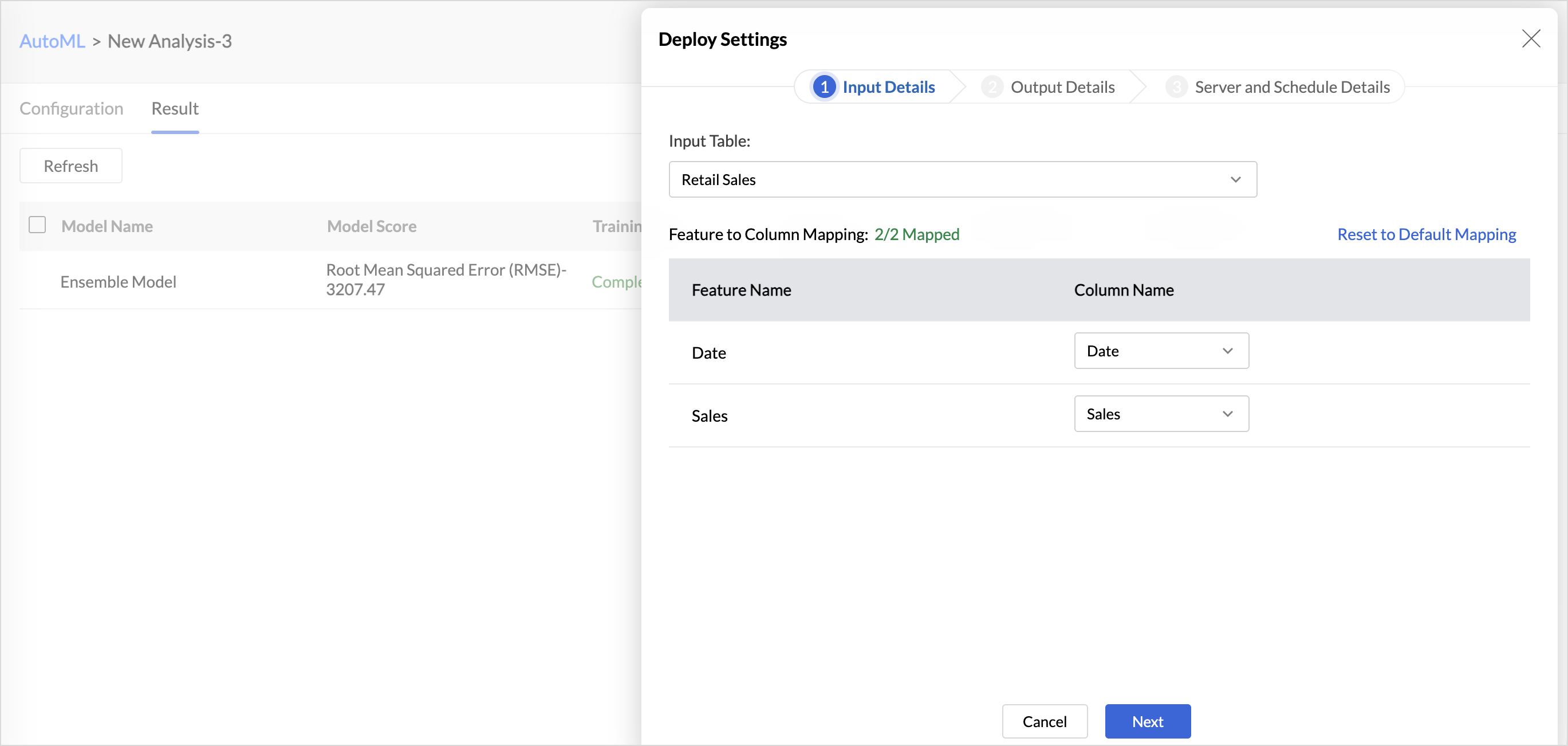
Input Details
Select the table containing the data on which the trained model will be applied. During deployment, the model processes each record in this table and generates the corresponding prediction or classification result.
- Input Table: Choose the table that contains the data to be scored by the trained model.
- Features (Columns): Select the columns that should be used as input features for generating predictions.
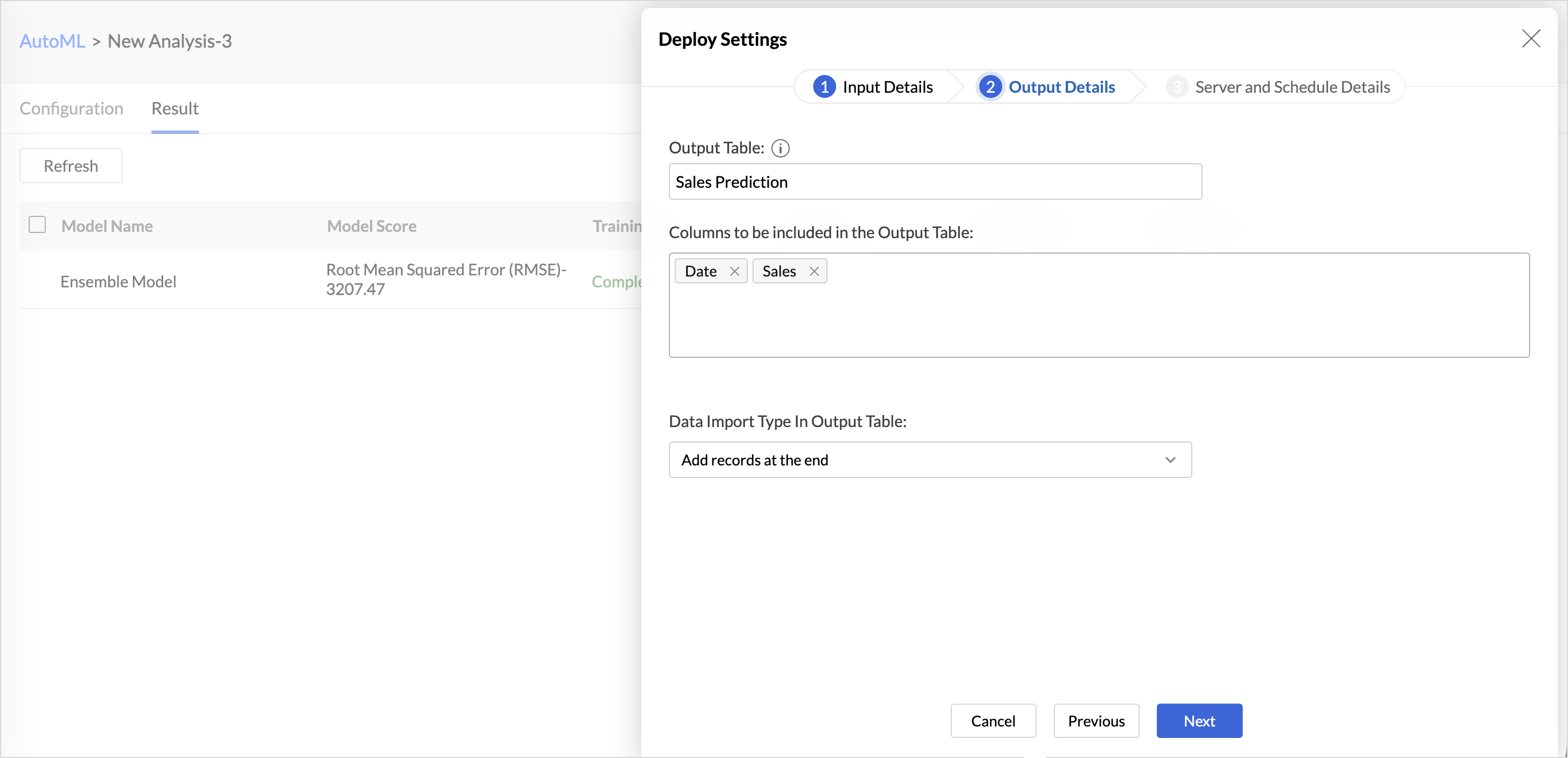
Output Details
- Output Table Name: Enter a suitable name for the output table.The output table is created during the initial deployment. If a schedule is configured, the model is automatically applied to new data added to the source table, and the prediction results are written to this output table.
- Columns to Include: Select the columns from the input table that should be retained in the output table along with the generated prediction results. This helps preserve the relevant business context for each scored record.
- Data Import Type: Choose how the generated prediction records should be written to the output table during each deployment run.
Server and Schedule Details
- Server Option: Select the server configuration that should be used for deployment. Refer to the Pricing Plan section for details about available server options and resource usage.
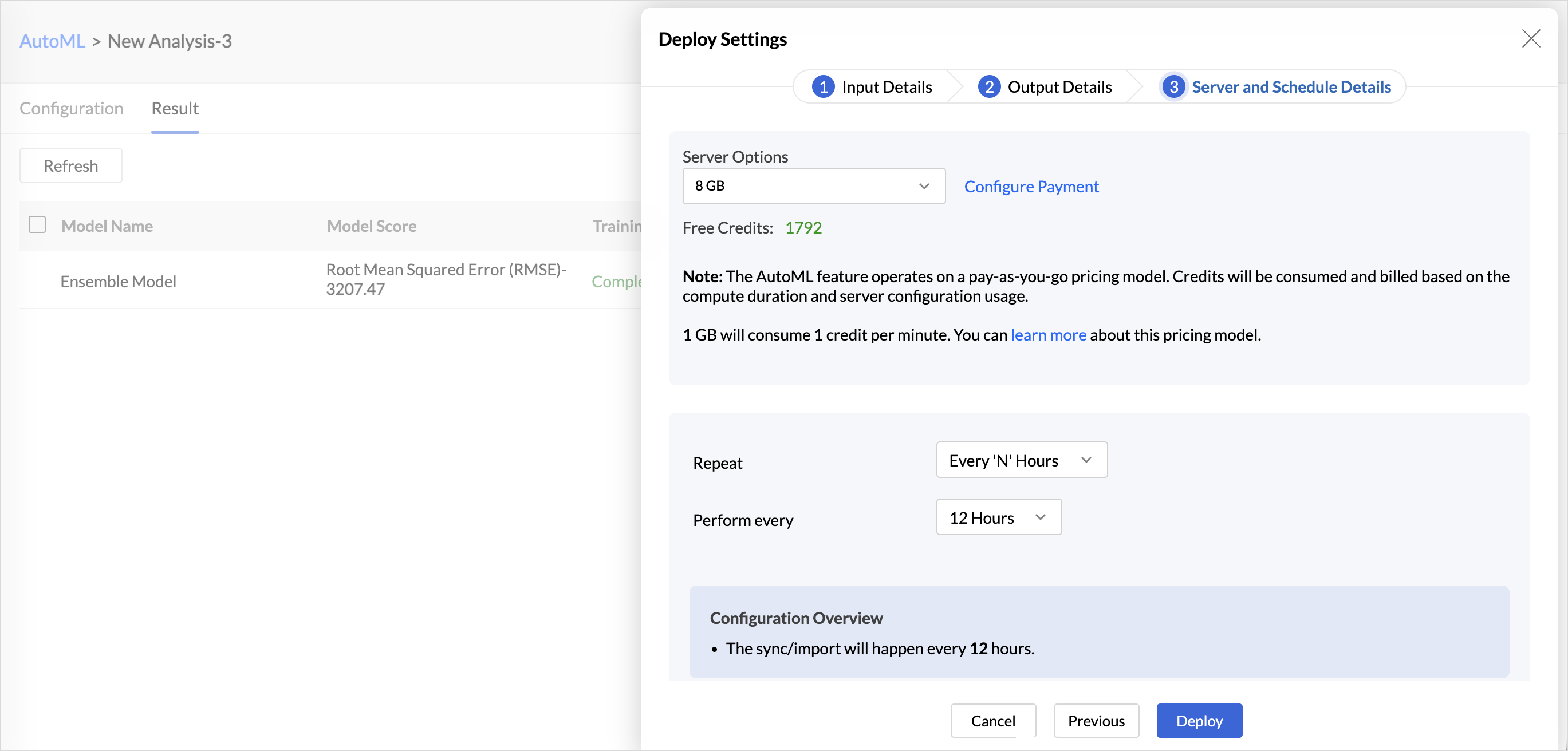
- Repeat: This option allows you to periodically apply the trained model results to the newly added data in the chosen input table. Choose the frequency in which the data should be added to the input table. Available options are:
- Every N Hours
- Every Day
- Weekly Once
- Monthly Once
Note: During each scheduled deployment, the input table is used to retrain the model. Once training is complete, the existing data in the output table is cleared, and the new training results (predictions or classifications) are added to the output table.