Importing Statistical Files
Statistical files are data repositories generated by statistical software applications such as SPSS, SAS, and R. Zoho Analytics imports these files so you can use the data for further reporting and analysis.
This page covers the Statistical-specific options. For the general import procedure, plan availability, role permissions, and common settings that apply to all file formats, see Importing Data from Files.
Supported file extensions
| Extension | Description |
| .sav | SPSS file |
| .sas7bdat | SAS file |
| .rdata | R file |
Statistical import is available from two file sources: Local Drive and FTP. See Starting an Import on the landing page for source-specific entry steps. Pasted Data is not supported for Statistical files because they are binary formats.
Importing a Statistical file
Statistical import follows the standard procedure described in Starting an Import on the landing page. The Statistical-specific step is the file-type selection:
- After selecting your source (Local Drive or FTP) and providing the source details, the import wizard opens.
- From the File Type dropdown, select Statistical File.
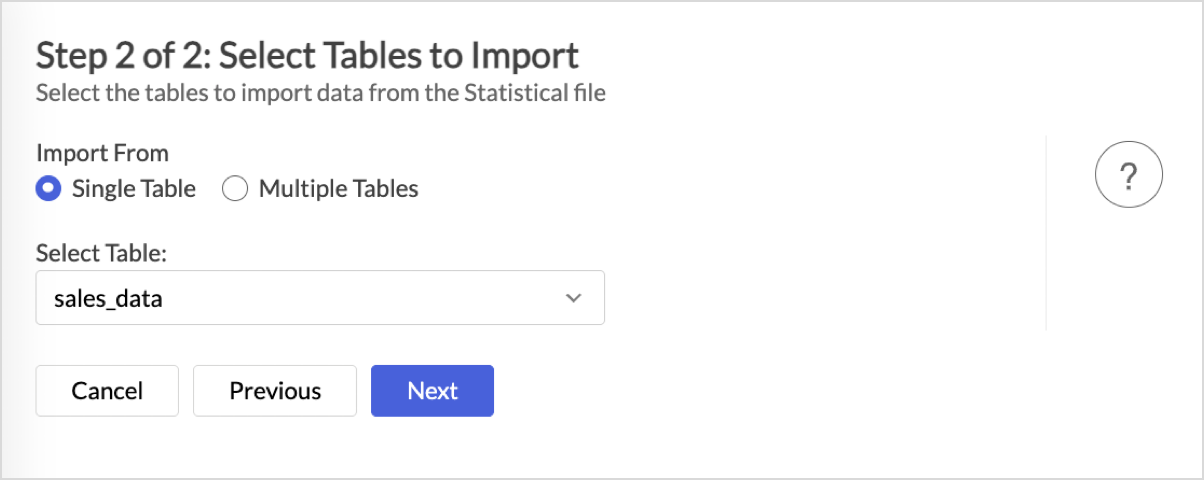
- Click Next. For R (.rdata) files, the Select Tables to Import screen opens. R data files can contain multiple data frames, so Zoho Analytics prompts you to choose which tables to bring in. Select your tables as described in Selecting tables to import below, then click Next.
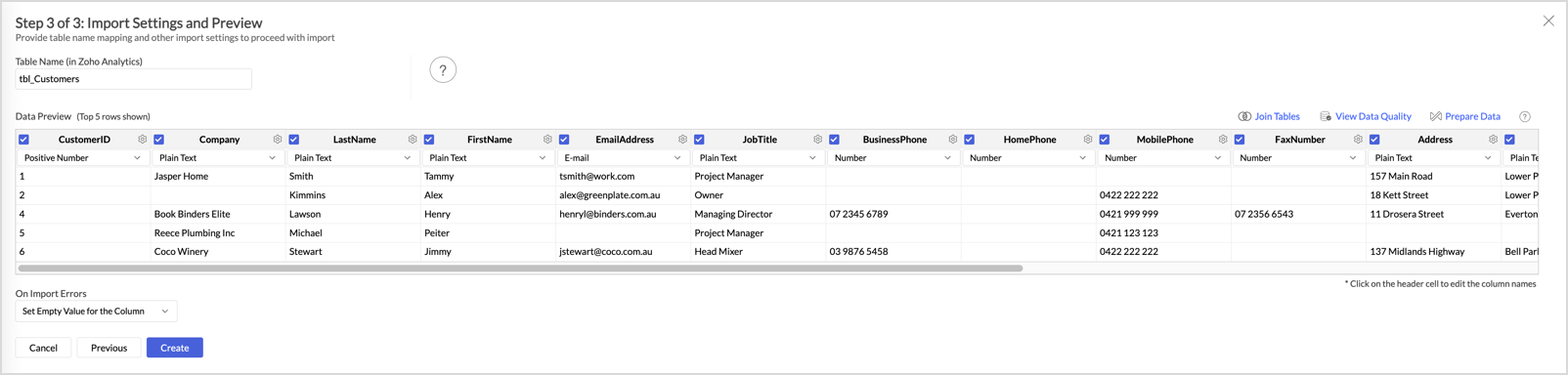
- Complete the general settings: Table Name, First Row Contains Column Names, and Format of Date Columns. These are documented in Configuring Import Settings on the landing page.
- Verify the Data Preview, configure On Import Errors, then click Create.
Selecting tables to import
When importing an R data file (.rdata) that contains one or more tables, the Select Tables to Import screen opens. Choose one of the two import methods:
Single Table
Select Single Table and choose a table from the Select Table dropdown. The selected table is imported as one Zoho Analytics table.
Multiple Tables
Select Multiple Tables to import multiple tables in one operation:
- The wizard shows the available tables on the left and the Selected Tables panel on the right.
- Select the checkboxes next to the tables you want to import. To import every table in the file, select Select All Tables.
- To find a specific table in a long list, use the Search Tables filter at the top of the available tables panel.
- Selected tables move to the Selected Tables panel on the right as you select them.
- After you have selected all the tables you want to import, click Next to proceed.
Notes and limitations
- File size limit: 100 MB per file and 1 million rows per import. For larger Statistical files, see Import Large Data Files using Zoho Databridge.
- Variable labels and value labels: Zoho Analytics does not import variable labels or value labels from statistical files. The underlying variable names are imported as the column names in Zoho Analytics.
Related
- Importing Data from Files - import home page covering source selection, common settings, and operational tasks
- Importing Excel Files - for tabular analysis data in spreadsheet format
- Importing CSV Files - for delimited text data
- Import Large Data Files using Zoho Databridge - for Statistical files larger than 100 MB