Importing MS Access Database Files
Microsoft Access is a desktop database format that stores data across one or more tables. Zoho Analytics imports MS Access files differently from other file formats: instead of importing a single dataset, the wizard lets you choose one or more tables to import or write a custom SQL query against the database.
This page covers the MS Access-specific options. For the general import procedure, plan availability, role permissions, and common settings that apply to all file formats, see Importing Data from Files.
Supported file extensions
| Extension | Description |
| .mdb | MS Access 2003 and earlier |
| .accdb | MS Access 2007 and later |
MS Access import is available from two file sources: Local Drive and FTP. See Starting an Import for source-specific entry steps. Pasted Data is not supported for MS Access files because they are binary database files.
Importing an MS Access file
The MS Access import procedure differs from other file formats. After selecting your file, the wizard opens a Select Data to Import section where you choose how much of the database to import.
- After selecting your source (Local Drive or FTP) and providing the source details, the import wizard opens.
- From the File Type dropdown, select MS Access Database File.
- After the file is uploaded, click Next. The Select Data to Import section opens.
- Choose one of the import methods described in Selecting data to import below.
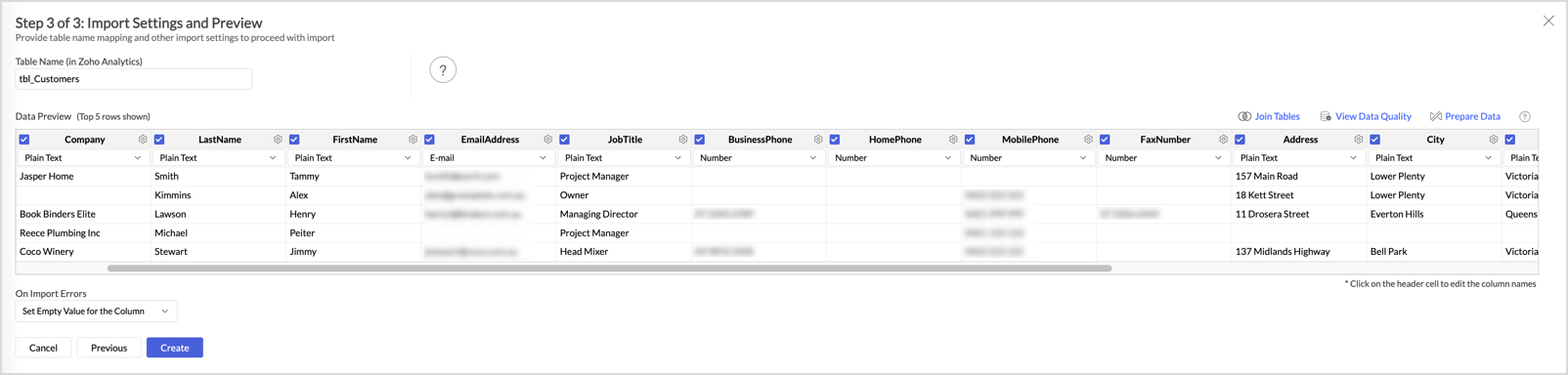
- Configure the Import Settings (Workspace Name or Table Name, Description).
- Verify the Data Preview, configure On Import Errors, then click Next to set up scheduling. See Scheduling and import modes below.
- Click Create.
Selecting data to import
After selecting your MS Access file, choose one of three methods to import data:
Single Table
Select Single Table and choose a table from the Select Table dropdown. The selected table is imported as one Zoho Analytics table.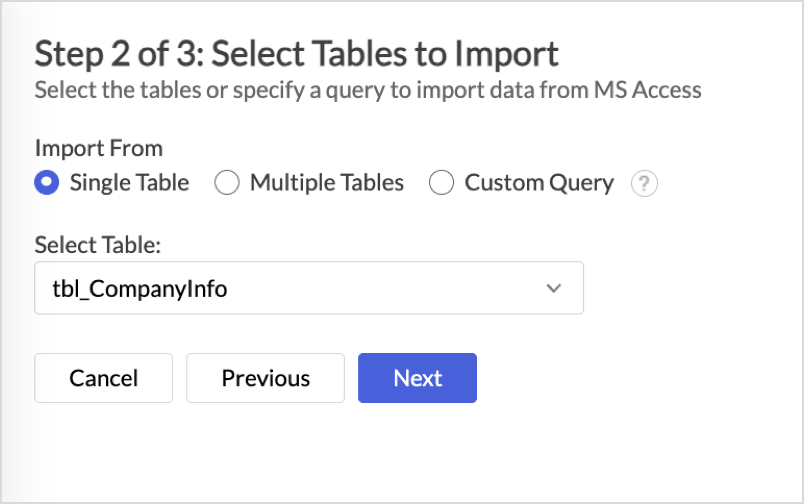
Multiple Tables
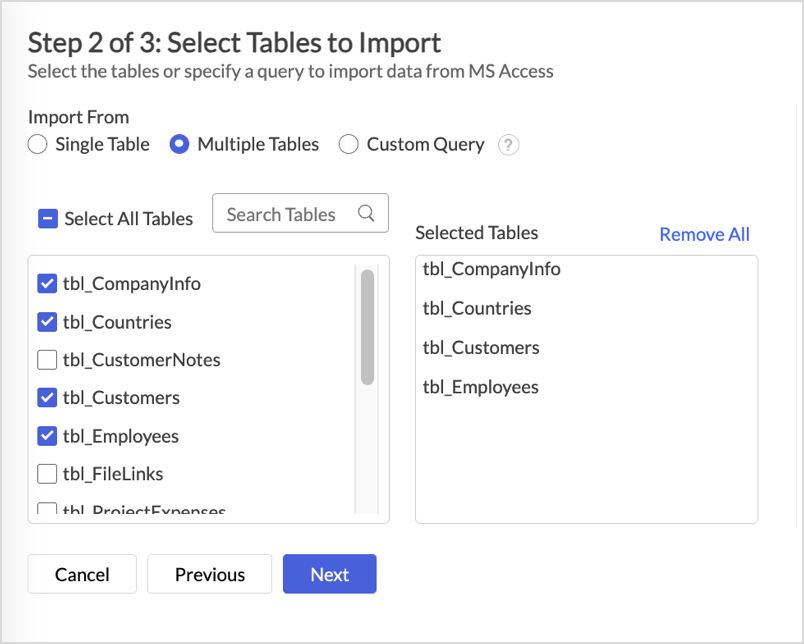
Select Multiple Tables to import multiple tables in one operation:
- Select the checkboxes for the tables you want to import. To import every table, select Select All Tables.
- In the Import Settings page, the selected tables are listed on the left, and the corresponding Zoho Analytics tables are listed on the right.
- To rename a target table, click the edit icon that appears when you hover over the table name.
Custom Query
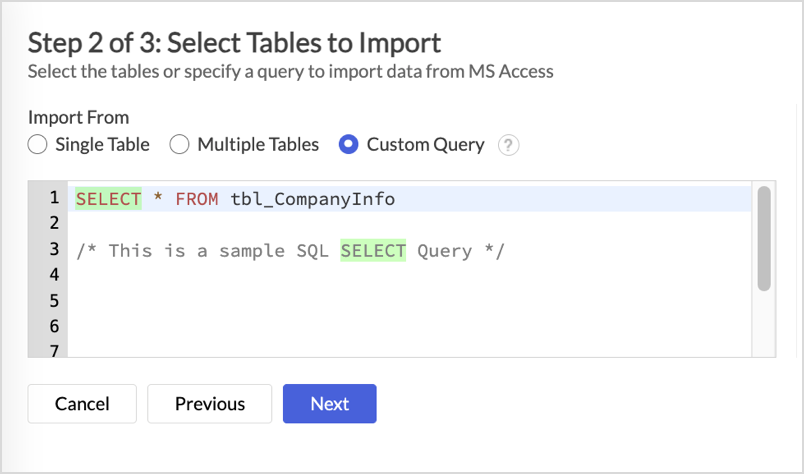
Select Custom Query to import specific data using a SQL query against the MS Access database.
- Write your SQL query in the query field.
- Click Next. The Import Settings page opens with options similar to Single Table import.
Scheduling and import modes
After configuring Import Settings and clicking Next, the Schedule Settings section opens. MS Access imports can be scheduled with the following frequencies:
- Every 'N' hours
- Every Day
- Weekly Once
- Monthly Once
If you choose to schedule the import, also select an import mode from the How do you want to Import dropdown:
- Add records at the end - appends new records to the existing table in every scheduled import
- Delete existing records and add - deletes all existing records and replaces them with the new ones in every scheduled import
Managing the data source
After import, the workspace shows a Data Source section with the following options:
- View the import status
- Edit Setup - modify the connection, selected tables, or schedule
- Sync Now - trigger an immediate sync of the data. This option is available only when the MS Access file is imported from an FTP server. For files imported from Local Drive, Sync Now is not available because Zoho Analytics has no persistent connection to the source. To bring in updated data from a local MS Access file, re-import the file.
Notes and limitations
- File size limit: 100 MB per file and 1 million rows per import. For larger MS Access files, see Import Large Data Files using Zoho Databridge.
- Relationships between tables: Relationships defined between tables in the source MS Access database are not preserved during import. If you need lookup relationships between the imported tables in Zoho Analytics, you must create them manually after import.
Related
- Importing Data from Files - import home page covering source selection, common settings, and operational tasks
- Importing Excel Files - for spreadsheet-style data
- Import Large Data Files using Zoho Databridge - for MS Access files larger than 100 MB