Manage Zoho Databridge
Monitor and manage all Databridge installations across your workspaces, and control user permissions to ensure only authorized users can access them.
On this Page
- Accessing Databridge Settings
- Enable or Disable Databridge Connection
- Delete Databridge Connection
- Resolve Connectivity Issues
- Edit Databridge Permissions
- Frequently Asked Questions
Accessing Databridge Settings
Users with Administrator Priviliges, Custom Role users and Shared Users with the permission to import data can manage databridge connections.
- Access the Org Settings on the top right corner. Click Data Administration > Databridge.
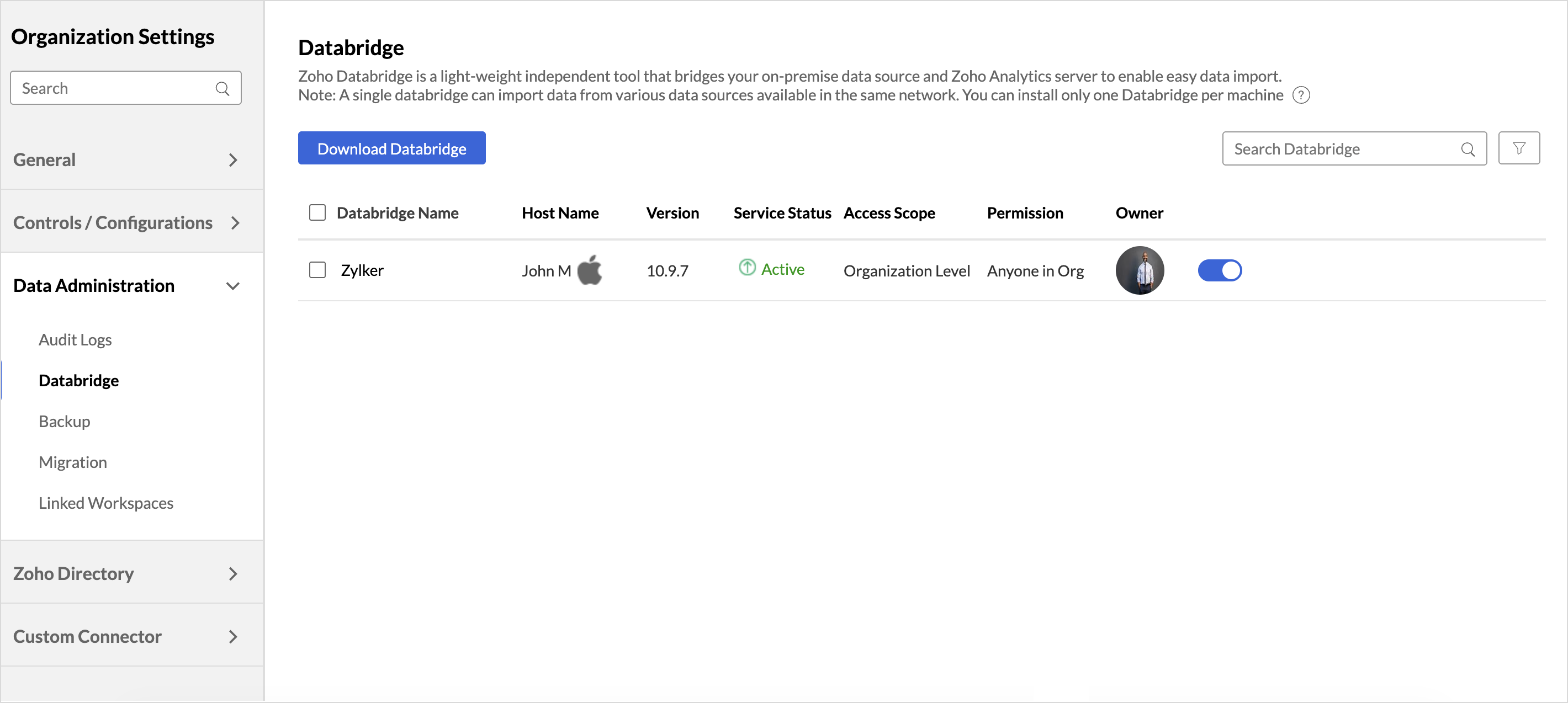
All the data bridge connections linked to your account will be listed along with the below details,
Databridge Name The name associated with the Databridge. Host Name The machine in which the Databridge is downloaded. Version The current version of the Zoho Databridge. Service Status Denotes the status of the Databridge, whether active or not. Access Scope Shows the level at which Databridge can be used, either at the organization level or restricted to specific workspaces. Permission Indicates who can access and use the Databridge connection for importing data, based on the sharing settings configured by the owner or administrator. Owner Displays the name of the user who installed it.
Enable or Disable Databridge Connection
By default, the Databridge connection is in Enabled mode. You can use the toggle button to enable or disable the Databridge connection.
When a Databridge connection is disabled, all scheduled syncs associated with it will be suspended until it is enabled again.
Delete Databridge Connection
Deleting a Databridge connection will permanently remove it from your account. Once deleted, the connection and its associated with it will be suspended and you must set up a new Databridge connection to continue importing data.
Note: Any action performed on the Databridge connection, such as enabling, disabling, or deleting, will trigger an in-app notification to all users with whom the Databridge is shared.
Resolve Connectivity Issues
Zoho Databridge can sometimes fail due to a variety of reasons. In this case you can use the below listed options to resolve.
- Ping Databridge: The Ping Databridge option can be used when the Zoho Databridge is active, but the Zoho Analytics server is unable to connect with the Databridge. Hover over the Databridge connection and click Ping.
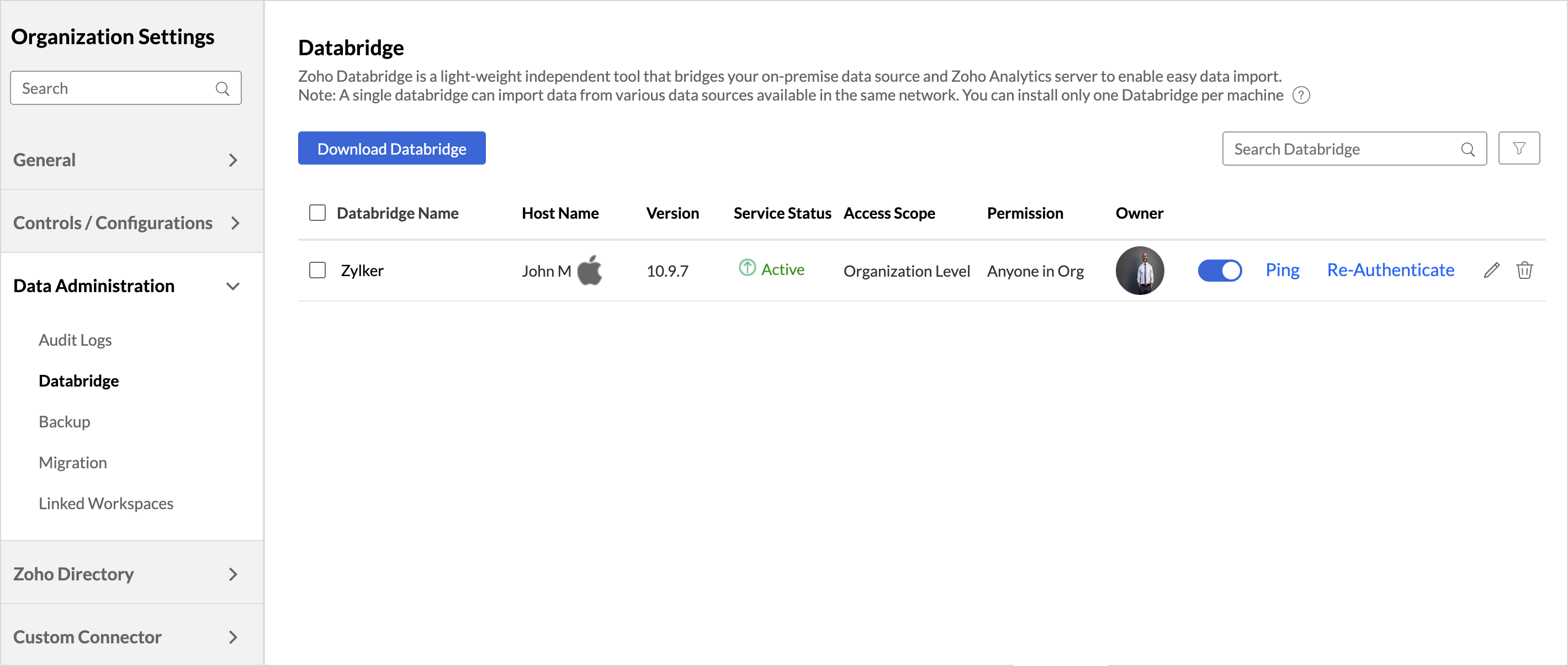
- Re-authenticate: Re-authentication is required when the existing access token becomes invalid or expires. This ensures Databridge can securely continue syncing data. Additionally, to import data using a shared Databridge connection, the user must authenticate the connection to establish access and proceed with data import.
Edit Databridge Permission
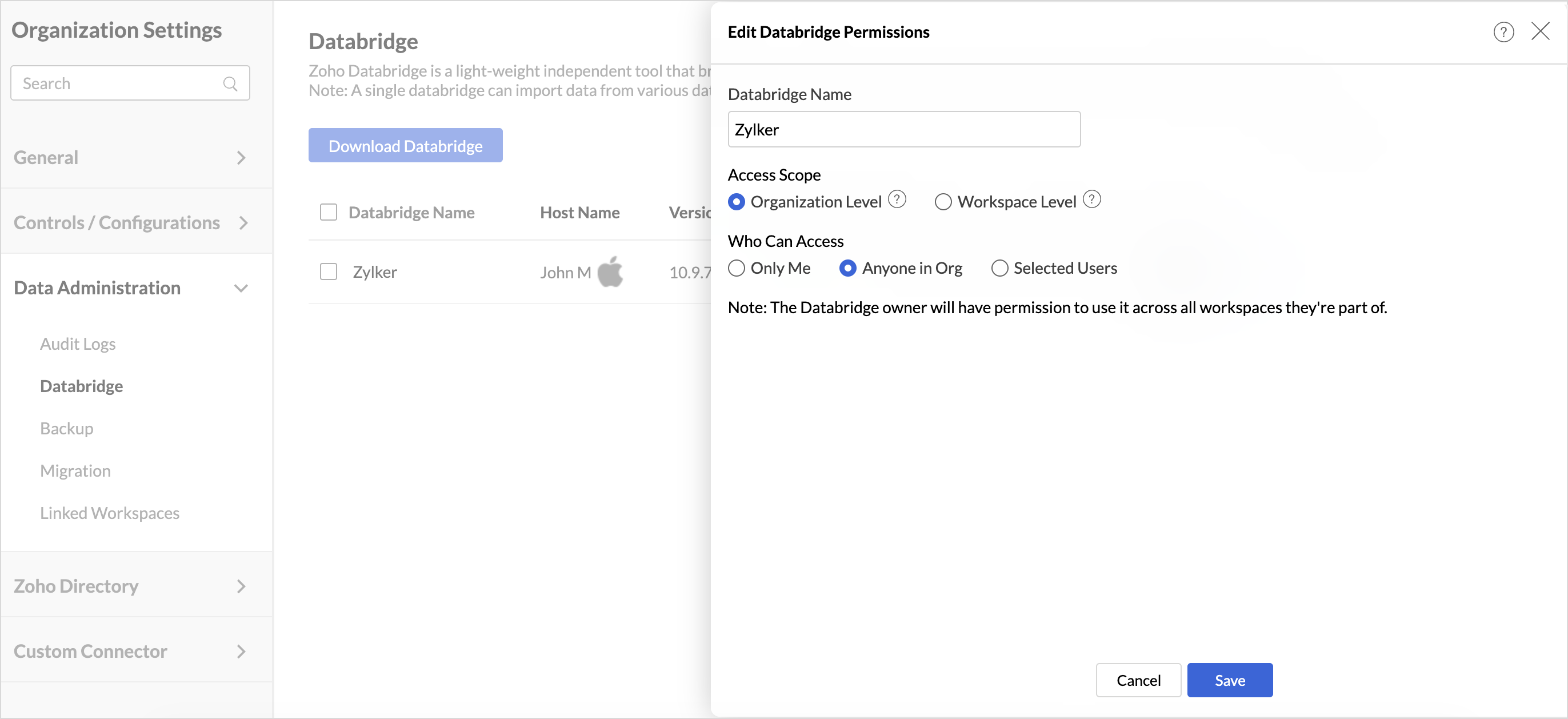
Zoho Analytics allows you to manage Databridge access by defining the level at which it can be used and who can use it for importing data into workspaces.
Access Scope
The Access Scope defines the level at which Databridge can be used when the databridge is shared with other users in the organization.
- Organization Level: Allows Databridge to be used across all workspaces in the organization for importing data.
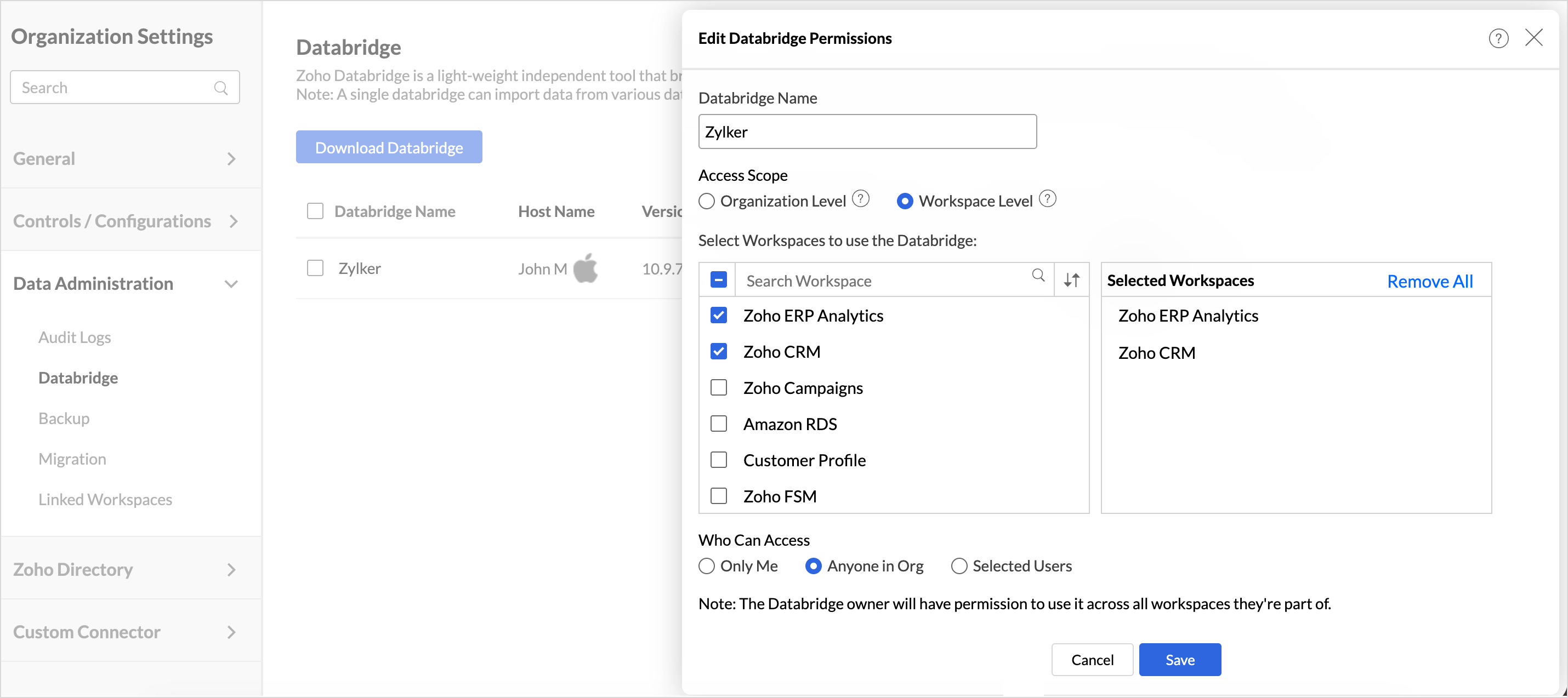
- Workspace Level: Allows Databridge to be used only in specific workspaces selected by the databridge owner
Who can Access
Who Can Access defines which users can access and use the Databridge connection. By default, the Databridge connection is accessible only to the owner who installed it at the organization level.
You can choose from the following options:
- Only Me: Only you (the installer) can access and use the Databridge.
- Anyone in Org: All users in the organization can access and use the Databridge.
- Selected Users : Only the users you specify will be able to access and use the Databridge.
If you have chosen at the Workspace Level then select the workspaces for which shared databridge connection can be used.
Frequently Asked Questions
1. How to view the shared databridge connection?
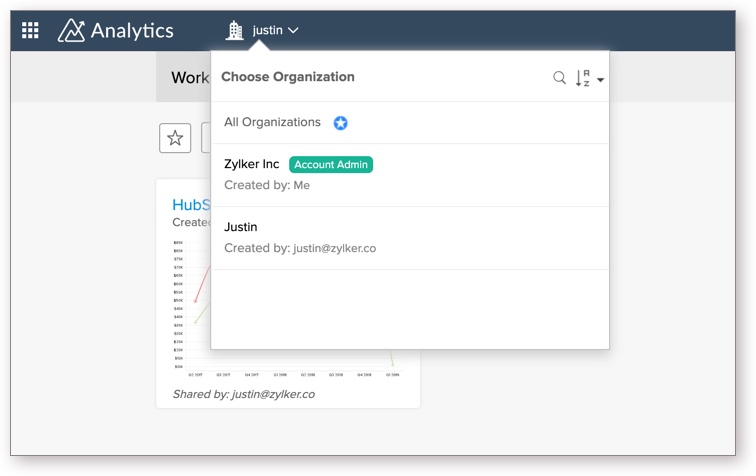
To access a Databridge connection shared with you, you must switch to the organization of the user or admin who shared the Databridge.
For example, if the Databridge connection is shared from the Zylker Organization, you must switch to the Zylker Organization in Zoho Analytics to view the connection and use it for importing data.
2. What happens if the Databridge owner is disabled in the organization?
If the Databridge owner is disabled at the organization level, the Databridge will be automatically disabled. All shared databridge users who have used the Databridge to create a connection or import tables will be notified.
3. What happens if the Databridge owner’s role is changed to Viewer?
If the Databridge owner’s role is changed to Viewer, the Databridge will be automatically disabled. Users who have used it to create a connection or table will be notified.
4. What happens if the Databridge owner is deleted?
If the Databridge owner is deleted from the organization, the Databridge will be permanently deleted. All users who have used it to create a connection or import tables will be notified.