Cin7 Core
Connect Cin7 Core data with Zoho Analytics and gain complete visibility into your inventory, sales, and purchasing operations. Build interactive dashboards and reports to monitor stock level, track sales performance, analyze inventory turnover, identify slow moving products and make data driven decisions that improve operational efficiency and profitability. With automated data synchronization, reports stay up to date, giving you real time insights.
How to Import Cin7 Core data into Zoho Analytics?
Users with Administrator Privileges such as Account Admin, Organization admin Workspace admin can configure the connection between Cin7 Core and Zoho Analytics.
- Click Import your Data > Project Management > Cin7 Core.
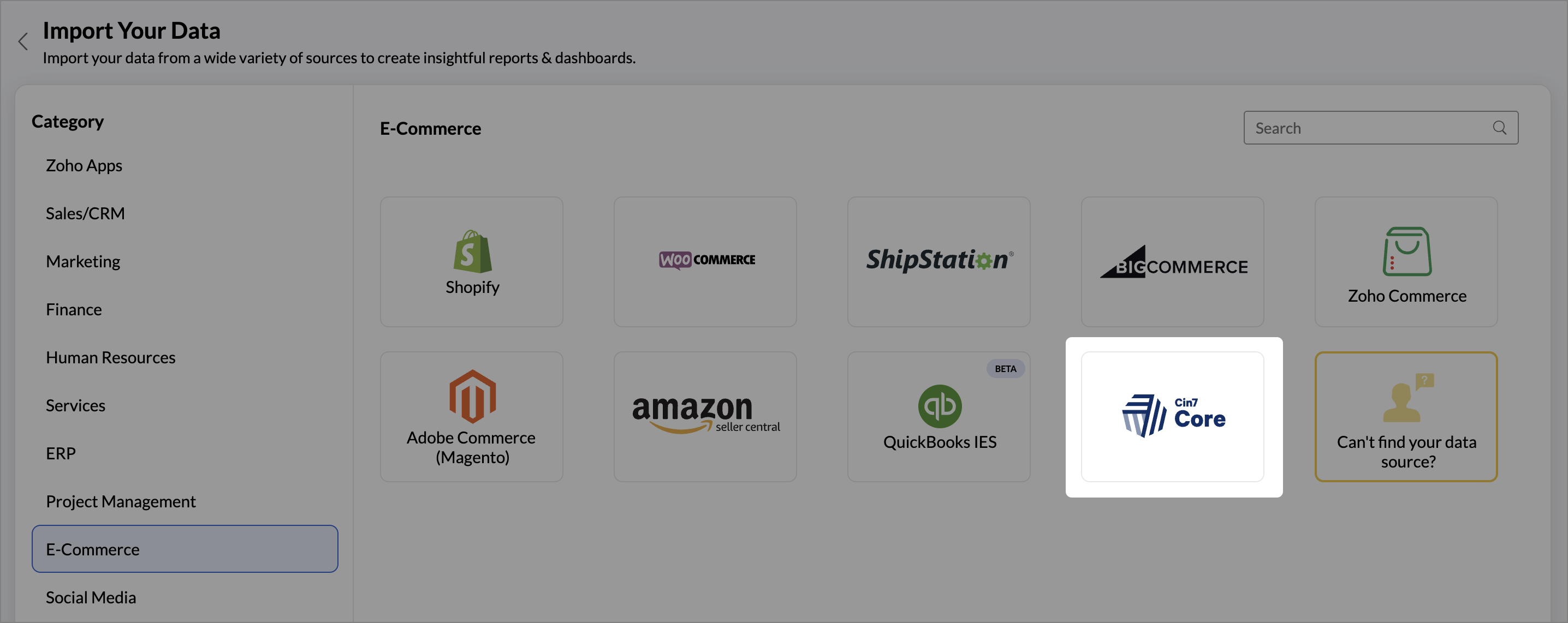
- Cin7 Core Advanced Analytics setup will open. Click Next to proceed.
- Provide a suitable Workspace Name and Description.
- Provide the Account ID and API Key.
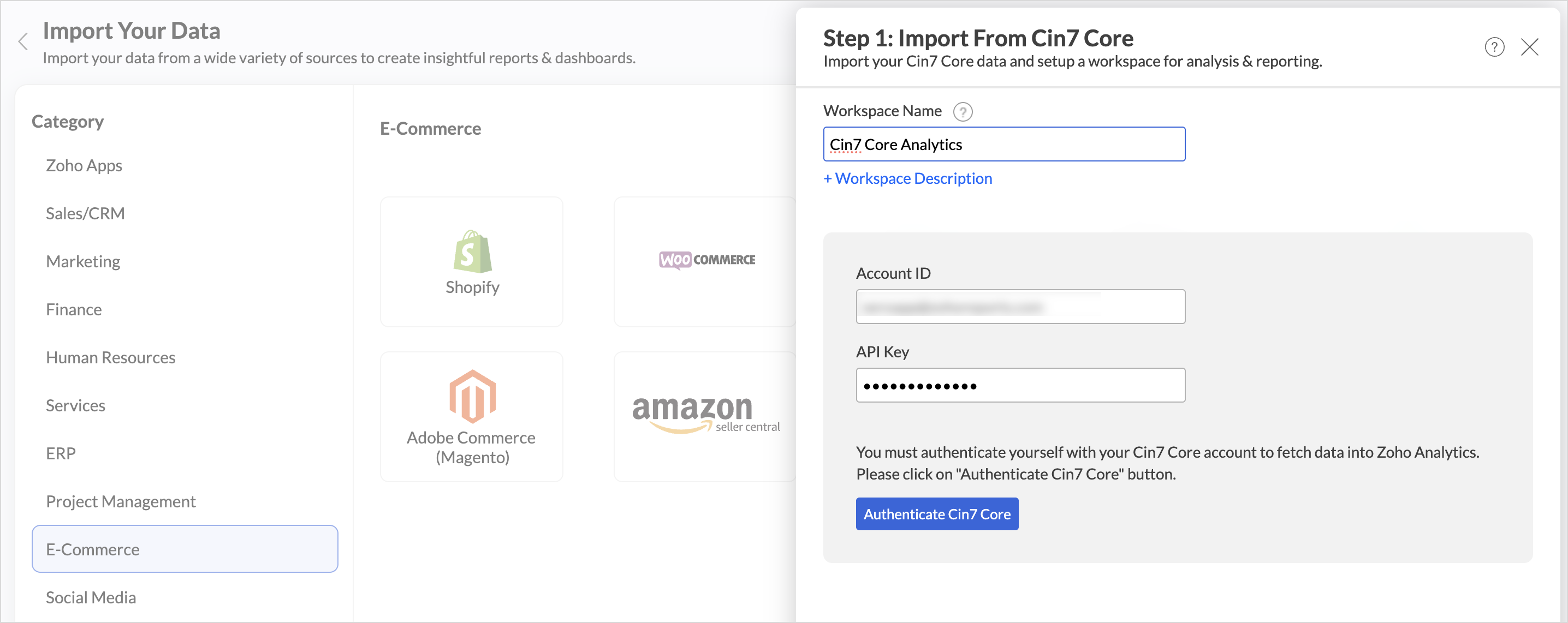
- Click Authenticate Cin7 Core.
- Choose the Modules and Fields to be imported.
- Select the Data sync interval in which the data should be imported.
- Click Create.
Note
- The initial fetch might take a few minutes depending on the volume of the data to be imported. An email and an in-app notification will be sent once the initial fetch is complete.
- The setup process can sometimes fail for a variety of reasons. In this case, we request you to access the Data Sources tab and click the Retry link to import again. If the issue persists, write to support@zohoanalytics.com
Data Sync Frequency
Zoho Analytics offers flexible sync schedules to ensure that your data is always up-to-date for effective analysis. These schedules allow you to automate the process of updating your data, ensuring that your analyses are based on the latest information.
- 1 Hour (Enterprise plan only)
- 3 Hours(Standard plan and above)
- 6 Hours (Standard plan and above)
- 12 Hours (Standard plan and above)
- Every day
Data Synchronization Failure between Cin7 Core and Zoho Analytics
Data Synchronization can fail due to any of the following reasons:
- Authentication Failure
- Connection Error
- Insufficient Permissions
- Modules and fields selected for analysis are deleted in the Cin7 Core Application.
In any of the above mentioned cases, the data sync will be paused. You will be notified via email and in-app notification with the exact reason for failure along with the solution.
Refer to Data Sync failure and solutions article for more details.To resolve the sync failure, delete or restructure the views, or restore the specific modules and fields from the source application.
Once you have made the changes, click the Sync now option to resume the data sync. If the issue persists, contact support@zohoanalytics.com.
How to Manage Cin7 Core Data Source in Zoho Analytics?
The Data Sources tab provides essential information to monitor and manage the integration setup. It also allows you to edit the settings as needed. Users with administrator privileges will be able to view and modify the connection settings.

Edit Setup
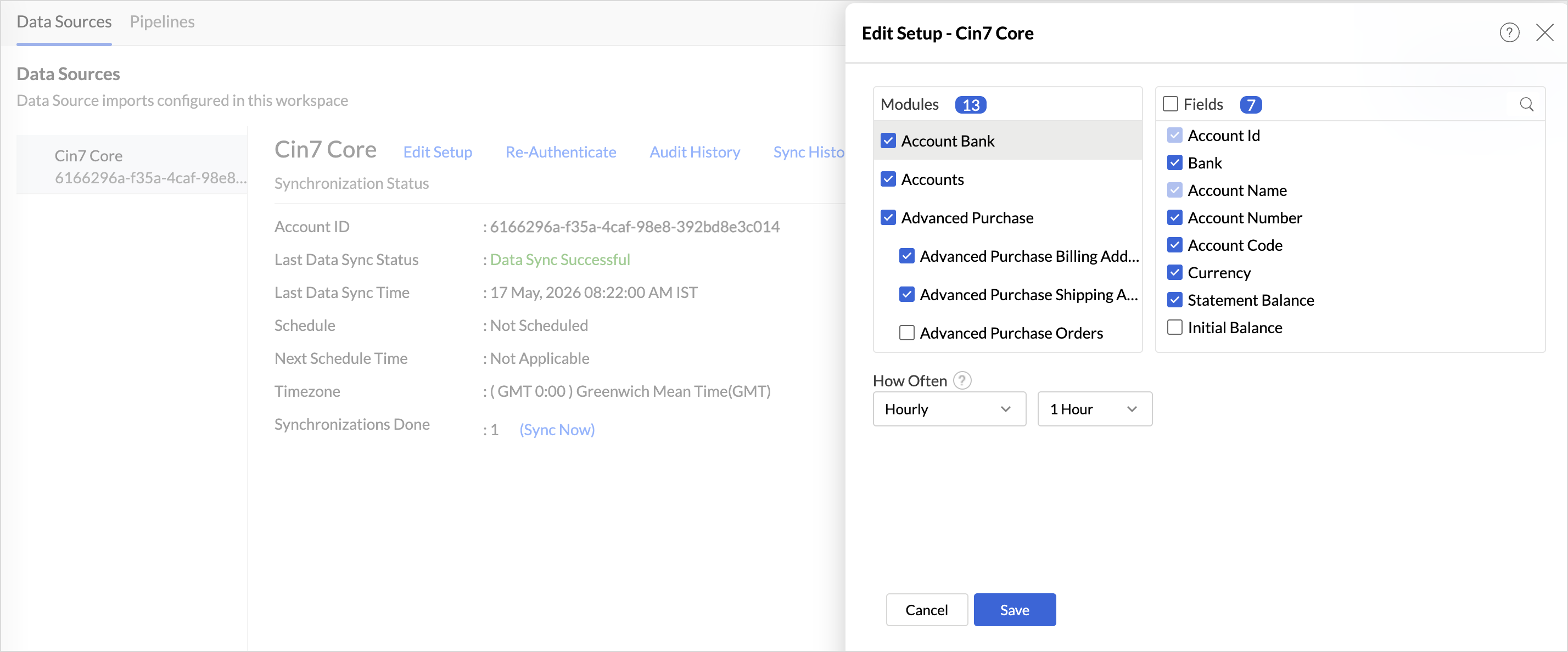
The Edit Setup tab allows you to add or delete modules or fields, change the schedule interval, and modify other settings specific to the business application.
To modify the settings,
- Click Data Sources > Edit Setup.
- The Edit Setup - Cin7 Core dialog will open. Modify the settings as needed and click Save.
Re-Authenticate
Re-authentication will be helpful when the API key or password is changed. In this case, the data sync will be paused, and the administrators must re-authenticate to resume the data sync.
Sync History
The Sync History tab provides details about the data sync for the last 45 days. A successful data sync is marked in green, and a sync failure is marked in red.
To view the sync history,
- Click Data sources > Sync History.
- A calendar with the Sync History of the last 45 days will open. The date when the data sync has happened will be highlighted. Hover to view the number of times the data had been synced on a specific date.
- Click the date to view more details.
- Time - Displays the time when the data is synced.
- Status - Shows whether the sync was a success or a failure.In case of failure, the reason will be displayed. Refer to this page to learn how to resolve the issue and avoid further failure.
Audit History
Zoho Analytics logs all the user activities and system events within the workspace. The following actions that are logged in Zoho Analytics,
- User Action: Create, Modules Added, Modules Removed, Fields Added, Fields Removed, Schedule Change and Entities Modified, Delete, Take Ownership, Re-authenticate, Sync Now, Retry.
- System Action: Plan upgrade or downgrade.
Remove Data Source
Zoho Analytics allows you to remove the integration if needed. Removing the integration will suspend further data synchronization. The data tables and the reports will be available.
Click the Settings icon in the Data Sources tab, and select Remove Data Source from the drop-down menu.

Data Modeling & Preparation
Zoho Analytics allows you to combine data from various sources such as Files, Feeds, Databases, and business applications for in-depth analysis. Query Tables allow you to combine data from different tables to create reports. The SQL Query Suggester helps to build complex queries.
Zoho Analytics auto identifies similar columns and provides suggestions for lookup while importing. Click here to learn more about joining tables.
How to Visualize your Cin7 Core Data?
- Zoho Analytics offers a wide range of visualization types to conduct your analysis. Refer to the Creating Reports section to learn more. The chart type primer lists all the viz types available in Zoho Analytics.
- With Predictive analytics, forecast future trends, detect anomalies, and segment data using Cluster analysis.
- Find the What, Why and How behind any outcome with Zia Insights.
Sharing and Collaboration
- Collaborative reporting and analytics with fine-grained permission control over your shared data and reports with your colleagues & friends.
- Efficiently collaborate with your users by setting up real-time commenting on a shared view.
- Publish reports for wider consumption. Embed reports/dashboards within your websites, web applications, and blogs.
- Export, Email, and Print reports in a variety of formats.
- Get the mobile apps (optimized for both iOS and Android platforms) and access the reports and dashboards on the go.
Technical Support
We offer 24x5 technical support (Monday to Friday). In case if you need our assistance kindly do mail us your questions to support@zohoanalytics.com.
You can also reach out to us on our toll-free numbers.
United States: +1 (888) 900 9646
United Kingdom: +44 (20) 35647890
Australia: +61-2-80662898
India: +91-44-6965 6060