Deployment Management
Zoho Analytics allows you to build, test, and deploy your analytics content in a controlled way through Deployment Management. This feature connects multiple workspaces through a series of ordered stages, say Development, Testing, and Production, and lets you push your views and reports from one workspace to the next. Your production workspace stays clean and stable while your team continues to build in the earlier stages.
Instead of editing reports directly in a live workspace, you make your changes in a Development workspace, validate them across different stages, and deploy the finalized content to live workspace only when it is ready. Every deployment is tracked, so you always know who deployed what and when.
Who can use
Deployment Management is intended for administrators who manage analytics content across teams and need a governed way to move changes from development to production workspaces. It is useful in scenarios such as the following:
- A business intelligence team builds dashboards in a Development workspace, validates them in a Testing workspace, and publishes the approved dashboards to a Production workspace that business users rely on.
- An enterprise with strict governance needs every change to be reviewed and traceable before it reaches the actual reports used for decision making.
- A consultant maintains separate workspaces for a client and needs a repeatable, low risk way to roll out report updates without disturbing live data.
- An organization standardizes a set of core reports and pushes consistent updates to multiple downstream workspaces.
Feature Requirements
Supported Plans
Deployment Management is available on the Premium and Enterprise plans of Zoho Analytics.
Who Can Access
Only the Account Administrator and Organization Administrators can create deployment flows, edit them, and deploy content. Because a flow can include workspaces that belong to different organizations, this access is limited to administrators who can act across those organizations.
Where to Find It
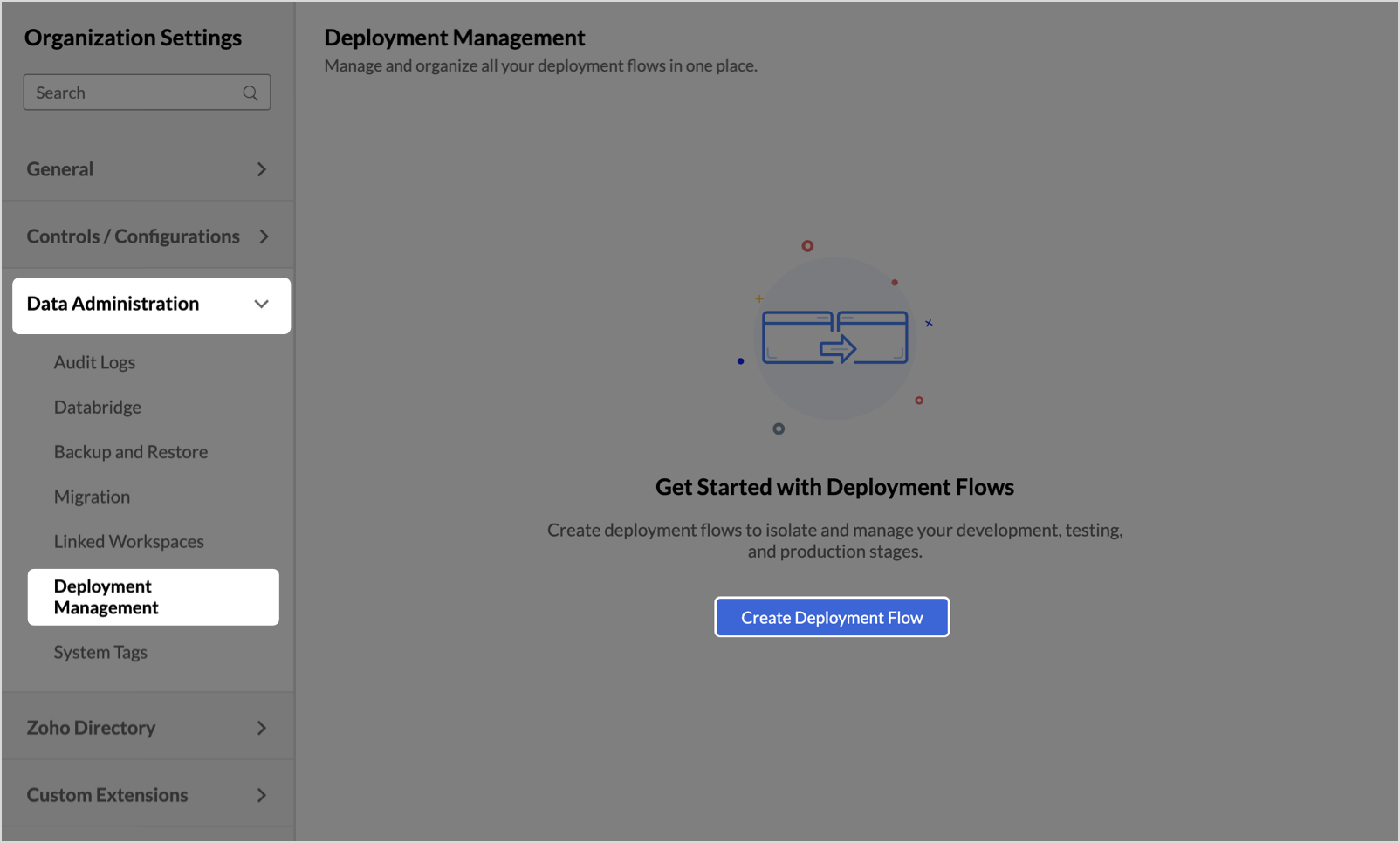
Open Deployment Management from Data Administration under Organization Settings.
On this page
- Understanding Deployment Management
- Creating a Deployment Flow
- Deploying Changes
- Managing a Deployment Flow
- Activity History
- Data Source Behavior
- Frequently Asked Questions
1. Understanding Deployment Management
Before you create your first flow, let us explore how Deployment Management is organized and what happens when you deploy.
Deployment Hierarchy
Deployment Management is built on three levels:
- Deployment Management is the top level section where you view and manage everything related to this feature. Helps monitor all your Deployment Flows.
- Deployment Flow is a container that holds an ordered set of stages. Each flow represents one promotion path, such as Development to Testing to Production.
- Stage is a single step within a flow. Each stage is mapped to one workspace and is shown in a fixed order, such as Stage 1 - Development, Stage 2 - QA Testing, and Stage 3 - Production. The order of the stages defines the direction in which content is promoted.
What Gets Deployed
When you deploy, Zoho Analytics copies the metadata of your views and reports from the source stage and applies it to the target stage. The metadata describes how your content is built. A deployment includes the following:
- Tables and their schema, including column names, data types, default formats, and display names
- Query tables, including the SQL query and output schema
- Charts, including formulas, measures, dimensions, aggregations, filters, sorting, axes, legends, and user filters
- Pivot, summary, and tabular reports, including row and column fields, aggregations, subtotals, grand totals, report filters, and sorting
- Dashboards, including the grid layout, widget positions and sizes, text widgets, images, and interactions such as cross filtering, drill through, and URL actions
- Calculated fields, user filters, and parameters
- Lookups and joins, including table relationships and join keys
- Themes and formats, including number and date formats, color palettes, and conditional formatting rules
- Drill paths, hierarchies, custom groups, alerts, schedules, and variables
- Folders, whose structure of levels and reports is preserved during deployment
2. Creating a Deployment Flow
Navigate to Deployment Management from Data Administration under Organization Settings.
Click Create Deployment Flow to launch the deployment flow creation wizard.
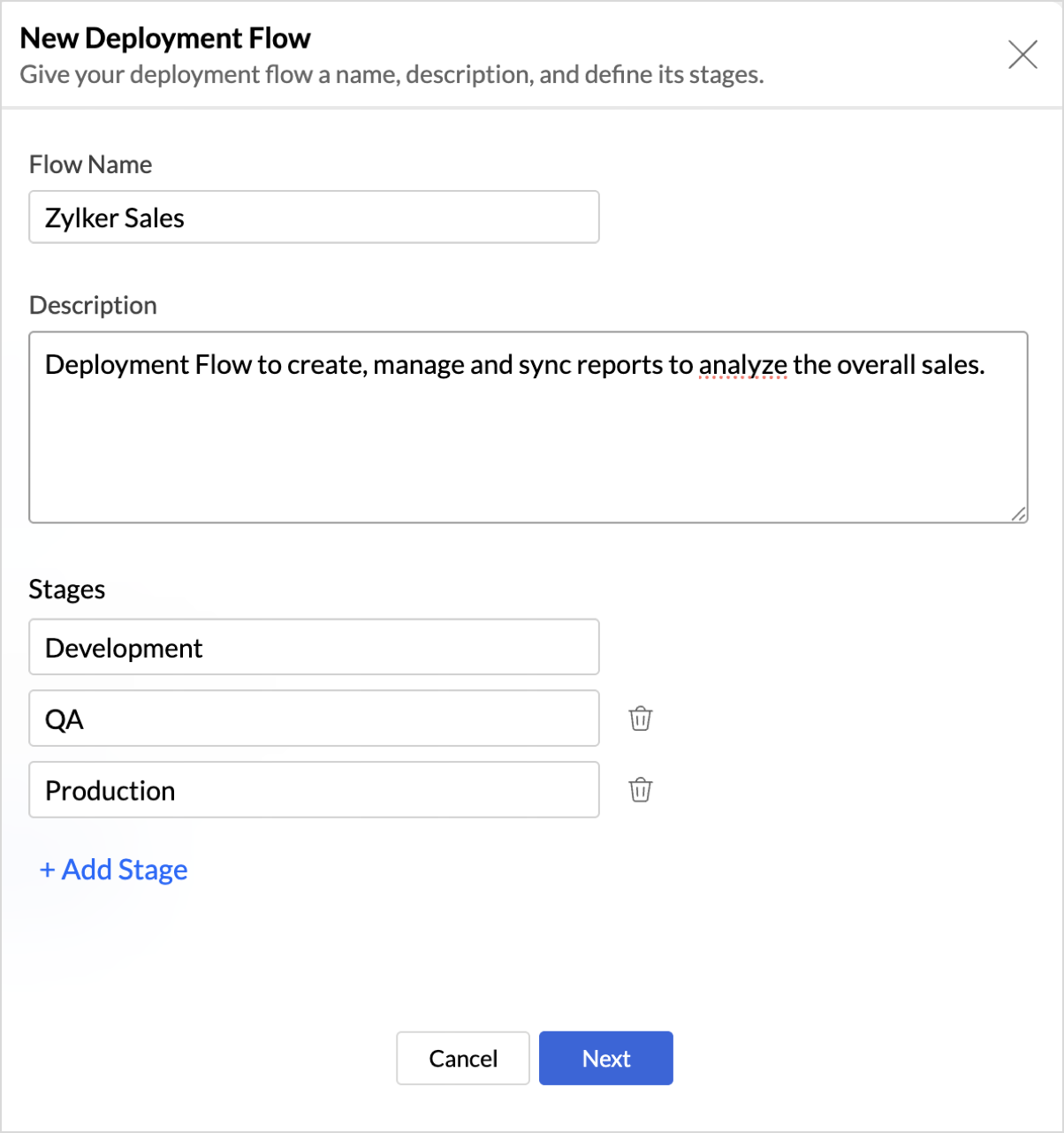
You create a flow using a two step wizard. Step 1 collects the deployment flow details and defines its stages. Step 2 assigns a workspace to each stage.
Step 1: Flow Details and Stages
In the New Deployment Flow dialog that opens, enter the Flow Name and Description (optional). The dialog displays a set of stages, ordered one below the other.
- Enter the Stage Name in the respective fields.
- Click Add Stage to add a new stage. Each new stage is added to the end of the list.
- To remove a stage you added in the current session, click the Delete icon next to it.
- Click Next to continue.
Step 2: Assign Workspaces
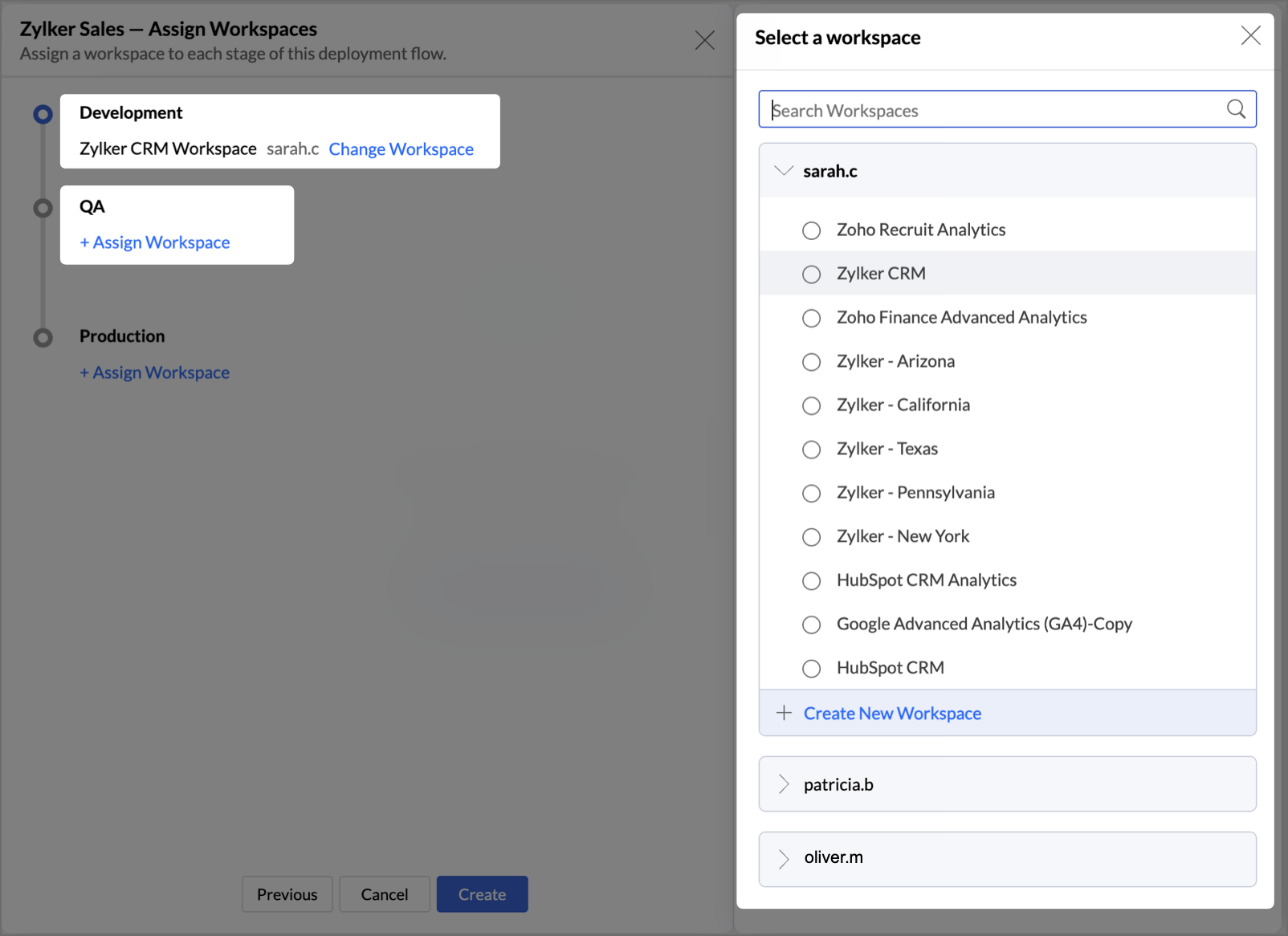
In the followup wizard, assign a workspace to each stage.
- For the first stage, select an existing workspace or create a new workspace from the organization where the flow is being created.
- For the subsequent stages, you can either create a new workspace or select an existing workspace within your organization or another organization where you are an admin.
- To reassign a stage, click Change Workspace and select again.
- When you assign workspaces, Zoho Analytics runs a compatibility check between them. If the workspaces pass the check, click Next to continue. If a workspace does not pass, reassign that stage before you proceed.
- Review each stage along with its assigned workspace and click Create to finalize.
3. Deploying Changes
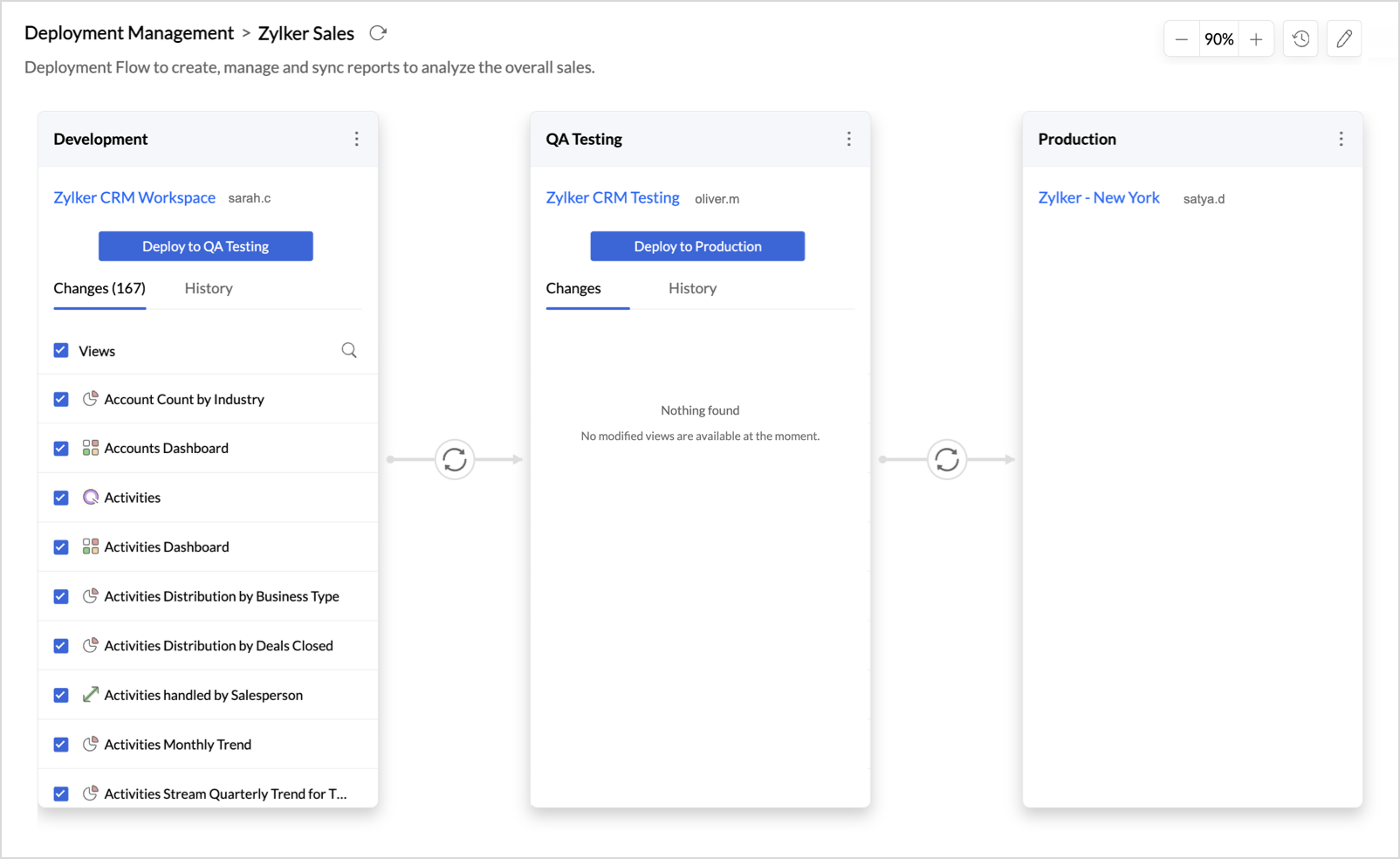
Deploying promotes the views from one stage to the next stage in the flow. Deployment flow page lists each stage as a separate card in a ordered pattern. You can review the changes across any stage and before starting a deployment.
Each stage provides two tabs:
- Changes lists the differences to be deployed, shown as added, modified, and deleted items. For the first stage, this tab lists the modifications made in that workspace. For the downstream stages, it compares the stage against its source stage.
- History lists all the deployments made from that stage to the next stage, so you can trace what was promoted over time.
Deploying to the Next Stage
To deploy the analytics content from one stage to another,
- Click Deploy to {Stage Name} on the source stage, such as Deploy to QA Testing.
- The Confirm Deployment dialog lets you review the content that will be deployed.
- Filter the items by Status to view New, Modified, or Failed items, and open the Views side panel to review the specific views involved
- Add an optional Notes to describe the deployment, then confirm.
<GIF>
Tracking the Deployment Progress
Once you click Deploy, the deployment begins and its progress is shown on the Flow page.
- An In Progress indicator appears between the two stages while the deployment runs.
- When the deployment completes successfully, the indicator changes to a tick mark, and you receive a notification confirming the result.
- Click the success indicator between the stages to open the deployment details and see exactly what changes moved from one stage to the next.
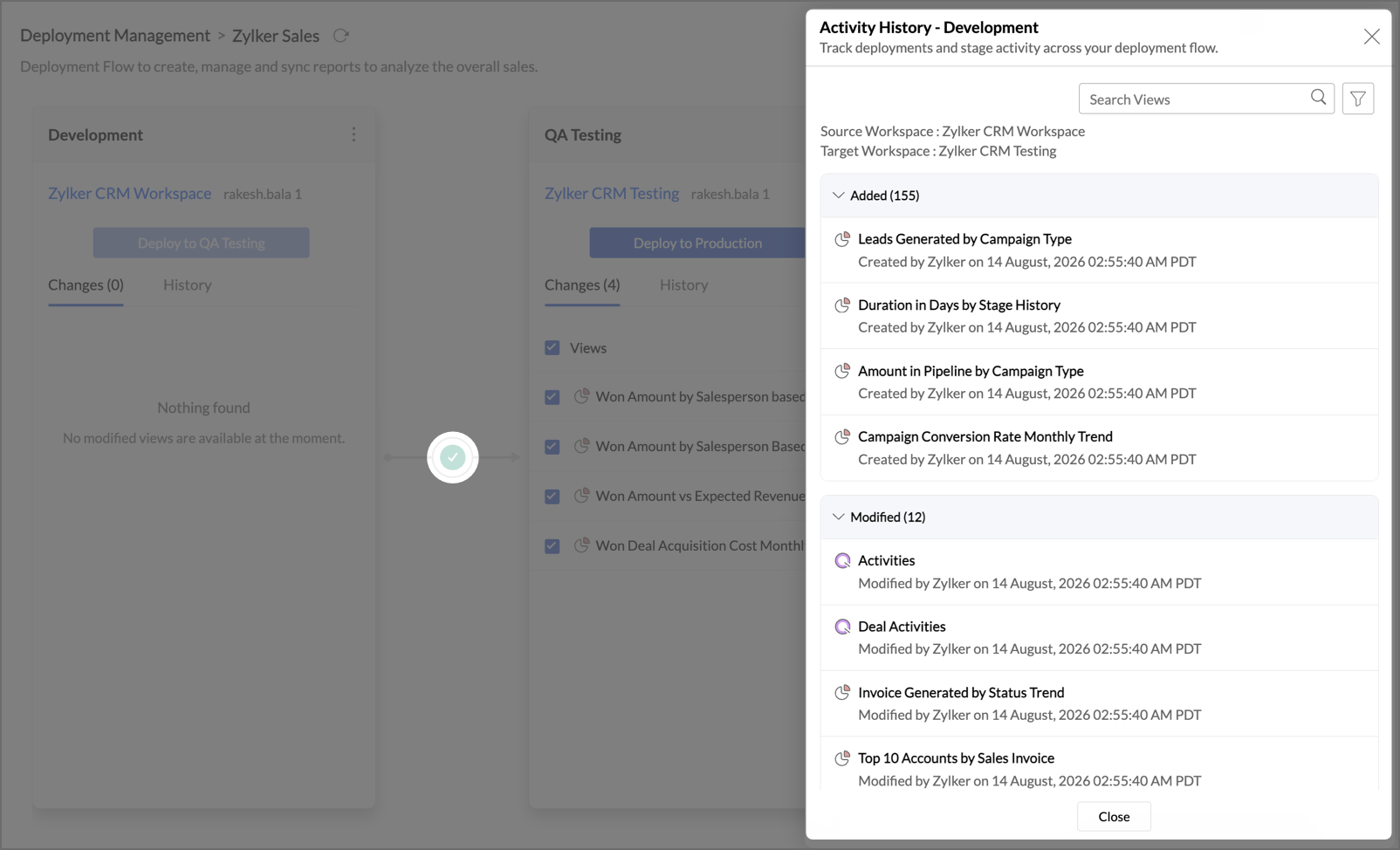
Empty States
- When a stage has no changes to show, it displays Nothing Found.
- The Production stage displays Awaiting first deployment until it receives content for the first time.
4. Managing Deployment Flows
The Deployment Management home page lists all the flows you have created. Each flow is shown as a card so that you can see its structure and status at a glance.
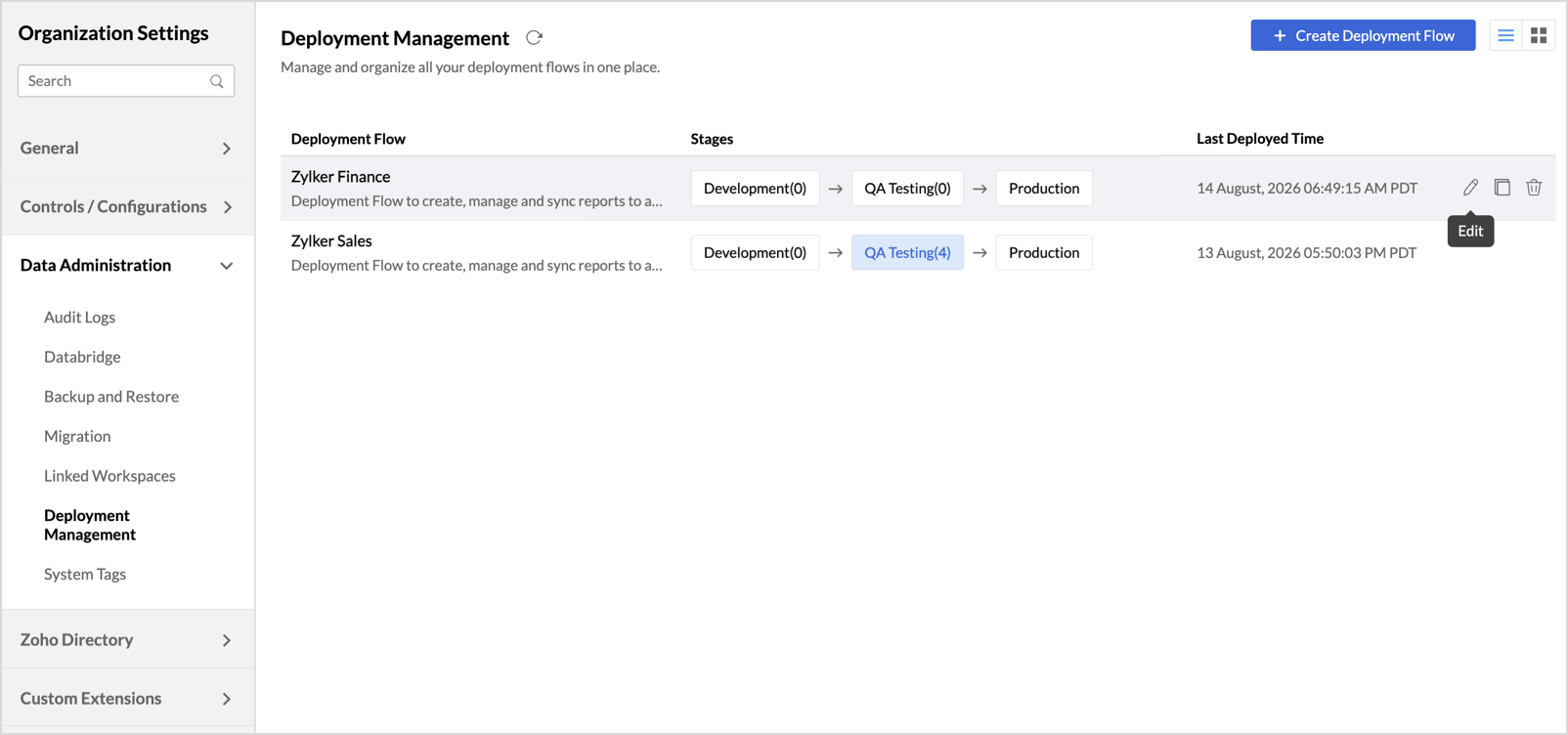
Each Flow card displays the following:
- Flow Name and Description, a one line summary of the flow's purpose.
- Flow Progress, a horizontal stage timeline that shows the stages in the flow and where changes were last deployed.
- More Actions, a menu to Edit, Duplicate, or Delete the flow.
Managing Stages
After a flow is created, you can update a stage's details, change the workspace mapped to it, review its members, or delete it.
Open the deployment flow you want to update, then on the Flow page, click the More icon on a Stage card to access the options to Edit stage details, Manage connections, and set Access controls.
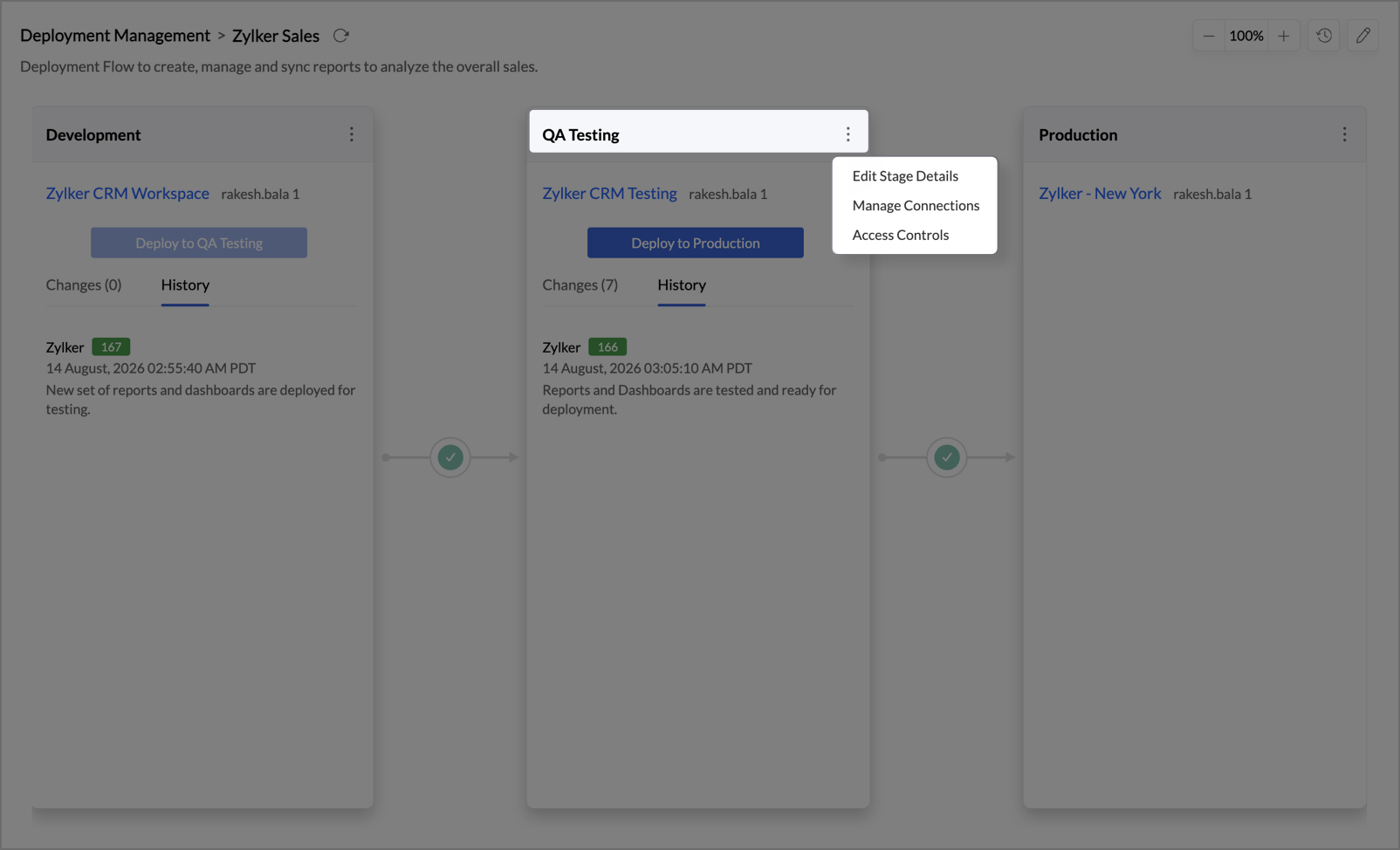
Edit Stage Details
In the Edit Stage Details dialog, click Change Workspace to reassign the workspace mapped to that stage. The stage card updates to reflect the new workspace. You then set up its data sources, and the compatibility checks run again.
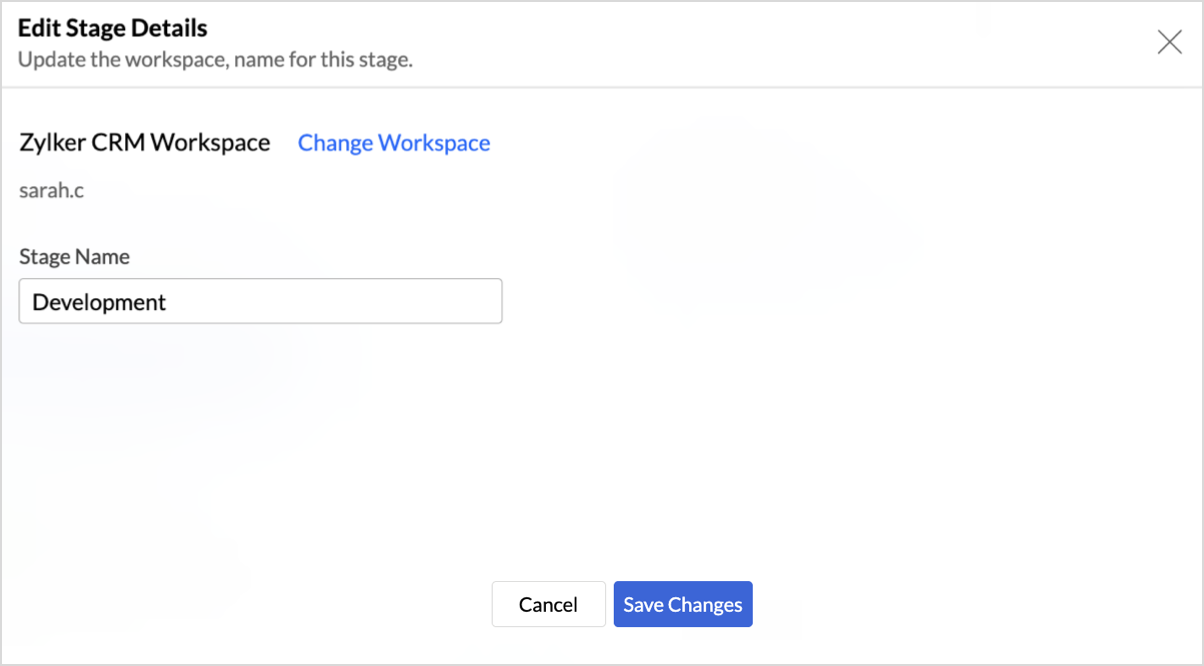
Manage Connections
Click Manage Connections to open the Data Sources page of the workspace assigned to that stage, where you can review and reauthenticate its connections.
Access Controls
Click Access Controls to manage the users of the assigned workspace. You are redirected to the Manage Users page in Workspace Settings.
5. Activity History
The Activity History gives you a complete record of everything that has happened in a deployment flow, such as flow creation, workspace mapping, data source changes, deployments, rollbacks, and deletions. On the Flow page, click the History icon in the top right corner to view all the activities in that flow.

Each entry in the Activity History includes the following:
- Date and Time of the action
- Stage on which the action was performed
- Performed By, the user who carried out the action
- Notes added with the action, such as a deployment comment
- Changes / Activities, shown as color coded badges, where green indicates added items and red indicates deleted items
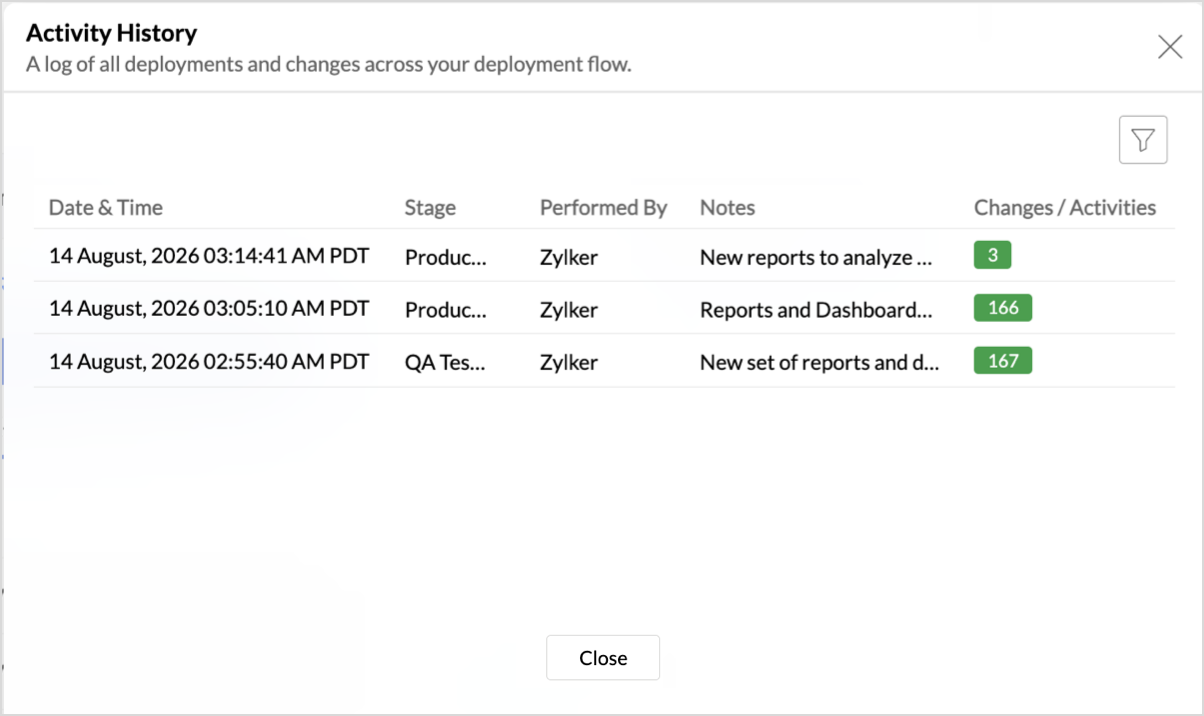
Click a change count to see the specific views that were added or removed, and filter the list by Action to focus on a particular type of activity.
6. Data Source Behavior
As content moves between stages, Zoho Analytics applies a few rules to keep your data sources connected correctly.
- Compatibility: The source and target workspaces must use the same data source with similar tables. You can use multiple data sources in the first stage, but the downstream stages must use a single source type to prevent deployment conflicts.
- Duplicate table names: If two sources have tables with the same name, such as Accounts from CRM and Accounts from Books, the second table is given a suffix such as Accounts (Books). Connections are matched using stable internal identifiers, so your reports are never broken.
- Source types: Local drive uploads copy metadata only, and you can refresh the data using the import into table option. Feeds, databases, and data lakes can use a new or the same connection. Connector sources cannot be changed.
Frequently Asked Questions
1. Does deploying overwrite my data?
No. Deployment copies only the metadata, which is the definition of your views and reports. The underlying data in the target workspace is not moved or overwritten. If a report already exists in the target stage and has changes to deploy, that report definition is overwritten with the version from the source stage, but the workspace data stays the same.
2. Who can create deployment flows and deploy content?
Only the Account Administrator and Organization Administrators can create flows, edit them, and deploy content.
3. Can I deploy to a workspace on a free plan?
Yes. If the flow creator is on a paid plan, you can push views and reports to a target workspace on a free plan, subject to that plan's limits. Data sources that use business application connectors are not supported on free plans and will not deploy to a free plan workspace.
4. What happens if the compatibility check fails?
If a workspace does not pass the compatibility check, you are prompted to reassign that stage. Confirm that the same data source is used and that the tables are similar to the other workspaces in the flow, then try again.
5. How to duplicate a Deployment Flow?
To copy an existing flow, select Duplicate from the Flow card's More menu. The duplicate opens with the name, description, and stages carried over from the original, which you can customize before saving.
6. Does deleting a flow delete my workspaces?
No. Deleting a flow removes only the flow configuration. The workspaces and their content are not deleted. The Deployment Management badges are removed from the associated workspaces, and any pending approvals are cleared.
7. How many stages can a flow have?
A flow can have a minimum of two stages and a maximum of ten stages.
8. Can I change a stage's workspace after creating the flow?
Yes. Change a stage's workspace from its More menu. Reassigning a workspace requires setting up its data sources again, and the compatibility checks run again.
9. Why does a data source show "Not supported on Free plan"?
The target workspace is on a free plan that does not support business application connectors. Move the target workspace to a supported plan, or use a data source that the free plan supports.