Remote MCP Server: Zoho MCP
Zoho MCP is Zoho's fully managed hosting solution for MCP Servers. Unlike the Self-Hosted deployment, Zoho MCP requires no infrastructure setup, you create and configure your MCP Server entirely through a web application, and Zoho handles hosting, authentication, and updates. Users connect by simply pointing their MCP host at the server URL generated for them.
Getting Started
Step 1: Sign In and Create an MCP Server
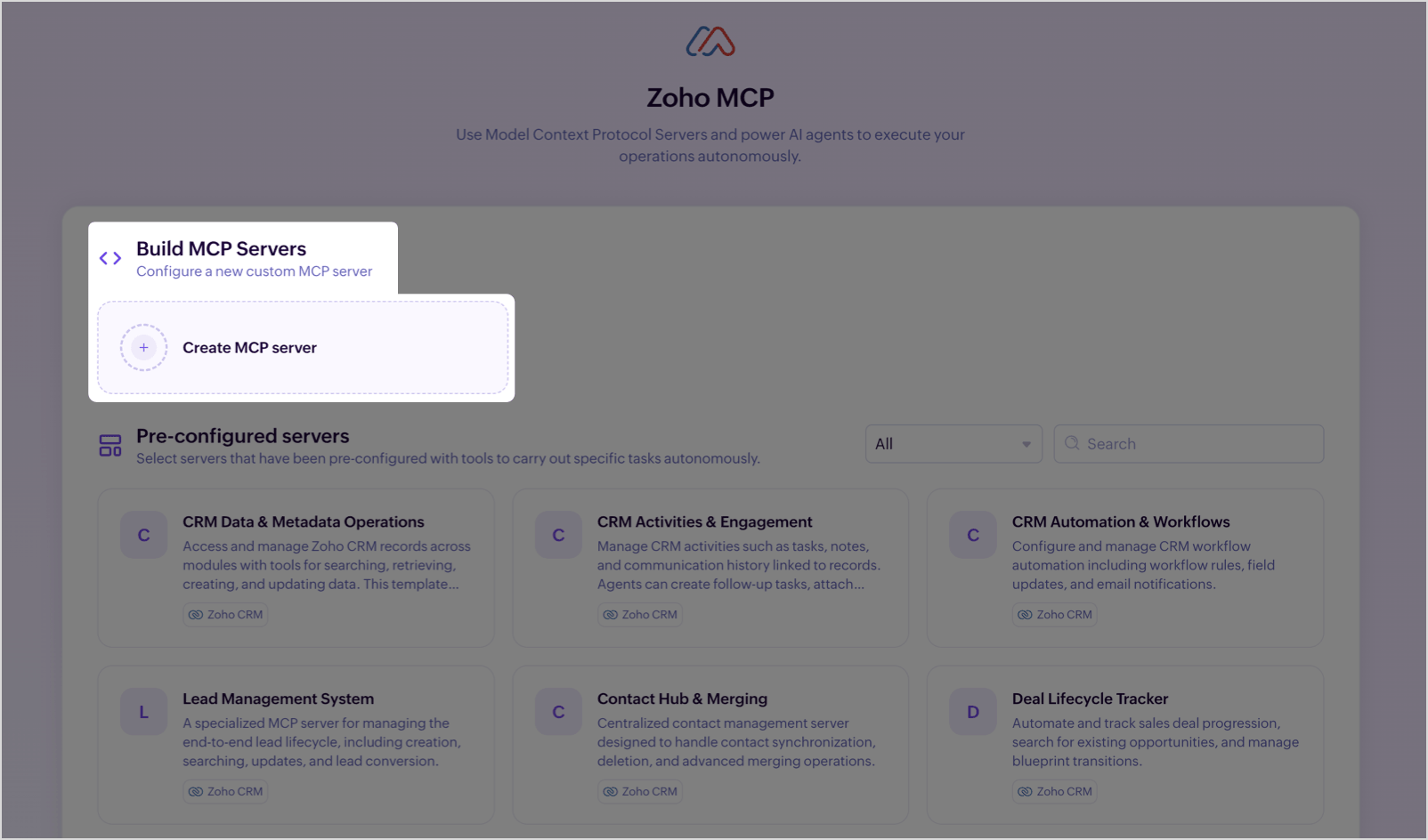
- Go to mcp.zoho.com (or your regional equivalent) and Sign in with your Zoho account. Click Create MCP Server to configure a new custom MCP Server.
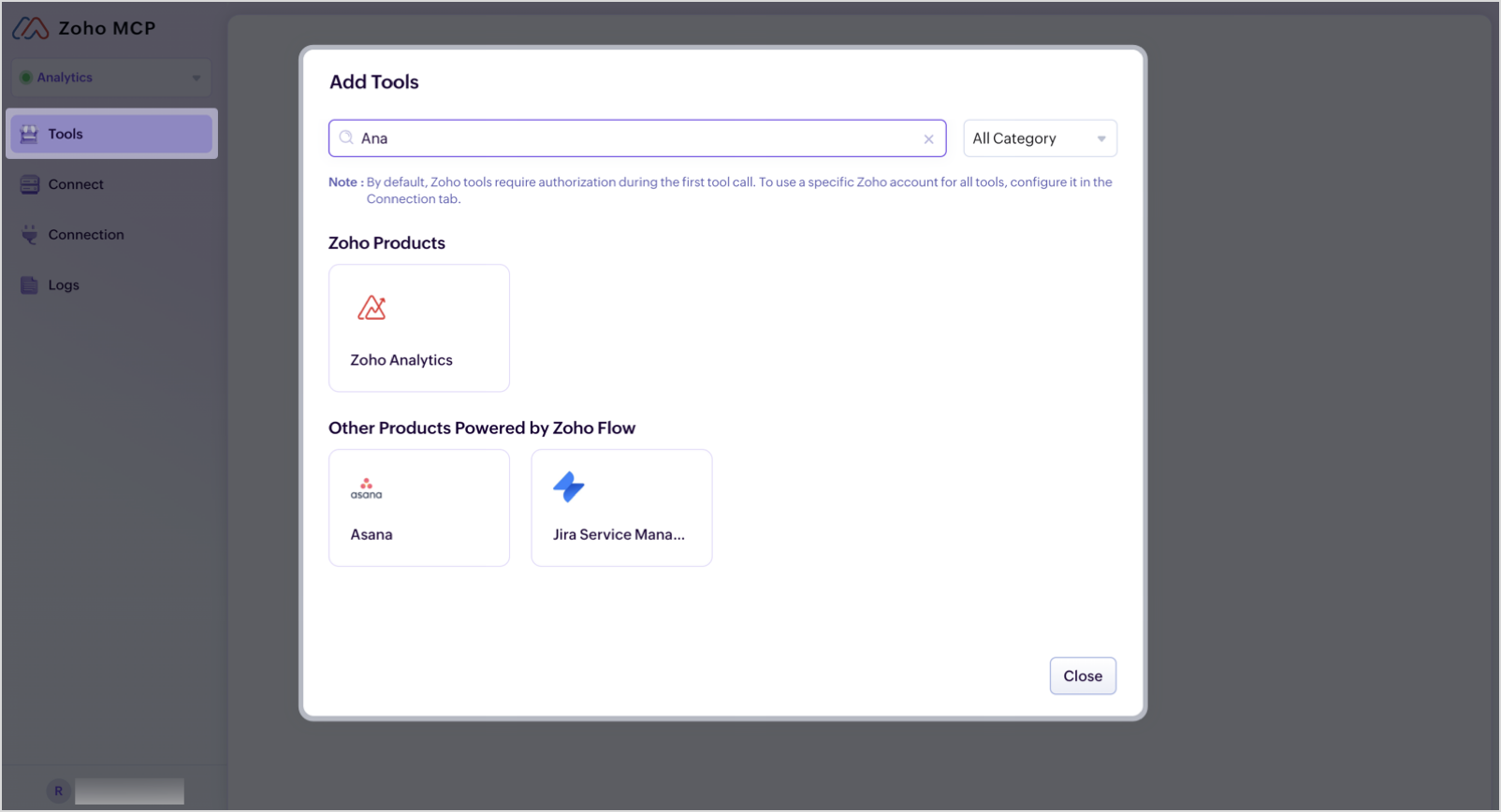
- In the Add Tools dialog, select Zoho Analytics.
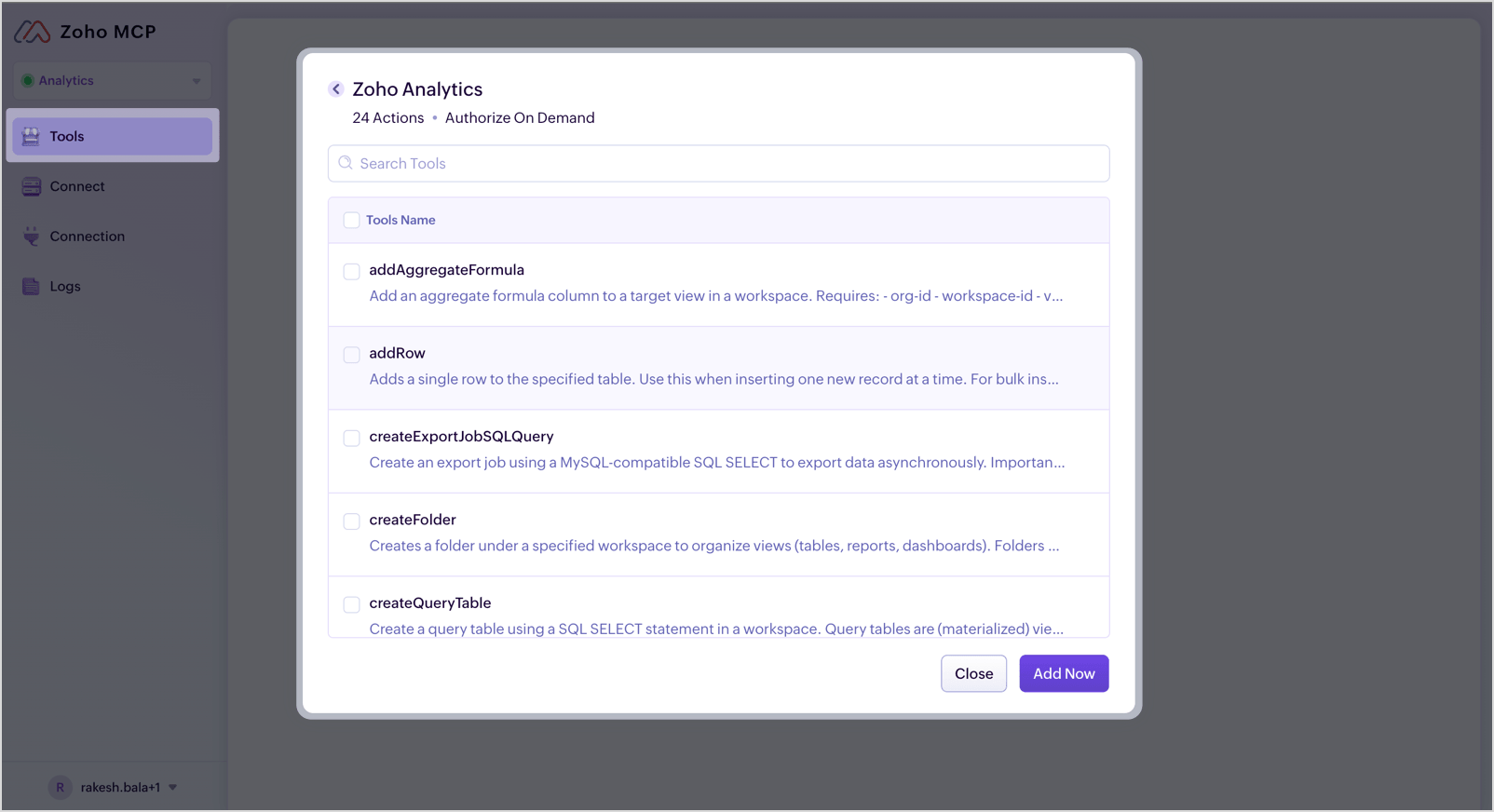
- Select the Zoho Analytics tools you want to add.
- Choose your preferred authorization mode.
- Copy the MCP Server URL generated for your server.
You can create multiple MCP Servers with different tool configurations. Each gets its own unique URL.
Regional URLs
Use the Zoho MCP URL that matches the region where your Zoho account is registered:
| Region | Zoho MCP URL |
| US | https://mcp.zoho.com |
| India | https://mcp.zoho.in |
| Europe | https://mcp.zoho.eu |
| Australia | https://mcp.zoho.com.au |
| Japan | https://mcp.zoho.jp |
Step 2: Authorization
Zoho MCP supports multiple authorization modes that control how MCP hosts and users are authenticated when making tool calls. The authorization mode is configured when creating your MCP Server on the Zoho MCP web application.
For a detailed explanation of the available authorization modes and guidance on choosing the right one for your setup, refer to the Zoho MCP documentation.
Step 3: Integrate with MCP Hosts
Once your MCP Server is created and a URL has been generated, connect it to your preferred MCP host.
Navigate to the Connect section within your MCP Server on the Zoho MCP web application. It contains detailed, host-specific instructions for adding the server URL to your MCP host configuration.

The following MCP hosts are supported:
- Claude Desktop
- Cursor
- Windsurf
- VS Code
- Any Other MCP compatible Client
To configure the MCP hosts, please refer to the detailed steps in the following documentation.
Tools in Zoho Analytics MCP Server
This setup uses the Zoho MCP tool set, granular tools that map one-to-one with individual Zoho Analytics API calls, giving you finer-grained control at each step. For the complete list of tools, their Zoho MCP tool names, descriptions, and API references, see the Tools Reference page.
Troubleshooting
For common issues:
- Connection Issues:
- Confirm your MCP host supports HTTP transport.
- Verify the server URL is correct. Re-visit your regional Zoho MCP URL to retrieve it again if needed.
- Authentication Problems (Authorize on Demand):
- On first use, your MCP host will open a browser window for you to log in to Zoho. Complete that login to authorize.
- If the access token has expired and a refresh flow is triggered, ensure you have an active session at accounts.zoho.com in your browser.
- Authentication Problems (Authorize via Connection):
- The connection is pre-authorized from within Zoho MCP. Re-visit mcp.zoho.com, check that the connection is still authorized, and re-authorize if needed.
- Data Center Configuration Errors:
- Ensure you are using the Zoho MCP URL that matches your Zoho account's data center region. Please refer to the Regional URLs table for more details.
- No Data Visible:
- Confirm that the tools configured on your Zoho MCP server have access to the Zoho Analytics data you are trying to use.
- Make sure the Zoho account used to authorize has the necessary permissions.
Help & Support
We offer 24x5 technical support (Monday to Friday). In case if you need our assistance kindly do mail us your questions to support@zohoanalytics.com.
You can also reach out to us on our toll-free numbers.
United States: +1 (888) 900 9646
United Kingdom: +44 (20) 3564789
Australia: +61-2-80662898
India: +91 44 6965 6060