Local Setup: Zoho Analytics Claude Connector
The Zoho Analytics Claude Connector is the fastest way to install the Zoho Analytics MCP Server to Claude Desktop. The Zoho Analytics Connector is available directly from the Claude Marketplace within the Claude Desktop application. No Docker, no Node.js, and no command-line setup is required.
Supported hosts: Claude Desktop for macOS and Windows only. For other MCP hosts, use the Docker or NPM setup instead.
Getting Started
Step 1: Prerequisites
- Claude Desktop (macOS or Windows) — Download here
- OAuth credentials for your Zoho Analytics account
Obtaining OAuth Credentials
To configure the Zoho Analytics MCP Server, you need to provide OAuth credentials (Client ID, Client Secret, and Refresh Token). Follow these steps to generate them:
- Go to the Zoho Developer Console.
- Create a new Self-Client application.
- Enable the Zoho Analytics API scope.
- Generate your Refresh Token.
For detailed instructions, refer to the official API Authentication Documentation.
Step 2: Configuring Environment Variables
You will be prompted to enter these values during the installation dialog in Step 3.
Required Credentials
| Variable | Description |
| ANALYTICS_CLIENT_ID | Your Zoho Analytics OAuth client ID |
| ANALYTICS_CLIENT_SECRET | Your Zoho Analytics OAuth client secret |
| ANALYTICS_REFRESH_TOKEN | Your Zoho Analytics OAuth refresh token |
| ANALYTICS_ORG_ID | Your Zoho Analytics organization ID |
| ACCOUNTS_SERVER_URL | Your Zoho Accounts Server URL, based on data centre (DC) location. Example: accounts.zoho.com Please refer to the Server URL Reference below or the API Specification document for more details. |
| ANALYTICS_SERVER_URL | Your Zoho Analytics Server URL, based on data centre (DC) location. Example: analyticsapi.zoho.com Please refer to the Server URL Reference below or the API Specification document for more details. |
Server URL Reference
Use the URLs matching the region where your Zoho account is registered:
| Region | ACCOUNTS_SERVER_URL | ANALYTICS_SERVER_URL |
| US | https://accounts.zoho.com | https://analyticsapi.zoho.com |
| EU | https://accounts.zoho.eu | https://analyticsapi.zoho.eu |
| IN | https://accounts.zoho.in | https://analyticsapi.zoho.in |
| AU | https://accounts.zoho.com.au | https://analyticsapi.zoho.com.au |
| JP | https://accounts.zoho.jp | https://analyticsapi.zoho.jp |
| CA | https://accounts.zohocloud.ca | https://analyticsapi.zohocloud.ca |
Step 3: Installation
The Zoho Analytics MCP Server can be installed directly from the Claude Marketplace within Claude Desktop. To install the Zoho Analytics Connector
- Open Claude Desktop on your machine.
- Navigate to Settings and click the Integrations tab.
- In the Integrations page, click Add Integration or browse the Claude Marketplace to find the Zoho Analytics MCP Server.
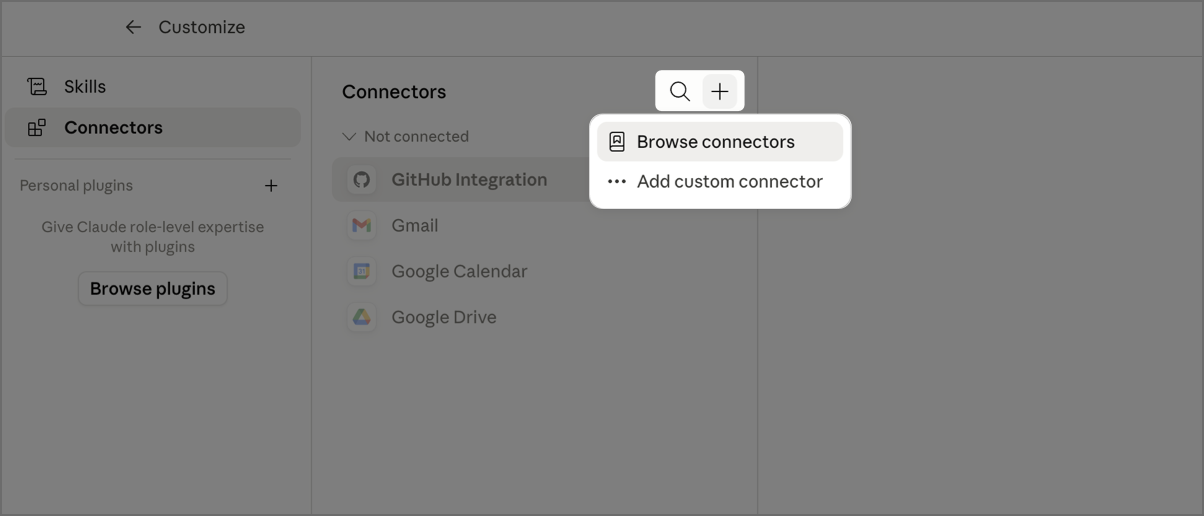
- Click Add to Claude on the Zoho Analytics listing.
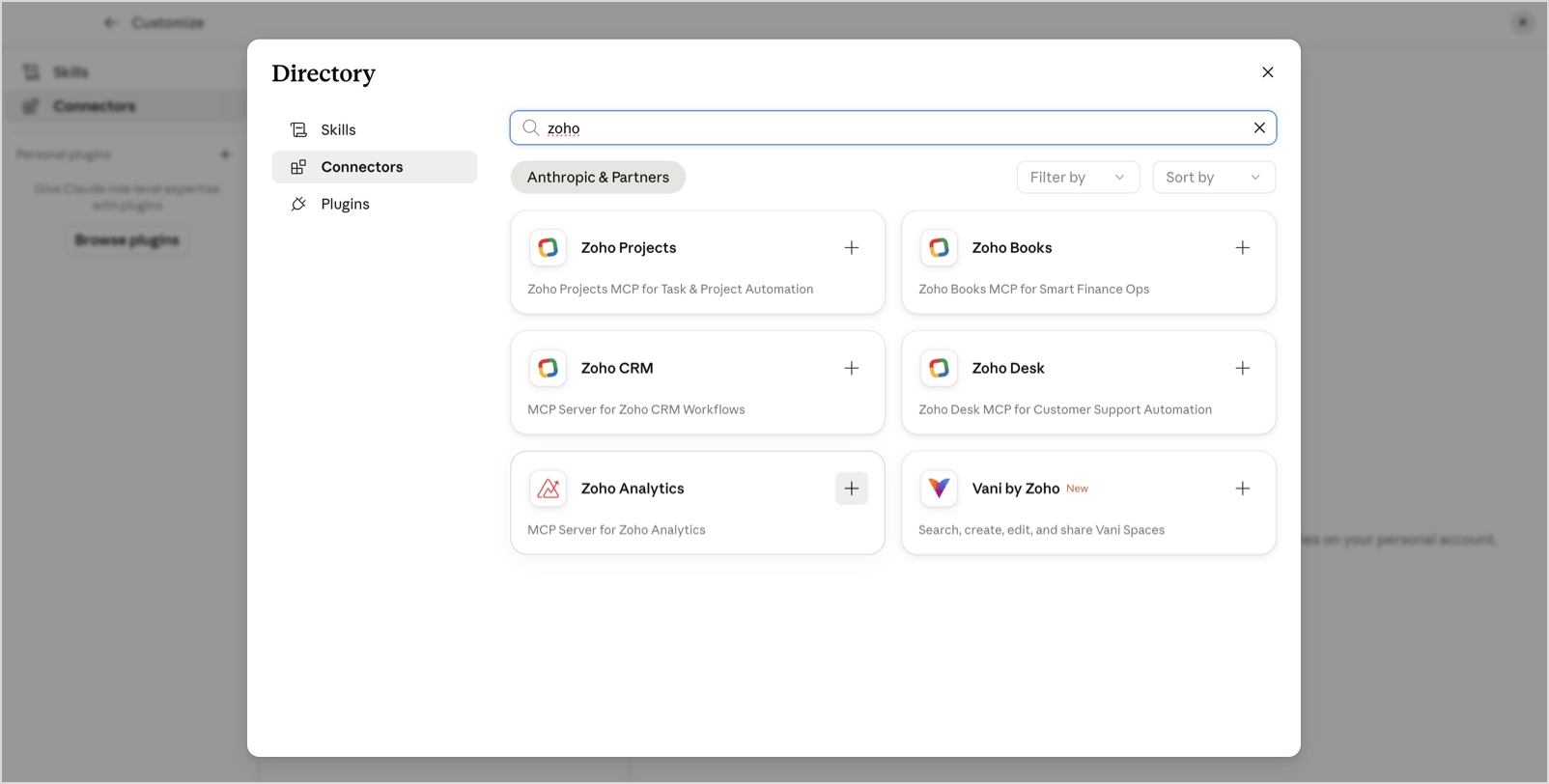
- An Zoho Analytics MCP dialog will appear. Enter the credential values you gathered in Step 2.
- Click Install. Claude Desktop will validate the provided credentials and register the MCP Server.
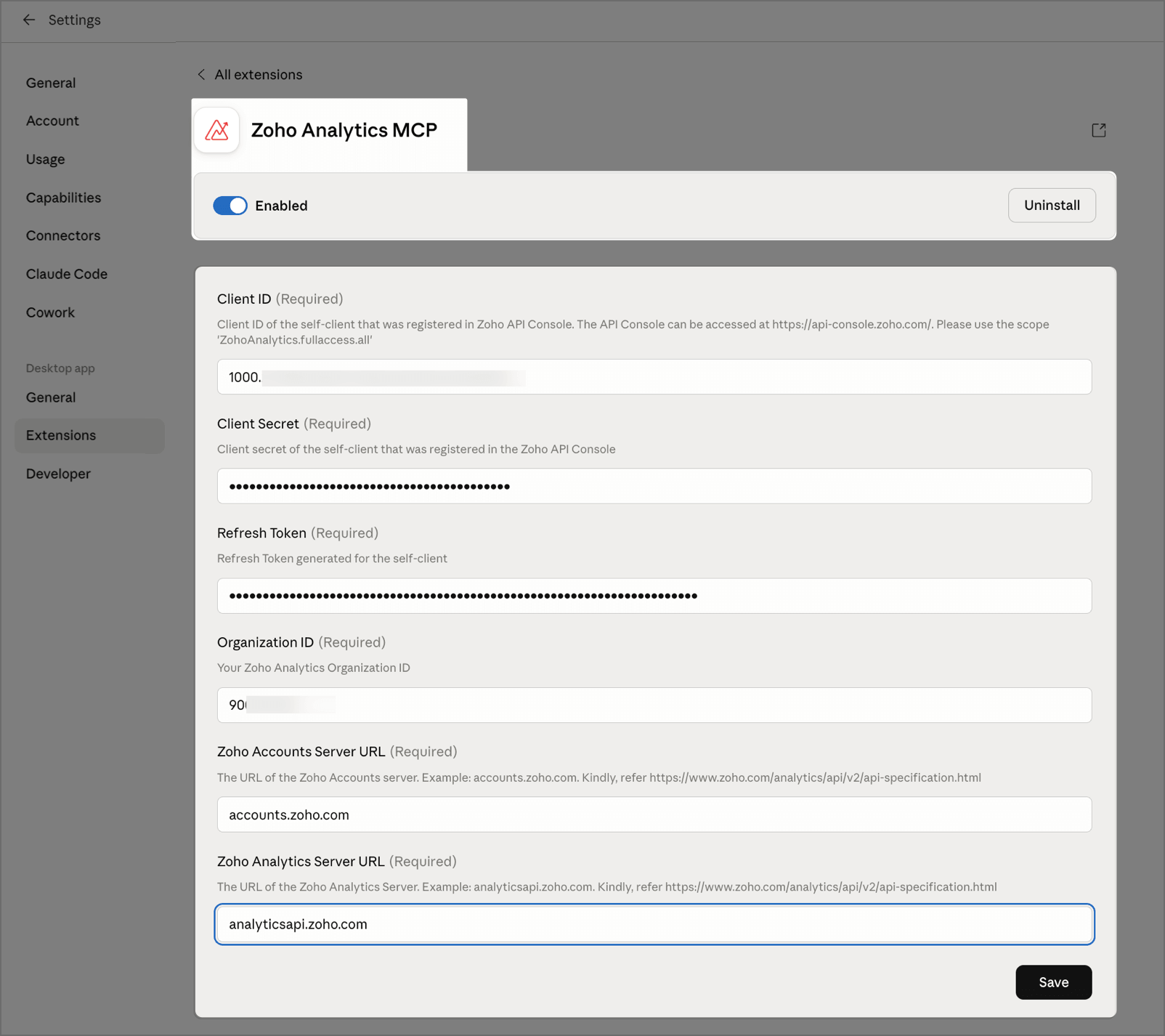
Once installed, the Zoho Analytics tools will become available in all new Claude Desktop conversations. You can verify the installation under Claude Desktop > Settings > Integrations, where the Zoho Analytics MCP Server will appear as an active integration.
Updating
Claude Desktop will notify you when an updated version of the Zoho Analytics Claude Connector is available in the Claude Marketplace. Open the notification or revisit the Claude Marketplace to apply the update, your credentials will be preserved.
Tools in Zoho Analytics MCP Server
This setup uses the Local MCP tool set — high-level tools that handle multi-step API operations (such as polling and file handling) internally. This includes the full set of tools, including file import/export and local file utilities. For the complete list of tools, their names, descriptions, and API references, see the Tools Reference page.
Troubleshooting
For common issues:
- Installation Issues:
- Ensure you have Claude Desktop installed (not just the Claude web app). You can download it from claude.ai/download.
- Confirm you are signed in to Claude Desktop with your Anthropic account before accessing the Claude Marketplace.
- Authentication Problems:
- Go to Claude Desktop > Settings > Connectors and click on the Zoho Analytics MCP entry to update your credentials.
- Verify that your refresh token is still valid in the Zoho Developer Console.
- Data Center Configuration Errors:
- Ensure the ACCOUNTS_SERVER_URL and ANALYTICS_SERVER_URL you entered match the region your Zoho account was created in.
- Please refer to the Server URL Reference table for more details.
- File System Problems:
- Confirm the data directory exists.
- Check directory permissions.
- Verify sufficient disk space.
Help & Support
We offer 24x5 technical support (Monday to Friday). In case if you need our assistance kindly do mail us your questions to support@zohoanalytics.com.
You can also reach out to us on our toll-free numbers.
United States: +1 (888) 900 9646
United Kingdom: +44 (20) 35647890
Australia: +61-2-80662898
India: +91 44 6965 6060