Tools
A Zia Agent can understand what you're asking and reason through what needs to happen. But it can't actually do anything in your business systems until you give it tools.
Tools are the action layer. Every time your agent fetches a record, updates a deal stage, or sends an email, it's calling an API that you've allowed it to use.

Without tools, your agent is just answering questions. With tools, it can take real action.
System Tools vs Custom Tools
The Tools section in Zia Agents is split into two tabs: System Tools and Custom Tools.
System Tools are pre-built and organized by service. Each service card (like CRM, Desk, Campaigns, or Books) shows the available tools and a short description of what they cover. Click into any service and you'll see the full list of supported APIs, including the tool name, description, method (GET, POST, etc.), and the API path.
These are ready to use. You don't need to configure or upload anything. Just browse, find the tools relevant to your use case, and add them to your agent.
Custom Tools are for when you need something that isn't covered by the pre-built options. Maybe you're working with a specific API endpoint, or you need to connect to a service that isn't in the system tools list. Custom tools let you bring your own API definitions using YAML files in OpenAPI 3.0 format, validate them, and make them available to your agents.
Understanding API methods and endpoints
Every tool is built on an API, and every API has two parts that matter:
Method tells you what kind of action the API performs. Endpoint tells you where that action happens.
The four common methods are:
| Method | Purpose | Example in CRM |
|---|---|---|
GET | Fetch data | Get deal by ID |
POST | Create something | Add a new contact |
PUT | Update something | Change deal stage |
DELETE | Remove something | Delete a ticket |
An endpoint looks like this:
GET /crm/v8/Leads/{record_id}
This tells the agent to fetch the details of a specific lead using its ID. The {record_id} part is a dynamic parameter, meaning the agent fills it in based on context.
Writing a YAML file for custom tools
The YAML file defines the APIs your agent can use. Think of it as a blueprint for the actions your agent can perform. Every action (fetching a record, creating a contact, sending an email) needs to be defined here.
YAML files for Zia Agents follow the OpenAPI 3.0 format. At a high level, each file covers:
- Metadata (openapi, info): Spec version, API title, description, and version number
- Server and security (servers, security): Base URL and authentication scheme (typically OAuth2 with the required scopes)
- Endpoints (paths): The API paths, HTTP methods, and for each operation: a summary, description, and a unique operationId (this is what shows up as the tool name in Zia Agents)
- Parameters: The inputs the API expects, where they live (path, query, header), whether they're required, and their data types
- Responses: Expected HTTP status codes (200, 400, 401, 404, etc.) so the agent knows how to handle success and failure
- Security schemes (components): The full OAuth2 configuration referenced by the security section
One thing specific to Zia Agents: the x-zia-agent-param-type: system tag on parameters tells the agent to resolve those values dynamically based on context, rather than prompting the user each time.
Here's an example YAML for fetching a record from Zoho CRM:
openapi: 3.0.0
info:
  title: Zoho CRM API
  version: "1.0.0"
  description: Retrieve a single record from a specified module using Zoho CRM API v7.
servers:
  - url: https://www.zohoapis.com
paths:
  '/crm/v7/{module_api_name}/{record_id}':
    get:
      summary: Get a single record by ID
      description: >
        Retrieve a single record from the specified module using its record ID.
        You can also retrieve specific fields using the `fields` parameter.
      operationId: getRecordById
      parameters:
        - name: module_api_name
          in: path
          required: true
          description: The API name of the module (e.g., Leads, Contacts, Deals).
          schema:
            type: string
          x-zia-agent-param-type: system
        - name: record_id
          in: path
          required: true
          description: The unique identifier of the record.
          schema:
            type: string
          x-zia-agent-param-type: system
      responses:
        '200':
          description: Successful response with the record data.
          content:
            application/json:
              schema:
                type: object
                properties:
                  data:
                    type: array
                    items:
                      type: object
                      additionalProperties: true
                  info:
                    type: object
                    additionalProperties: true
        '204':
          description: No Content. No record found.
        '400':
          description: Bad Request. Invalid parameters.
        '401':
          description: Unauthorized. Invalid or missing access token.
        '403':
          description: Forbidden. User lacks permission.
        '404':
          description: Not Found. No record with the given ID.
        '429':
          description: Too Many Requests. API rate limit exceeded.
        '500':
          description: Internal Server Error.
      security:
        - OAuthToken: ["ZohoCRM.modules.ALL"]
components:
  securitySchemes:
    OAuthToken:
      type: oauth2
      flows:
        authorizationCode:
          authorizationUrl: https://accounts.zoho.com/oauth/v2/auth
          tokenUrl: https://accounts.zoho.com/oauth/v2/token
          scopes:
 ZohoCRM.modules.ALL: Read access for all modules
Creating Custom Tools
To create a custom tool group, head to the Tools tab and click + New Tool Group in the top right corner. The creation flow has a few steps.
- On the Tools page, click + New Tool Group.
- Enter a Tool Group Name (something like "Lead Management" or "Event Creation") and an optional Description.
- Click + Add Schema. In the panel that opens, pick the Schema Service (e.g., Zoho CRM) or select Custom Service if it's outside Zoho's default list. Upload your YAML file (.yaml, max 500 KB). You'll see a preview of the file contents.
- Click Validate. If validation passes, the parsed tools appear in the Validated Tools panel on the right, showing tool name, description, method, and path. You can add multiple schemas to the same group by clicking + Add Schema again.
- Click Next. You'll see your tools listed with Tool Status and Test Status columns (both start as Draft for custom tools). A banner will remind you that testing is required before the agent can use these tools.
- Select a tool and click Test All Tools. This opens the Test Your Tools dialog.
Before you can run a test, you need to do two things: associate a connection and fill in the required parameters.
- Associating a connection: The dialog shows a Choose Connection dropdown.
- If you already have a connection set up for the relevant service (e.g., Zoho CRM), select it and click Associate.
- If not, click Auto Create to generate one automatically, or New to create one manually. The connection handles authentication, so the tool knows how to talk to the service securely.
- You'll also notice a Required Scopes info button near the top right of the dialog. Click it to see exactly which OAuth scopes the tool needs.
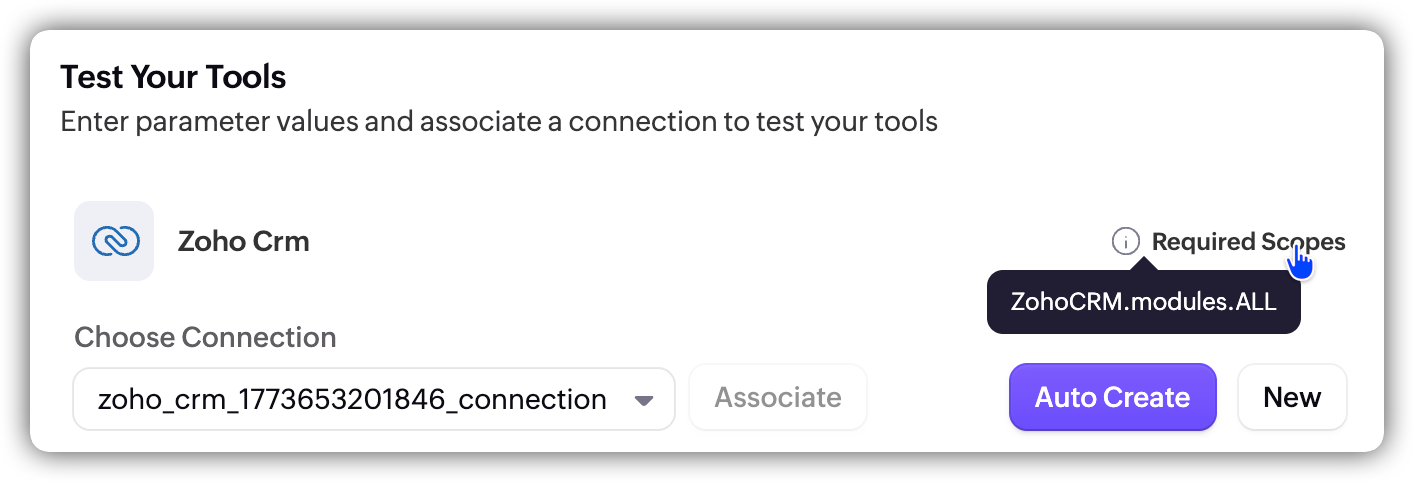
- Your connection must have these scopes for the test to work.
- Filling in parameters: Below the connection section, you'll see a list of parameters the API expects, each showing its name, data type, and a value field. Parameters marked in red are mandatory. For example, if you're testing the updateSingleLeadRecord tool, you'd need to provide a valid record_id along with any fields you want to update (like Last_Name, Email, or Lead_Status). Use real values from your service so the test reflects actual behavior.
- Click Test to run it.
- Once the test succeeds, select the tested tools and click Mark as Ready. This makes them available to your agents.
- Click Save.
Best practices for organizing tools
Group related tools together If you have a set of APIs that handle a specific workflow (like moving a lead from CRM to a ticket in Desk), keep those in one tool group rather than scattering them.
Be specific with scopes Only select the permissions your tools actually need. Don't grant broad access when narrow access will do.
Name things clearly Both tool groups and individual tools should have names that make it obvious what they do. Your future self will thank you when you're managing a dozen groups.
Test before you publish Always run your tools against sample data before marking them as ready. A broken API call in production is not a fun debugging session.
Re-test when APIs change If a service updates its API, go back and verify that your tools still work. API changes can break things silently.