Knowledge Base
The knowledge base is where you give your agent access to your actual business content. Product docs, FAQs, policies, internal guides, whatever the agent needs to do its job well. Without it, the agent relies entirely on the language model's general knowledge, which won't know anything specific to your organization. When a customer asks your agent about your return policy or a specific product feature, the agent searches through the knowledge base first, finds the most relevant information, and uses that to respond. This is what keeps answers accurate and specific to your business rather than generic.
For a deeper look at how agents use the knowledge base to generate responses, see Understanding RAG.
Scenario 1: Say you instruct the agent to send promotional emails for your best-selling product. The agent pulls the current product details from the knowledge base and uses that information to craft the email.
Scenario 2: If a user asks the agent to do something that violates your company policies, the agent checks the knowledge base, finds the relevant policy, and explains why it can't proceed.
The Knowledge Base tab is where all your uploaded files live. You can switch between card and list views, search for specific files, and upload new ones from here.

You can upload PDFs, text files, and markdown documents. The content works best when it's clearly structured with headings, short paragraphs, and specific information rather than long unformatted blocks. Think of product documentation, FAQs, policy documents, troubleshooting guides, and process playbooks.
The more specific and well-organized your files are, the better the agent will be at finding the right information when it needs it.
Uploading to your Knowledge Base
To upload your files to the Knowledge Base,
- Navigate to the Knowledge Base tab.
- Click Upload Files.
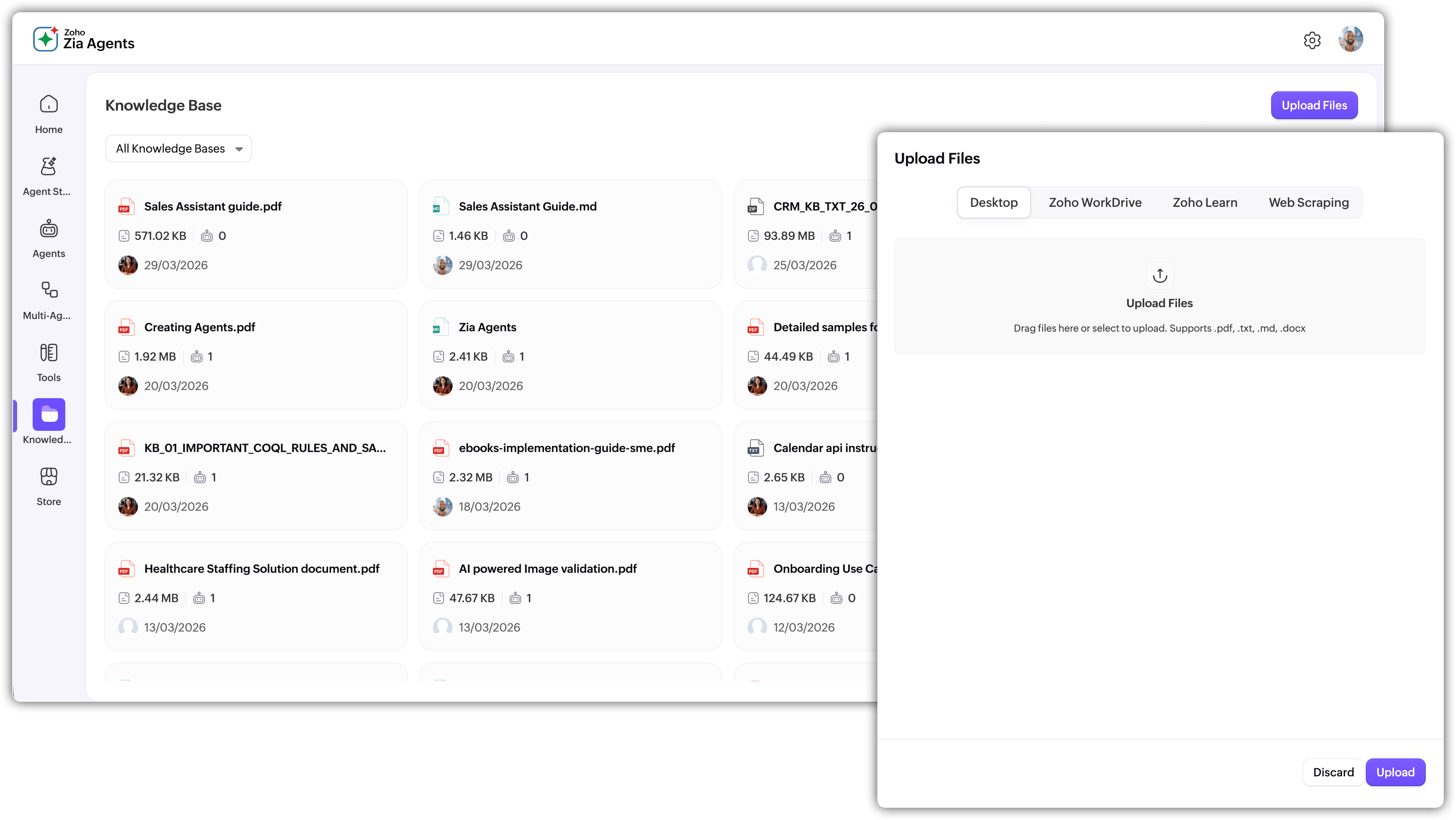
In the right panel that appears, choose the way that you want to upload the document for the Knowledge Base. If you want to close the panel, click Discard.
You can upload documents in four different ways.
Upload from Desktop
If the documents for KB are available in your system cloud, choose this option.
- Name your document.
Click the Upload Files icon and select the documents you want to use to build the knowledge base for the agents.
Note: You can upload PDFs of under 500 KB.
- Click Upload.
Zoho Workdrive
If you have your documents for KB in Zoho Workdrive, choose this option.

- Click Select File.
- To upload the document from Workdrive, select the required documents and click Pick.
- Select the Sync Frequency to choose how often the data should be automatically updated.
- Click Upload.
Zoho Learn
If you have your documents for KB in your Zoho Learn hub, choose this option.
- Select the Sync Frequency to choose how often the data should be automatically updated.
- Name your document.
- Select the Hub where you want to access the articles.
- Choose the Space and Manual, and select the articles.
- Click Upload.
Web Scraping
This option automatically extracts data from the given URL by scraping it, provided the website allows crawling.

- Name your document.
- Select the Sync Frequency to decide how frequently the website should be scraped for updates.
Paste your document URL under Import from URL.
Max Page: The maximum number of pages that the crawler is permitted to view or process. For instance, if Max Page = 100, even if there are more pages available, the crawler will stop processing them after 100.
Max Depth: The maximum number of link levels the crawler will go from the home page. The Max Depth stops the crawler from delving too far into infinite or irrelevant link chains.
- Click Upload.
Note:
- You can upload files using only one method at a time.
- The maximum value for Max Page is 1000, and for Max Depth it's 25.
Managing your Knowledge Base
Once you have uploaded your file, you can check the status of the file in the list view of Knowledge Base.

If you want to look for specific files, click the dropdown on the top-left to choose from
- Your Knowledge Bases: Files created by you
- Shared with me: Files created by others from your org
- All Knowledge Bases: All files created by everyone from your org

Sort
You can sort the files by their names, created time and document size in ascending or descending order.

Filter
You can filter the files based on the file type, time created, and the created user. Fill in the fields and click Apply.

You can clear the sorting and filters by clicking the Clear All icon near the Sort and Filter options.
Delete
The files uploaded to your Knowledge Base can later be deleted if it's not associated to any of the agent versions. This means you'll need to remove the agent association first before deleting the file.
