Deploying Agents
Once testing goes well, it's time to deploy. From the agent details page, click the Deploy dropdown in the top right.
You'll see two options:
Deploy using connection
This is the standard deployment path. You review the parameter mapping, associate connections for each service the agent uses, and deploy.
- Click Deploy > Deploy using connection from the agent details page.

- The Tools Param Mapping panel opens. Review the parameter settings you configured during testing. Adjust if needed for production. Click Next.
The Service Deployment Details dialog appears. Each service used by the agent's tools gets its own card. For each service:
- Click Set As Target on the service where the agent should be deployed.
- Select a Portal if the service has multiple portals.
- Under Associate a Connection, pick an existing connection or click New to create one.
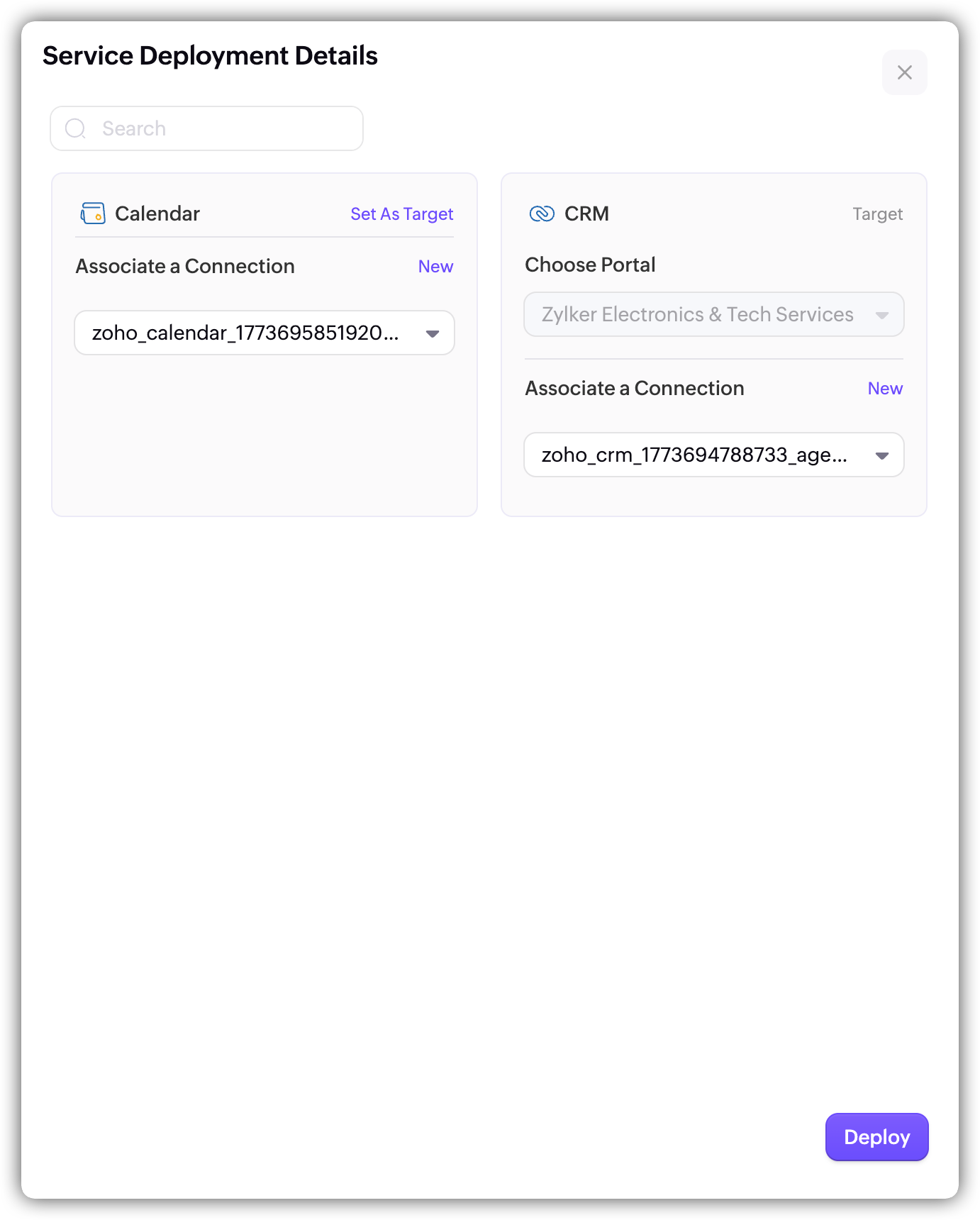
- Click Deploy.
Deploy as a digital employee
This option lets the agent operate as a user within a Zoho product, with its own identity and permissions.
Note: Deploy as a digital employee is being rolled out in a phased manner and may not be available for all services.
- Click Deploy > Deploy as digital employee from the agent details page.
- Select the product you want to deploy the agent to.
- On the consent page, authorize the agent to access the product. Check the consent box and click Continue.
- Under Applications, confirm the right applications and portals are selected. Click Continue.
- Under Permissions, choose the role and permissions based on the agent's intended actions. Click Save, then Continue.
- Under Agent Details, provide a first name, last name, and email ID for the agent. Click Continue.
- Review the Summary and click Done.
After deployment
Once deployed, the agent details page updates to show its deployment status. From here you can:
- Connect the agent to user-facing channels like ChatKit, Cliq, or WhatsApp. See Integrating Agents.
- Monitor performance under the Observability tab. See Observability for a detailed breakdown.
- Manage versions under the Versions tab to track changes and roll back if needed.
If you need to make changes, edit the agent's configuration and re-deploy. Each change creates a new version, so you can always track what changed and roll back if needed.