

Why can’t I map the Currency Code field from Contacts in Zoho CRM to Customers in Zoho Books?

If you can’t map the Currency Code field from the map fields section in the integration page in Zoho Books, verify the following:
Check if Multi-Currency is enabled in Zoho CRM.
If Multi-Currency isn’t enabled in Zoho CRM, you won’t be able to map the Currency Code field in Zoho Books. To enable Multi-Currency in Zoho CRM:
- Log in to your Zoho CRM account.
- Go to Setup.
- Select Company Settings under General.
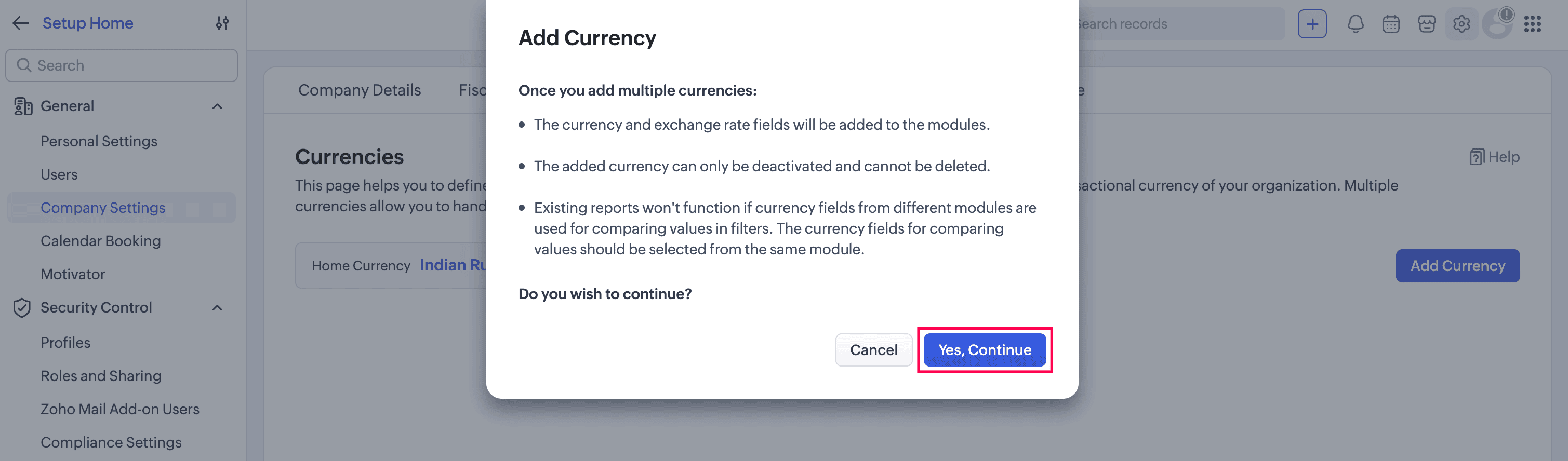
- Navigate to Currencies and click Add Currency.
- In the Add Currency pop-up, select Yes, Continue.
- In the next section:
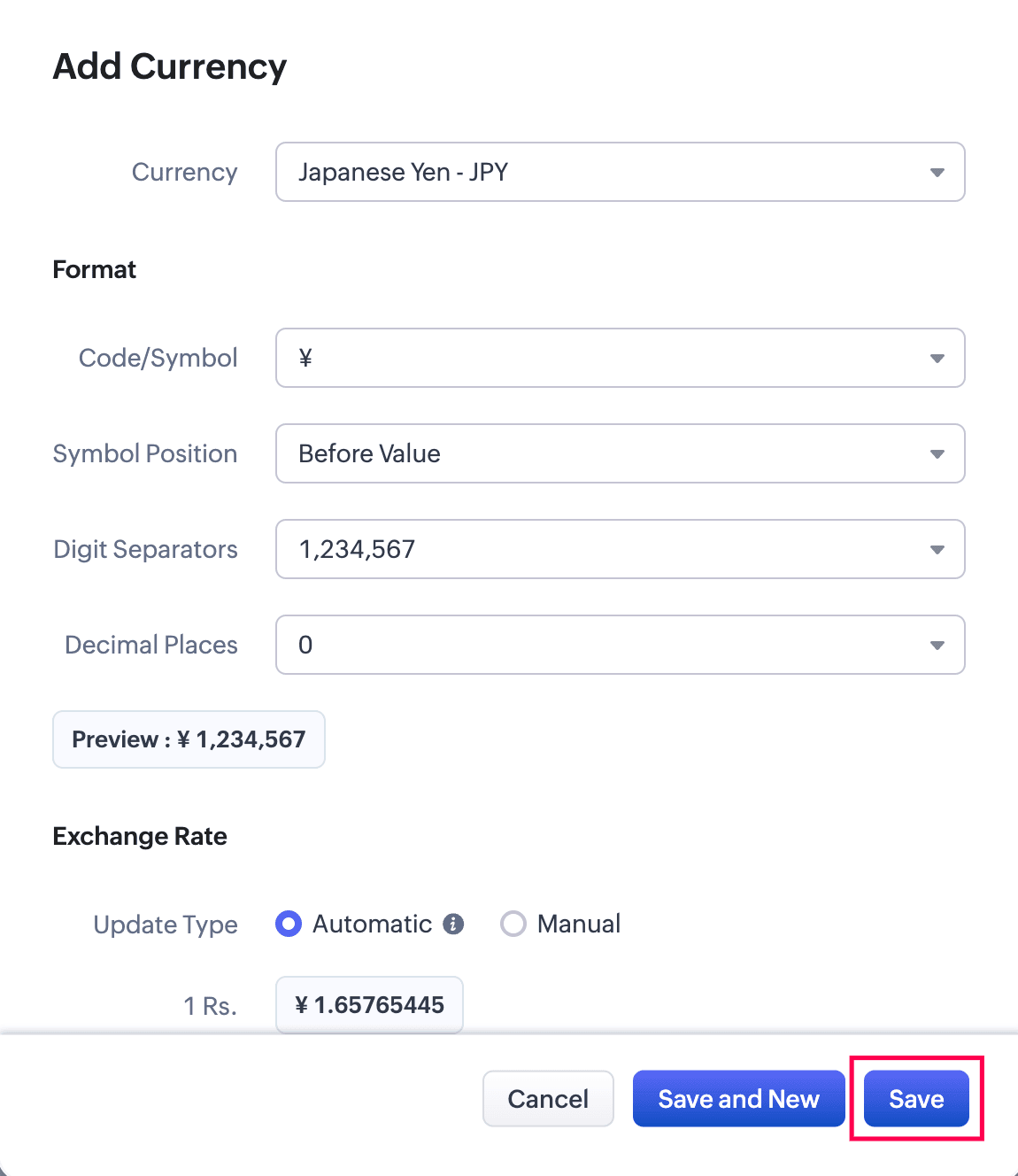
- Select a Currency.
- Configure the format options, such as Code/Symbol, Symbol Position, Digit Separator, and Decimal Places.
- Set the Update Type to Automatic or Manual.
- Click Save.
Check if the Currency field is available in the Zoho CRM layout
If the Currency field has been removed from the standard layout of the Contacts or Accounts module in Zoho CRM, you need to add it back so you can map it to the Currency Code field in Zoho Books. Here’s how:
- Log in to your Zoho CRM account.
- Go to Setup.
- Select Modules and Fields under Customisation.
- From the Modules tab, select the Accounts or Contacts module in which you want to add the Currency field.
- In the next page, click Standard under the Layouts tab.
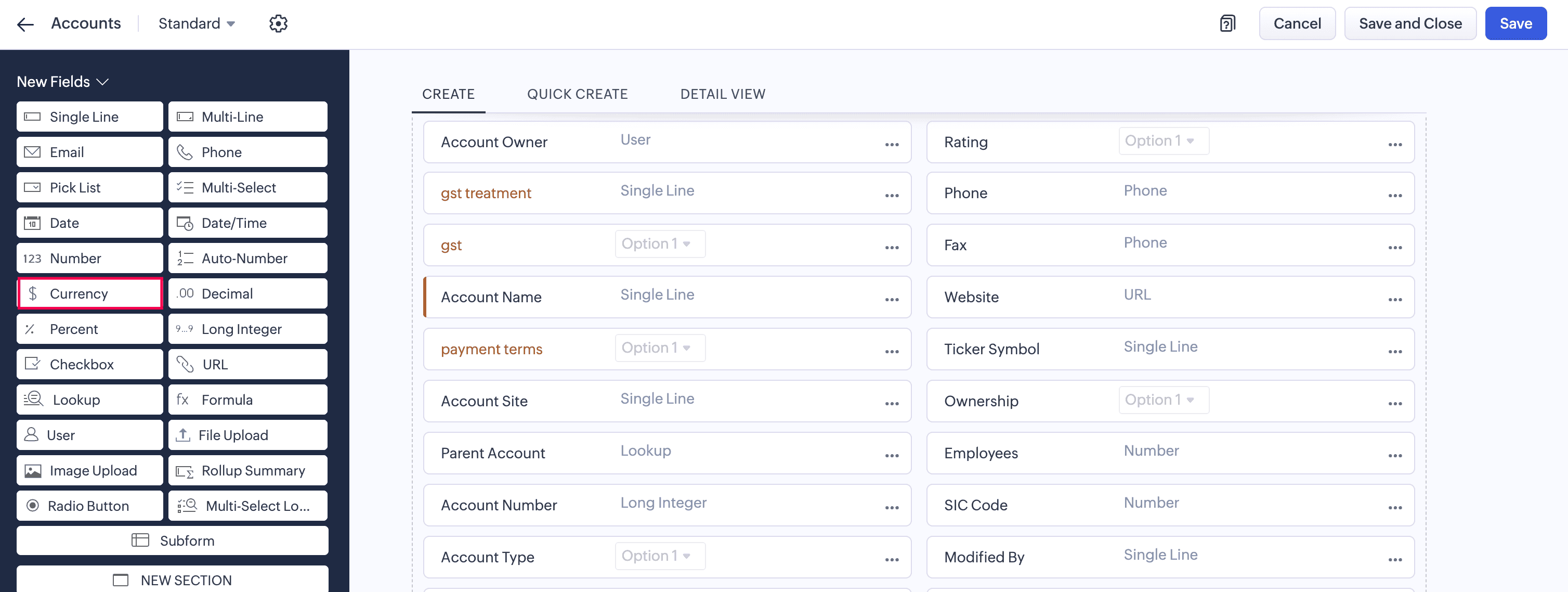
- Drag and drop the Currency field from the New Fields pane.
- In the Currency Properties pop up:
- Enter the necessary details like Field Label, Maximum digits allowed, Number of decimal places and Rounding Option.
- Click Done.
- Once you’ve added the currency field, select Save.
Once you’ve enabled Multi-Currency and ensured that the Currency field is available in the Zoho CRM layout, you can go to Zoho Books and map the Currency Code field. Here’s how:
- Go to Settings.
- Select Zoho Apps under Integrations.
- In the Zoho Apps page, click Show Details next to Zoho CRM.
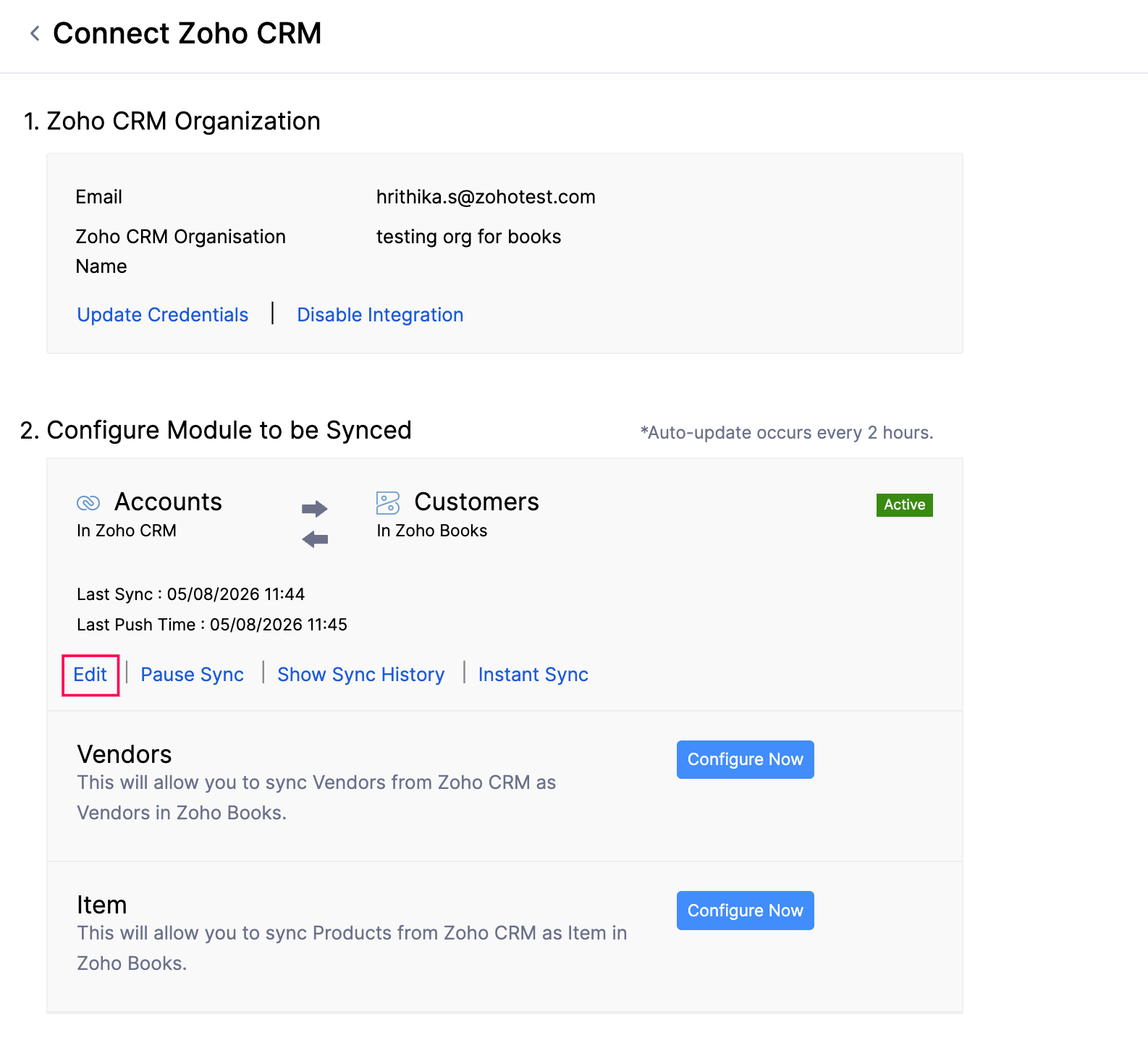
- In the Connect Zoho CRM page, navigate to the Configure Modules to Be Synced section, and click Edit for the module you’ve synced.
- In the Connect - Accounts/Contacts in Zoho CRM page, navigate to the Map Fields section.
- Click the dropdown next to the Currency Code field in Zoho Books, and select the Currency field that you added in Zoho CRM to map it.
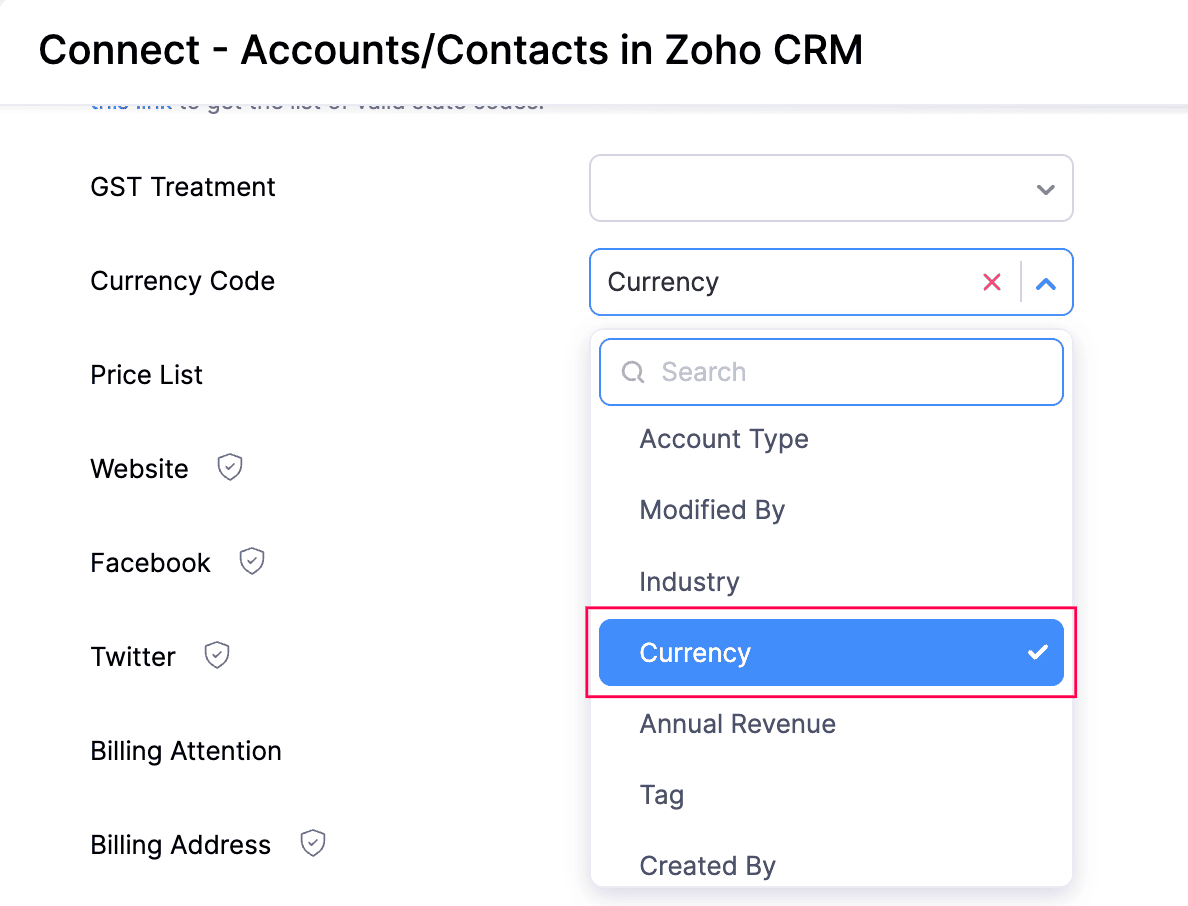
- Click Save and Sync.
You should now be able to map the Currency field from the Contacts module in Zoho CRM to the Currency Code field for customers in Zoho Books.
 Yes
Yes