

Data Management

Zoho Books allows you to back up your organisation’s data, documents, and audit trail. You can also view the history of all the files imported by different users for different modules.
Data Backup
You can keep a record of all your organisational data offline by creating a backup in CSV or XLS format. You can also download the backup from the link sent to your email address after the backup is complete.
Note: You can initiate a data backup only once every 15 days. You cannot initiate it if a data backup is already in progress or was initiated in the last 15 days.
To back up your data:
- Go to Settings.
- Navigate to Extension and Developer Data and select Data Management under Developer Data.
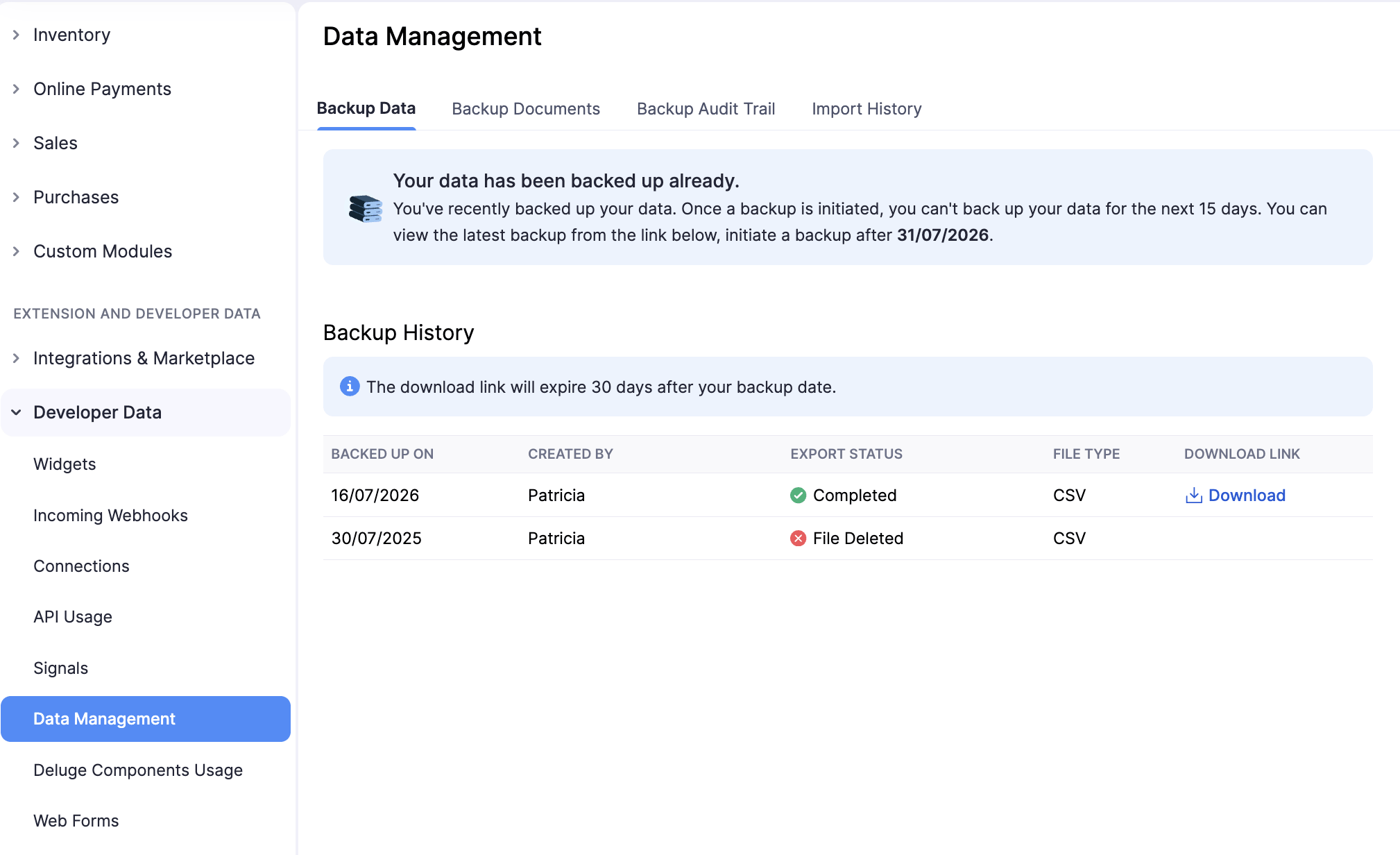
- Under the Backup Data tab, click Backup Your Data.
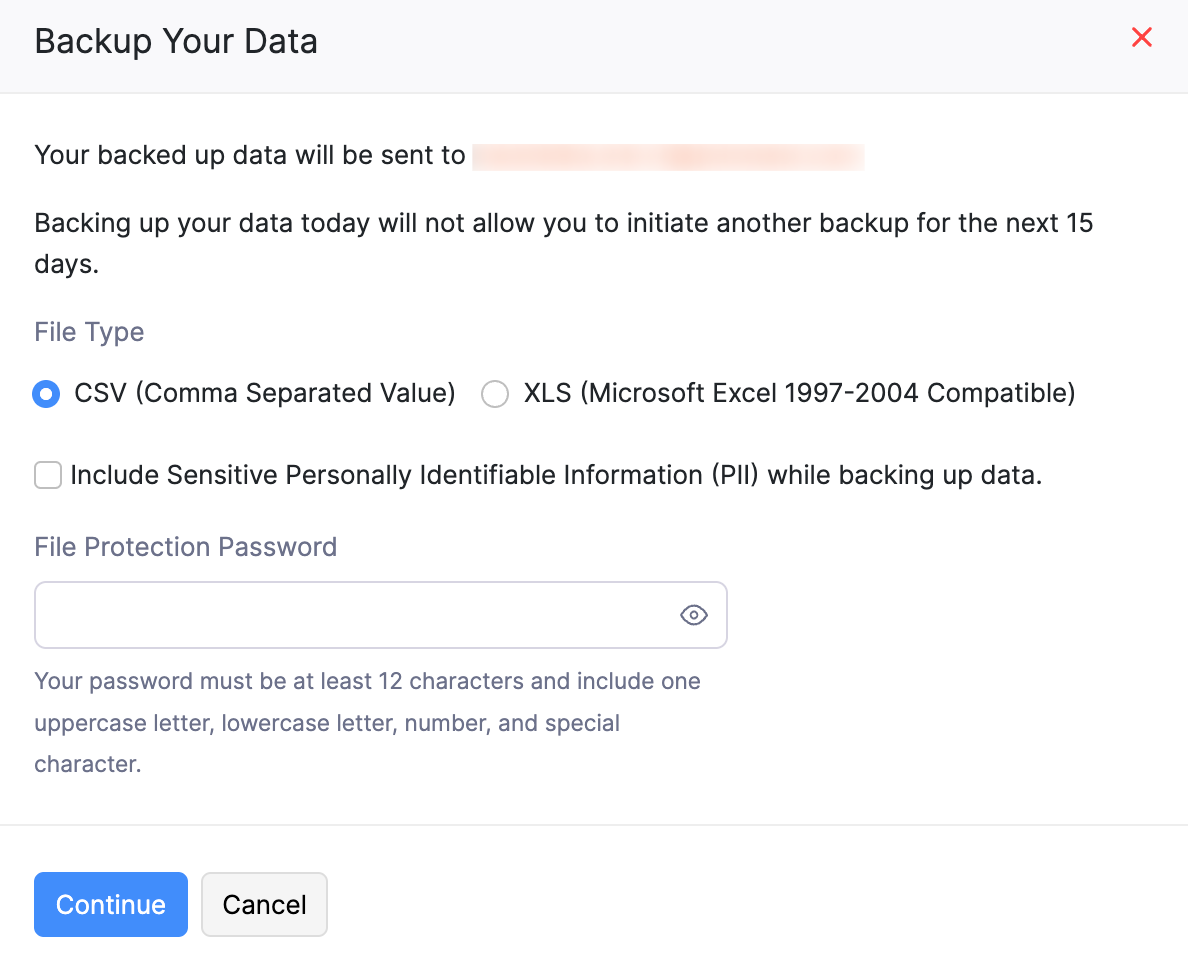
- In the pop-up, the email address to which the data backup will be sent will be shown.
- Select CSV or XLS format under File Type.
- To include PII in the backup data, check the option Include Sensitive Personally Identifiable Information (PII) while backing up data.
- Enter a File Protection Password for the backup file. Your password must be at least 12 characters and include one uppercase letter, lowercase letter, number, and special character.
- Click Continue.
The backup will be initiated, and the download link will be sent to the displayed email address once the backup is complete. This will take up to 30 minutes. You can also download your backed up data from the Backup History section.
Note: The download link for your backed-up data will expire 30 days after the backup date.
Back Up Documents
Zoho Books also provides the option to export only the documents in your organisation, such as the files attached to request for quotes, bills, and other records. The documents will be exported as a ZIP file.
Note: You can initiate a document backup only once every 15 days. You cannot initiate it if a document backup is already in progress or was initiated in the last 15 days.
To initiate a backup for the documents in your organisation:
- Go to Settings.
- Navigate to Extension and Developer Data and select Data Management under Developer Data.
- Go to the Backup Documents tab.
- Click Back Up Documents.
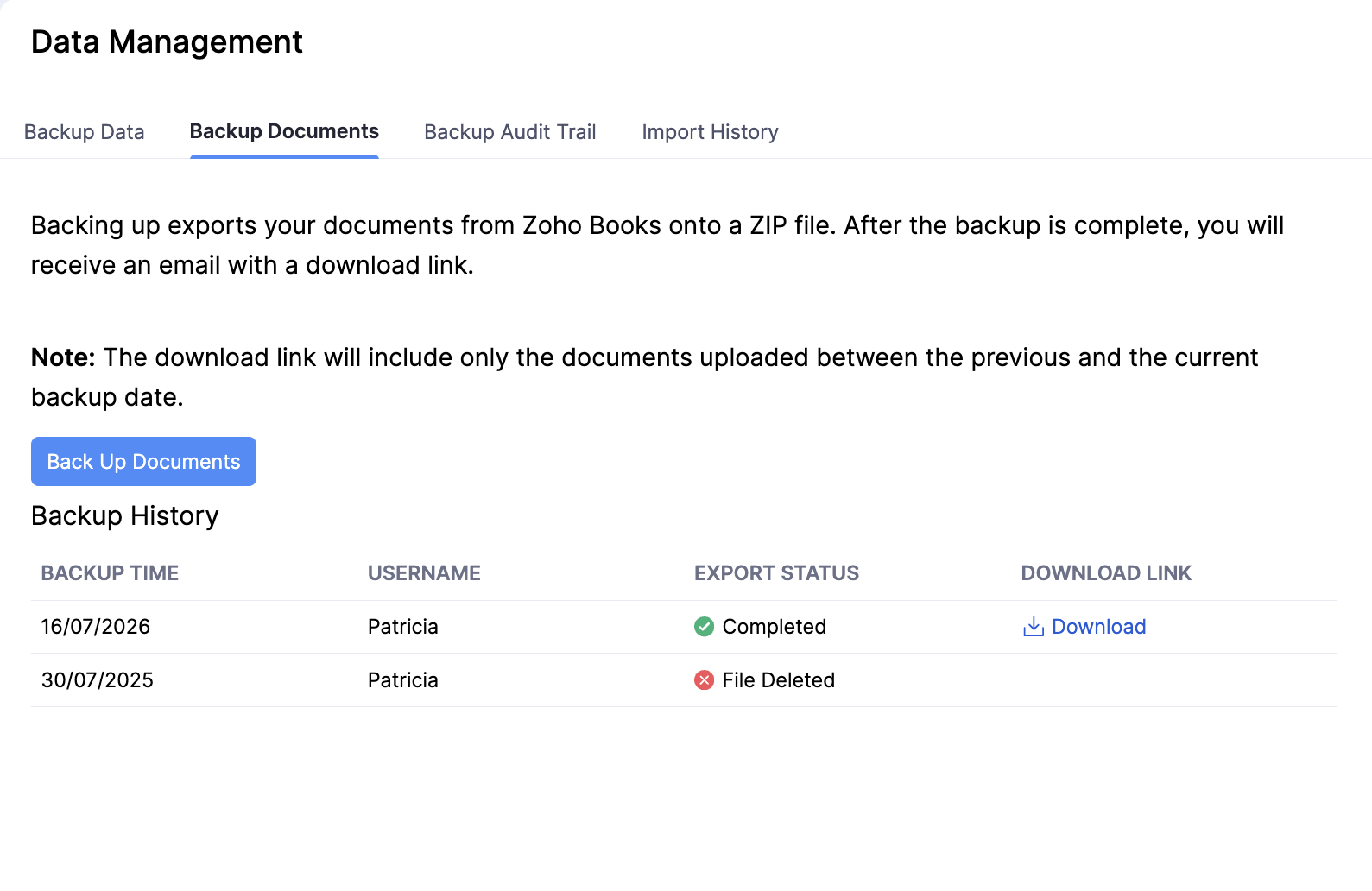
- In the following pop-up, the email address to which the documents backup will be sent will be shown. Click Continue.
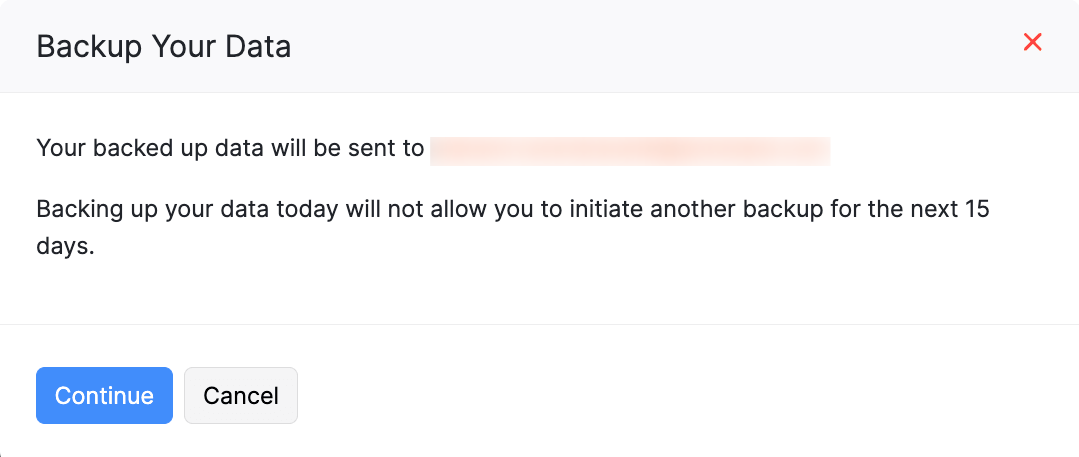
The backup will be initiated, and the download link will be sent to the displayed email address once the backup is complete. This will take up to 30 minutes. You can also download your backed up data from the Backup History section.
Note: The download link will include only the documents uploaded between the previous and the current backup date and the link will expire after 30 days.
Back Up Audit Trail
Backing up exports your Audit Trail activity from Zoho Books onto a ZIP file. After the backup is complete, you will receive an email with a download link.
Note: You can initiate an audit trail backup only once every 15 days.
To back up the audit trail:
- Go to Settings.
- Navigate to Extension and Developer Data and select Data Management under Developer Data.
- Go to the Backup Audit Trail tab.
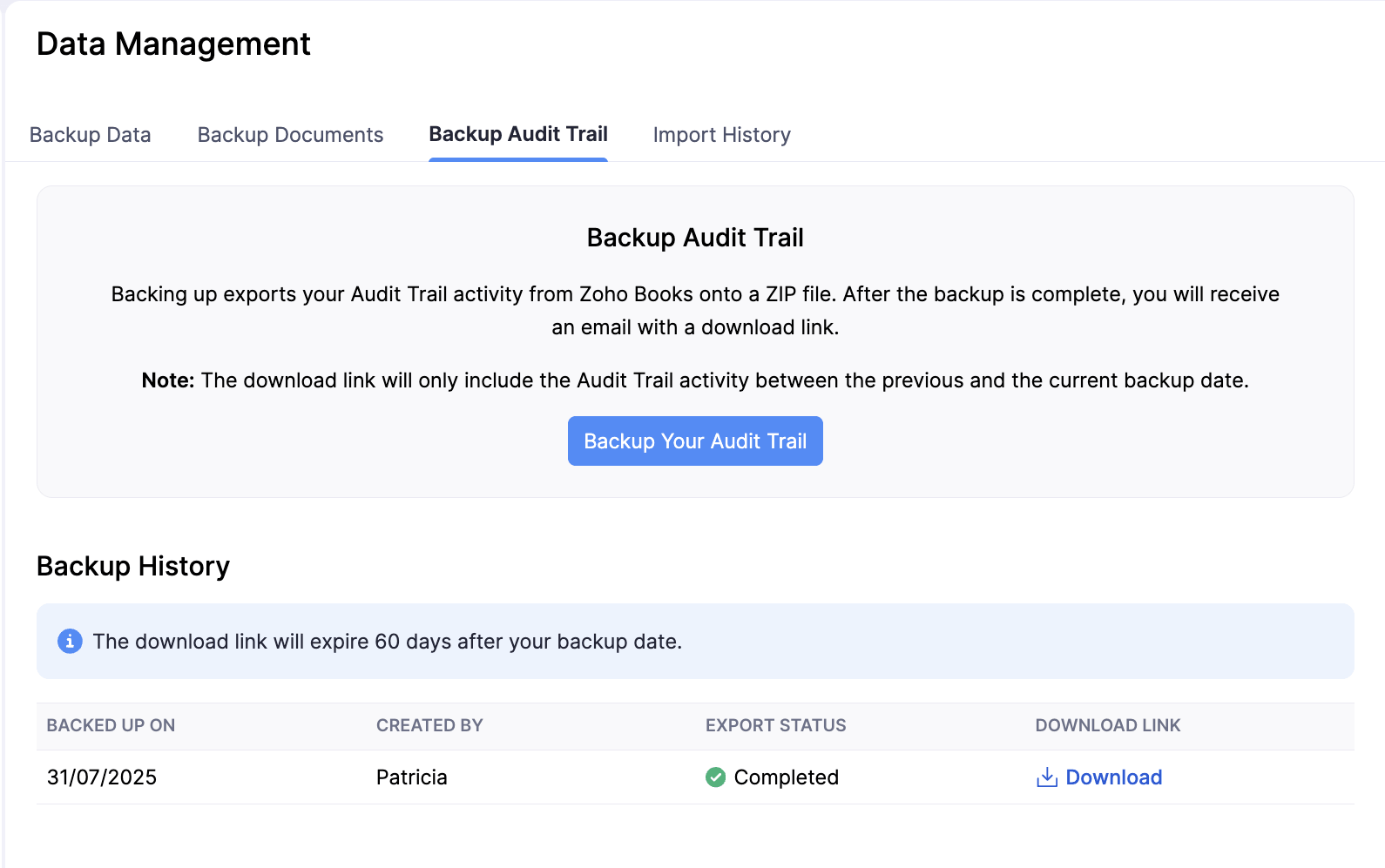
- In the following pop-up, the email address to which the audit trail backup will be sent will be shown. Click Continue.
Note: The download link will only include the Audit Trail activity between the previous and the current backup date and the link will expire after 60 days.
Import History
You can view the history of all the files imported by different users for different modules.
To view the import history:
- Go to Settings.
- Navigate to Extension and Developer Data and select Data Management under Developer Data.
- Go to the Import History tab.
The import history of all the imported files will be displayed along with details such as the user who uploaded the file, module, file name, uploaded date, status, and imported rows.
To filter the import history based on user or module:
- From the Select User dropdown, select the user who uploaded the file.
- From the Select Module dropdown, select the module for which the file was imported.
The import history will display only the files imported by the selected user and for the selected module.
 Yes
Yes