


{#field-updates}
Field Updates

Using Field Updates, you can have the system automatically update fields of a particular module when a workflow rule is triggered. For example, you can automatically extend the expiration date of a quote to June 30 when its total amount is greater than or equal to $500.
Scenario: Maria, an accountant at a design studio, sends quotes to clients with a standard validity period. Whenever a quote total reaches $500 or more, she wants to give clients extra time to confirm. She creates a field update that extends the expiration date and associates it with a workflow rule, so every qualifying quote is updated automatically without her having to edit each one by hand.
Create Field Updates
To associate field updates with workflow rules, you must first create them. Here’s how:
- Go to Settings in the top right corner of the page.
- Select Workflow Actions under Automation.
- In the Workflow Actions pane, select Field Updates.
- Click + New Field Update in the top right corner.
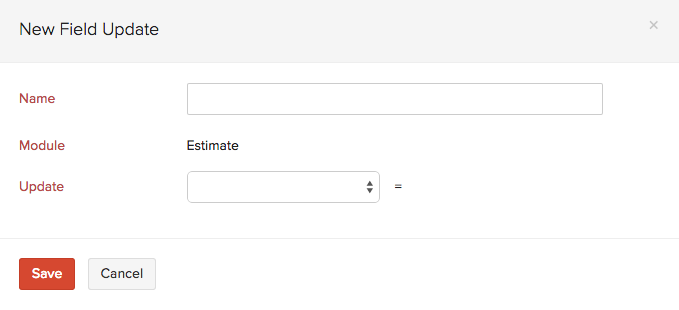
- Enter a Name for the field update.
- Select the Module for which you want to create the field update.
- Select the Field you want to update from the dropdown and enter the value. Check Update with empty value? if you want to update the field with an empty value.
- Click Save.
Associate Field Updates with Workflow Rules
The field updates you create should be associated with workflow rules so that they are triggered automatically when the required conditions are met. To associate field updates with workflow rules:
- Go to Settings.
- Select Workflow Rules under Automation.
- Click + New Workflow Rule in the top right corner.
- Enter the necessary details. See Workflow Rules.
- Under Actions, choose Field Updates as the Type and select the field update you want to associate with the workflow rule.
- Click Save.
Now, whenever the criteria is met, the workflow rule will be triggered, which in turn will trigger the field update.
Edit Field Updates
If you want to update the details of a field update, you can edit it. Here’s how:
- Go to Settings in the top right corner of the page.
- Select Workflow Actions under Automation.
- In the Workflow Actions pane, select Field Updates.
- Hover over the field update you want to edit, click the dropdown to the right, and select Edit.
- Make the necessary changes and click Save.
Filter Field Updates
To filter the field updates:
- Go to Settings in the top right corner of the page.
- Select Workflow Actions under Automation.
- In the Workflow Actions pane, select Field Updates.
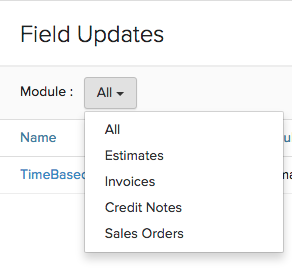
- Under Module, select a module from the dropdown for which the field update has been created.
Based on your selection, the corresponding field updates will be displayed as a list.
Note: You can create a maximum of 3 field updates for each workflow rule.
Delete Field Updates
Warning: Deleting a field update is permanent and cannot be undone. If the field update is associated with a workflow rule, the workflow rule will not be executed.
To delete a field update:
- Go to Settings in the top right corner of the page.
- Select Workflow Actions under Automation.
- In the Workflow Actions pane, select Field Updates.
- Hover over the field update that you want to delete and click the Delete icon.

 Yes
Yes