


Tax Reports

Tax Reports are generated for the reporting period you select while setting up VAT for your organization. These reports are generated based on all your sales and purchase transactions, and are in compliance with FTA standards.
VAT Audit Report
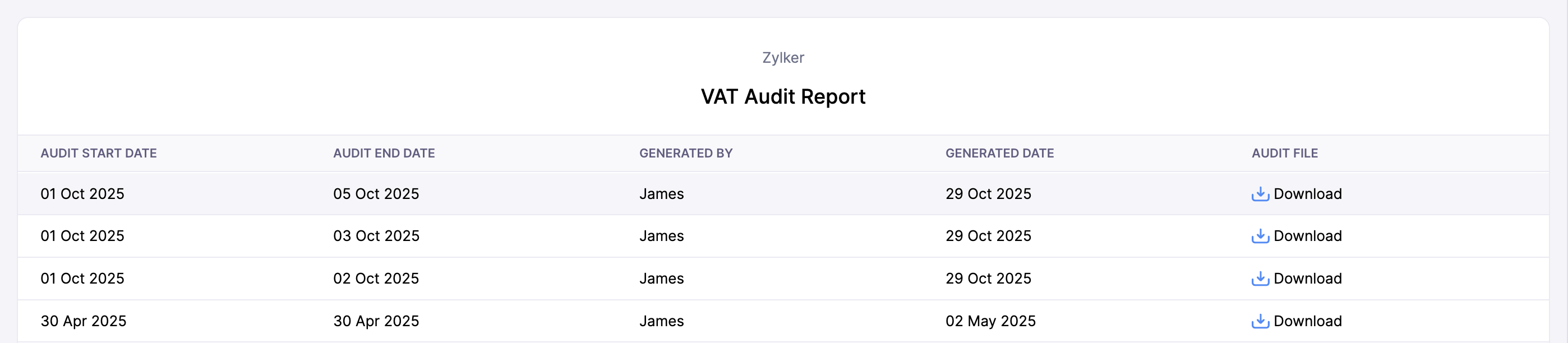
The VAT Audit Report contains detailed VAT-related transactions recorded during a specific period. You can use this report to review the transactions included in your vat returns and maintain records required for audit purposes.
To view your VAT Audit Report:
- Go to Reports on the left sidebar.
- Select VAT Audit Report under Taxes.
The report contains the following columns:
| Column | Description |
|---|---|
| Audit Start Date | The start date of the period included in the VAT audit file. |
| Audit End Date | The end date of the period included in the VAT audit file. |
| Generated By | The User who generated the VAT audit file. |
| Generated Date | The date on which the VAT audit file was generated. |
| Audit File | Download the generated VAT audit file for the selected audit reporting period. |
Generate VAT Audit File
You can generate a VAT audit file for a specific period. Here’s how:
- Go to Reports on the left sidebar.
- Select VAT Audit Report under Taxes.
- Click Generate FTA Audit File in the top right corner.
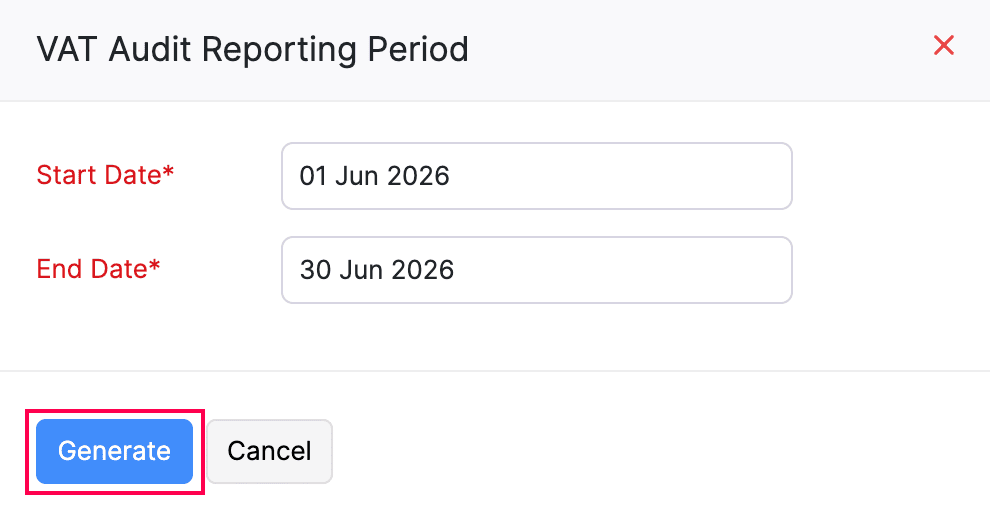
- In the VAT Audit Reporting Period pop-up, enter the specific Start Date and End Date for which you need your audit file to be generated and click Generate.
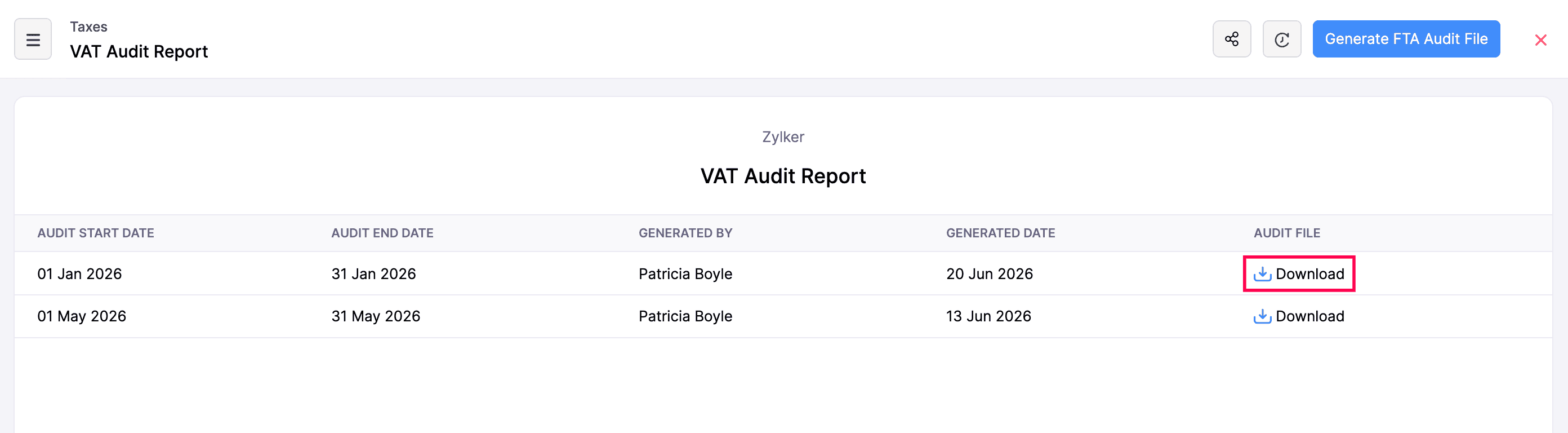
The file may take a few minutes to generate. During this time, its status will be displayed as Generation in Progress. Once the file is generated, the status will change to Download, and you can download it in CSV format. Here’s how:
- Click the Download icon next to the generated file.
Excise Tax Audit Report
Excise Tax applies to specific goods designated by the Federal Tax Authority. The excise tax audit report contains details of transactions that include excise tax for a specific period. You can use this report to review excise tax transactions and maintain records required for audit purposes.
To view your Excise Tax Audit Report:
- Go to the Reports on the left sidebar.
- Select Excise Tax Audit Report under Taxes.
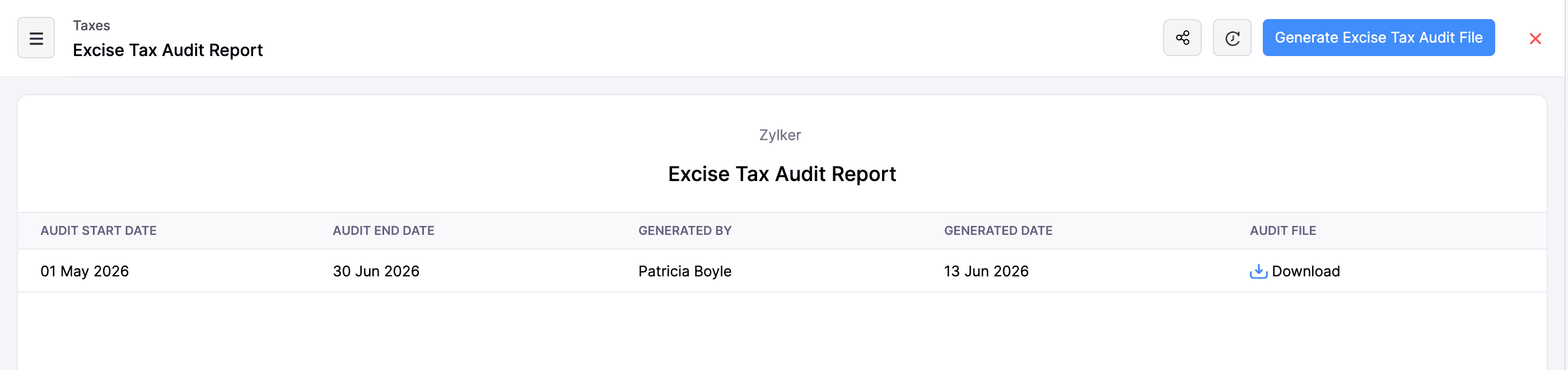
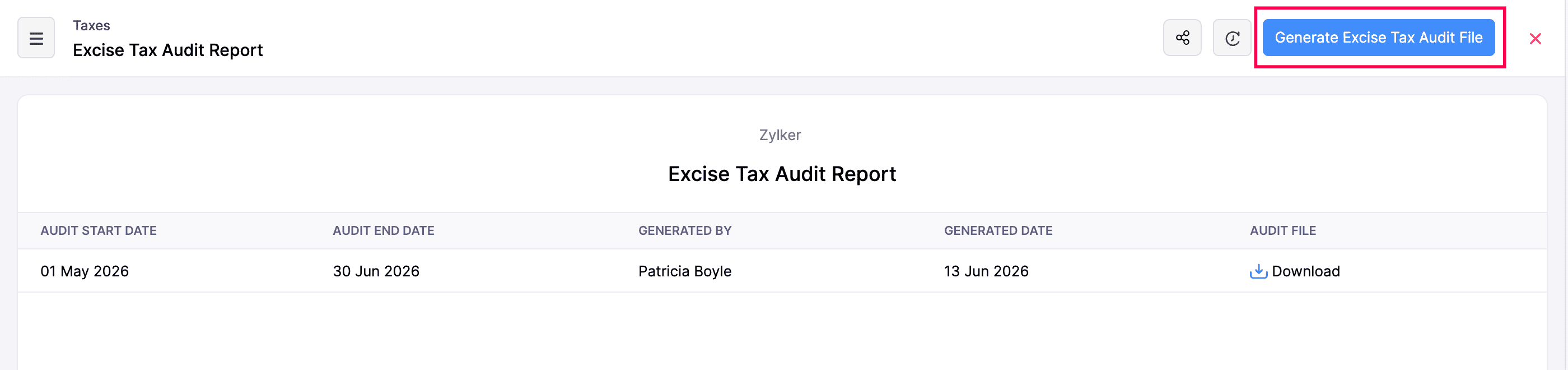
The report contains the following columns:
| Column | Description |
|---|---|
| Audit Start Date | The start date of the period included in the vat audit file. |
| Audit End Date | The end date of the period included in the vat audit file. |
| Generated By | The user who generated the vat audit file. |
| Generated Date | The date on which the vat file was generated. |
| Audit File | Download the generated vat audit file for the selected audit period. |
Generate Excise Tax Audit File
You can generate an excise tax audit file for a specific time period. Here’s how:
- Go to the Reports on the left sidebar.
- Select Excise Tax Audit Report under Taxes.
- Click Generate Excise Tax Audit File in the top right corner.
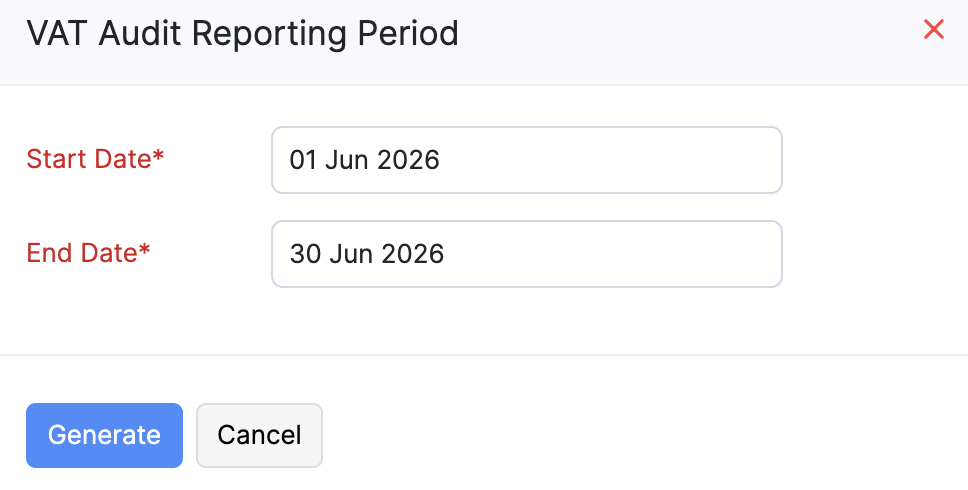
- In the VAT Audit Reporting Period pop-up, enter the Audit Start Date and Audit End Date for the period for which you want to generate the audit file.
- Click Generate.
The file may take a few minutes to generate. During this time, its status will be displayed as Generation in Progress. Once the file is generated, the status will change to Download, and you can download it in XLSX format. Here’s how:
- Click the Download icon next to the generated file.
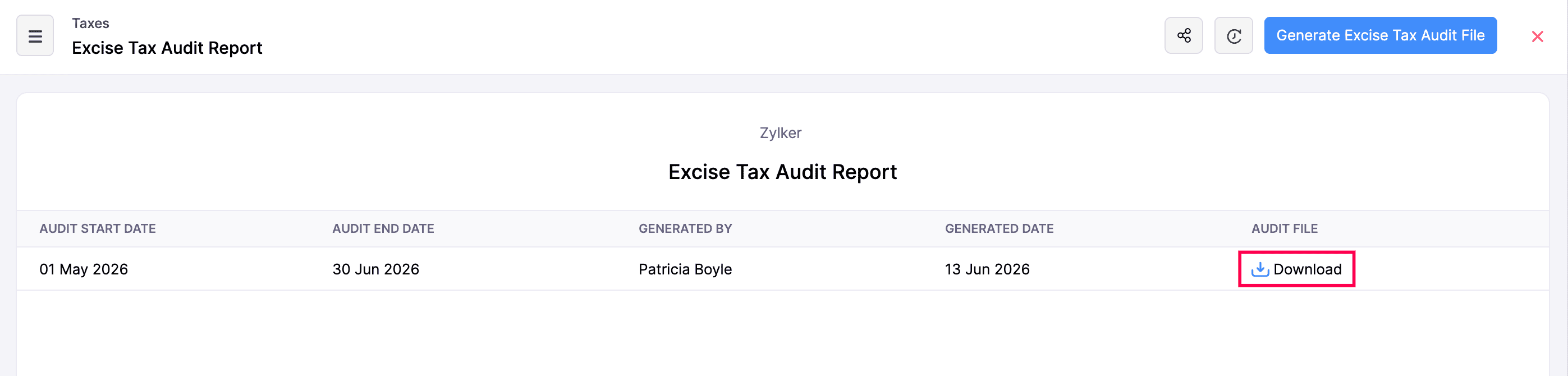
The VAT audit file will be downloaded to your device.
 Yes
Yes