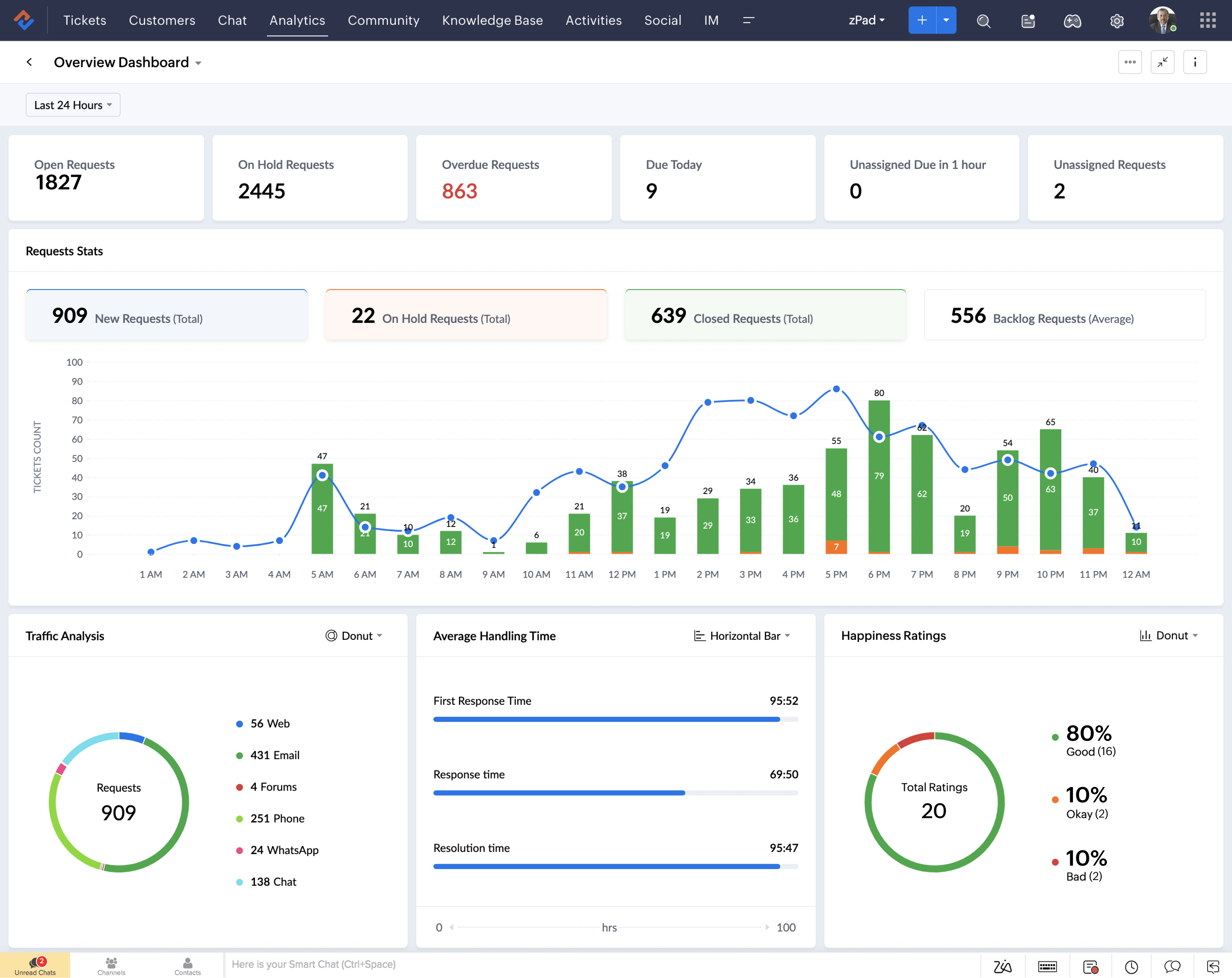
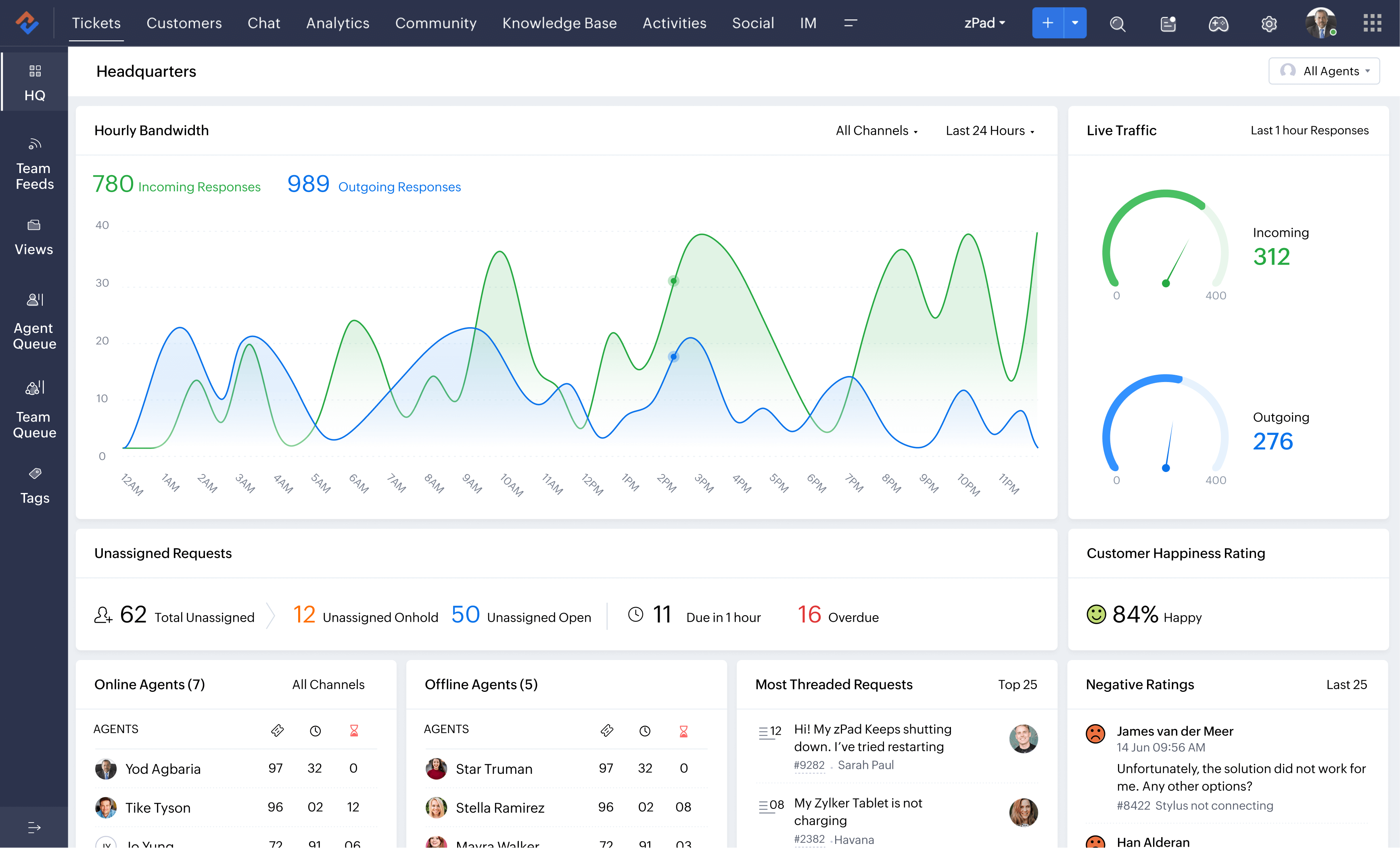
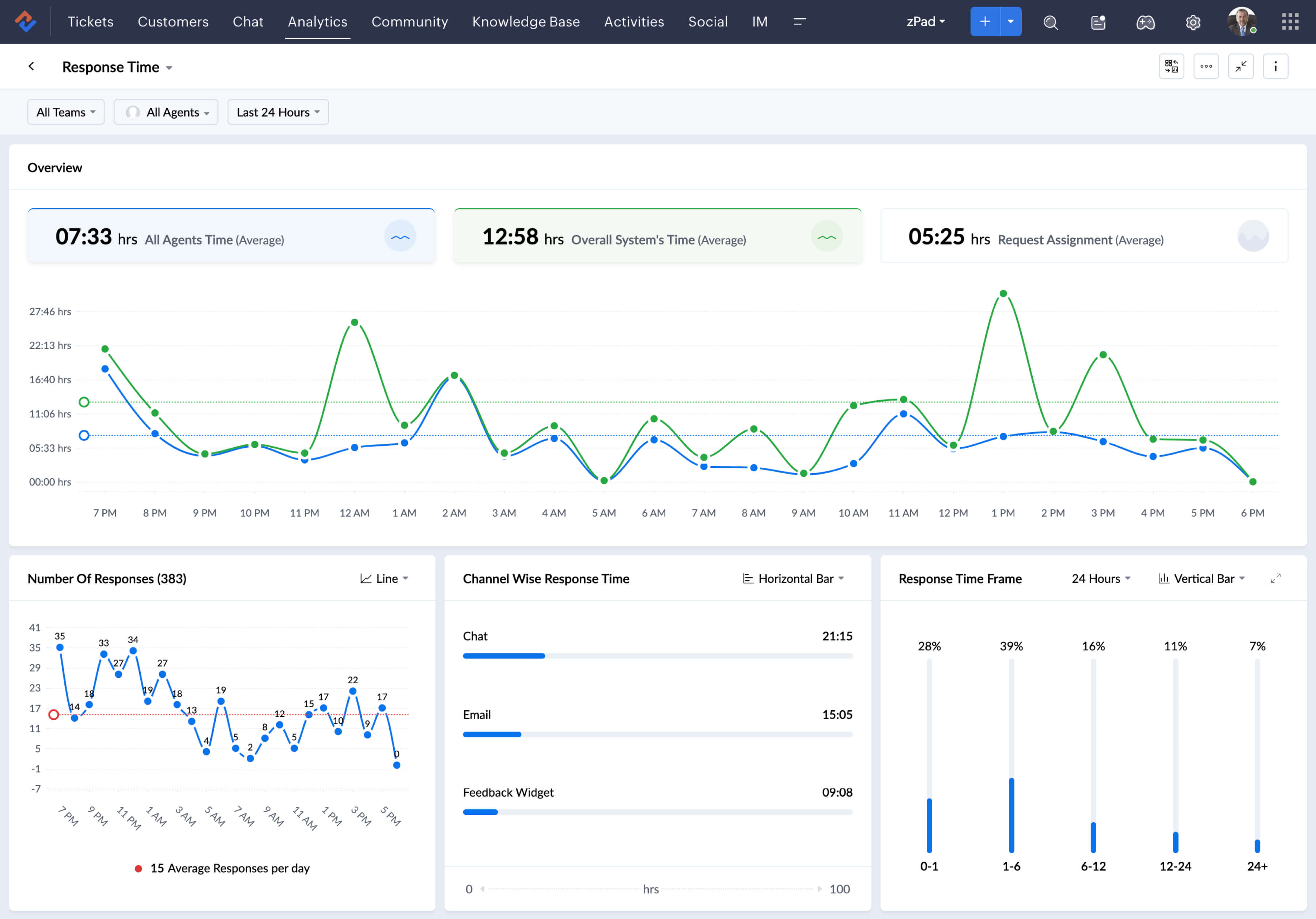
Dashboards are the pictorial representation of reports generated with which you can clearly grasp the process flow for a specified period of time. From Dashboards, you can figure out where exactly is the bottleneck and can bring in the necessary changes to progress. Zoho Support allows you to create various charts like Bar chart, Pie Chart, Funnel Chart or Linear Chart to get a better perspective of the center's position and compare with past performance. Also, you can forecast the center's performance in the coming months.
Note:
- Ensure that your Web browser supports Macromedia Flash.
- In case your browser does not support Macromedia Flash plug-in, click the Flash plug-in icon to install it.
- How do I create dashboard folders?
- How can I create a dashboard?
- Create Charts
- How do I edit a chart?
- How can I delete a chart?
- Change dimensional view
- Zoom out chart
Create Dashboard Folders
Before you start to create dashboards, it is required to create the dashboard folders. You can create both public and private folders and the dashboards can be stored in any of the folders. The public folders are for all the Zoho Support Users and the private folders are limited to only some of the users.
Note:
- System administrators and the users who create the dashboard folder have full control on the folders.
- Other users can access the dashboards only when the owner of the folder provides the access.
To create dashboard folders, do the following:
- Click Dashboards tab.
- In the Dashboards Home page, click Go to Dashboard List link.
- In the Dashboard List page, click Create New Dashboard Folder button.
- In the New Dashboard Folder page, do the following:
- Enter the Folder Name.
- In Accessibility Details section, define the user's accessibility to view the dashboard folder.
- Click Save.
Create Dashboards
To create Dashboards which are summarized view of reports, do the following:
- Click Dashboards tab.
- In the Dashboards Home page, click Go to Dashboard List link.
- In the Dashboard List page, click Create New Dashboard button.
- In the New Dashboard page, do the following:
- Enter the Dashboard Name.
- Select Dashboard Folder from the list in which the dashboard has to be stored.
- Enter the Description of the dashboard.
- Click Save.
Create Charts
After you have created the Dashboard, select the charts or table form. Charts displays the data in pictorial form and table displays the data in tabular format. You can create charts by adding components which includes Bar, Pie, Line, Funnel or Table Charts.
List of charts:
- Bar Chart: Displays two or more kinds of data for comparing values across categories.
- Pie Chart: Displays data that is divided into triangular areas proportional to the percentages of the whole and illustrates the relationship of parts to the whole.
- Line Chart: Displays a trend over a period with the variations in the multiple values in a single chart.
- Funnel Chart: Displays the convergence of data from the entry level to exit level.
- Table Chart: Displays the sum of values in each category of the data.
To create charts, do the following:
- Click Dashboards tab.
- In the Dashboards Home page, click Add Component.
- In the Add Component page, do the following:
- Select the Component Type, either Chart or Table.
- Enter the Component Name.
- Select the source of data for the report from the Source Report list.
- Click Next.
- In the Add Component page, select the type of chart from the Select Chart Type list box. Under Provide Chart Details, the X-Axis and Y-Axis details are displayed.
- Click Finish.
Edit Chart
To edit a chart, do the following:
- Click Dashboard Tab.
- In the Dashboard homepage, the created charts or components are displayed.
- Click Edit link of the particular chart.
- Do the required changes and click Next.
- Change the chart type if required.
- Click Finish.
Delete Chart
To delete a chart, do the following:
- Click Dashboard Tab.
- In the Dashboard Home page, the created charts or components are displayed.
- Click Del link of the particular chart.
- Click OK for the confirmation message.
Change Dimensional View
You can change the dimensional view of the chart from 2d to 3d and vice versa.
- Click Dashboard Tab.
- In the Dashboard Home page, the created charts or components are displayed.
- Click on the icon for 2D or 3D to view the chart in the respective mode.
Zoom Out Chart
To Zoom out a chart, do the following:
- Click Dashboard Tab.
- In the Dashboard Home page, the created charts or components are displayed.
- Click on the
icon to Zoom. - The zoomed chart is displayed in a separate window.