Email Collaboration
Old habits die hard. With Zoho Projects, sending out emails is one such habit you don't have to give up! Manage everything like firing away tasks, posting a topic for discussion in the forum, filing issues and much more right from mail if and when you need it.

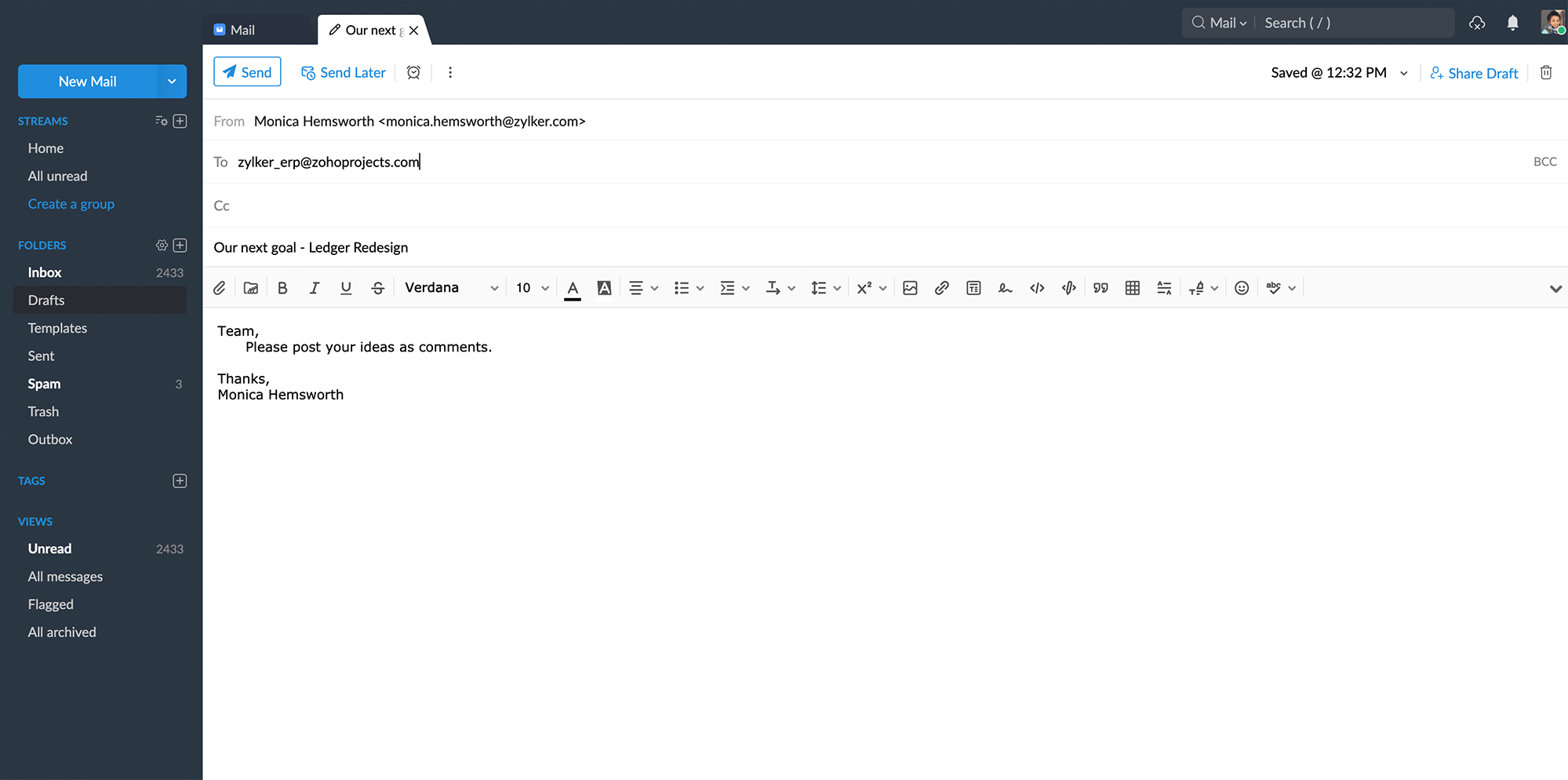
Project email alias
Each project has a unique email alias for task, document, forums and issues. The general format of the email alias is _ @zohoprojects.com. The admin or the project manager can change the unique string to suit the project. For example : zylker_erp@zohoprojects.com, where zylker is the portal URL and erp is the unique project string. Based on the above example, a project has the below email aliases.
- zylker_erp@zohoprojects.com
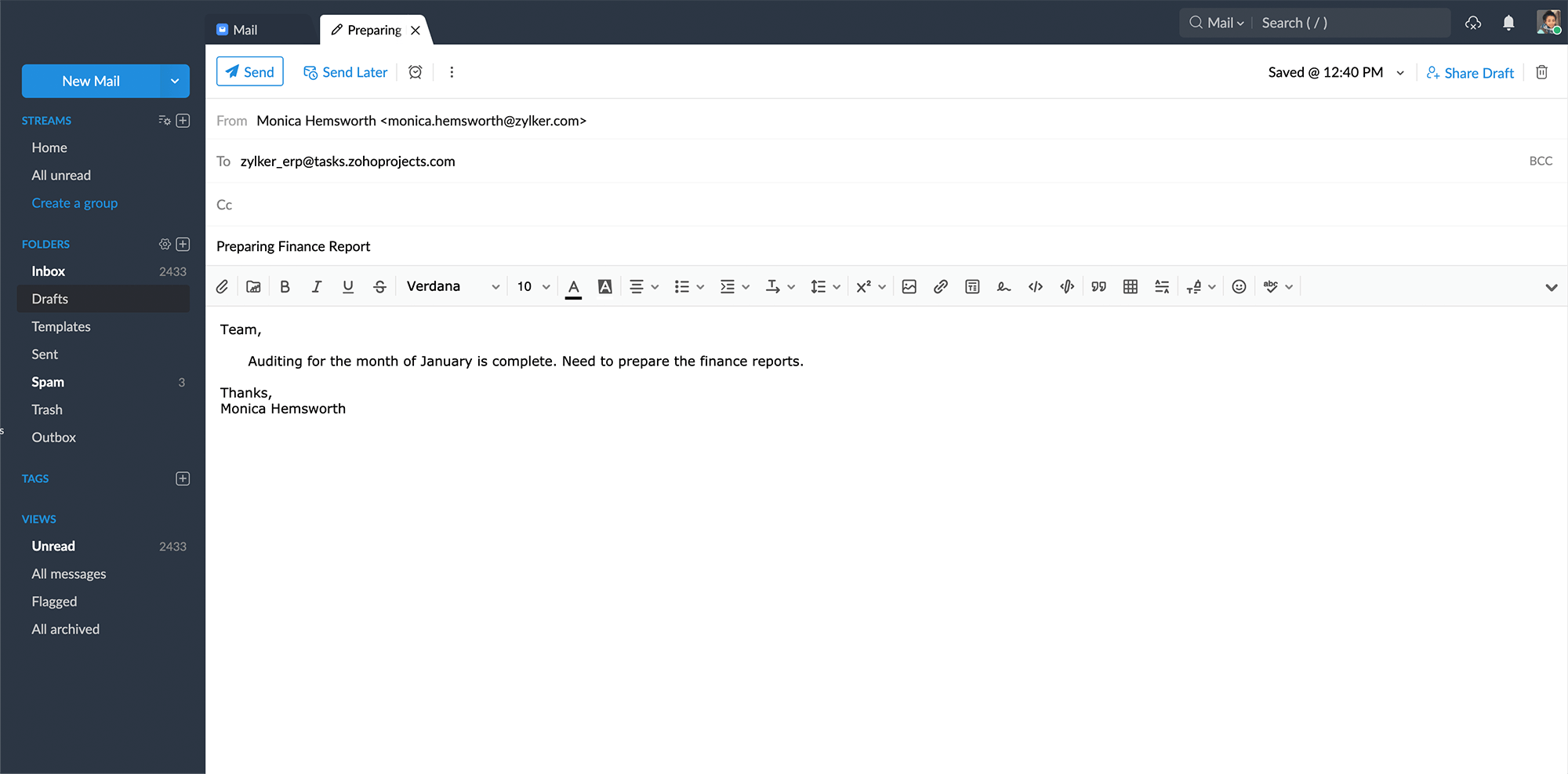
- zylker_erp@tasks.zohoprojects.com
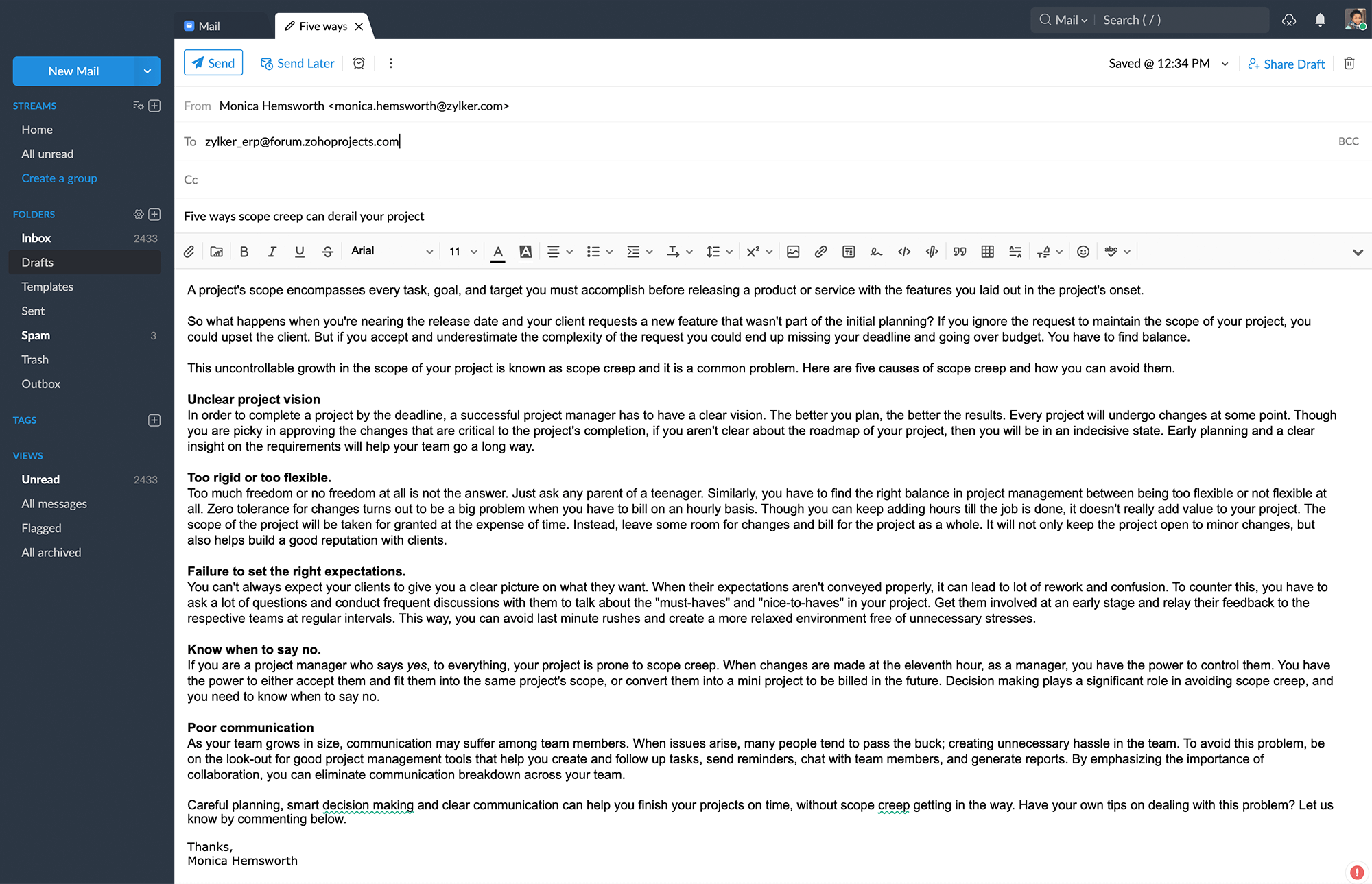
- zylker_erp@forum.zohoprojects.com
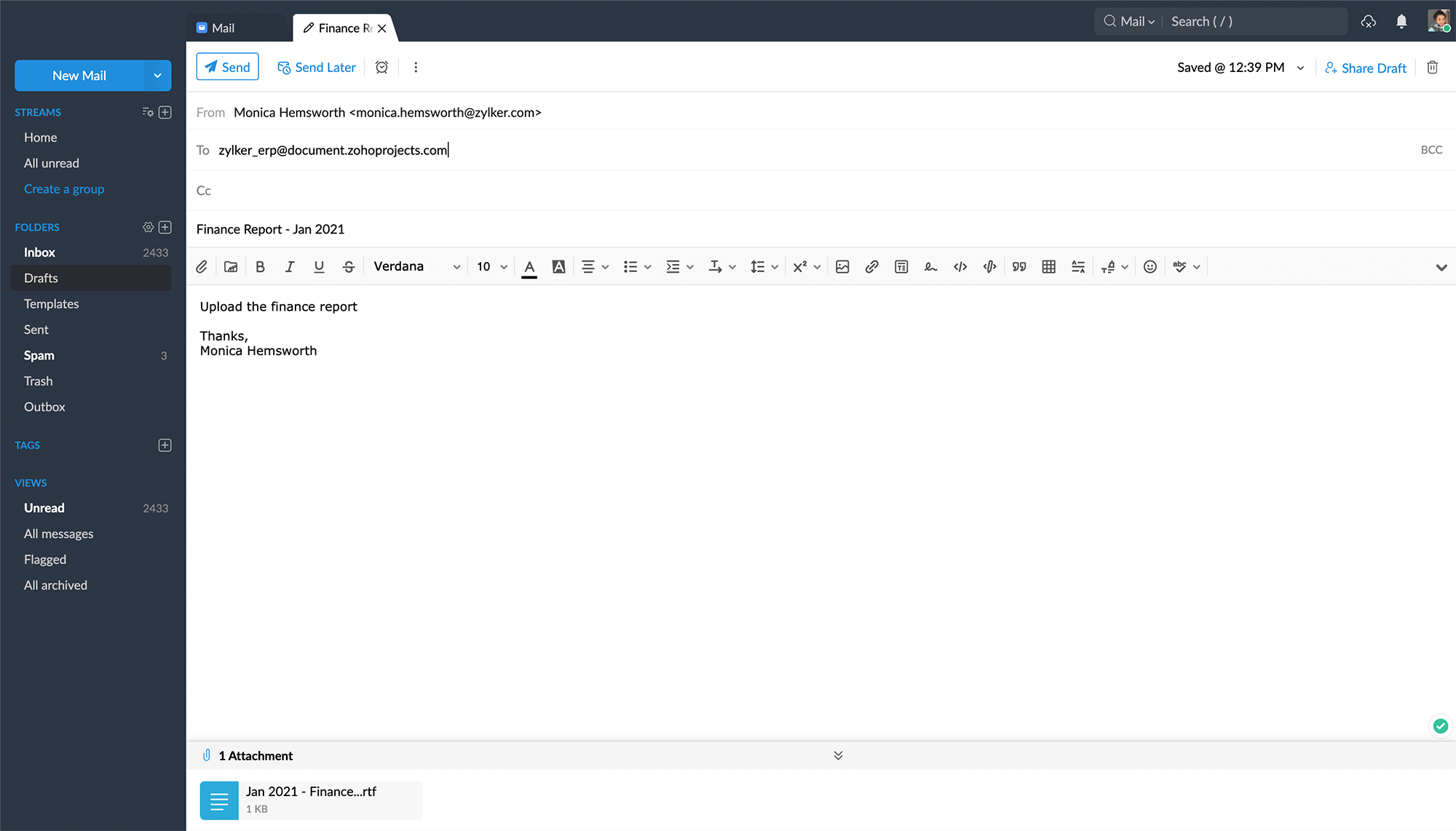
- zylker_erp@document.zohoprojects.com
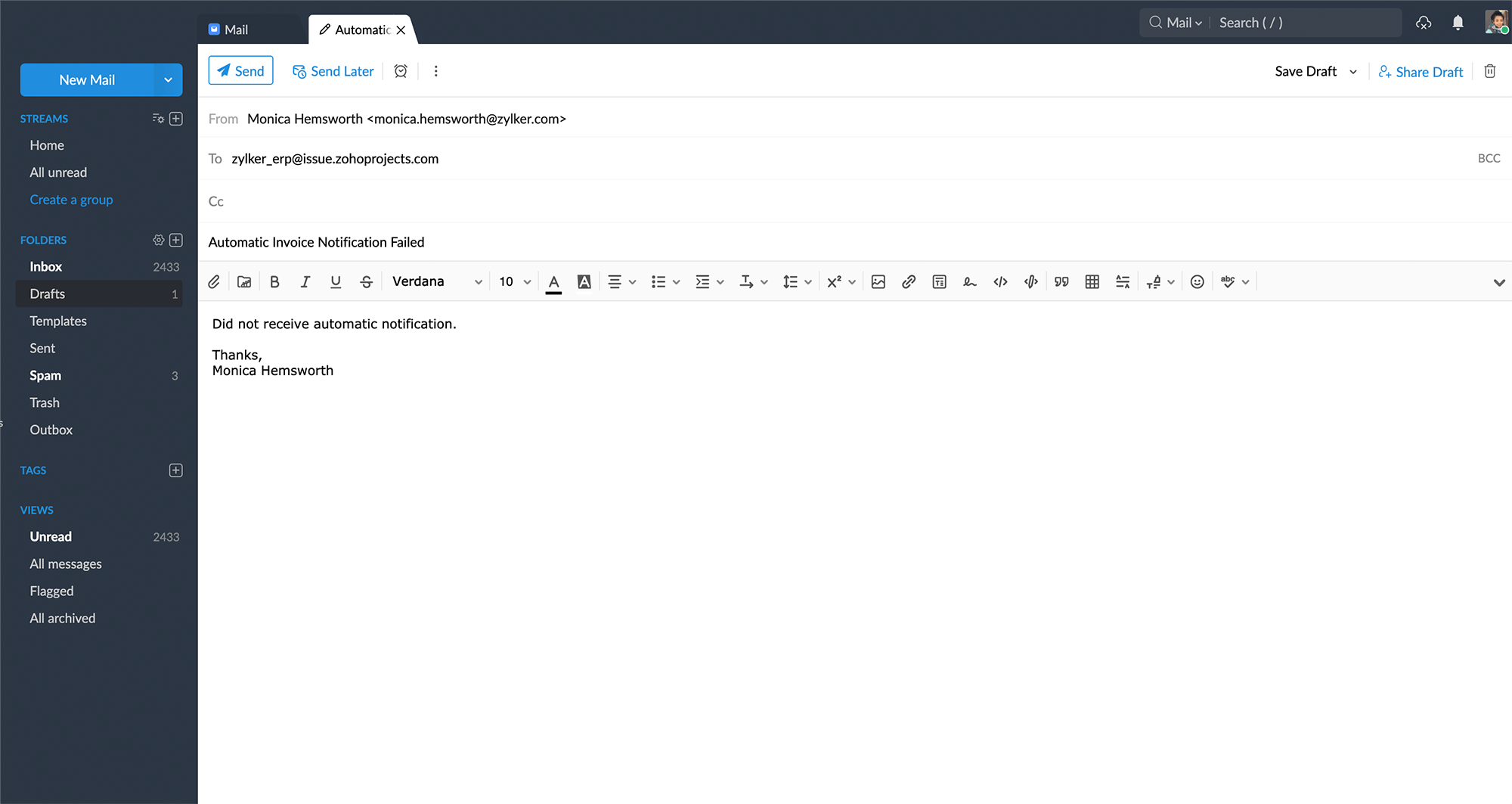
- zylker_erp@issue.zohoprojects.com
Add new task via email
Send email to _ @tasks.zohoprojects.com to add a new task to the project. The subject of the mail is added as the task name. The body of the mail is added as the description of the task. Attachments, if any, are uploaded and associated to the task.
Upload a document via email
Send attachments to _ @document.zohoprojects.com to upload documents to the project.
Add new forum post via email
Send email to _ @forum.zohoprojects.com to add a new forum post to the project. The subject of the mail is added as the title of the forum post. The body of the mail becomes the forum content. Attachments, if any, are uploaded as forum attachments.
File an issue via email
Send an email to _ @issue.zohoprojects.com to file an issue in that project. The subject of the mail is added as issue title. The body of the mail is added as issue description. Attachments, if any, are uploaded as issue attachments.
Post status via email
Send email to _ @zohoprojects.com to add your status to the project. The subject of the mail is added as your status. Body of the mail and attachments are added as comments and status attachments respectively.