Getting started with Tasks
Tasks powered by Zoho ToDo, an application available as a part of Zoho Mail Suite, is a one-stop task management tool. When you add your tasks you can assign due dates, set reminders, lay down priorities, and break them down into sub-tasks allowing you to delegate work among your colleagues.
Tasks: Overview
Personal tasks
Sometimes, you might be working on a task that does not require group effort. You can add these pieces of work, which are typically for you, to your Personal tasks. For example, say you have to send an email response to a client or buy a new laptop charger. You can add these under Personal Tasks.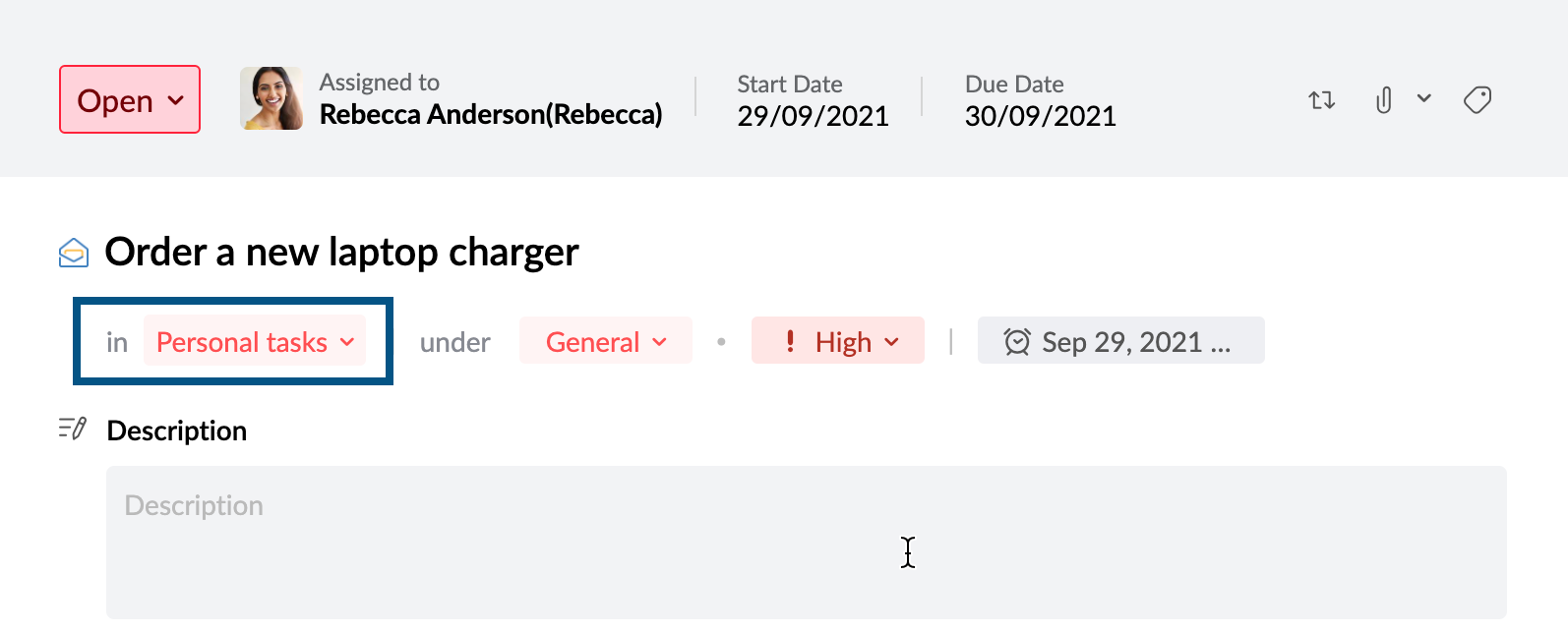
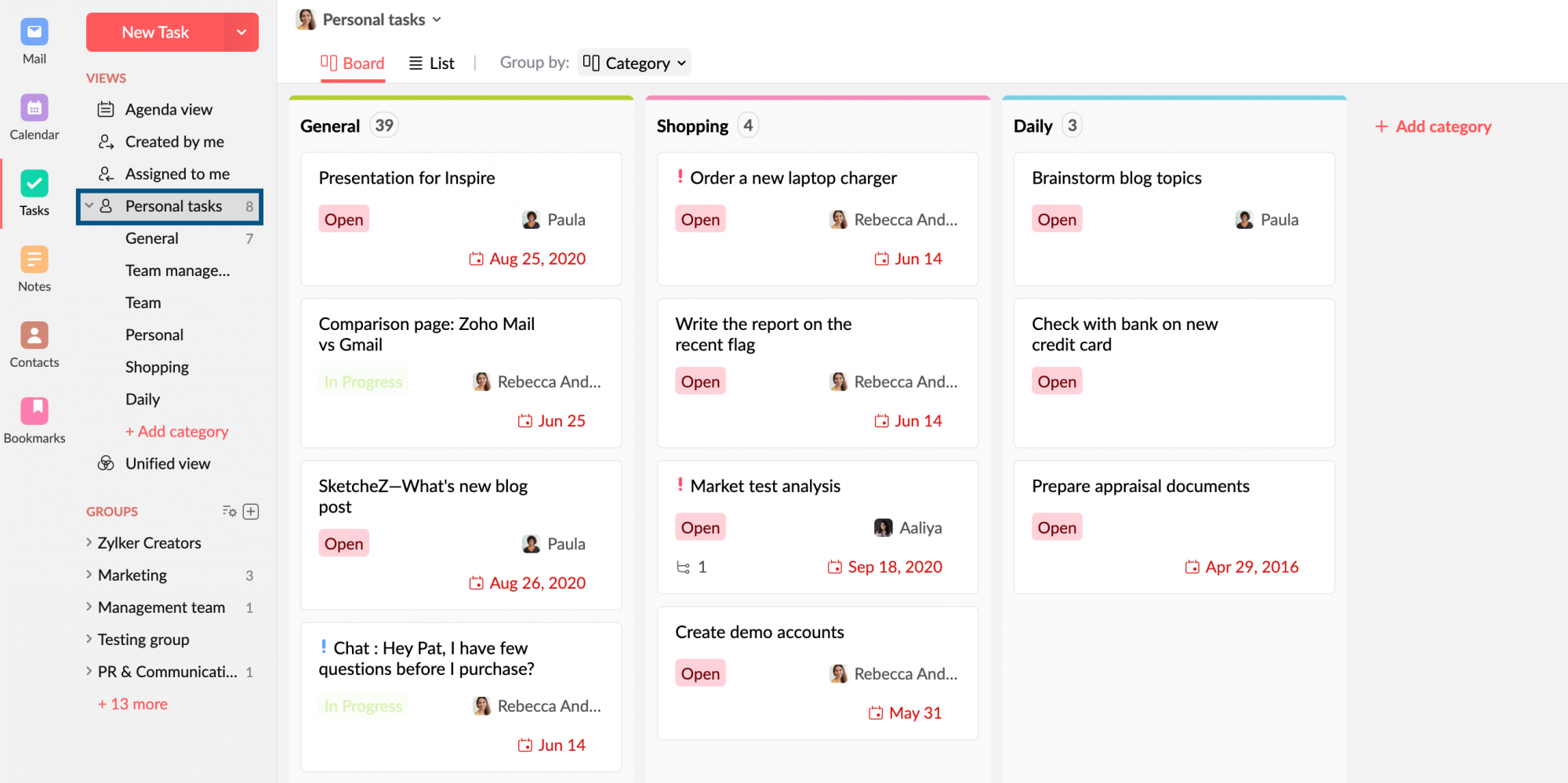
- All your Personal tasks can be found by clicking the Personal tasks view in the left pane.
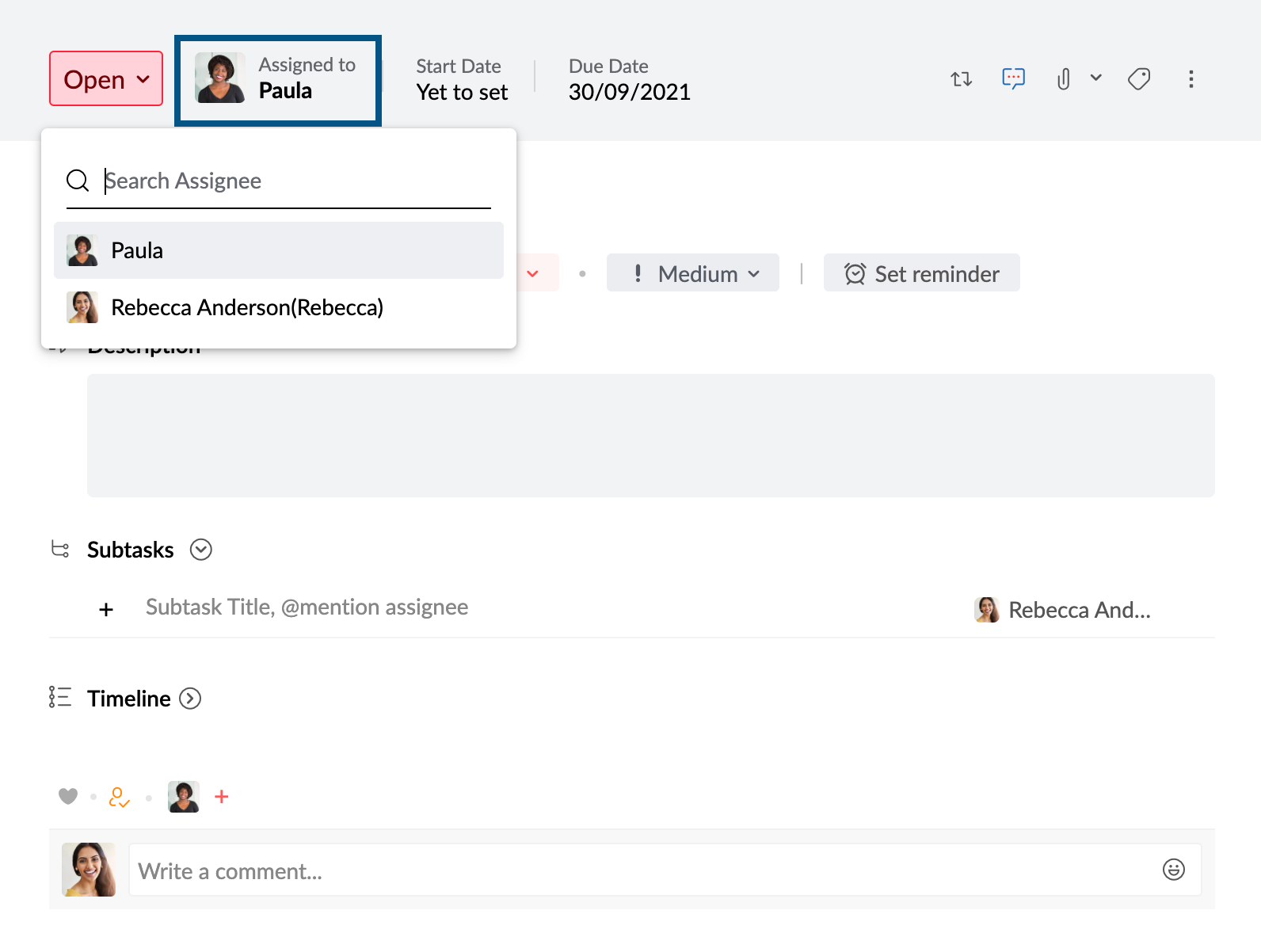
- You can assign your personal task to any organization member.
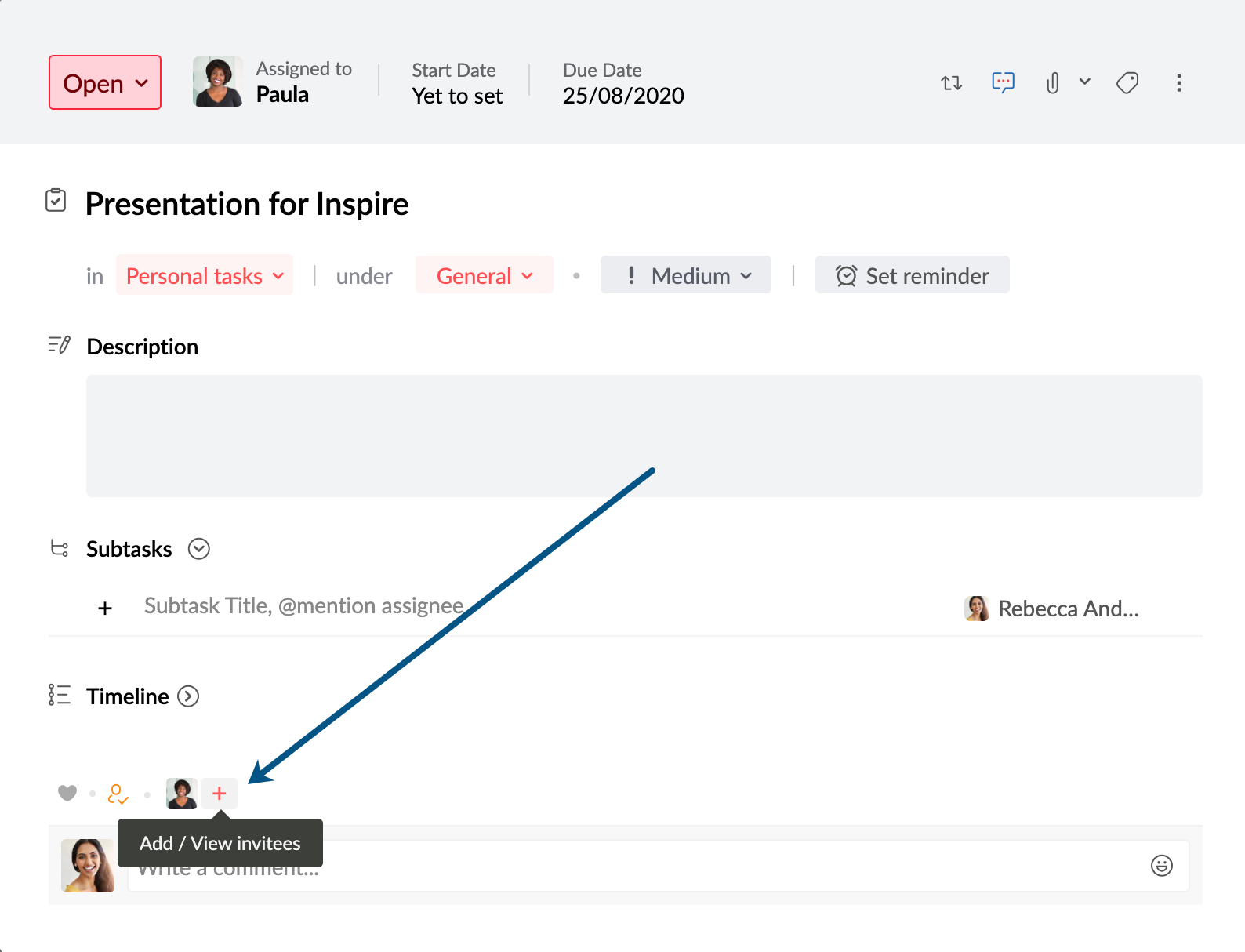
- Ideally, Personal tasks are only visible and accessible to you and the assignee of each respective task. However, if you want your colleagues to engage in any of your Personal tasks, you can use the Add invitees feature available for each task. This will give the invitees access to view, like, and comment on your personal task.



Group Tasks
When you work as a group on a project or something else, it would be convenient to have all the tasks related to that project accessible to everyone on your team. This will help you avoid redundancy, patch communication gaps, and manage your work items efficiently. To create Group tasks, you will need a Streams group with all the respective members added to it. Once you have the group ready, you can easily add a task and associate it with the respective group.
Don't have an existing group? You can create one by using the following steps.
- Log in to Zoho Mail and navigate to Tasks on the left pane or log in to Zoho ToDo.
- In the left-hand pane, click the + icon next to the Groups section.
If you don't find this option available, contact your Zoho Mail administrator to proceed further.
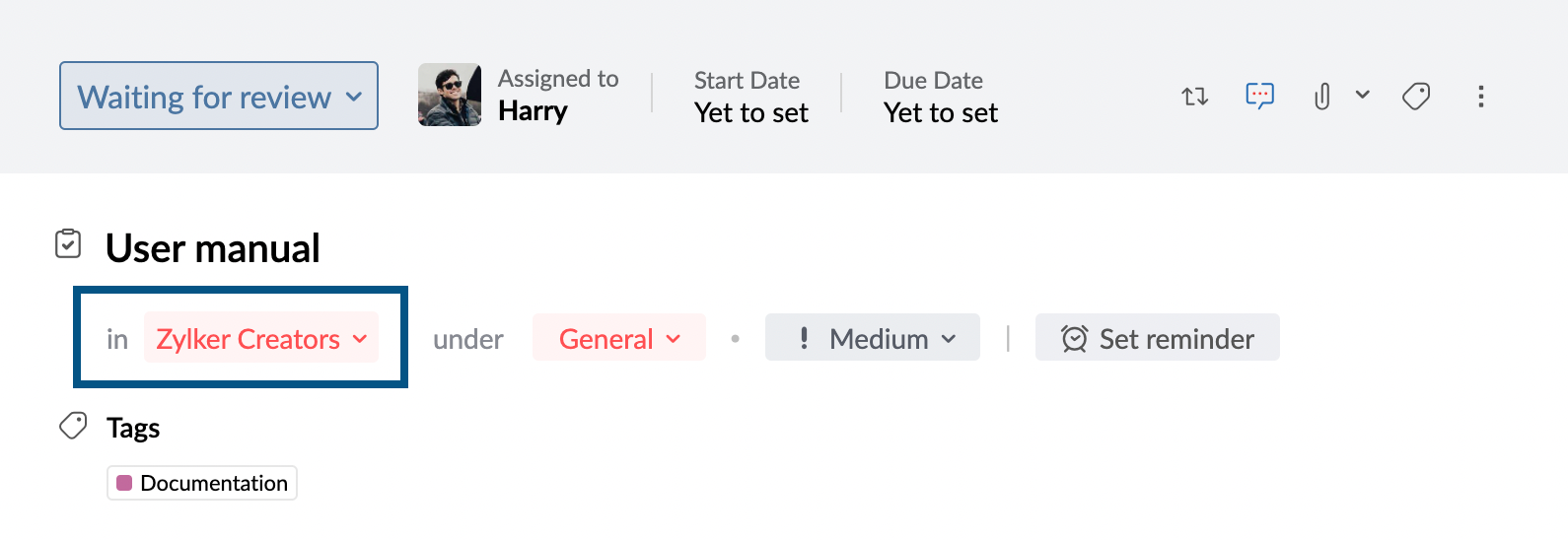
Know more about Group tasks
- When a task is added to a Group, it can be viewed, liked, tracked, and commented on by all members of the group.
- Any group member can invite an organization user (who is not part of the group but is a member of your organization) to view the task. This permission is subject to whether the Refuse other Invitees option is enabled or disabled by the task owner.
- Invitees of a group task can only view and interact with that particular task. They can not access or view any other tasks added to the group.
- Group Tasks can be assigned to any member of your organization even if they are not part of the respective group.
- You can copy or move a task to a different group. You can even choose to move comments on the original task by checking the Include Comments option.
Members with different roles within the group are given different levels of edit permissions for group tasks.
Edit Parent task* Edit Sub-task* Group Admin Yes Yes Task Owner Yes Yes Parent Task Assignee Yes Yes Sub-task Assignee No Yes Group Member No No Org Member (Parent Task Assignee) No No *Permission to edit the Parent task and Sub-tasks include editing options for the Description, Title, Due Date, Priority, and Recurring settings of a task.
Subtasks
When a task is huge and requires delegation, you can split them into multiple subtasks.
For example, say you have to give a sales presentation to your client and added a task for the same. But the overall presentation involves content from writers, design from illustrators, and scheduling by the client team. You can add these as subtasks and add an assignee to each subtask where you can track the progress.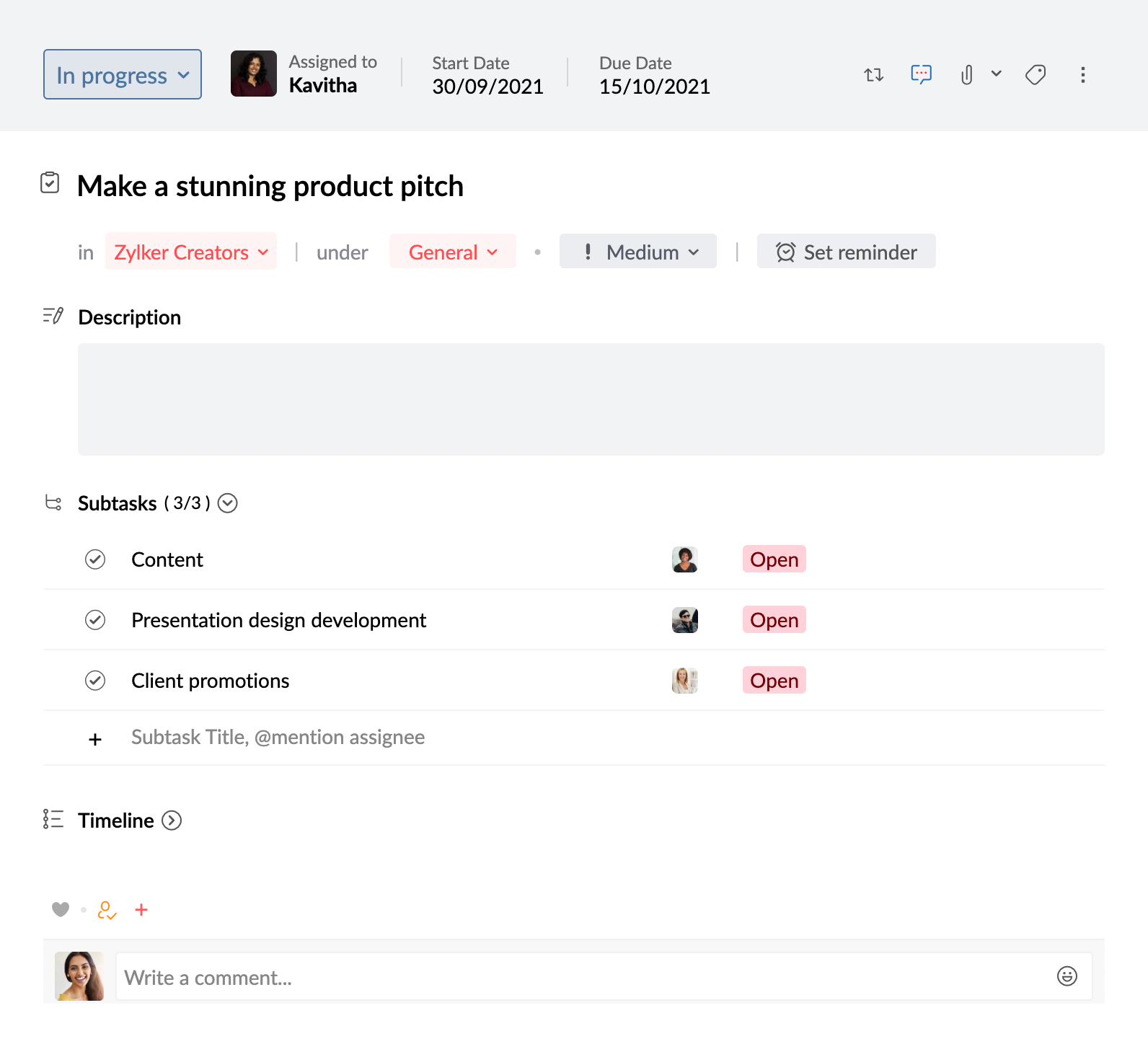
- You can add Subtasks in both Personal and Group tasks.
- You can assign a separate user as an assignee for each subtask. The assignee can be any member of your organization and is not limited to only group members in case of Group tasks or you in case of Personal tasks.
- In the case of a group task, if the subtask assignee is part of the group, they can edit the subtask—set priority, due date, and add a description, among others.
- You can choose to display subtasks separately from the parent task to manage them individually. Learn more.
Recurring tasks
Certain tasks may keep repeating at a certain frequency. Rather than adding a new task every time, you can simply add a Recurring task. For example, you can create Recurring Tasks for tasks such as report generation, bill payments, timesheet submissions, and more. You can choose between the Daily, Weekly, Monthly, and Yearly recurrence, with additional options to choose the repeat pattern.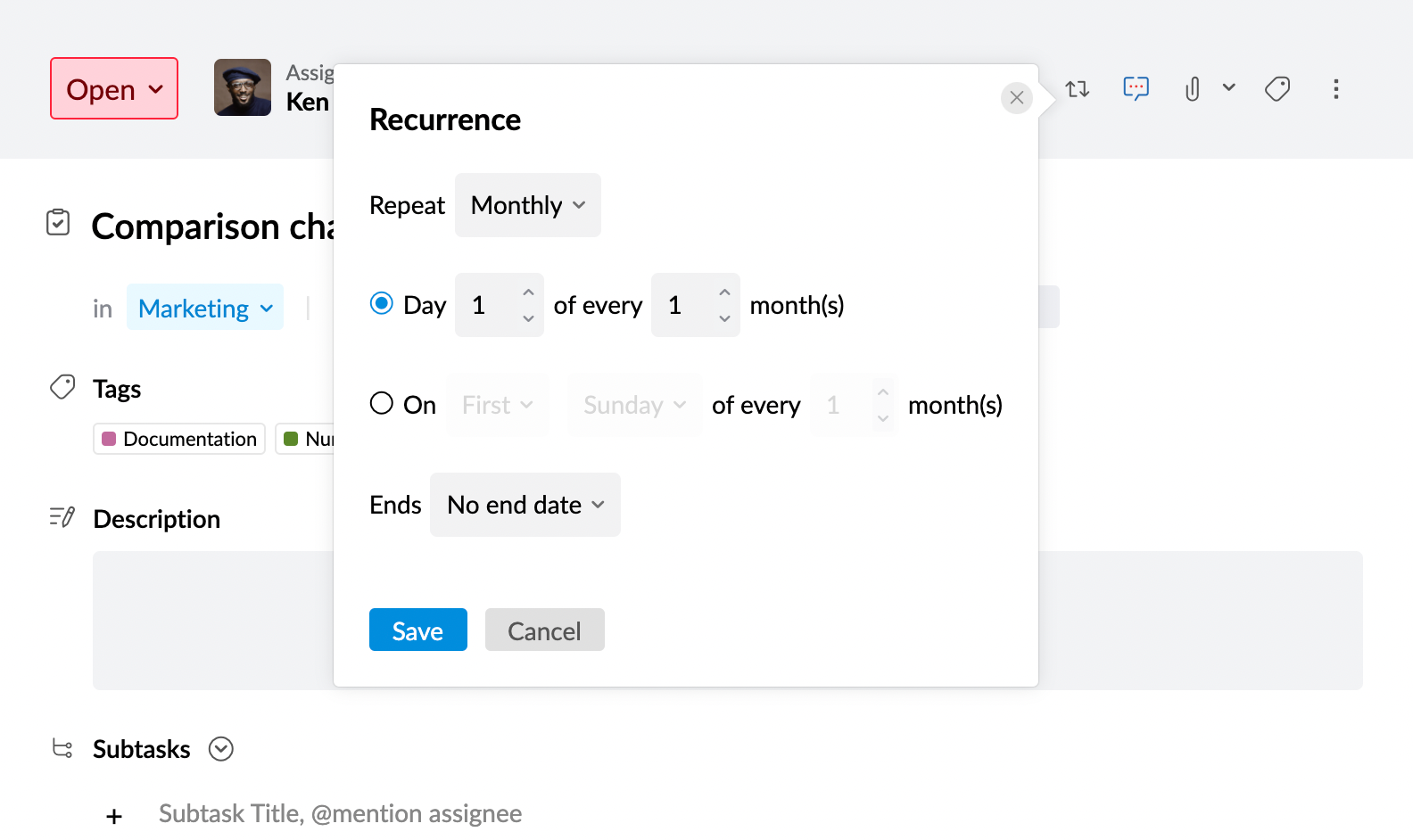
Tasks: Essentials
Collaborate in tasks
Collaboration between colleagues is a mandatory aspect to realize an organization's full growth potential. Tasks help you foster collaboration between your organization and keep it interesting with a social-media-style discussion setup.
- Work with anyone in your organization by simply inviting them to your task.
- While an invitee can not edit the task, they can engage by liking and commenting on the task.
- Apart from the task owner and the assignees, invitees can also invite users to that respective task.
- You can also invite users by @ mentioning them in the comments section of a task.
- If you want to share a task with Groups, you can tag the Group in the comments section. Once you do that, all the group members can view the task and collaborate.
Category
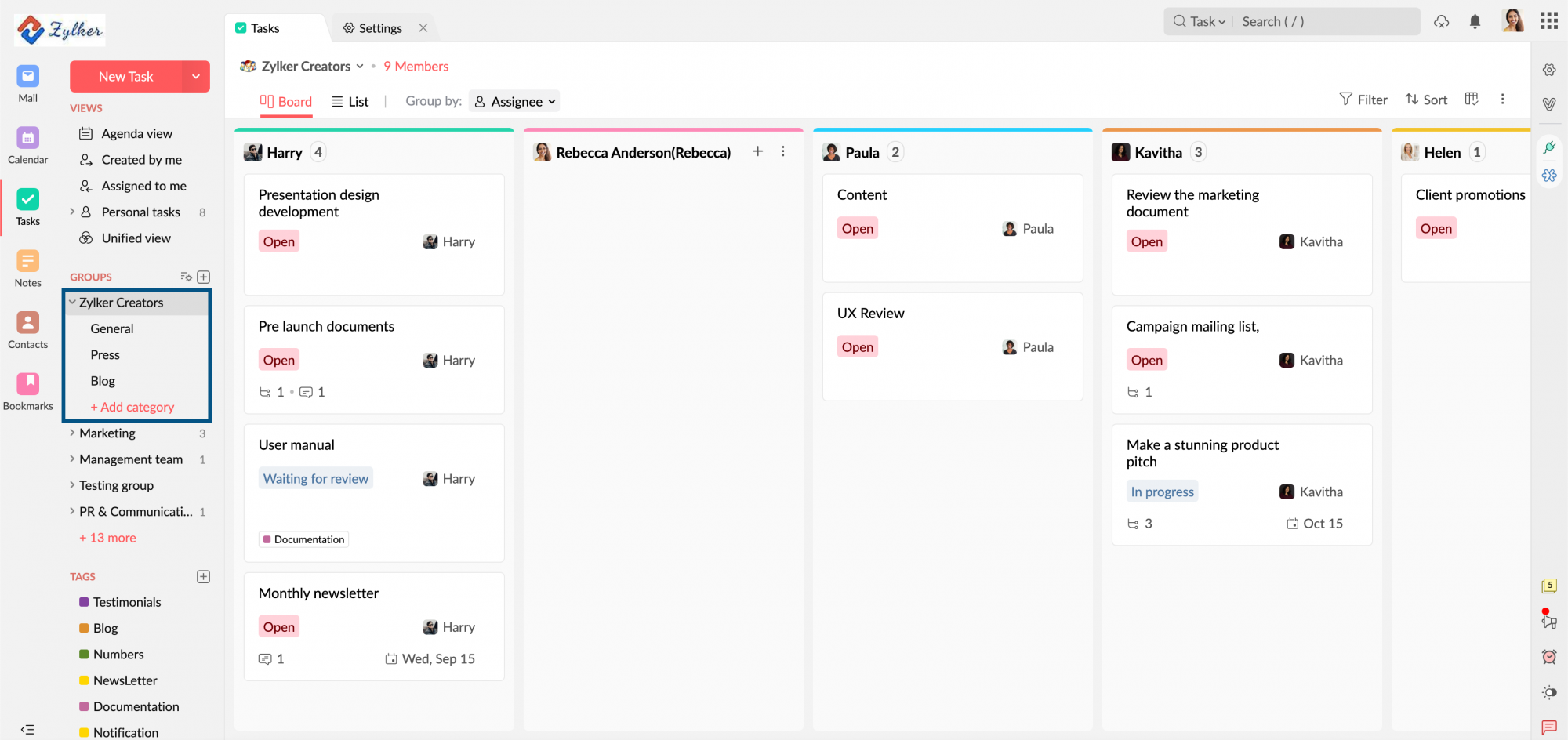
Be it personal tasks or group tasks, having a large number of them can be difficult to manage. To overcome this challenge, you can use the Category option. Categories are similar to folders that can help you organize your tasks. You can create a Category under any Group including Personal tasks. After creating, you can associate the category categories with any new, existing, or closed tasks.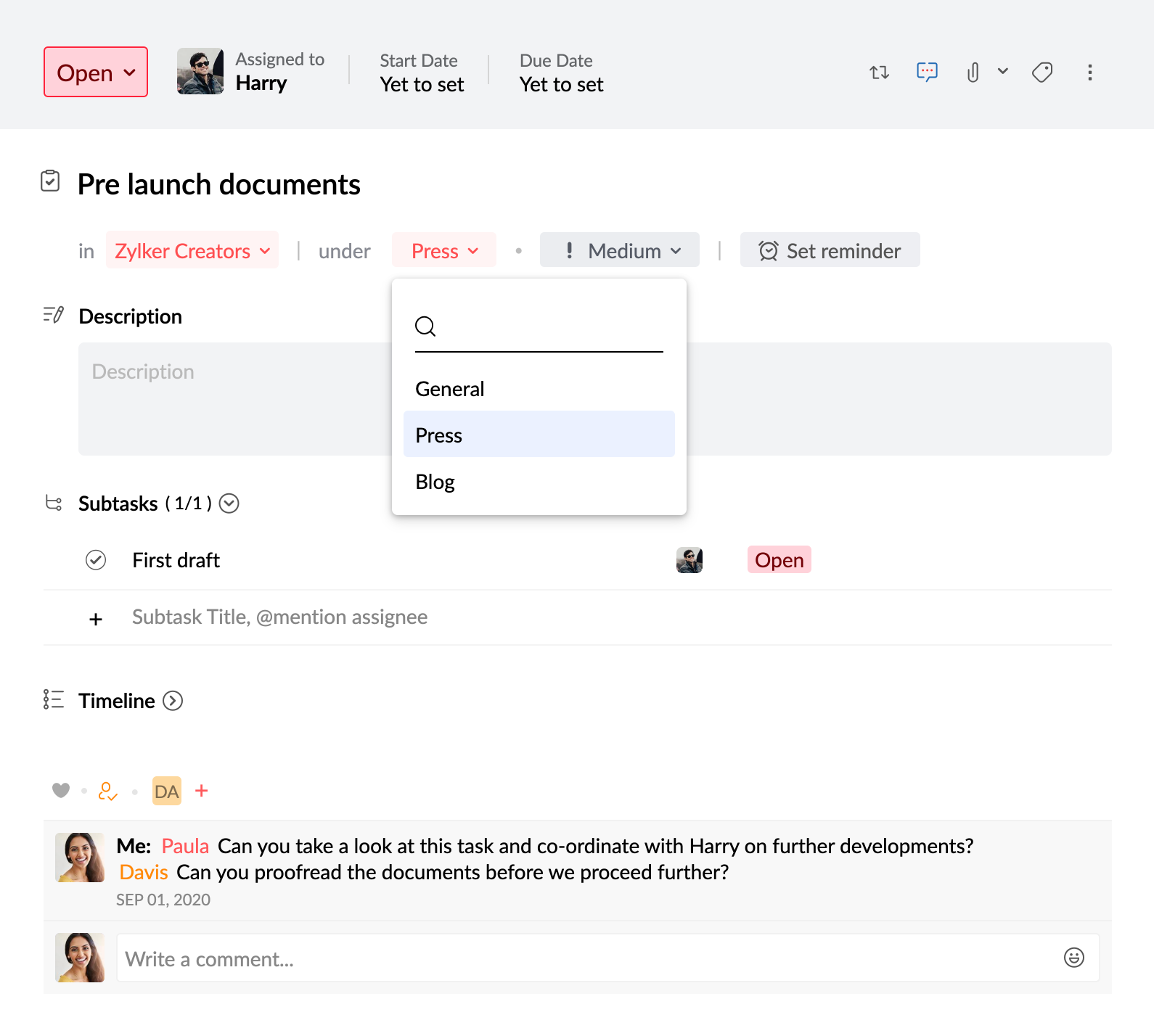
For example, say you are working on two different projects—traditional marketing and online marketing, under a Group named Marketing. To have a clear separation of tasks, you can create two categories and associate the respective tasks with them.
Labels or Tags
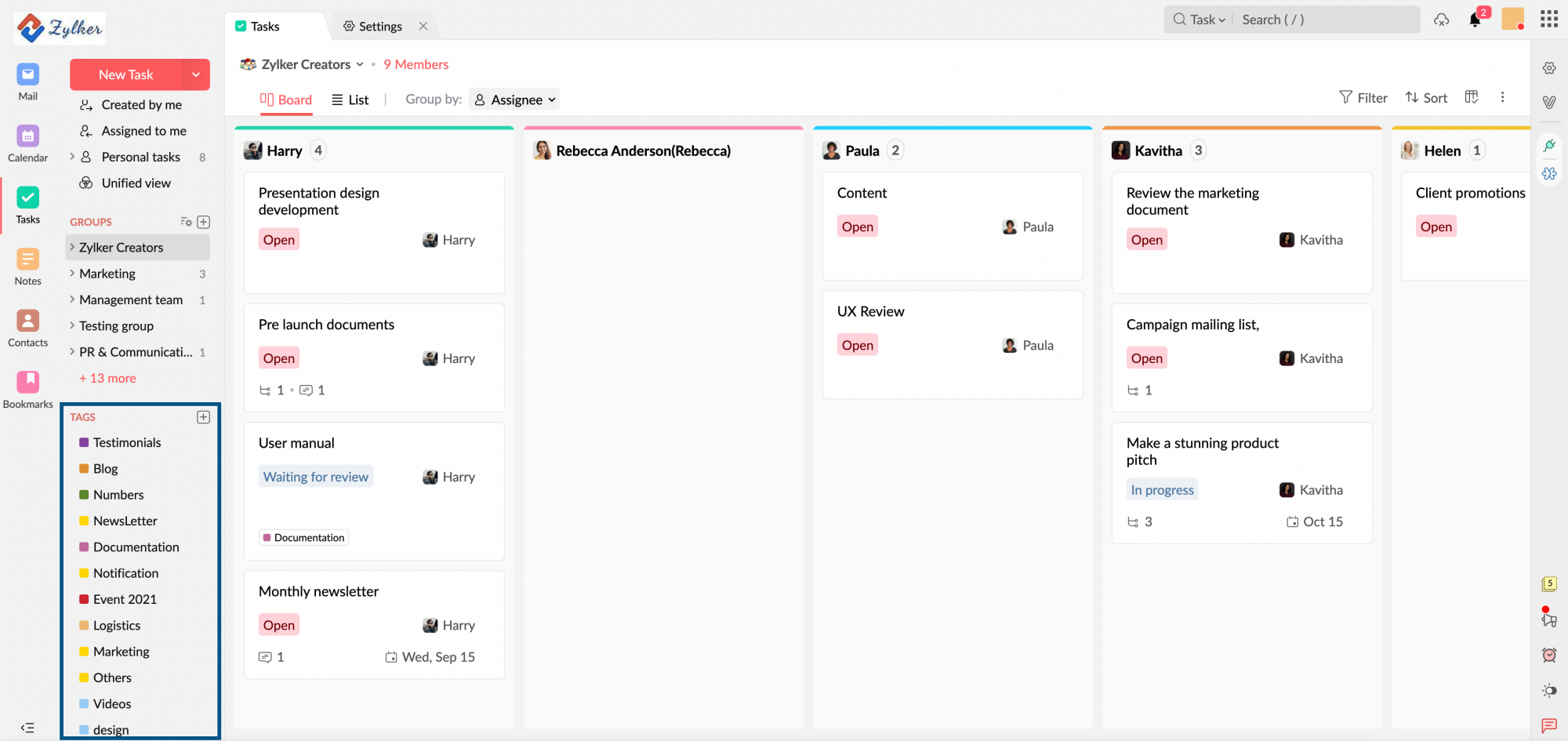
Sometimes, you might be working on the same kind of work for different projects. For example, say you have to write two blog posts—one for Zylker Travels and another for Zylker Tech. In cases like this, you can create a Tag and associate your tasks with it. This will allow you to identify your tasks by their nature of work for better orderliness.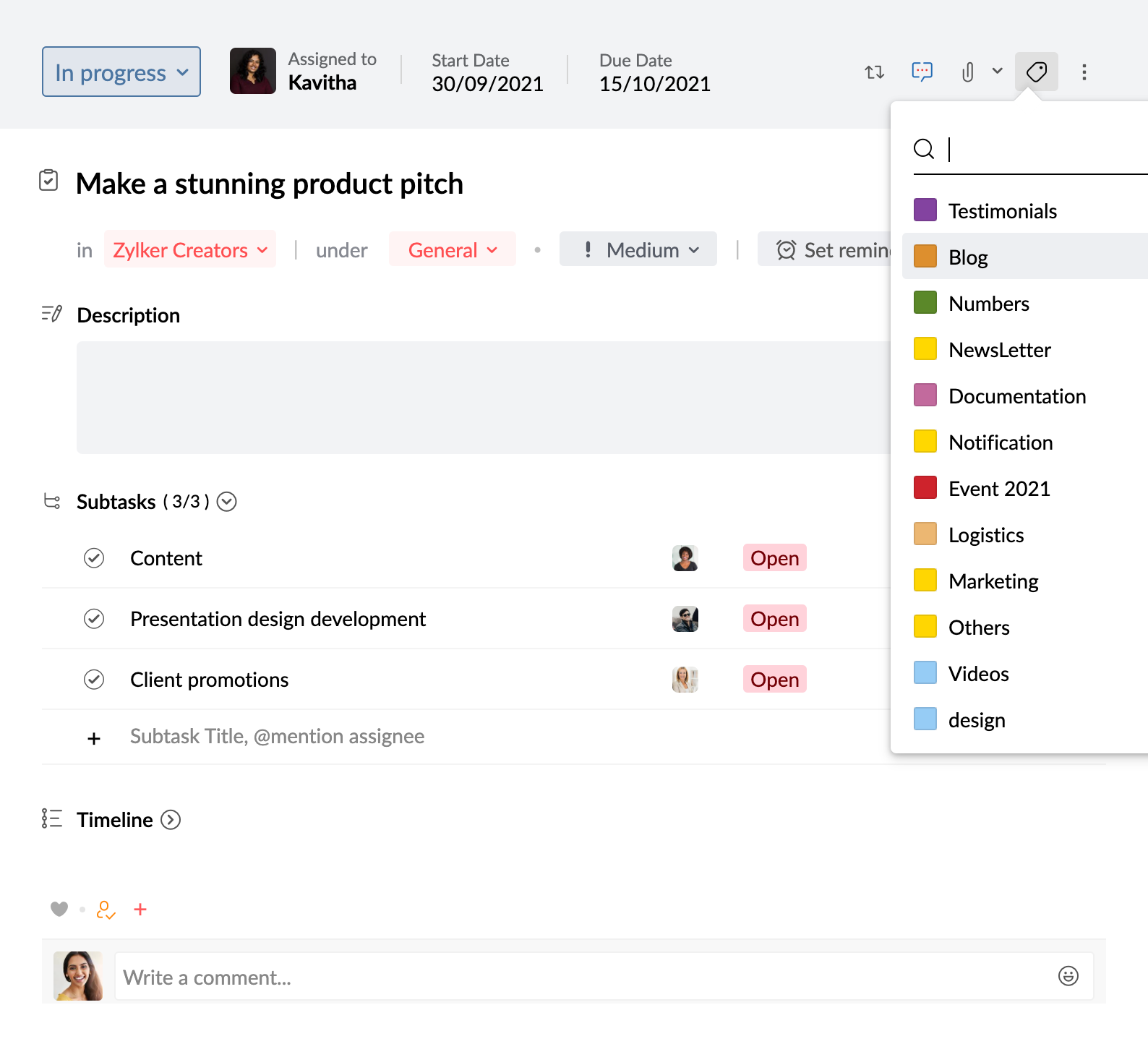
Category vs Labels
| Categories | Tags or Labels |
| Categories are like folders that can be created under Personal tasks or Groups. | A Tag/Label is like labeling a task as a particular kind. |
| A Category will be applicable only to the respective group under which it was created. | Tags, once created, can be applied to any task irrespective of the group you want to add the task to. |
| You can associate each category with a different color according to your choice. | You can associate each label with a different color according to your choice. |
| A single task can not be associated with multiple Categories. | A single task can be associated with multiple Labels. |
| The Category a task is assigned to can be viewed by anyone who has access to the task. | Labels work as a personal organizing tool. The Tag or Label you assigned to a task can not be seen by anyone other than the task owner. |
You can use both Categories and Labels on a single task.
Priority
All tasks you add will not hold the same weightage. Some would be more important than others. In such cases, it's good to set Priority to streamline which task to take up first. Tasks let you assign a priority—High, Medium, and Low, to each task that serves as a constant reminder as to which tasks require immediate attention.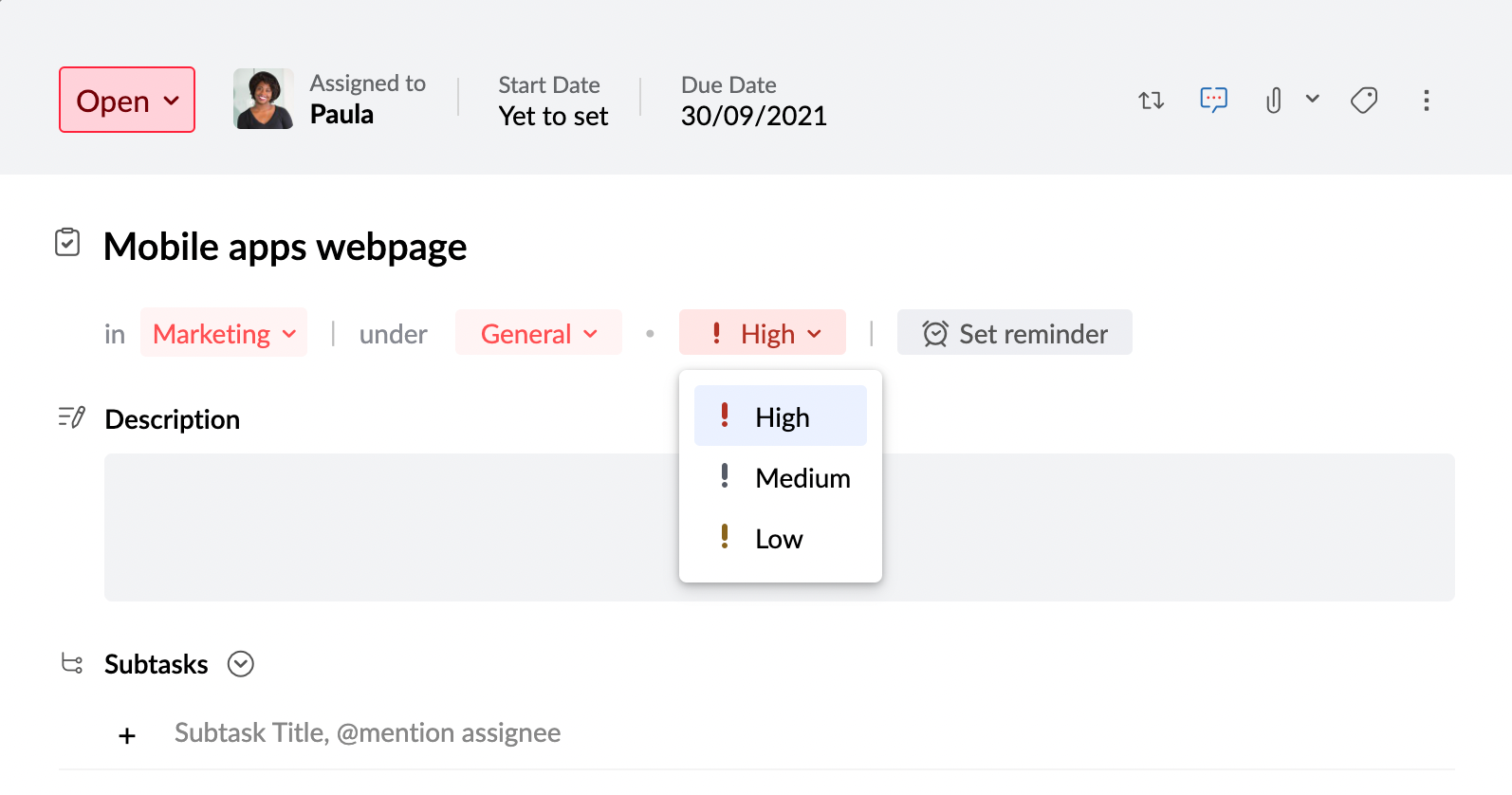
Task Status
When you handle many tasks it is not easy to remember, which ones are on hold, which ones are complete, and so on. To bring in this clarity, it's good practice to set Status to your tasks. By default, in Tasks you have two statuses—Open and Closed. But apart from the default ones, you can also add a custom Status of your choice and associate a color with them for easy identification.
The status you create for a particular Group can only be used in that respective Group. For example, if you create a Task status named 'In Progress' in your Personal Tasks, it will only be available for the tasks from Personal tasks. To add a custom status for a Group, you will have to be a Moderator of the respective group.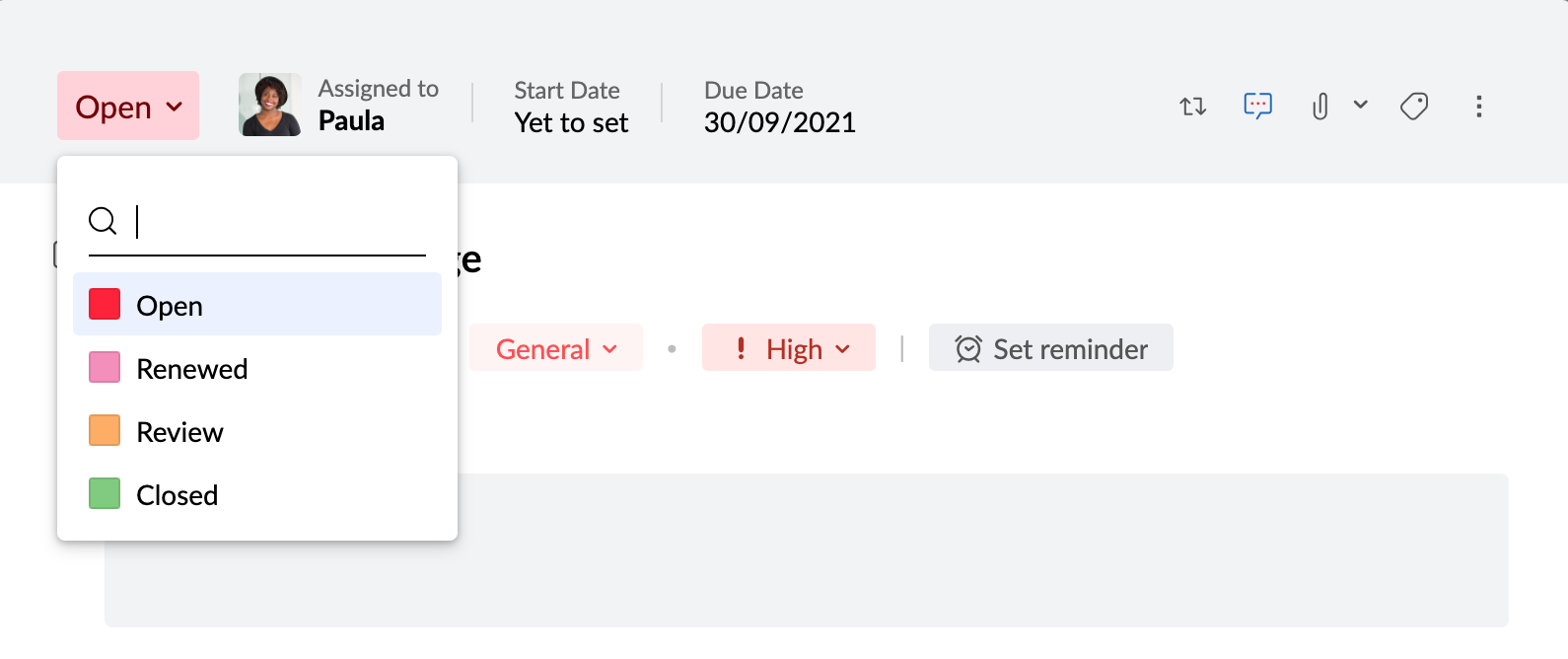
Start Date
Knowing when to start a task is mandatory to make sure you finish the task at the right time. Tasks allow you to set a Start Date making it easier for you to manage your work better.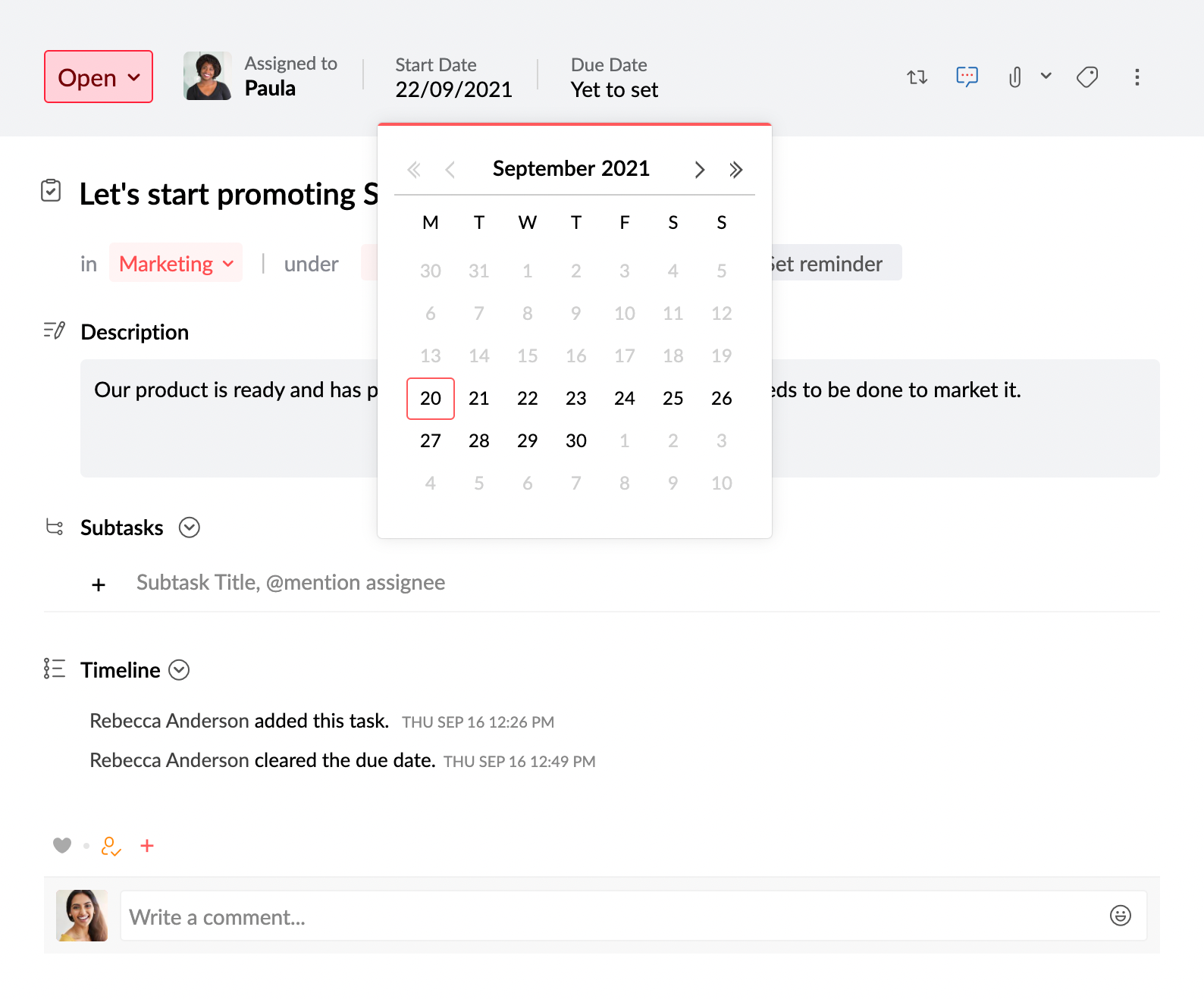
Due Date
While you can wait out some tasks, there would be some in need to be finished on a set date. For such tasks, that are to be completed on a particular date, you can set a Due Date. Apart from providing you the ability to track your tasks easily, setting a Due date will also send you an overdue notification if a task does not get marked complete by the time of the due date.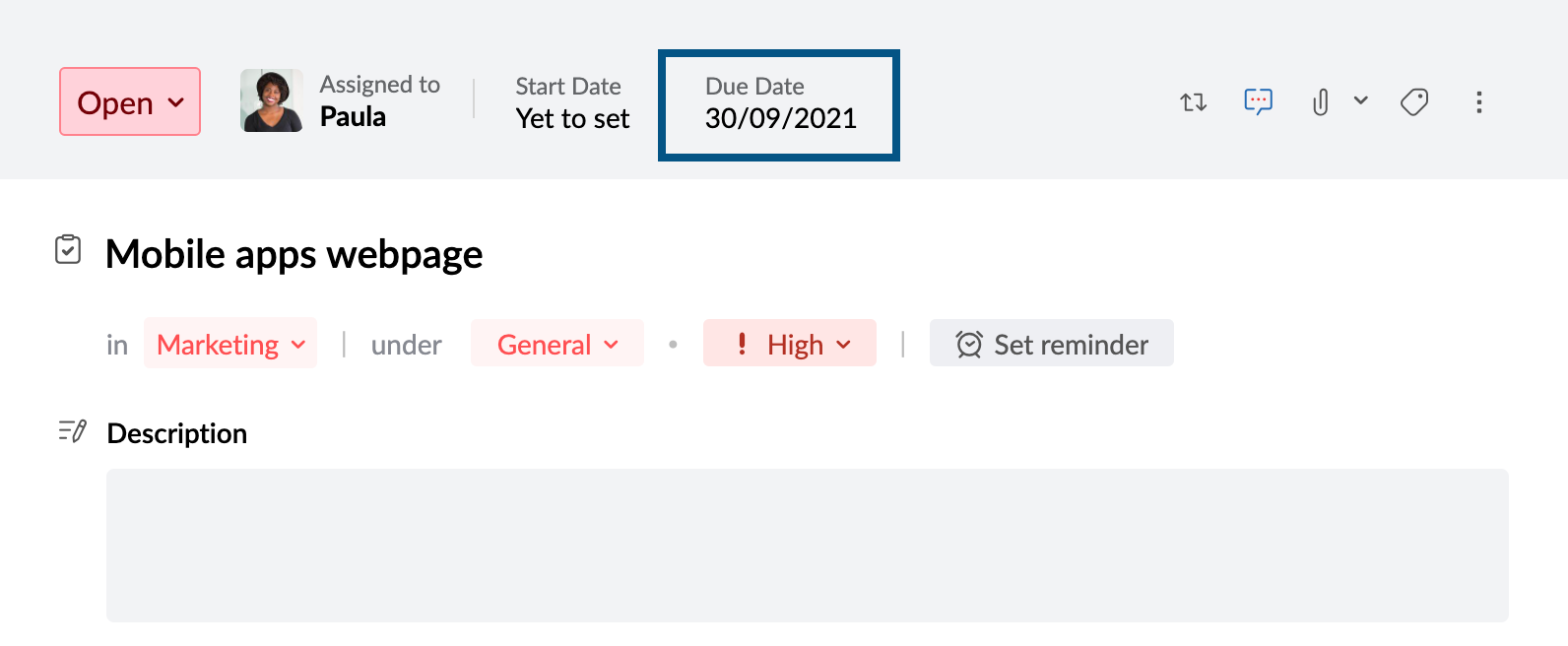
Multiple Assignees
Note:
This feature is only available to users who have subscribed to one of our paid plans.
You can assign a task to multiple individuals in ToDo, making it easier for teams to collaborate and complete tasks more efficiently. Whether you're working on a project with other team members or simply need extra hands on a task, you can effortlessly assign up to 5 people to a single task, with all assignees having equal permissions. Each individual can edit, update, or manage the task, ensuring seamless teamwork and clear ownership of responsibilities. Here’s how you can assign a task to multiple individuals:
- Log into your Zoho Mail account.
- Navigate to ToDo from the left pane.
- Click on the New Task option to create a new task.
- In the create New Task pop-up, click on Assigned to option. You can assign the task to upto 5 individuals.

- After entering all task details, click Save to add task with multiple assignees.
- Once Assigned, you can view the Assignees in the list and board view.

Reminders
When you toggle between multiple tasks, it is easy to forget some of them. In such cases, you can set up a Reminder beforehand. After entering the date and time you want to get reminded, you can choose to get the reminder as a notification and/ or an email.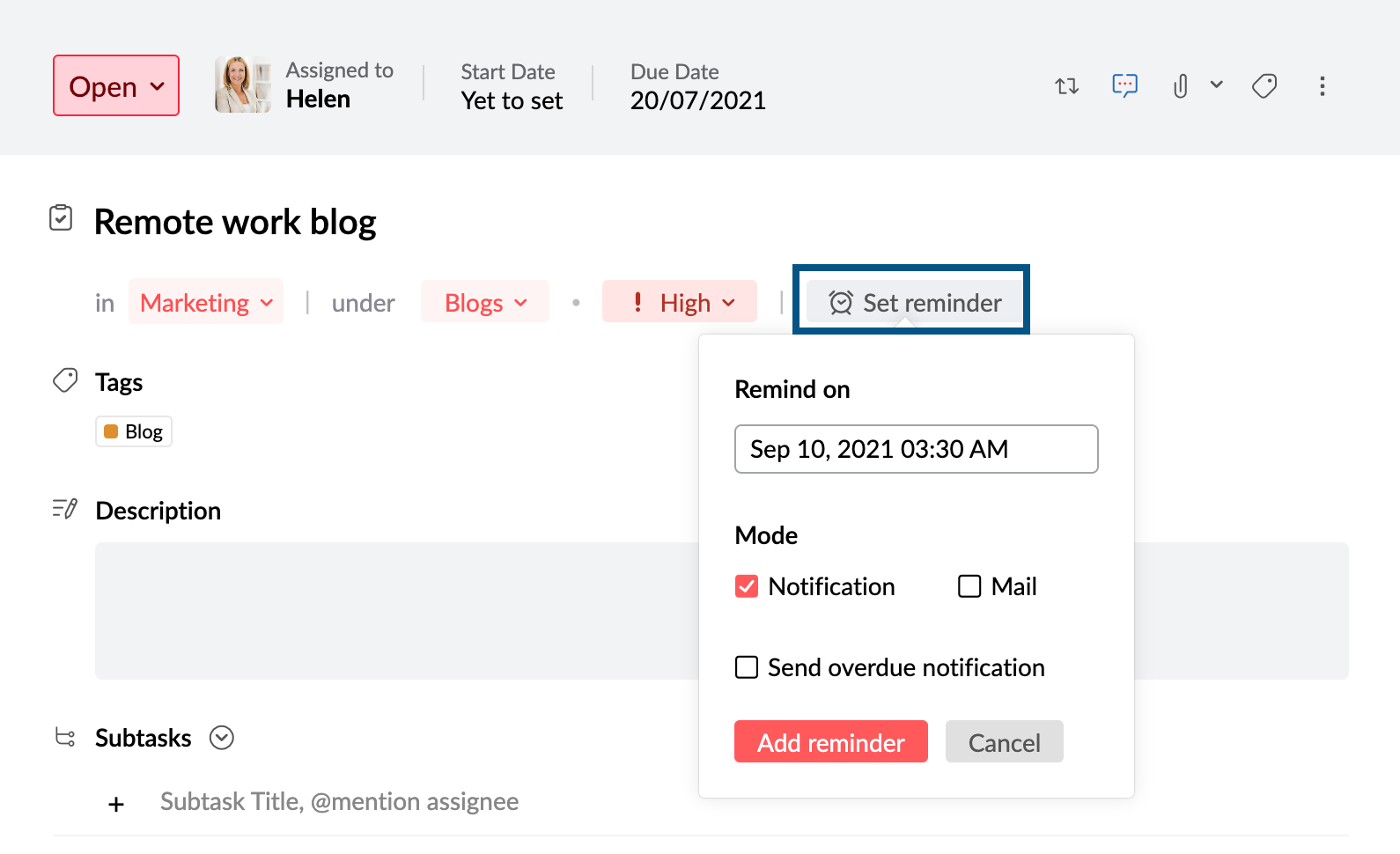
- The reminder email and/ or notification will go to both the task owner and the assignee.
- You can choose to get an Overdue notification if you miss your due date. Although this option will only work if you set a Due date.
Task Description
In the Description section, you can add more information about the task. For example, say you have to write a blog and you have a few links for research and ideas in mind. You can jot them all down in the description for later reference. The description you add will be visible to anyone who has permission to view the task. That includes group members, main task and subtask assignees, and invitees.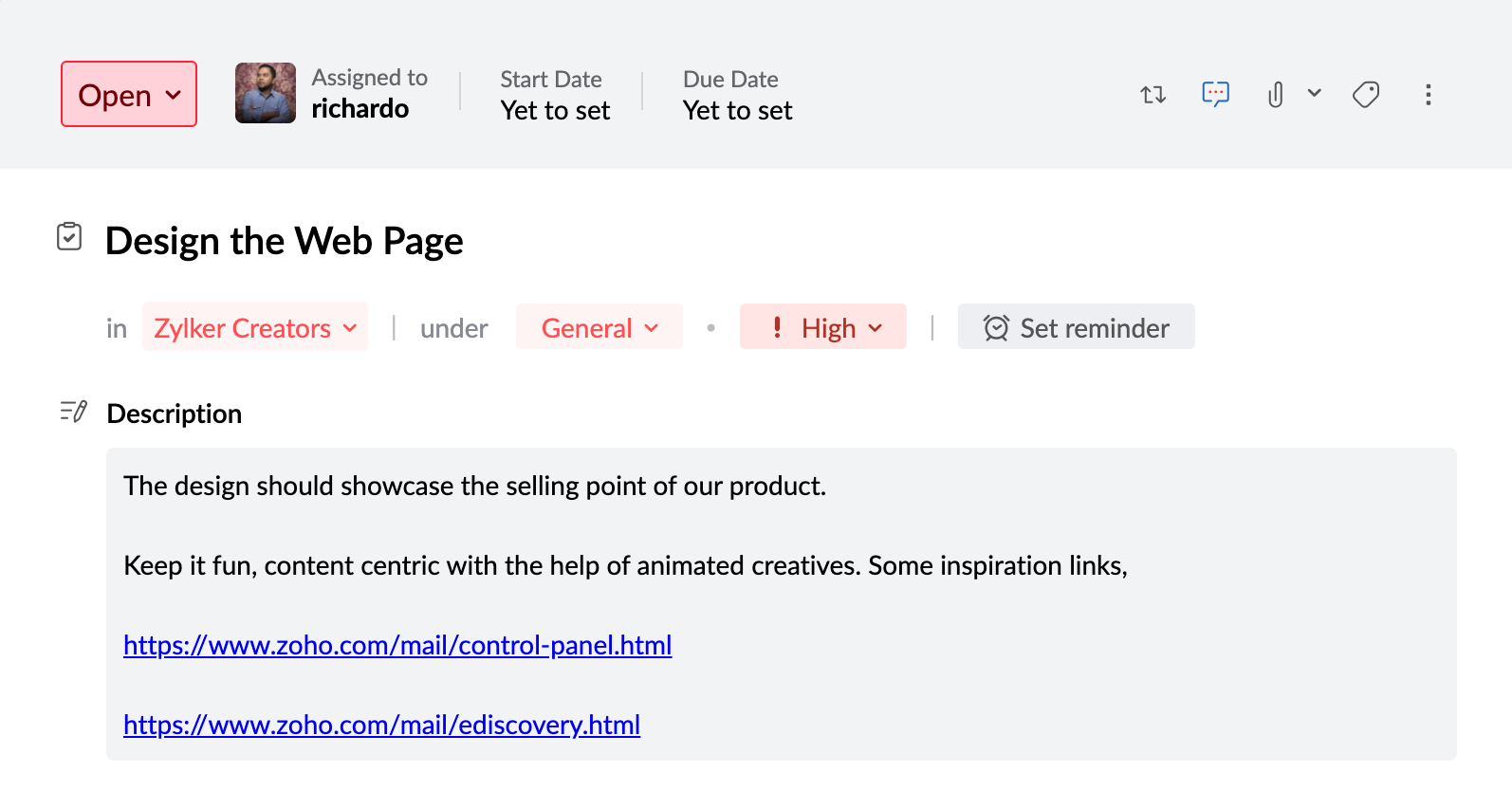
Attachments
Sometimes, just a description may not be sufficient to put in all thoughts you have about a task. In such cases, you can use the Attachment feature and insert files below 10 MB to your tasks. The attachments you add will be visible to group members, main task and subtask assignees, and invitees. You can download these attachments—individually or as Zip, add them to your WorkDrive, forward them via Cliq, and more.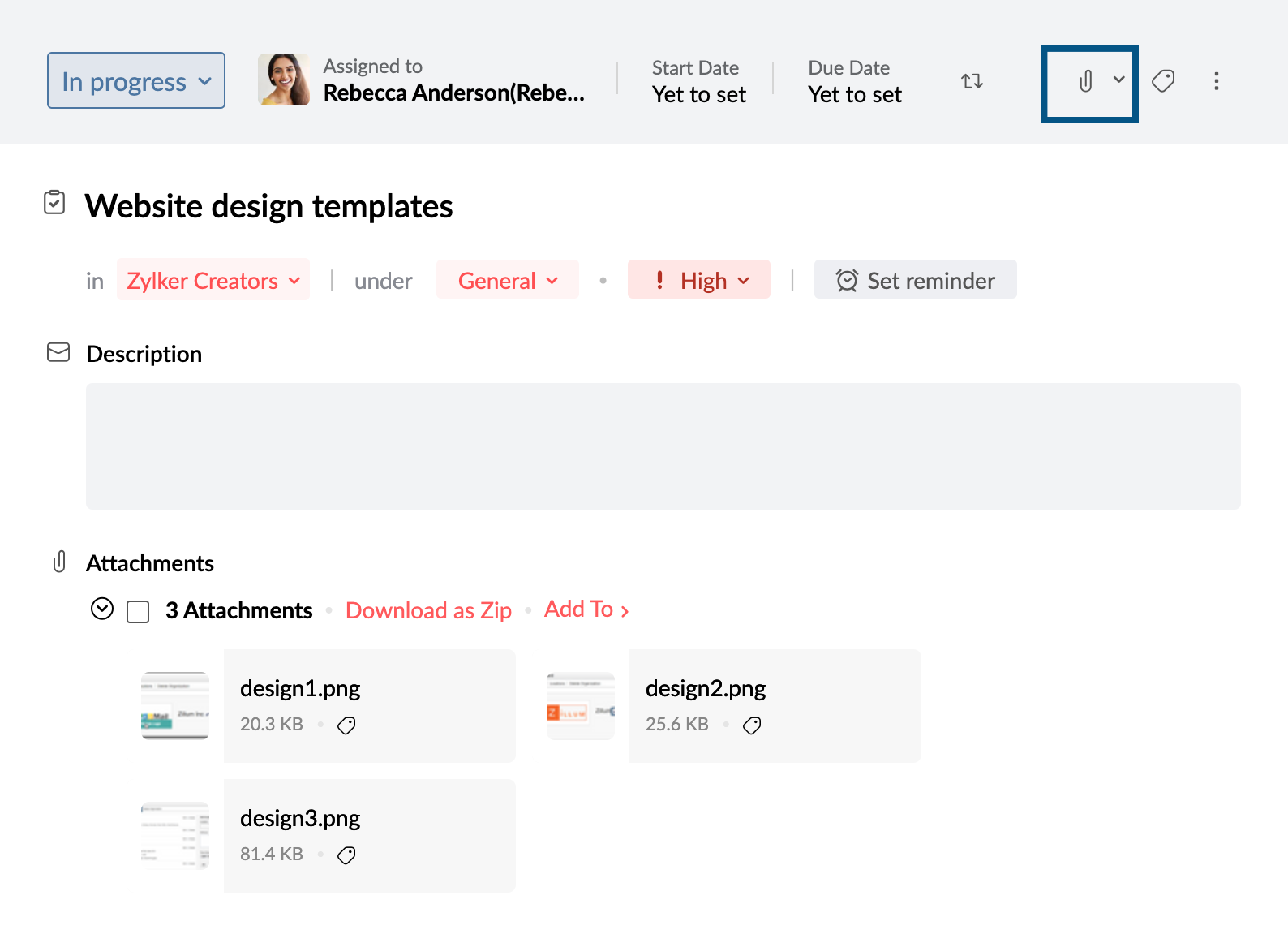
Task Timeline
When you work on a task with multiple assignees, someone might have updated or edited the task. For example, you might spot a new due date, change in the reminder, a different description from what you had initially, or even mark the task complete. In the Timeline—available at the bottom of each task, we note down who updated or edited the task, when the task got updated, and which detail of the task got changed.