Move Folders
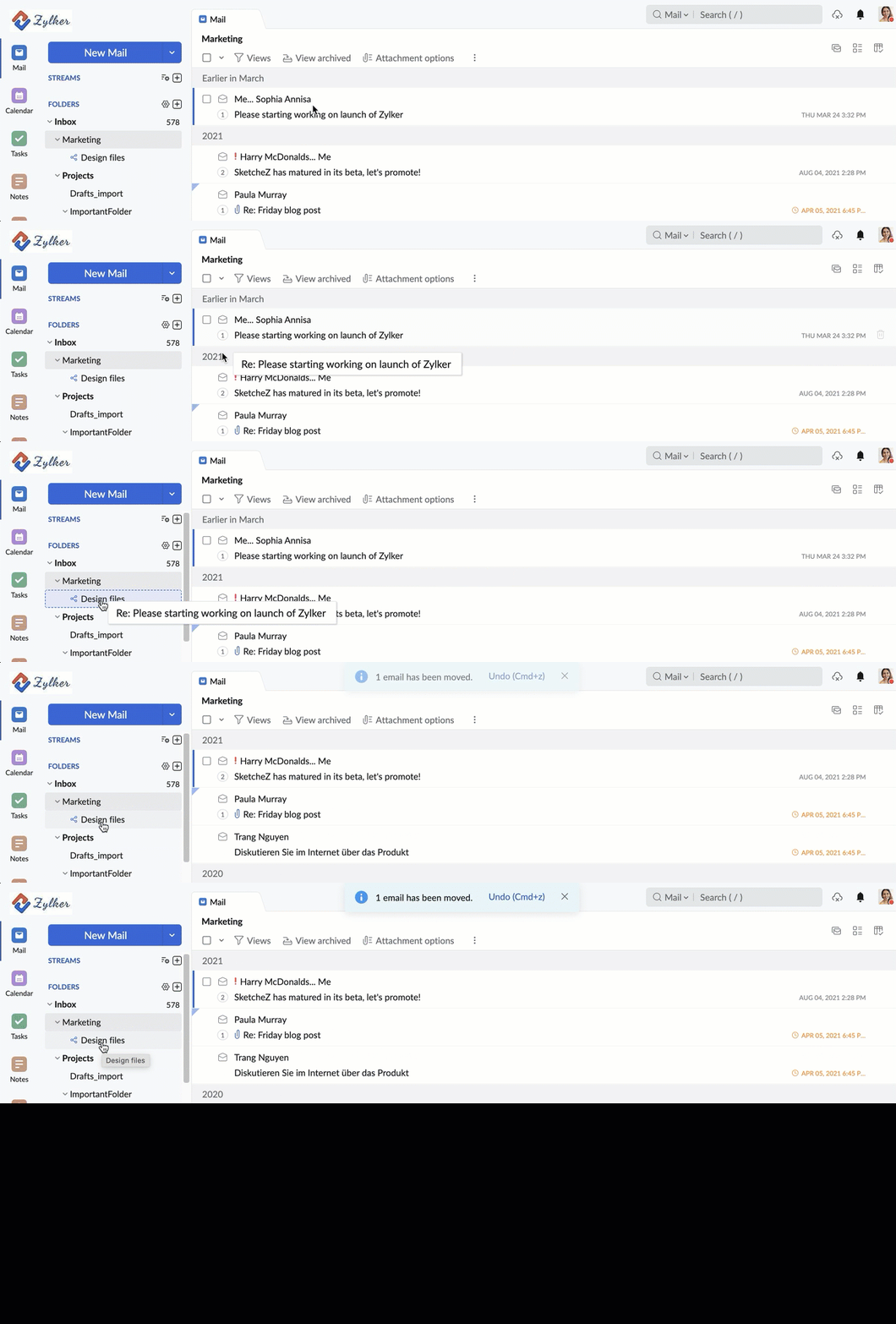
You can drag and drop the folders to rearrange them or move them from one parent folder to another. When the folder is very huge, it may take a few minutes for the folder to get moved completely. In such cases, wait for the transfer to finish completely, before you begin a new activity.
Change folder hierarchy
Sometimes, you may need to move a folder from one folder tree to map under another folder. You can drag and drop the folder, over the destination parent folder, to have it placed there or use the Place under option from the contextual menu on right-clicking the folder you want to move.
Drag and Drop
- To move a Subfolder from one parent folder to another, click and drag the folder over the destination parent folder.
- The target folder gets highlighted when you move the cursor over the name.
- Drop the folder there.
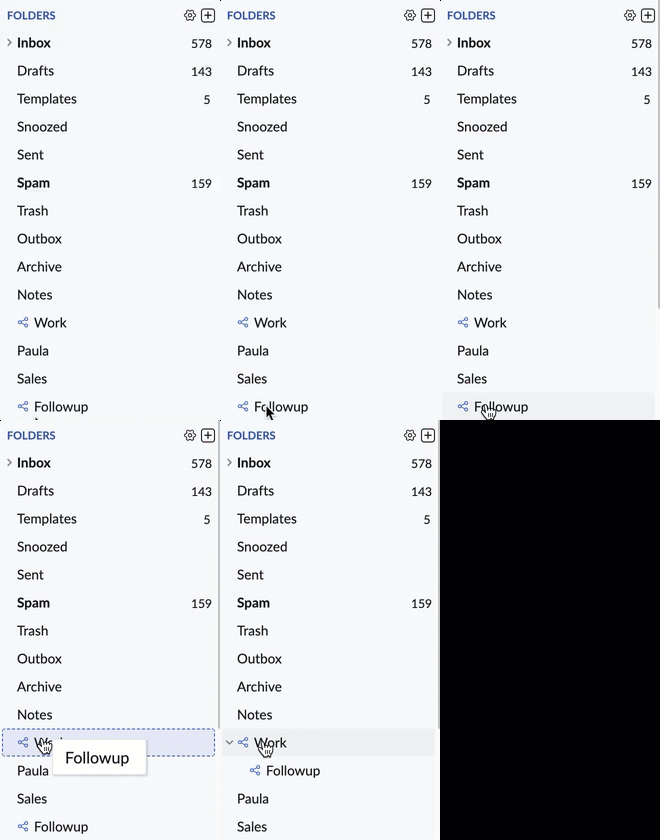
- The folder and the emails in the folder will be moved to the new destination folder.

If you want to place a folder in the same hierarchy as the Inbox folder, drag and drop it over the Folders menu.
Place under option
- Right-click the folder you want to move.
- Select the Place under option from the Folder drop-down menu.
- Choose the respective folder under which you want to move the folder to from the Place under menu.
- The folder and the messages will be moved under the chosen folder.
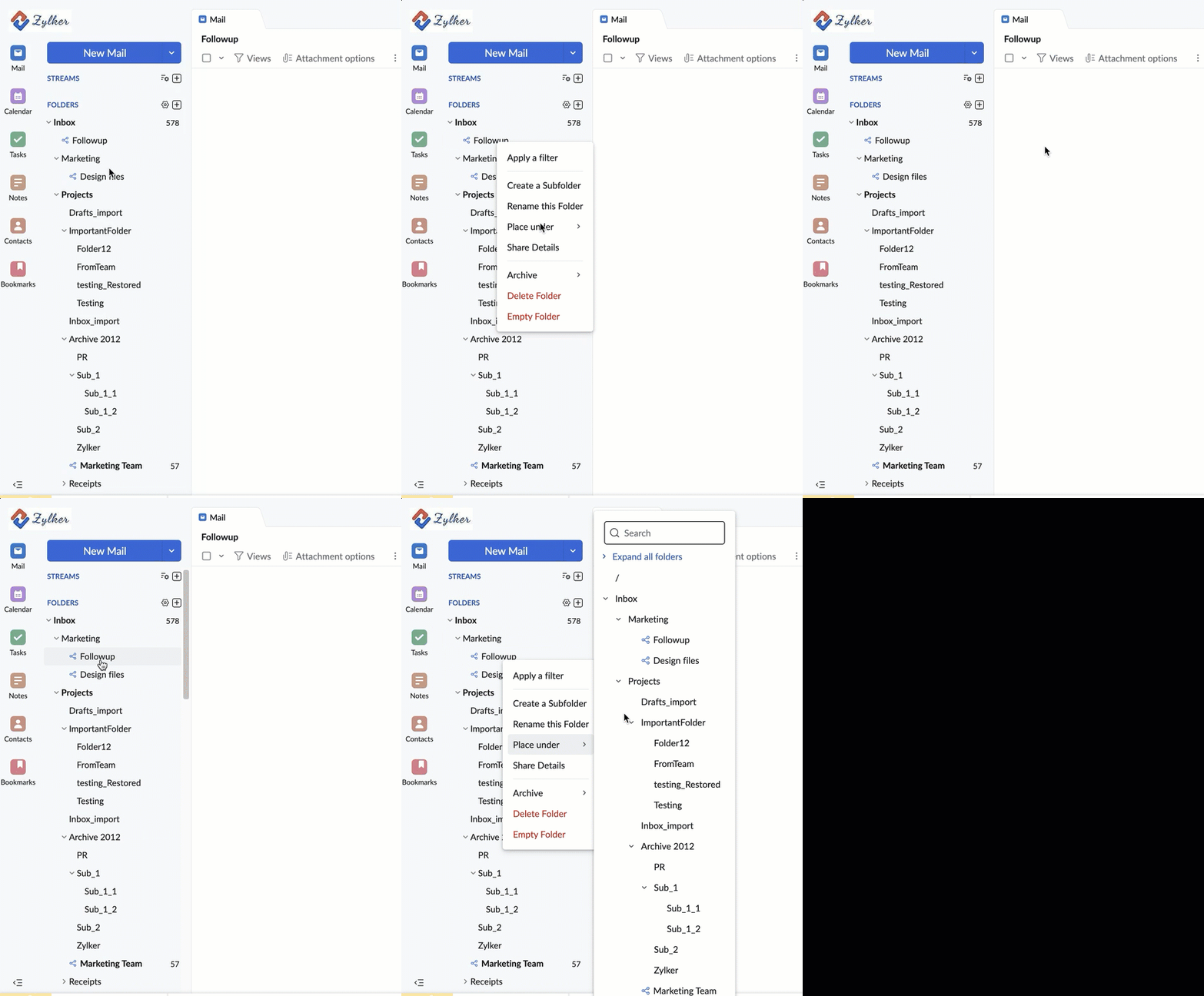

If you want to move the folder out from a parent folder and have it equal to the Inbox folder in the hierarchy, choose "/" from the Place under menu.
Rearrange using Drag and Drop
By default, the folders are arranged in the order they are created. You can drag and drop the folders to rearrange them to your preferred order. You can also choose to sort folders alphabetically by changing the settings. Click here to know how to arrange folders alphabetically.
- Click and hold on the folder that you want to rearrange
- Drag it to the location where you want to place it
- A horizontal white line will appear in the position where the folder is to be placed
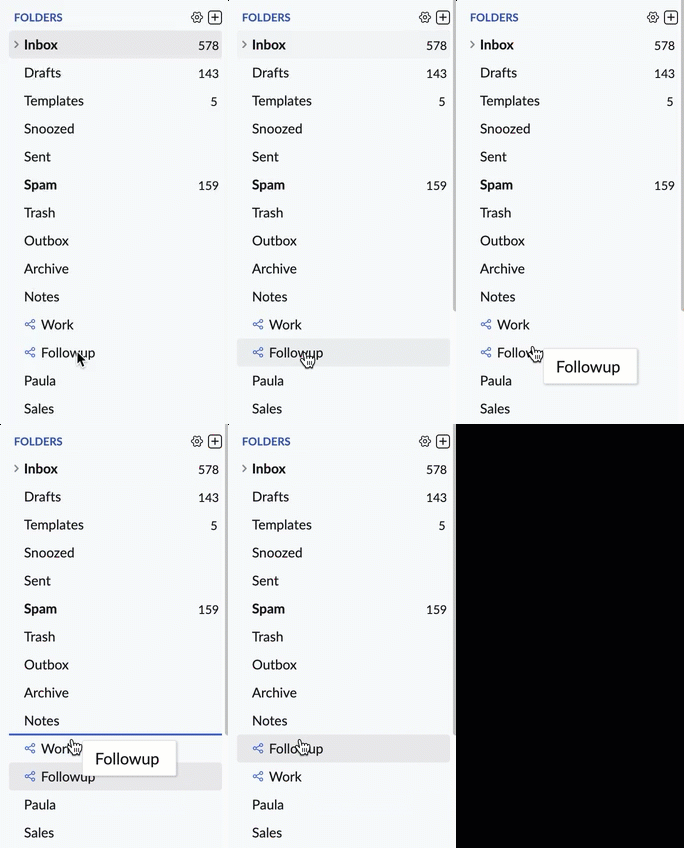
- The folder will get moved below this line
- Drop the folder on the horizontal line
- The folder will get moved to the desired position

Note:
- You can't rearrange using Drag and Drop if you have chosen Alphabetical Order in the Settings
Drag and Drop messages
You can drag and drop messages over the folders to move the messages to the respective folders. Select the messages you want to move from the listing pane. Drag it to the folder where you want to move the emails. The target folder gets highlighted. Drop the emails there.