
Steps to import data from your CSV/TSV file into Zoho Invoice
Please follow the instructions below to import estimates into Zoho Invoice:
- Go to the "Estimates" Tab.
- Click on "Import Estimates" link on the side bar. This opens the "Import Estimates" page.
- Click on "Browse" button and select the file to be imported.
- Check the "Auto generate Estimate number" option if you wish Zoho Invoice to assign numbers to your estimate.
- Select either the CSV or TSV file format from the File Format drop down.
- Click the "Next" button to lead to the Map Fields section.
- Select a field(s) found below the "Your Data" Column and click to map to the relevant field(s) under the "Zoho Invoice" field.
- Click the "Next" button to see the "Import Preview" section that displays the results of matching.
- If the fields have been matched you can see details of number of estimates that are ready to be imported.
- Click the "Import" button. You can see the message, on top of the "All Estimate" page.

- If there is a mismatch between the fields, you can see an error message that displays why the estimate(s) could not be imported.

- You can click on "No of Records skipped" link or the "figure" link to check the error details.
- Click on "Unmapped Fields" link or the "figure" link to check how many fields have been mismatched with Zoho Invoice fields.
- Click the "Previous" button to map the above fields and then click the "Import" button to import data from your estimates file.
Steps to Import data from your CSV/TSV file into Zoho Invoice:
Please follow the instructions below to import invoices into Zoho Invoice:
- Go to the "Invoices" Tab.
- Click on "Import Invoices" link on the side bar. This opens the "Import Invoices" page.
- Click on "Browse" button and select the file to be imported.
- Check the Auto generate Invoice number" option if you wish Zoho Invoice to assign numbers to your invoices.
- Select either the CSV or TSV file format from the File Format drop down.
- Click the "Next" button to lead to the Map Fields section. Here, you can instruct Zoho Invoice on how to treat your import data.
- Select a field(s) found below the "Your Data" Column and click to map to the relevant field(s) under the "Zoho Invoice" field.
- Click the "Next" button to see the "Import Preview" section that displays the results of matching.
- If the fields have been matched you can see details of number of invoices that are ready to be imported.
- Click the "Import" button. You can see the message, on top of the "All Invoices" page.
- If there is a mismatch between the fields, you can see an error message that displays why the invoice(s) could not be imported.

- You can click on "No of Records skipped" link or the "figure" link to check the error details.
- Click on "Unmapped Fields" link or the "figure" link to check how many fields have been mismatched with Zoho Invoice fields.
- Click the "Previous" button to map the above fields and then click the "Import" button to import data from your invoices file.
Steps to import items into Zoho Invoice
Please follow the instructions below to import items into Zoho Invoice:
- Go to the "Items" sub-link under "Estimates" or "Invoices".
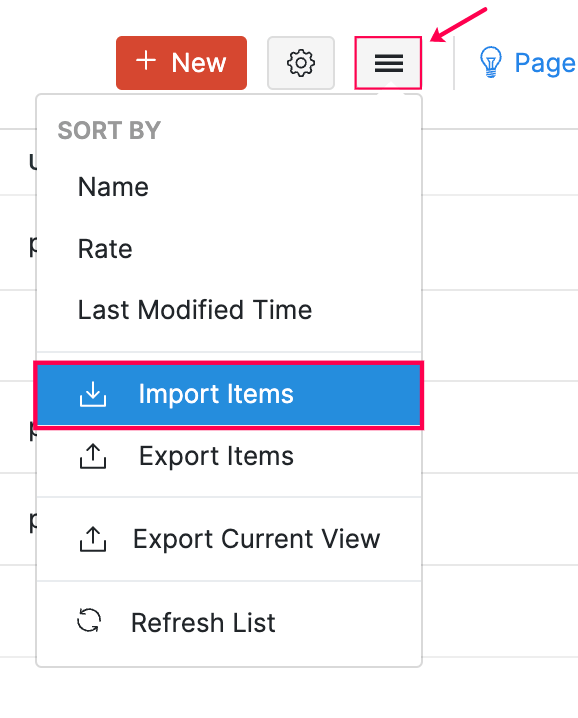
- Click on "Import Items" link on the side bar. This opens the "Import Items" page.
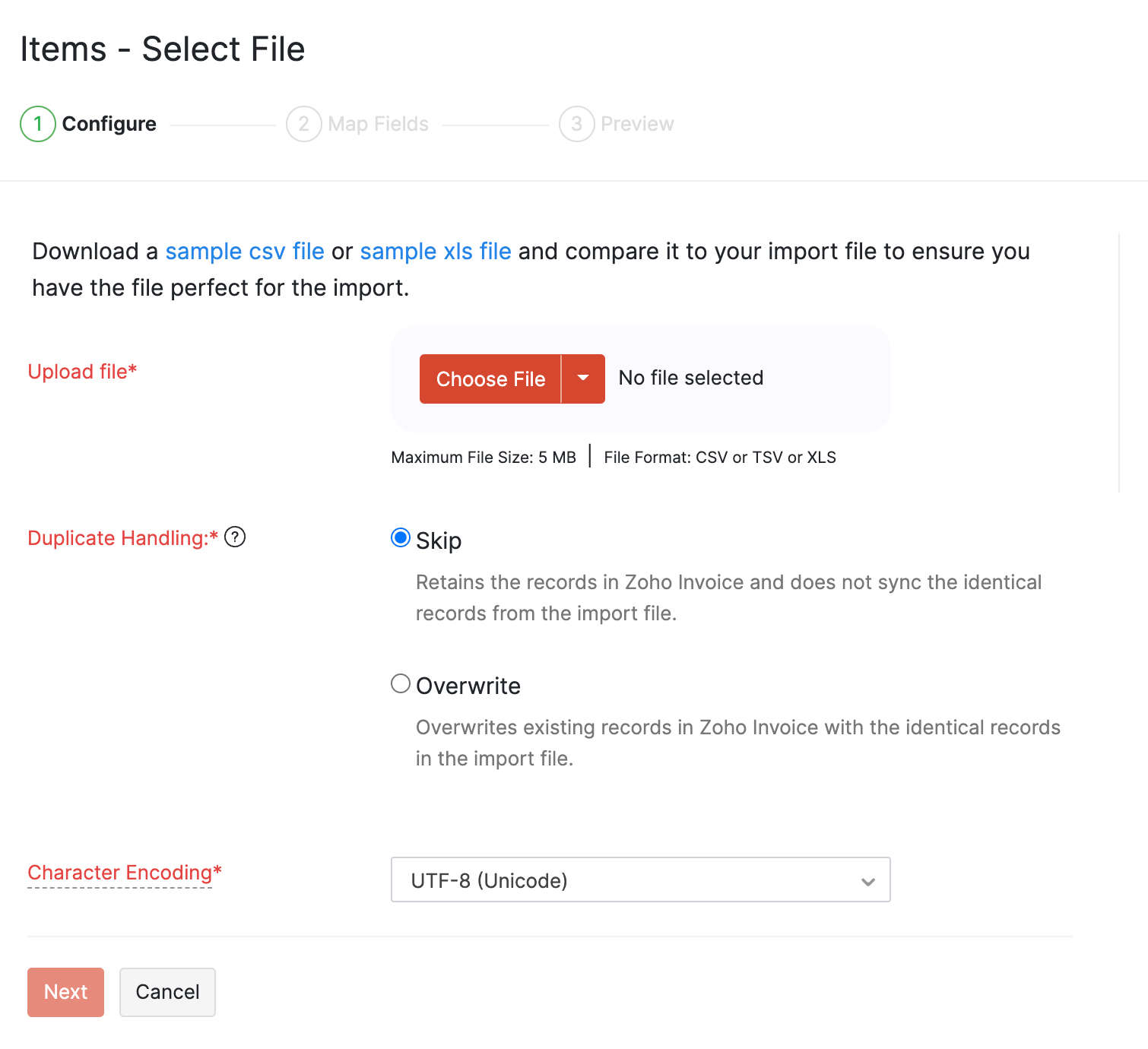
- Click on "Browse" button and select the file to be imported.
- Select either the CSV or TSV file format from the File Format drop down.
- Click the "Next" button to lead to the Map Fields section.
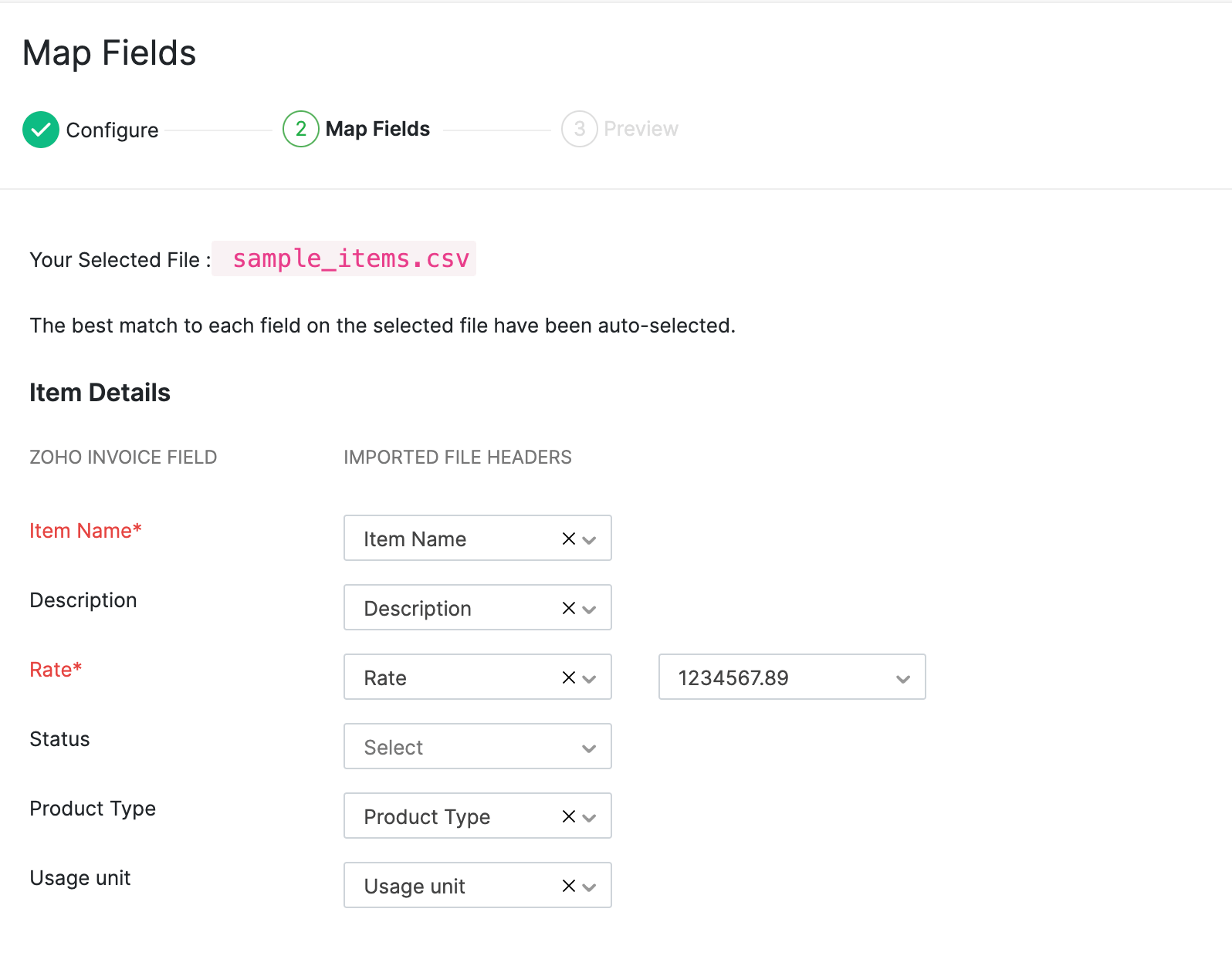
- Select a field(s) found below the "Your Data" Column and click to map to the relevant field(s) under the "Zoho Invoice" field.
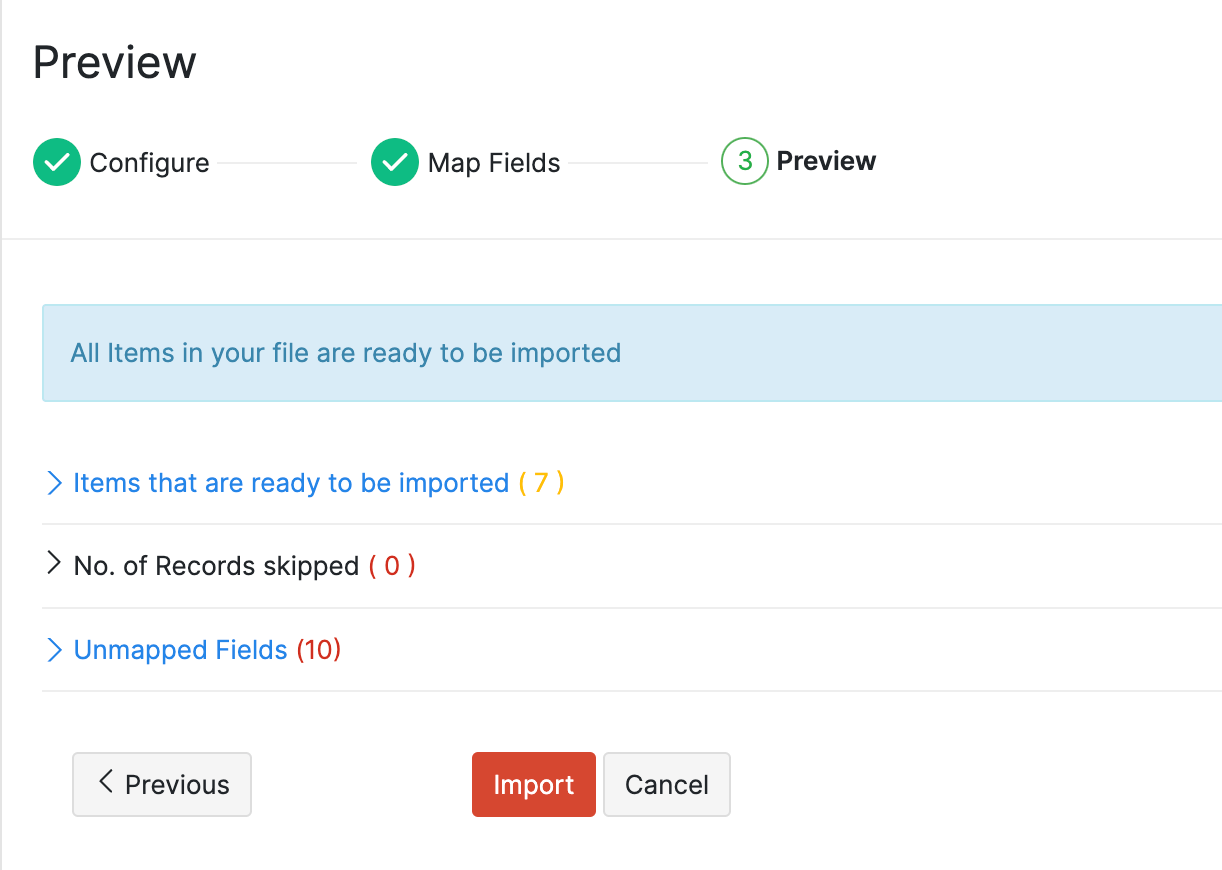
- Click the "Next" button to see the "Import Preview" section that displays the results of matching.
- If the fields have been matched you can see details of number of invoices that are ready to be imported.
- Click the "Import" button. You can see the message, on top of the "Active Items" page.
- If there is a mismatch between the fields, you can see an error message that displays why the item(s) could not be imported.

- You can click on "No of Records skipped" link or the "figure" link to check the error details.
- Click on "Unmapped Fields" link or the "figure" link to check how many fields have been mismatched with Zoho Invoice fields.
- Click the "Previous" button to map the above fields and then click the "Import" button to import data from your items file.
Steps to import Recurring Invoices into Zoho Invoice
Please follow the instructions below to import recurring invoices into Zoho Invoice:
- Go to the "Recurring Invoices" sub-link under "Invoices".
- Click on "Import Recurring Invoices" link on the side bar. This opens the "Import Recurring Invoices" page.
- Click on "Browse" button and select the file to be imported.
- Select either the CSV or TSV file format from the File Format drop down.
- Click the "Next" button to lead to the Map Fields section.
- Select a field(s) found below the "Your Data" Column and click to map to the relevant field(s) under the "Zoho Invoice" field.
- Click the "Next" button to see the "Import Preview" section that displays the results of matching.
- If the fields have been matched you can see details of number of recurring invoices that are ready to be imported.
- Click the "Import" button. You can see the message, on top of the "All Recurring Invoices" page.
- If there is a mismatch between the fields, you can see an error message that displays why the recurring invoice(s) could not be imported.

- You can click on "No of Records skipped" link or the "figure" link to check the error details.
- Click on "Unmapped Fields" link or the "figure" link to check how many fields have been mismatched with Zoho Invoice fields.
- Click the "Previous" button to map the above fields and then click the "Import" button to import data from your recurring invoice file.
Please follow the instructions below to import expenses into Zoho Invoice:
Please follow the instructions below to import recurring invoices into Zoho Invoice:
- Go to the "Expenses" tab.
- Click on "Import Expenses" link on the side bar. This opens the "Import Expenses" page.
- Click on "Browse" button and select the file to be imported.
- Select either the CSV or TSV file format from the File Format drop down.
- Click the "Next" button to lead to the Map Fields section.
- Select a field(s) found below the "Your Data" Column and click to map to the relevant field(s) under the "Zoho Invoice" field.
- Click the "Next" button to see the "Import Preview" section that displays the results of matching.
- If the fields have been matched you can see details of number of expenses that are ready to be imported.
- Click the "Import" button. You can see the message, on top of the "All Expenses" page.
- If there is a mismatch between the fields, you can see an error message that displays why the expense(s) could not be imported.

- You can click on "No of Records skipped" link or the "figure" link to check the error details.
- Click on "Unmapped Fields" link or the "figure" link to check how many fields have been mismatched with Zoho Invoice fields.
- Click the "Previous" button to map the above fields and then click the "Import" button to import data from your expenses file.
Steps to import customers into Zoho Invoice
Please follow the instructions below to import customers into Zoho Invoice:
- Go to the "Customers" tab.
- Click on "Import Customers" link on the side bar. This opens the "Import Customers" page.
- Click on "Browse" button and select the file to be imported.
- Select either the CSV or TSV file format from the File Format drop down.
- Click the "Next" button to lead to the Map Fields section.
- Select a field(s) found below the "Your Data" Column and click to map to the relevant field(s) under the "Zoho Invoice" field.
- Click the "Next" button to see the "Import Preview" section that displays the results of matching.
- If the fields have been matched you can see details of number of customers that are ready to be imported.
- Click the "Import" button. You can see the message, on top of the "Active Customers" page.
- If there is a mismatch between the fields, you can see an error message that displays why the customers(s) could not be imported.

- You can click on "No of Records skipped" link or the "figure" link to check the error details.
- Click on "Unmapped Fields" link or the "figure" link to check how many fields have been mismatched with Zoho Invoice fields.
- Click the "Previous" button to map the above fields and then click the "Import" button to import data from your customers file.
Steps to import contacts persons into Zoho Invoice
Please follow the instructions below to import customer contacts persons into Zoho Invoice:
- Go to the "Customers" tab.
- Click on "Import Contact Persons" link on the side bar. This opens the "Import Contact Persons" page.
- Click on "Browse" button and select the file to be imported.
- Select either the CSV or TSV file format from the File Format drop down.
- Click the "Next" button to lead to the Map Fields section.
- Select a field(s) found below the "Your Data" Column and click to map to the relevant field(s) under the "Zoho Invoice" field.
- Click the "Next" button to see the "Import Preview" section that displays the results of matching.
- If the fields have been matched you can see details of number of contact persons that are ready to be imported.
- Click the "Import" button. You can see the message, on top of the "Active Customers" page.
- If there is a mismatch between the fields, you can see an error message that displays why the contact person(s) could not be imported.

- You can click on "No of Records skipped" link or the "figure" link to check the error details.
- Click on "Unmapped Fields" link or the "figure" link to check how many fields have been mismatched with Zoho Invoice fields.
- Click the "Previous" button to map the above fields and then click the "Import" button to import data from your contact persons file.
Steps to import Payments into Zoho Invoice
Please follow the instructions below to import customer payments into Zoho Invoice:
- Go to the "Customer Payments" sub-link under "Invoices".
- Click on "Import Payments" link on the side bar. This opens the "Import Payments" page.
- Click on "Browse" button and select the file to be imported.
- Select either the CSV or TSV file format from the File Format drop down.
- Click the "Next" button to lead to the Map Fields section.
- Select a field(s) found below the "Your Data" Column and click to map to the relevant field(s) under the "Zoho Invoice" field.
- Click the "Next" button to see the "Import Preview" section that displays the results of matching.
- If the fields have been matched you can see details of number of payments that are ready to be imported.
- Click the "Import" button. You can see the message, on top of the "All Payments" page.
- If there is a mismatch between the fields, you can see an error message that displays why the payment(s) could not be imported.

- You can click on "No of Records skipped" link or the "figure" link to check the error details.
- Click on "Unmapped Fields" link or the "figure" link to check how many fields have been mismatched with Zoho Invoice fields.
- Click the "Previous" button to map the above fields and then click the "Import" button to import data from your payments file.
Here is a list of some specific problems that you might come across while importing data into Zoho Invoice.
- File Types with extension not supported.
This error occurs when you have chosen a file format that is not supported by Zoho Invoice. Verify if you have selected a file with the extension supported in the file format displayed in the drop-down. Data will be imported into Zoho Invoice only if your file has a .csv or .tsv extension. - The import data does not match with the file format selected below. Please check your data and the file format.
This error message indicates that the file for upload has a different format from the one you have chosen from the File Format drop-down. To proceed further, ensure that the file you selected to upload and the file format chosen from the file format drop-down are the same. Select a CSV file if you have chosen the CSV file format. Alternatively select a TSV file if you have chosen a TSV file format in the drop down. - Mapping for one or more mandatory Zoho Invoice fields is missing.
This error message indicates that you haven't mapped certain mandatory Zoho Invoice fields to fields in your import data, without which you will not be able to proceed with the import. For example, to import items you should definitely have fields from your import file that are mapped to mandatory Zoho Invoice item fields. Item Code and Rate are mandatory fields that need to be mapped while importing items. - Same Column header has been matched with multiple columns.
This error occurs when there is a duplicate mapping with Zoho Invoice fields. Check if you have mapped the same column header from your import data to one or more Zoho Invoice fields. To proceed further, select a different column header from your import file and map it to a Zoho Invoice field.
To export estimates from Zoho Invoice, please follow the steps mentioned below:
- Go to the "Estimates" tab.
- Click on "Export Estimates" link on the sidebar of the page.

- Click on the Export formats drop-down and select the desired format.
- Click on the "Export" button to export data from Zoho Invoice.
To export invoices from Zoho Invoice, please follow the steps mentioned below:
- Go to the "Invoices" tab.
- Click on "Export Invoices" link on the sidebar of the page.

- Click on the Export formats drop-down and select the desired format.
- Click on the "Export" button to export data from Zoho Invoice.
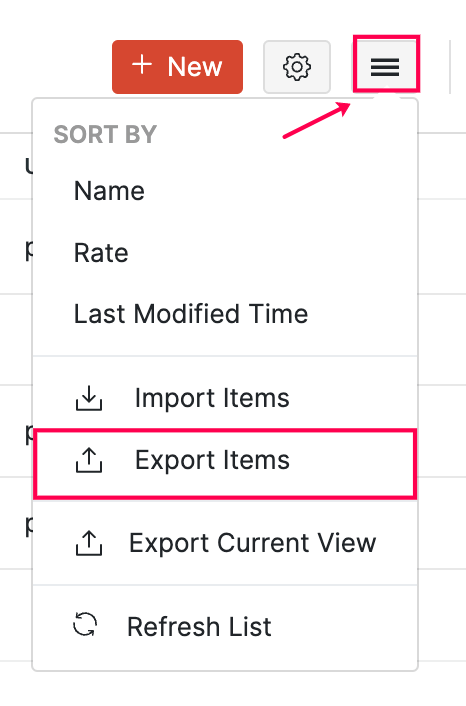
To export items from Zoho Invoice, please follow the steps mentioned below:
- Go to the "Items" sub-link under "Invoices".
- Click on "Export items" link on the sidebar of the "Active Items" page.

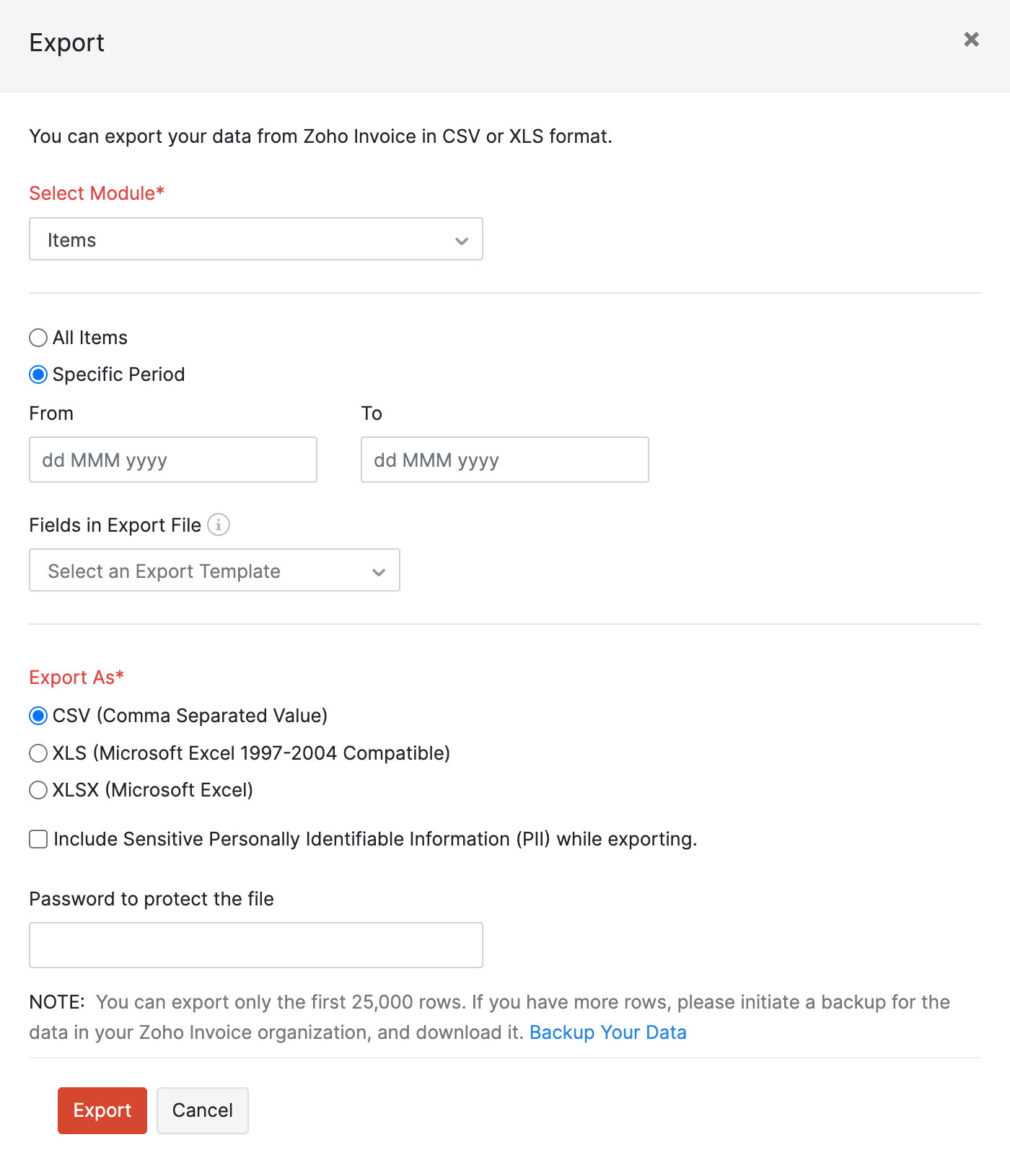
- Click on the Export formats drop-down and select the desired format.
- Click on the "Export" button to export data from Zoho Invoice.
To export recurring invoices from Zoho Invoice, please follow the steps mentioned below:
- Go to the "Recurring Invoices" sub-link under "Invoices".
- Click on "Export Recurring Invoices" link on the sidebar of the "All Recurring Invoices" page.

- Click on the Export formats drop-down and select the desired format.
- Click on the "Export" button to export data from Zoho Invoice.
To export expenses from Zoho Invoice, please follow the steps mentioned below:
- Go to the "Expenses" tab.
- Click on "Export Expenses" link on the sidebar of the "All Expenses" page.

- Click on the Export formats drop-down and select the desired format.
- Click on the "Export" button to export data from Zoho Invoice.
To export customers from Zoho Invoice, please follow the steps mentioned below:
- Go to the "Customers" tab.
- Click on "Export Customers" link on the sidebar of the "Active Customers" page.

- Click on the Export formats drop-down and select the desired format.
- Click on the "Export" button to export data from Zoho Invoice.
To export contact persons from Zoho Invoice, please follow the steps mentioned below:
- Go to the "Customers" tab.
- Click on "Export Contact Persons" link on the sidebar of the "Active Customers" page.

- Click on the Export formats drop-down and select the desired format.
- Click on the "Export" button to export data from Zoho Invoice.
To export payments from Zoho Invoice, please follow the steps mentioned below:
- Go to the "Customer Payments" sub-link under "Invoices".
- Click on "Export Payments" link on the sidebar of the "All Payments" page.

- Click on the Export formats drop-down and select the desired format.
- Click on the "Export" button to export data from Zoho Invoice.