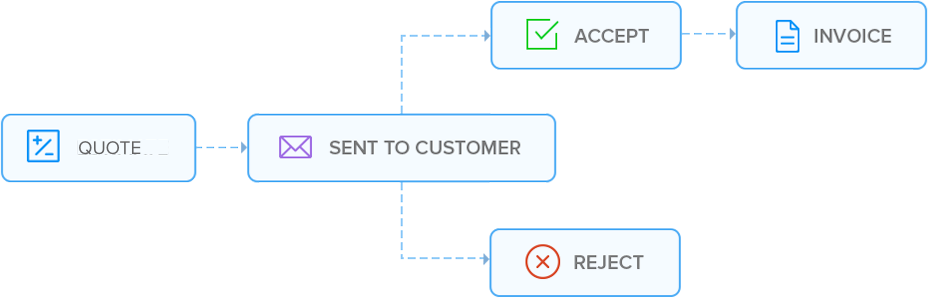

Before creating an estimate you need to
- Configure the taxes you collect.
- Create custom templates if you want to customize the look and feel of your estimates.
- Select the appropriate default template.
- Go to the Estimates tab.
- Click on the 'New Estimate' button on the right sidebar of the page (see image below).

-
Enter values for the following fields
Template The estimate template that you have set as default appears here. Click on the drop-down icon to select a different template.
Select Customer Click on the drop-down icon in the 'Customer' field and select the customer to whom you want to send this estimate from the list.
If the customer is not available in the list click on 'New Customer' below the 'Customer' field. A 'New Customer' window pops up. Enter the details here and click on 'Save and Select' button to populate the customer name on the estimate form.
Estimate# The value of this field is based on estimate numbering scheme you have set under estimate preferences. If you have chosen to auto-generate the estimate number, you cannot edit this field and a string generated based on the values of the 'Estimate Prefix' and 'Next Number appears here. But, if you have disabled auto-generation then this field is left blank and you need to enter an estimate number here. This field is mandatory. Estimate Date By default, today's date will appear in this field. To enter estimates that have a date in past or in the future, click on this field and select the appropriate date from the calendar that pops up. Item grid
You need to enter the list of items that are a part of the estimate in the line item grid shown in the image below. By default, Zoho Invoice provides you three lines in the line item grid. You can add or remove a line. There must be at least one item to complete an estimate.To remove an item, hover your mouse over the item and click on the delete icon that is displayed at the end of the line.
To add an item enter values for the fields below-
Item Select the item from this drop-down list you want to add to the estimate. If the desired item is not present, click on 'Add' in the list to create an item. This pops up a 'Quick Add' screen for an item as shown in the image below. Just enter the details for the item and click on 'Save and Select' for the item to appear in the drop-down list.
If you want to add more than three items to the estimate, click on the 'Add another line' link.
Qty Enter the quantity of the item if required. The default value is one. Rate The rate (price) of the item you have set when you created or modified the item appears here. Change this if required. Discount Enter the percentage discount on this item you give to your customers.
Note: This field will be shown only if you opted to use discount under 'Estimate preferences'.
Tax1 By default, this is the 'Tax1' you selected when the item was added or modified. Click on the drop-down to select a different tax. Tax2 By default, this is the 'Tax2' you selected when the item was added or modified. Click on the drop-down to select a different tax. Amount This is the actual cost of the item, inclusive of all taxes and discounts, that the customer has to pay for. Customer Notes
The default message for 'Customer Notes' set under 'Estimate Preferences' will be shown here. You can edit this to customize it for this estimate.Terms and Conditions
This is the default 'Terms and Conditions' set under 'Estimate Preferences'. You can edit this to customize it for this estimate. -
Click on the 'Save' button to save the estimate. If the estimate is saved successfully, the 'Estimate Details Page' opens to display the message below on top of the page.
As shown in the image below, the sidebar displays the selected customer's billing and shipping address.
You can specify or edit the billing and shipping address here.
Recording a foreign currency estimate is similar to recording an estimate in your base or local currency.
Before you record a foreign currency estimate, ensure that
- The currency in which you want to record the estimate exists. Go to the currency list page to check this. Add the currency, if it doesn't exist.
- Assign this currency to the customer for whom you want to raise the estimate. Click here for more on this.
Extra fields on a foreign currency estimate
Exchange Rate
Enter a suitable exchange rate here, as Zoho Invoice does not auto-populate the exchange rates yet.
The exchange rate is recorded as the number of base currency units that equal one customer (foreign) currency unit.
Say for example, your base currency is the US dollar (USD), the foreign currency is Japanese Yen (JPY) and the exchange rate is 0.0107423. In Zoho Invoice this is recorded as 1 JPY (one unit of foreign currency) = 0.0107423 units of USD (your base currency).
The exchange rate entered here will be the default exchange rate when you convert the estimate to an invoice. You can change the exchange rate on the invoice if required.
Recalculate item rates
Click on this link, if you have changed the exchange rate after adding a few line items and you want the item rates to reflect the modified exchange rate. When you click on this a confirmation window (see below image) pops up.
To view the list of estimates go to the 'Estimates' tab.
Navigation
If you have more than 25 estimates in the list a navigation bar as shown in the image below will appear. You can choose to view 25, 50, 100 or 200 estimates at a time. By default, you can view 25 estimates in a page.
Filtered and Sort Views
| Filtered View |
|---|
By default, Zoho Invoice lists all the estimates. The list of filters are shown as links with underlined blue text on right corner of 'Estimate list' section. The selected filter will not be underlined and appear as a normal text. For example, if you want to view all draft estimates click on the draft link. Once the draft estimates are listed, the draft link will no longer appear as underlined blue text as shown in the image below.
|
| Sort View |
By default, the list is sorted by the 'Created time' of the estimates. Click on the 'Sort-by' drop-down to select a different sort criteria.
|
Bulk Actions
Under special circumstances you may need to perform an action on multiple records. For estimates, you can delete or mark as sent multiple estimates at once.
| Mark as Sent |
|---|
To mark multiple estimates as sent, select the desired estimates and click on the 'Mark as Sent' button. For marking all estimates as sent at once, select the header checkbox and click on the 'Mark as Sent' button.
|
| Delete |
You can also delete multiple estimates all at once.
|
The side bar of the 'Estimate list' page is designed to provide some useful links to speed up adding and finding data. You can see on the sidebar links to add an item, add a customer, import and export estimates, view the data in Zoho Sheet.
Use the search box on the sidebar of the 'Estimate List' page to locate an estimate. Depending on what you know about an estimate, you can perform a simple or an advanced search.
Simple Search
If you know any word or number that might have been a part of estimate number, reference#, customer name or the estimate total just enter it in the search box on the sidebar and click on the search icon. The results of the search will be displayed as shown in the image below.
Advanced Search
Make use of Advanced search, if you require narrower search results or lack the information that is required to perform a simple search. Click on the 'advanced search' link below the search box.
Enter the value of following fields to add them to the search criteria. The more fields you enter the narrower your search becomes.
- Estimate#
- Reference#
- Customer Name
- Estimate Date Range - By selecting the "Estimate Date Range" you can view a list of all estimates created between a particular period of time. For example if you want to view all the invoices created between 23rd of August 2010 and 27th August 2010 you must select the date range as 08-23-2010 and 08-27-2010.
- Status - Click on this drop-down icon to select the status of the estimate(s) you are trying to locate.
Click on the 'more fields' link and you can see that the search form expands to accept more more information to narrow the search criteria further.
The additional fields you get to see are
- Item Name
- Item Description
- Estimate total range
- Notes
Click on the search button after you have entered the criteria to view the search results.
Here is a search form that tries to locate all estimates that
- were created in the year 2010.
- customers whose name contains john.
- estimate amount is greater than $1000 and less than $10000.
- item description contains the word web.
- Go to the 'Estimates' tab.
- Go to the estimate that you want to view.
- Click on the details link. See image below.
Adding Comments
To add comments to an estimate just click on the 'Add Comments' link shown in the above image -
Enter comments in the text area and click on the 'Save' button.
The sidebar provides useful information about the estimate and links for performing actions on that estimate. Apart from 'clone' the rest of actions are available from the estimate list page itself.
You can find the amount and status of the estimate on the top of the sidebar.
Draft
When you create an estimate, it will be in draft status. A draft status indicates that estimate can undergo further modifications.
Sent
A 'Sent' status for an estimate indicates that you have sent the estimate to your customer at least once by clicking on the 'Send' link or you have marked the status as 'Sent' by clicking on 'Mark as send' link.
- Go to the 'Estimates' tab
- Go to the estimate that you want to edit.
- Click on edit link. See image below.

- This opens the 'Edit Estimate' page.
- Make changes as required and click on the 'Save' button.
- Go to the 'Estimates' tab.
- Select the estimate you want to prepare an invoice for.
- Click on the 'convert to invoice' link. See image below.

- This opens the 'New Invoice' page with the following details populated from the estimate
Customer
line item details. - You can edit the details that have been populated from the estimate.
- The invoice date will be the current date.
- Go to the 'Estimates' tab.
- Go to the estimate you want to send.
- Click on 'send' link shown in the image below. If you have sent the estimate at least once before then you will see a 'send again' link.

- Clicking on the 'send' or 'send again' link opens the 'Send estimate' window. See image below.
Change the e-mail message if required.
'To' address is the e-mail address of the contact person you have specified for the customer. If no contact e-mail address was provided, this field will be left blank and you need to specify an e-mail address.
Attachments'
You can attach an associated document like sales order, a project document, etc. to an estimate. To do this, click on the 'Add' link on top of the e-mail message box and browse your local folders to select the document you want to attach. The document size should not exceed 4 MB.
You can clone or duplicate an existing estimate to create a new estimate if most of the data is the same.
To clone a new estimate.
- Go to the 'Estimates' tab.
- Go to the estimate you want to clone or duplicate.
- Click on the 'details' link. This opens the 'Estimate Details' page.
- Click on the 'clone' link on the sidebar.

- This will open a 'New estimate' page. All the fields from the original estimate will be completed for you in the new estimate. You can make the changes as required and click on the save button.
- Go to the 'Estimates' tab.
- Go to the estimate you want print.
- Click on the 'print' link shown in the below image -

- This will generate a PDF file that you can print.
- Go to the 'Estimates' tab.
- Go to the estimate you want to delete.
- Click on the more actions drop-down shown in the below image -

- Click on the delete link.
- A message box as shown below will appear asking for your confirmation.

- Click on the Ok button if you are sure you want to delete the record.

By default, the list is sorted by the 'Created time' of the estimates. Click on the 'Sort-by' drop-down to select a different sort criteria.
To mark multiple estimates as sent, select the desired estimates and click on the 'Mark as Sent' button. For marking all estimates as sent at once, select the header checkbox and click on the 'Mark as Sent' button.
You can also delete multiple estimates all at once.