Creating Forecasts
Configure Forecast Settings
At first, a user with administrator profile has to configure the organization's forecast settings in the Zoho CRM account. The settings include:
- Target Period of Forecast (Monthly or Quarterly).
- The start month of the Financial year.
-
Field values based on which forecast targets are set.
Make sure that you have created the fields based on your business requirements.
To configure forecast settings
- In the Forecast module, click View Settings.
- In the Forecast Settings pop-up, click Edit.
-
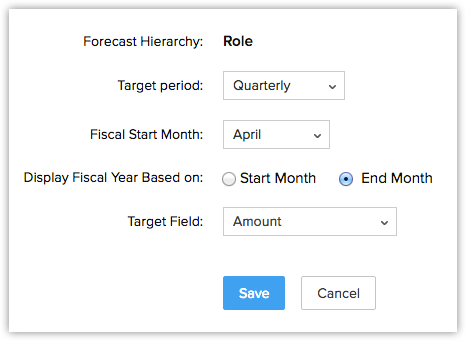
In the Forecast Settings page, modify the Target Period, Fiscal Start Month, Display Fiscal Year and Target Field as per your requirement.
Please note that, Forecast Hierarchy cannot be modified.
- Click Save and confirm your changes.
Set up Fiscal Year
The first settings to configure when creating a forecast for the first time, is the Fiscal Year. Depending on your organization's financial cycle, you can specify the month the financial year begins.
To set up Fiscal Year
- Click Setup > General > Company Details > Fiscal Year.
- In the Fiscal Year page, select the Fiscal Start Month from the drop down list.
- Choose Start Month or End Month.

- Click Save.

- By default, fiscal year is configured as January to December.
- Let's say your fiscal year starts in April 2013 and ends in March 2014. If you choose to name the fiscal year based on the start month, the year name will be displayed as 2013 (in reports and other mentions) and if you choose to name the fiscal year based on the end month, the year name will be displayed as 2014.
Create Forecasts
Forecasts are created to help every individual in the sales team, who has opportunities assigned to them and their managers.
- By default, the person who creates the forecast owns it.
- Forecasts can be created for each quarter of the Fiscal Year.
- You can create forecasts for a specific quarter only once. However, you can modify the existing forecast details.
- You cannot customize the fields in the forecast module.
To create forecasts
- In the Forecast module, click Create Forecast.
- In the Create Forecast page, select the Year and Quarter(or Month) from the respective drop-down lists.
-
In the Forecast Details section, specify the following details:
-
Enter the Target.
You can also set targets for sub-hierarchies, manager of each sub-hierarchy and individual users in the hierarchy and sub-hierarchy.
The hierarchy can either be Role based or Territory based.
-
- Click Save.
Associate Forecasts with Other Records
Once the forecast is created, you can add deals to each month. When the deal is closed it will automatically appear under forecast history. All the deals created will show under each individual sales person's monthly forecast list for follow-up.
In the Forecast Details page, the details displayed are:
- List of deals for each month: Displays the list of deals, the associated accounts and the corresponding forecast details for the month. You can also add new deals to the month.
- Forecast History: Displays the over-all details of the forecast with aggregate Quota, Closed Amount details.
Switch to New Forecast
Here is what is “new” in the New Forecasts
- Create Forecasts based on role hierarchy or territory hierarchy.
- Track the performance of individual roles/territories in the hierarchy.
- Track the performance of each user in the role/territory.
- Choose between the monthly or quarterly forecast options.
- Set targets for sub roles and its users in the hierarchy, once the forecast is created..
- Choose your forecast target from any numeric field in the deals module. In the old forecasts, it is based on the Amount field.
- Set sales targets for all the users in your role if you are the role manager.
- Set individual targets for role managers and the other users in the role, apart from an overall sales target for the role.
- Navigate easily to access the required data.
- Use the Compute option to calculate the status of forecast for any given month/quarter. It calculates the target achieved, target achieved count, pipeline count, deals in pipeline, shortage in the pipeline, etc.
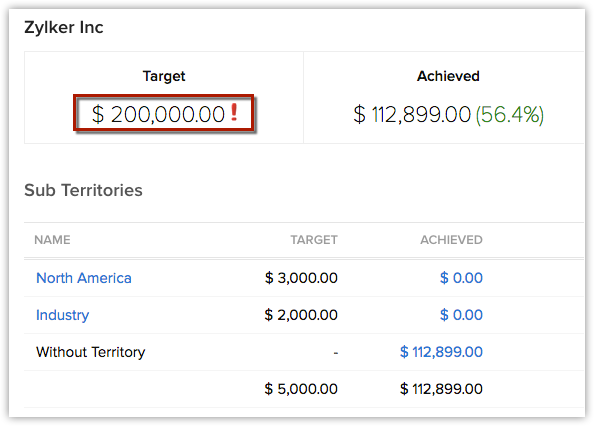
- Get notified when there is a mismatch in the targeted forecast. For example, the role's target amount is USD 10000 and the targets for the sub roles are USD 5000 and USD 4000. In this case, you will be notified at once of the mismatch of USD 1000 in the target.
- Identify the Star Performers in your team with the Star indicators.
- Keep abreast of shortages in the pipeline. Know what percentage of the target amount is not in the pipeline for a given month/quarter.
- Be assured that the sales targets for a given role will be maintained for reference even when a user is moved from one role to another.
On Enabling the New Forecast
- Best Case and Committed Amount will not be available. Instead you will have other parameters to calculate, such as, target amount, achieved amount, pipeline potential, target achieved in percentage, etc. See Also Role Based New Forecasts
- The existing forecasts will be removed. You will not be able to access the forecasts for the previous months.
- Forecast History (a history of changes made to forecasts) will not be maintained.
Zoho CRM Training Programs
Learn how to use the best tools for sales force automation and better customer engagement from Zoho's implementation specialists.
Zoho DataPrep Personalized Demo
If you'd like a personalized walk-through of our data preparation tool, please request a demo and we'll be happy to show you how to get the best out of Zoho DataPrep.
- Zoho Workerly Home
- Forums
- Connect With Us:


- Zoho Recruit Home
- Forums
- Connect With Us:
You are currently viewing the help pages of Qntrl’s earlier version. Click here to view our latest version—Qntrl 3.0's help articles.





Zoho Sheet Resources
Zoho Forms Resources
Zoho Sign Resources
Sign, Paperless!
Zoho TeamInbox Resources
Zoho DataPrep Resources
Design. Discuss. Deliver.
Related Articles
Forecasts Based on Role Hierarchy
The CRM records are accessible to the users in an organization based on their roles. The user at a higher hierarchy will be able to view the subordinate's record, that is, the record visibility is per the role hierarchy. A role hierarchy has multiple ...Creating and working with forecasts
Sales forecast - an overview What is a sales forecast? A sales forecast is similar to a weather forecast, where you predict the weather based on various factors like humidity, precipitation, air speed, wind speed, and so on. This prediction drives ...Forecasts Based on Territory Hierarchy
Forecast based on territory By default, forecasts in Zoho CRM are based on role hierarchy. However, if you enable territory management forecasts will be based on territory hierarchy. Territory Management in Zoho CRM is a system by which customer ...Working with Forecasts
Forecasts play a crucial part in the financial planning of your business. Sales forecasting is projecting the short-term and long-term sales performance of a company. Sales forecasts are an important measurement of your company's growth and success. ...Standard Fields in Forecasts
Following are the list of Zoho defined standard fields available in the Forecasts module: Field Name Description Year Select the fiscal year from the drop-down list. Forecast Period The period for which you can create forecasts can be either ...