Setting Email Notifications
- Go to Setup > Automation > Actions > Email Notifications.
- In the Email Notifications. page, click Create Email Notification.
-
In the New Email Notification, page, do the following:
- Enter a Name for the alert.
- Select the Module from the drop-down list.
- Choose the recipients of the email. The people associated to the email are displayed. When you choose Roles/Groups/Territories/Sub-ordinates, the email will be sent to the users that are part of the selected category.
- Browse for and associate an existing email template from the module's template folder. If you don't have the template, you can Create Templates.
- Next you have to enter the email addresses in the From and Reply to fields.
-
Here you can choose one of these option in the drop-down list:
- your account email address
- organization email address
- email address of the record owner
- email address of the current user
- other user's email address
- your account email address
- Enter a Name for the alert.

- When the Email has to be sent to users in the organization, it is sent as a notification from the email address notifications@zohocrm.com.
- In Free edition, you can only send emails to the users in the organization. You cannot choose the Leads or Contacts module to select email recipients.
Email notifications as Mass email

- The From field is mandatory when you send notifications as single mass email.
- The CRM users will not receive this mass email from "notifications@zohocrm.com". Instead, they will receive it from the From email address that is mentioned during the configuration of email notification.
- When you choose to send notifications as a single mass email, you cannot choose roles, groups, and territories as recipients. If you want to include them in the notifications, you must either select it as individual users from the available users or manually enter their email addresses to the additional recipient field.
- The number of recipient email addresses that can be selected in the "To" field are 100, "BCC" and "CC" fields are 50 each.
- A module can have 1 multi-select user lookup field which can contain a maximum of 10 users. If you want to send email notifications to these users, then the addition of this field will consume about 10 recipient limits from the "To", "CC", and "BCC" fields accordingly. For example, if you add a multi-select user field, you can add only the remaining 90 users into the To field.
- Additional recipients cannot be added in the BCC field.
- Consent and Survey links cannot be used in the bulk emails. Also, users will not be allowed to select those email templates which have either of these links.
- In the Email Notifications. page, click Create Email Notification.
- In the New Email Notification, page do the following:
- Enter a name for the notification.
- Select a module from the drop-down list.
- In To, select the users to whom the notification will be sent.
- In Additional Recipients, enter email addresses of non-CRM users or organizations etc.
- Click Save.
- Check Send this notification as a single mass email with all recipients displayed.
- In CC, select the users to whom the notification will be sent.
- In Additional Recipients, enter email addresses of non-CRM users or organizations etc.
- Click BCC and select users to whom the notification must be sent.
- Select an Email Template.
- Click Save.
- Enter the email addresses in the From and Reply to fields.
View Usage Graph
Email Notifications are used in Workflow Rules, Blueprint, Approval Process, etc. Zoho CRM provides graphs that show the daily or weekly usage statistics of notification across various features. You can view the usage from Go to Setup > Automation > Actions > EmailNotifications.
The More info link provides detailed information on the usage stats. Please note that the graph will cover the usage stats for the past 7 days.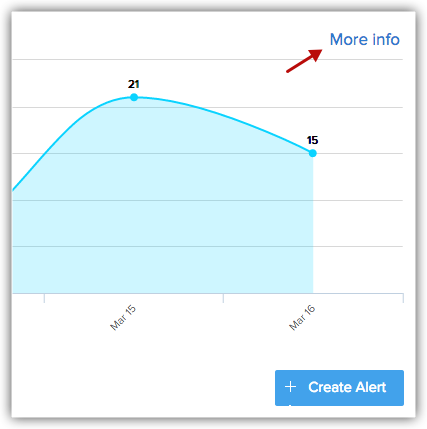
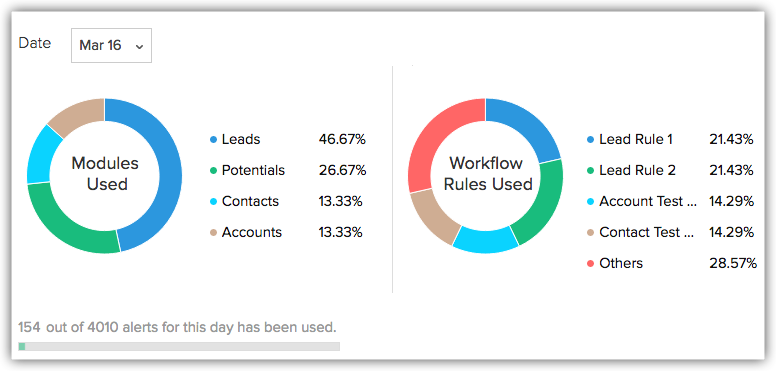
Data is displayed based on modules, workflow rules and is categorized by date.
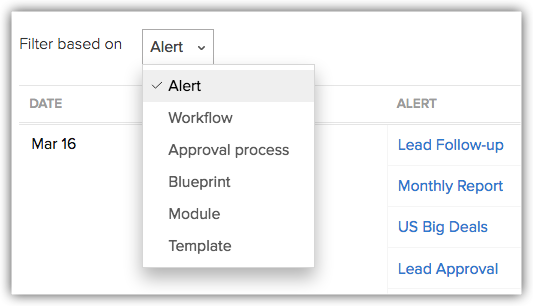
Email Notifications' usage statistics can also be filtered based on its usage in Workflow, Approval Process, Blueprint, Modules and Templates.
Zoho CRM Training Programs
Learn how to use the best tools for sales force automation and better customer engagement from Zoho's implementation specialists.
Zoho DataPrep Personalized Demo
If you'd like a personalized walk-through of our data preparation tool, please request a demo and we'll be happy to show you how to get the best out of Zoho DataPrep.
- Zoho Workerly Home
- Forums
- Connect With Us:


- Zoho Recruit Home
- Forums
- Connect With Us:
You are currently viewing the help pages of Qntrl’s earlier version. Click here to view our latest version—Qntrl 3.0's help articles.





Zoho Sheet Resources
Zoho Forms Resources
Zoho Sign Resources
Sign, Paperless!
Zoho TeamInbox Resources
Zoho DataPrep Resources
Design. Discuss. Deliver.
Related Articles
FAQs: Workflow for Emails
What's workflow rules for emails and why do I need it? In Zoho CRM, workflow rules for emails allow you to automate and streamline your communication processes. Workflow rules are a set of instructions that you can define to trigger automatic actions ...Creating Workflow Tasks
Workflow Tasks are among the actions associated to a workflow rule. A task is an activity that is assigned to a user. When you associate a workflow task to a workflow rule, it is automatically assigned to the user when the rule is triggered for the ...Workflow for Emails
Configuring workflow rules makes it easier to manage daily activities as a lot of work gets automated. For example, every time a contact enters CRM a task is automatically assigned to the sales rep to call them and gather details, two days after the ...Setting up Email Relay
Understanding Email Relay and its benefits Email Relay allows you to route emails through your (company's) server while sending emails from Zoho CRM. Once the relay server is set up, the sent emails will follow a path like this: Zoho CRM -to- Relay ...Configuring Workflow Rules
Workflow Rules in Zoho CRM, are a set of actions (email notifications, tasks and field updates) that are executed when certain specified conditions are met. These rules automate the process of sending email notifications, assigning tasks and updating ...