Display/Show Grouped Records
 This page is applicable only to list, calendar, and timeline report types.
To create groups:
- Navigate to the Design page.
- Hover on the preview of the report in the design page.
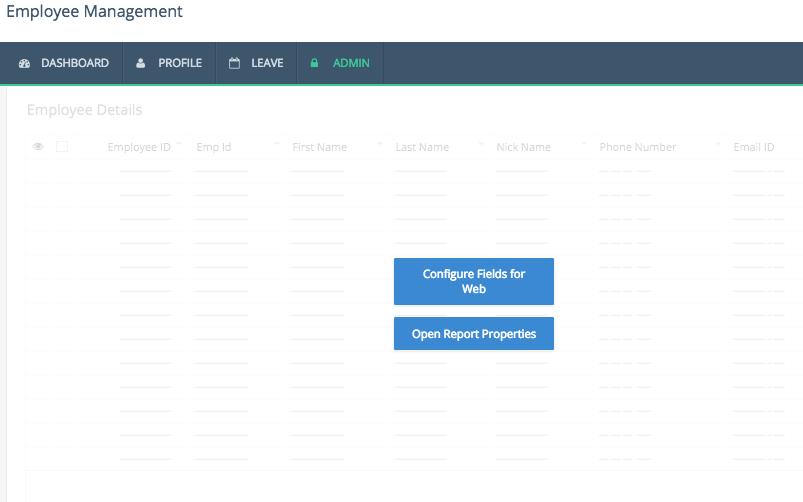
- Click Open Report Properties.
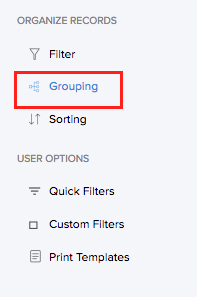
- Select Grouping.
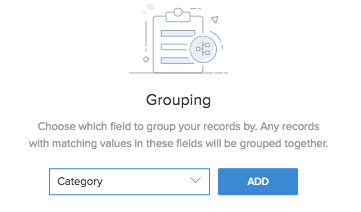
- Select the required field based on which the records will be grouped.
- Click Add.
Once a grouping is added, you can choose in which order the groups must be sorted. By default, the groups will be sorted in Ascending order.
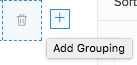
Note: Custom order option is not supported in C6. - Click the (+) icon to add more fields.
- Click Done to exit builder.
Upon accessing the report the application, you will find that the records are displayed as groups, depending on the fields that you have used to categorize the data.
Related Topics
Zoho CRM Training Programs
Learn how to use the best tools for sales force automation and better customer engagement from Zoho's implementation specialists.
Zoho DataPrep Personalized Demo
If you'd like a personalized walk-through of our data preparation tool, please request a demo and we'll be happy to show you how to get the best out of Zoho DataPrep.
- Zoho Workerly Home
- Forums
- Connect With Us:


- Zoho Recruit Home
- Forums
- Connect With Us:
You are currently viewing the help pages of Qntrl’s earlier version. Click here to view our latest version—Qntrl 3.0's help articles.





Zoho Sheet Resources
Zoho Forms Resources
Zoho Sign Resources
Sign, Paperless!
Zoho TeamInbox Resources
Zoho DataPrep Resources
Design. Discuss. Deliver.
Related Articles
Show or Hide field on checkbox input
Requirement Show or hide a field based on the checkbox value. Use Case An ice-cream parlour is accepting orders online. The patrons can choose from a list of available flavours, toppings etc. See how it works Steps to follow 1. Create the form with ...Configure panel element's display value
Once you have added a panel template to the page builder, you can configure and customize all the elements in it including text, image and button in the panel builder. All the display elements in a panel can be configured here. This includes: ...Display custom action button for specific records
Requirement The custom action button in a report should be visible only for certain records, based on a condition. Use Case An asset request app lets employees raise requests for gadgets or machines. While filling the form, employees can specify ...Configure show success message action
To configure the success message action: While creating a new workflow choose the Successful form submission option in the When to trigger workflow dropdown. Click the Add New Action block. The Add New Action window will slide in from the right. Zoho ...Insert records through email
Requirement When an email is received, content from the email is extracted and used to create records. Use Case The HR team sends an email to shortlisted candidates. Candidates can reply to the email with details that are extracted and added as ...