Understand reports

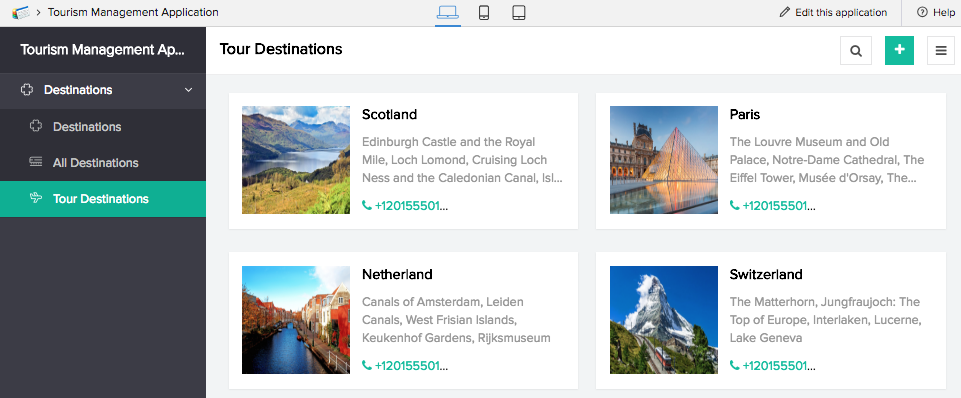
All reports in Zoho Creator are based on forms and the inputs from the forms constitute the records in the reports. Information gathered using a form needs to be presented for viewing. It is stored in the application itself and reports help present it in a meaningful way. When you create a form, a list report with standard table layout will be generated automatically when a form is created.
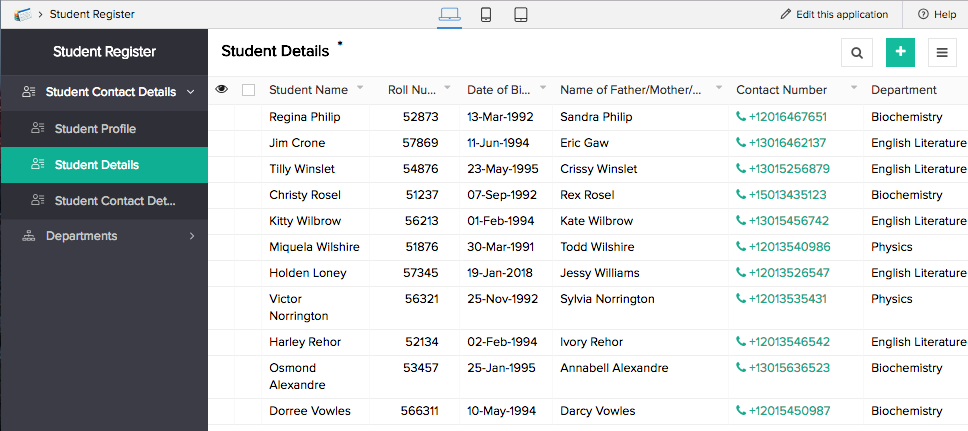
Zoho Creator offers a range of functions to help create efficient, functional reports that fulfil specific business needs. You can use charts, diagrams, images, and audiovisual files, create criteria to filter information, arrange data by category, and use charts, diagrams, images, and audiovisual files. You can also create more than one report based on a single form. For instance, if you have a form that gathers complete student profiles, your default report captures all the information. However, you can create multiple reports using this one form, for example:
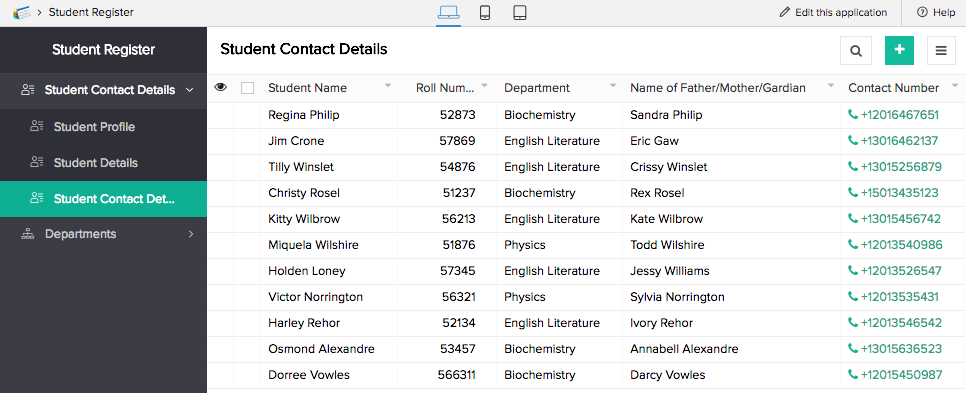
- A Student Contact Details report that extracts contact information from the report containing the complete profiles of all the students.
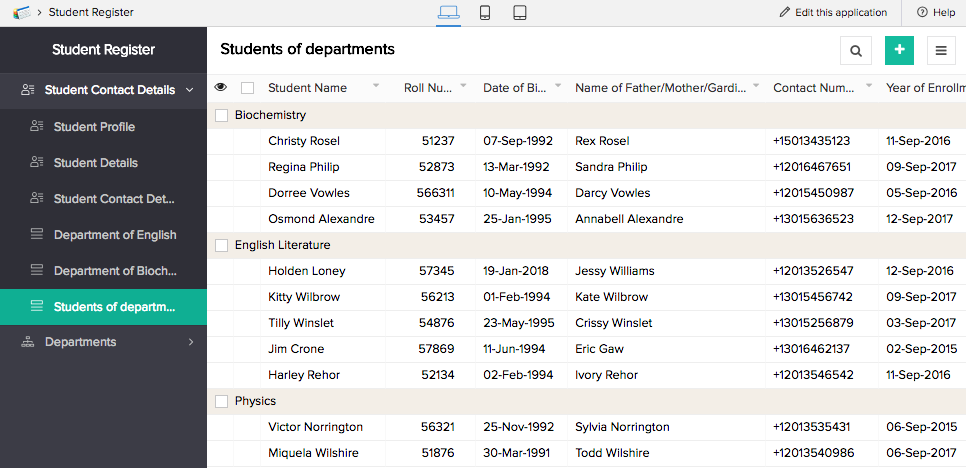
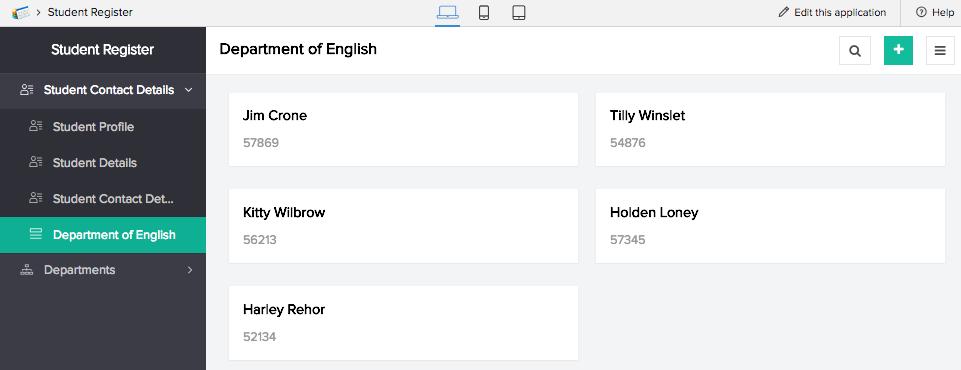
- A Department Details report that categorizes students based on departments.
- A report for a specific major which filters the records and only displays those which meet this criteria. You could create separate reports for each major from a single form.
- A performance analysis report. In this scenario, you have a second form that contains students' grades and marks. Your complete student profile report can contain fields which look up values from the grades form, which allows you to create the performance analysis report, containing fields and values from the two different forms.
Report features and capabilities
General features
- Quick view: View the entire report and glance through the records.
- Detail view: View all information for a single record, and quickly gain insights from related data.
- Quick view layout: The report is structured in a quick view layout that makes the data comprehensive.
- Detailed view layout: View record information as label and value pairs or in a format that displays more information.
- Quick view actions: System actions like add, print, export, edit, delete, duplicate, and view records allow you to interact with the report in the quick view interface.
- Detail view menus: System actions like add, print, edit, delete, and duplicate allow you to interact with an individual record.
- Quick view gestures for browser, mobile, and tablet: Gestures associated to system or custom actions will help you execute actions or display the associated actions in the report.
- Action items: Scripted actions created exclusively to meet specific purposes in the report.
- Filtered report (criteria-based records): The filtered report features records that match a particular criteria. The criteria serves as a predetermined filter, enabling you to view and access only selected records from the report.
- Grouped records (based on specified fields): Records can be categorically organized into groups based on specific field values, enabling the report to provide field-based insights into the data.
- Sorted records: Report that displays the records in a predetermined sequence.
- Print templates for report: Templates created to print the records in a different layout are available when you select Print. The printed records are output in the format of the chosen template.
- Conditional formatting in report: Highlights or draws attention to key aspects or particular field values that require emphasis. The formatting is based on defined conditions and the values that match the conditions are highlighted.
CRUD operations
- Add button: You can add a new record to the report. Clicking the add button opens the form in a pop-up window.
- Duplicate record: Make a copy of a record in the same report.
- Edit record: Make changes to an existing record in the report. Clicking edit opens the form in a pop-up window where the changes can be made and submitted.
- Bulk edit: Bulk edit enables you to make changes to the field values of all or a subset of records. This makes it easy to make uniform changes across multiple records.
- Bulk delete: Bulk delete allows you to permanently remove all or a subset of records from the report.
- Bulk duplicate: Bulk duplicate allows you to make copies of all or a subset of records in the same report.
- Import records: You can import data into the report from external sources. It allows you to browse and upload records from local drive or cloud and copy and paste data to make a report.
- Delete record: You can permanently remove a record from the report.
Offline capabilities
- Export as spreadsheet: Export the report as a Spreadsheet.
- Export as pdf: Export the report as a PDF.
- Export as html: Export the report as HTML.
- Export as xml: Export the report as XML.
- Export as json: Export the report as JSON.
- Export as csv: Export the report as CSV.
- Export as tsv: Export the report as TSV.
- Print as list: Select a list layout when printing the records. This will not change the layout of the report in web, mobile, or browser.
- Print as summary: Select a summary layout when printing the records. This will not change the layout of the report in web, mobile, or browser.
- Save offline: Save records offline on your phone to avoid certain difficulties caused by lack of network connectivity.
Application features
- Search: Search for required information in the report. Search operators help define how the records will be filtered and displayed. Multiple conditions can be used to narrow down the displayed records.
- Quick filters: Help you view particular records based on specific field values. Filters are choice field values and date or date-time field values. When one of these values are selected, only the records that match the selection are displayed.
- Show as list: View a report as a list report. All report types except for pivot chart and table can be switched to list report view.
- Show as spreadsheet: View a list, calendar, timeline, kanban, or map report as a spreadsheet.
- Show as kanban: View a list, calendar, timeline, spreadsheet, or map report as a kanban report. This switch will be enabled if there are single select dropdown or single select lookup fields in the report.
- Show as timeline: View a list, calendar, spreadsheet, kanban, or map report as a timeline report. This switch will be enabled if there are date-time fields in the report.
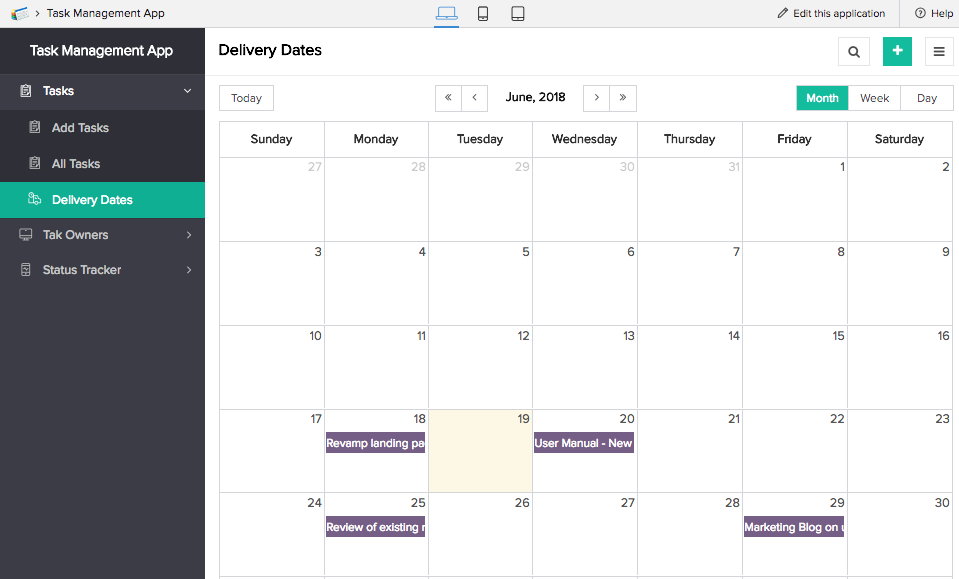
- Show as calendar: View a list, timeline, spreadsheet, kanban, or map report as a timeline report. This switch will be enabled if there are date or date-time fields in the report.
Calendar and Timeline features
- Month view - You can view a month's worth records in a calendar or timeline report.
- Week view - You can view a week's worth records in a calendar or timeline report.
- Day view - You can view a day's worth records in a timeline report.
Pivot table and chart features
- Charts types - You can change the type of Pivot chart. It allows switching from a line graph to a bubble graph, providing a whole new perspective to the data.
- Export as excel - Export the report as an Excel sheet.
- Export as image - Export the report as an image.
- View underlying data - View under lying data provides you with an option to view records that match the particular value.
- Drill down data by - Drill down data by provides you with a list of fields based on which the records must be filtered and displayed on the chart.
- Sort by column - It helps you arrange the records in a sequence based on the values in the column.
- Sort by rows - It helps you arrange the records in a sequence based on the values in the rows.
Related Topics
Zoho CRM Training Programs
Learn how to use the best tools for sales force automation and better customer engagement from Zoho's implementation specialists.
Zoho DataPrep Personalized Demo
If you'd like a personalized walk-through of our data preparation tool, please request a demo and we'll be happy to show you how to get the best out of Zoho DataPrep.
- Zoho Workerly Home
- Forums
- Connect With Us:


- Zoho Recruit Home
- Forums
- Connect With Us:
You are currently viewing the help pages of Qntrl’s earlier version. Click here to view our latest version—Qntrl 3.0's help articles.





Zoho Sheet Resources
Zoho Forms Resources
Zoho Sign Resources
Sign, Paperless!
Zoho TeamInbox Resources
Zoho DataPrep Resources
Design. Discuss. Deliver.
Related Articles
Understand quick view layouts for list report
A layout is the structure that you assign to a report. It decides what part of the content goes where. It makes your application visually organized and comprehensible. The reports in Zoho Creator can be set in suitable layouts that best provides you ...Understand pivot table
Pivot table enables you to organize information as summarized grids. It allows you to dynamically rearrange, group and summarize information for easy analysis of large sets of data. The records are presented as rows and columns of information based ...Understand spreadsheet report
The spreadsheet report enables you to view records in a table grid arrangement. The information is distributed into rows and columns, with the fields occupying the column headers and the field values occupying the rows below. This report behaves like ...Understand list report
A list report enables you to present or view your records in the traditional list format. It organizes records in different layouts that make the data comprehensible. By default, the records are presented in a table grid as rows of information, ...Understand timeline report
Timeline report is a date-driven report that allows you to visually present the events that take place within a timeframe. It displays records on an hourly calendar based on the date and date-time field types. The report is equipped with a dynamic ...