Overview
A subform is a form within a form. The primary form is called the main form, and the form that is inserted in the main form is called the subform. Subforms are generally used to show data from tables that have a one-to-many relationship. For example you would use a subform if you wanted to display an order with the order details. In this case, the order information would display on the "main" form and the order details would display on the subform. The data in the order table is the "one" side of the relationship. The data in the Item table is the "many" side of the relationship — each order can have more than one item. The sample application "Order Management" available in the Zoho Creator market place illustrates the subform feature.
Creating a Subform
Zoho Creator supports the "SubForm" field type using which you can insert a subform into your mainform. Please find the steps given below to create a subform.
- Add the required Forms to your application from the Forms - > New Form option. For example, add the "Items" form to enter the Items ordered and the "Order" form to enter details about each order. Here, "Order" form is the main form and "Items" form is the subform.
- Select the main form and drag-n-drop the subform field type at the required position in your main form. For example, drag-n-drop the "Items" form into the "Order" form.

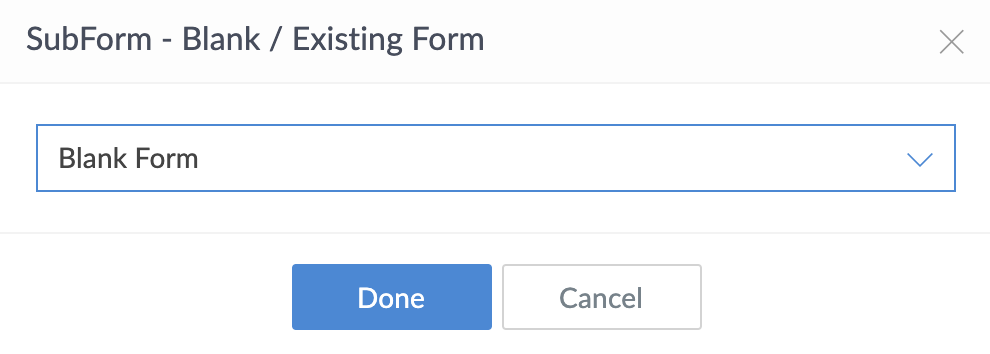
- In the Adding SubForm screen, specify the Label name of the subform field, and select the Form to be added as the subform field. For example, select the "Order Item" form in the "Order Management" application as the subform. Click Doneto insert the subform to the main form.

- The subform will be inserted to the main form as shown below:

- When you access the application, the Subform will be displayed within the main form, as shown below. Here, the "Order form" displays the "Items" subform to add the items ordered. You can use the "Add +" or the "Add New" button to add entries to the main form from the subform.

- The Main Form view, (Order view) will display all the orders with the values of the selected subform fields, as shown below.

The Column Properties option in the Main Form View is used to configure the subform view and the subform fields to be displayed in the view, as show below.

Creating relationship between mainform and subform
- Create a lookup in the subform and relate it to the parent form. Once the lookup field is created in the child form, that field can be used as relationship field between the two forms. When adding the lookup, select the existing subform relation and pick the ID field, as shown in the image attached.

- Select the subform view from the View tab, click on "Column Properties" and select the lookup field created above and click on "Link " button, to create a link to the main form data.
Setting Default Rows and Maximum Rows
You can set the "Default Rows" and "Maximum Rows" for a subform field type from the "Options" button displayed when adding/editing a subform field.
- The "Default Rows" will display the specified number of rows in the subform, when the form is loaded.
- The "Maximum Rows" will limit the number of entries that can be added to a subform.
Export Main Form Data with Subform
To export main form data with subform,
- Select the main form view from the View tab
- From the "Column Properties" option enable the "Link" button displayed for the subform, as shown in the screen-shot below, and click "Done" to update the changes.

- Use the following URL format to export data from the main form view. This automatically includes the dataof the main form in one tab and also the related subform data in another separate tab within the same excel sheet. The record link id column generated for the main form view can be used to refer the related subform entries.
<a href="https://creatorexport.zoho.com/<adminuser>/<appname>/xls/<viewname>/exportDisplayData=false
For example : https://creatorexport.zoho.com/sampleapps/export-data/xls/Main_Form_View/exportDisplayData=false
Deluge Script
The Subform name represents the entire collection of records in a subform.ID value will be available only after the subform record gets persisted in the database. The expressions <collection>.<subform_name> will return another collection. A row is a pre-defined variable available in on add row, on delete row and on user input action of a subform field. You can access, update and dynamically append or clear values of subform field using a row.
To execute tasks when a row is added or deleted in the subform
The following field action script is supported for subform field types, as shown below.
- On Add Row: To execute tasks when a new row is added to the subform.
- On Delete Row: To execute tasks when an existing row is deleted from the subform.

To execute tasks on user input of subform fields
The following Field Action Script is supported for all the fields within the Subform.
- On User Input : To execute tasks when a value is input by the user. For example, in the script given below, the Unit Price of each item selected is fetched from the "Products" form and updated as the "Unit Price" in the subform.

To add items to a picklist
You can add items to a picklist in a subform using the UI.append task. Refer this help topic for syntax and sample code.
Refer this kbase topic to add items to a picklist in a subform based on selection in main form.
To Hide / Disable sub form fields
You can Hide and Disable subform fields in theon load action of main form andon user input action of main form fields.The syntax for hiding and disabling subform field is as follows:
hide <sub form name>.<field name>;
show <sub form name>.<field name>;
enable <sub form name>.<field name>;
disable <sub form name>.<field name>;
The above tasks when executed perform the operation on entire column. For ex, when hide task is applied on subform field, it hides the entire column in the subform grid.
To populate fields in a subform
You can use the following script to populate a field in the subform with the value of the field in the main form. In the "On Add Row" task of the subform, give the script as
row.SubFormField = input.FormField;
Related Links
Send Subform data in an email | Create HTML view with subform records | Add multiple attachments to a record