
For example, a form to collect the contact details of your employees may contain separate fields to capture name, email address, phone number, residence address, etc. Each record stored in this form represents the contact information of an employee and each field in a record stores one piece of that information.
A form takes on the same role in your Zoho Creator app as a table in a database or a sheet in a spreadsheet. A field takes on the role of a column within the sheet or table.
- When a user accesses from a web browser:
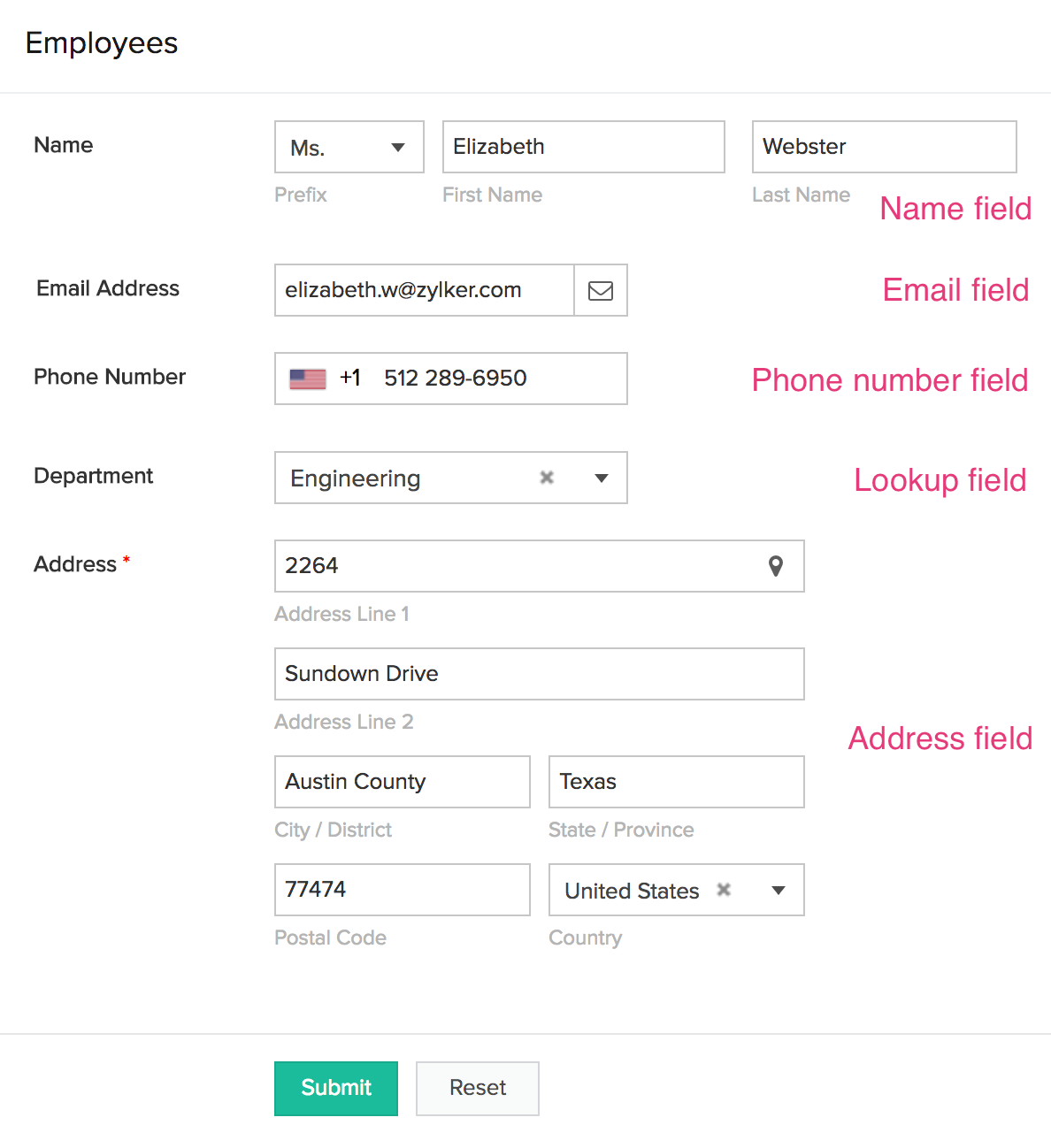
What is a field made of?
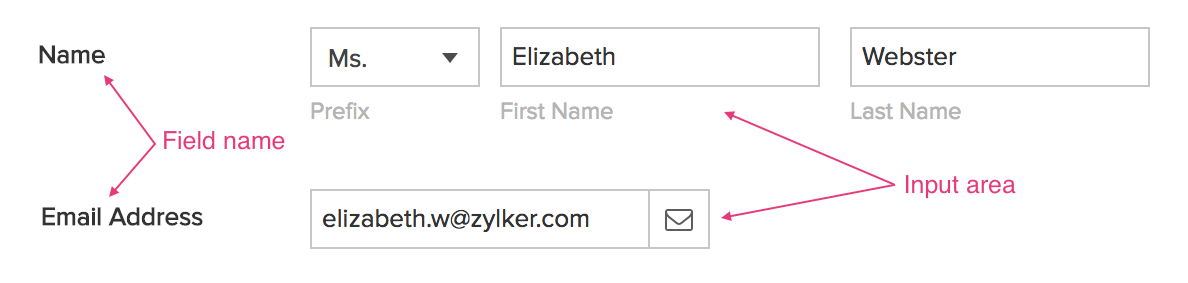
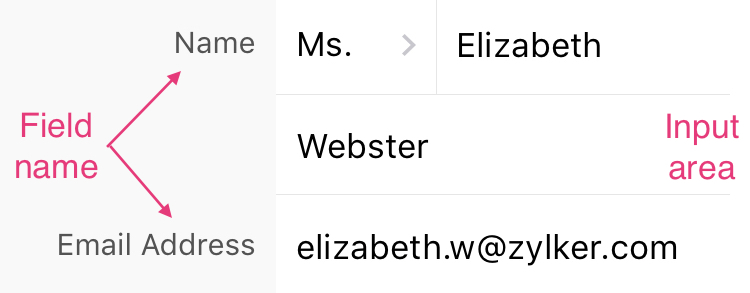
- Field name: The text or label that denotes what data the field captures
- Input area: The input box, dropdown, radio button, checkbox, or a combination of these input elements which a user can use to enter data in the field
The following images show how two types of fields: name (labelled Name ) and email (labelled Email Address ). The input area of the Name field contains one dropdown for Prefix and input boxes for First Name and Last Name . The input area of Email Address contains one input box.
When a user accesses from a web browser:
- When a user accesses from a phone or tablet:
Types of fields
Zoho Creator offers many types of fields – each meant to capture a specific kind of data. They are listed in the table below.

| Field type | Data type | Description |
|---|---|---|
| Name | STRING | A composite field that enables your users to enter their full name |
| STRING | Enables your users to enter a valid email address, i.e., an email address that is in the format xx@xx.xx | |
| Address | STRING | A composite field that enables your users to enter an address. They can pick an address from a map, or type it. |
| Phone | STRING | Enables your users to enter a valid international phone number, i.e., a phone number that has the required number of digits for the selected country |
| Single line | STRING | Enables your users to enter a single line of plain text or text that can contain any character |
| Multi line | STRING | Features a bigger text area than the Single line field. It enables your users to enter plain text that can contain any character |
| Rich text | STRING | Enables your users to enter data in Rich Text Format (RTF) |
| Number | BIGINT | Enables your users to enter an integer value |
| Auto number | BIGINT | Enables a sequential numeric value to be associated with each record submitted through the form |
| Decimal | DECIMAL | Enables your users to enter a decimal value |
| Percent | DECIMAL | Enables your users to enter an integer or decimal value. A percentage symbol will be displayed next to the input. |
| Currency | DECIMAL | Enables your users to enter a monetary value. A currency symbol will be displayed next to the input. |
| Date | TIMESTAMP | Enables your users to enter a date value. They can pick a date from a date picker, or type it. |
| Time | TIME | Enables your users to enter a time value. They can pick a time from a time picker, or type it. |
| Date-time | TIMESTAMP | Enables your users to enter a date-time value. They can pick a date and time from a date-time picker, or type it. |
| Drop down | STRING | Enables your users to select a value from a defined set of choices displayed in a dropdown menu |
| Radio | STRING | Enables your users to select a value from a defined set of choices displayed as radio buttons |
| Multi select | LIST | Enables your users to select one or more values from a defined set of choices displayed in a dropdown menu |
| Checkbox | LIST | Enables your users to select one or more values from a defined set of choices displayed as checkboxes |
| Decision box | BOOLEAN | Enables your users to enter a true/false or yes/no response |
| URL | STRING | Enables your users to enter a URL for a website or web page |
| Image | STRING | Enables your users to submit an image, by either by taking or uploading a picture |
| Audio | STRING | Enables your users to submit an audio of up to 30 minutes, by either recording or uploading an audio file |
| Video | STRING | Enables your users to submit a video of up to 5 minutes, by either recording or uploading a video file |
| Signature | STRING | Enables your users to draw their signature |
| File upload | STRING | Enables your users to submit a file |
| Subform | - | Enables relating the data in two forms by displaying one form within the other. Each record in the main form can be related to multiple records in the subform. |
| Lookup | BIGINT | Enables relating the data in two forms by looking up data stored in a different form, and allowing users to select one or multiple values |
| Formula | (depends on the result of its expression) | Computes and generates a value based on a predefined formula |
| Section | - | Introduces a visual grouping of fields in the form |
| Add notes | STRING | Displays a note on your form |
| Users | STRING | Features a single-select dropdown menu that displays your app's users |
| Integration | STRING | Features a single-select dropdown menu that displays data stored in an external service |
| Prediction | (depends on its target field) | Predicts the value of a field in your form |
| Keyword extraction | STRING | Extracts keyword from the text stored in a single line or multi line field |
| Sentiment analysis | STRING | Determines if the sentiment of the text stored in a single line or multi line field is positive, neutral, or negative |
| OCR | STRING | Performs optical character recognition - recognizes text from an image |
| Object detention | STRING | Determines the class of objects present in the image |





