Understand Lookup Field
Understand Lookup Field
The lookup field enables you to create a relationship between forms. Using this relationship you will be able to lookup data from another form in the same application or from a form in a different application in your Zoho Creator account. This mapping of data is done using the record ID. Each record that you add using your forms will generate a record ID, which serves as a backend reference to accomplish data sync. When you are filling a form, the lookup field will show the list of values or records that have been added in the related form. And when you choose a value and submit the current form, a mapping is established between both the forms and this mapping of data is done using the record ID.
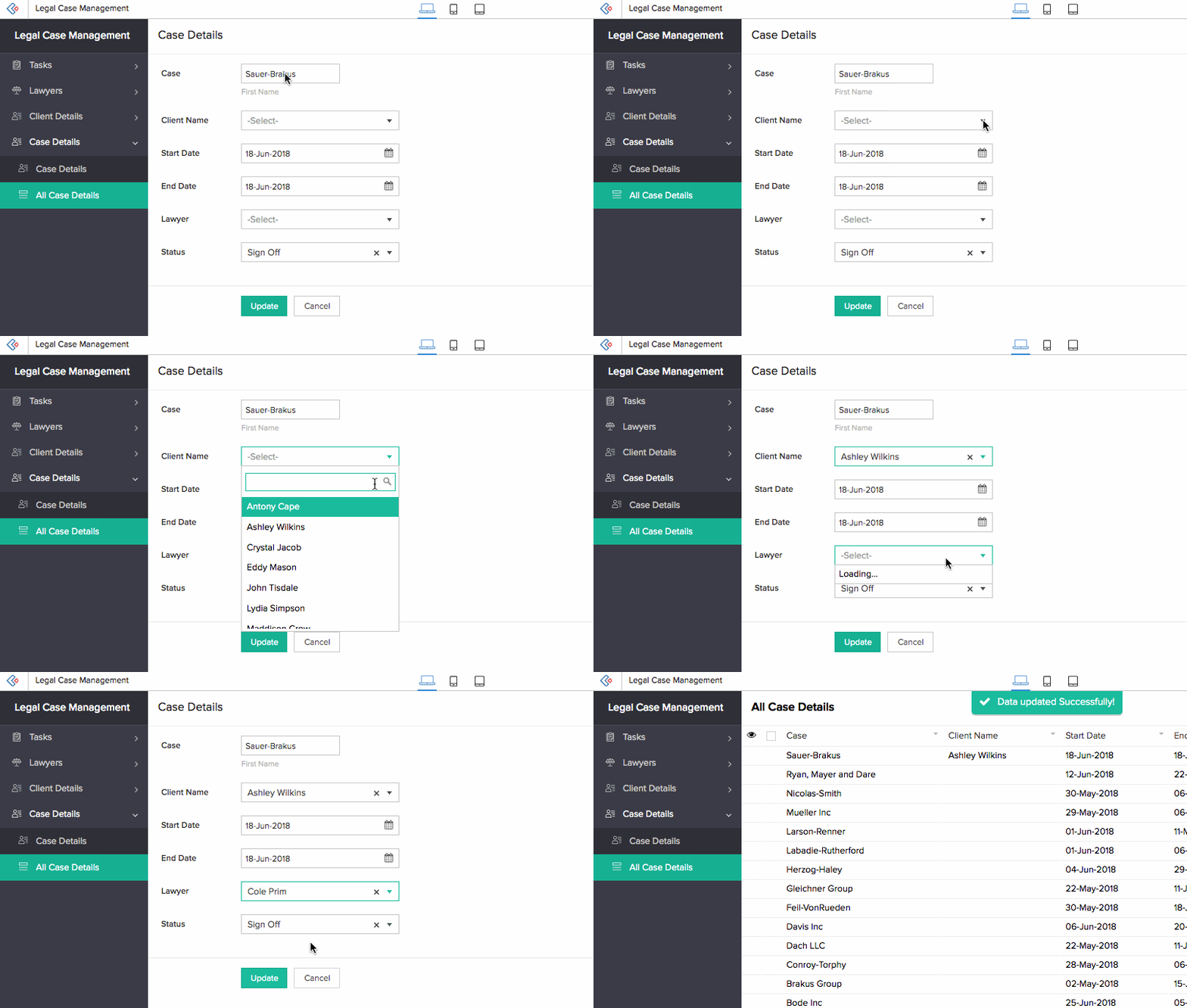
Let's assume you are a law firm and you have a Legal Case Management application to run your business. The app has modules to store and view data on your lawyers, clients, cases that your firm is engaged in, case details, case histories, hearing details, payment details, and more.
The three important modules of this app would be:
- a Lawyer form to capture all details of all the lawyers associated with your firm
- a Client form for your client details
- a Case Details form to capture details about the lawyer or lawyers handling the case, the client, and information on the case like documents related to the case, the payments made, and more
This Case Details form includes lawyer and client information which has already been captured in the Lawyer and Client forms. Instead of adding two new fields for Lawyer and Client you can add a lookup field in the Case Details form, through which you will be able to access the data in the other two forms and reuse them here, thus avoiding redundancy of data and fields.
Advantages of Using a Lookup Field
Lookup field helps you with:
-
Reducing the number of forms you create in your application.
- For instance, you have a Staff Register for your educational institution. Let's say you want to capture attendance of your staff department-wise.You might create a form for each department with details of the staff for them to register their attendance individually, which might lead to you creating multiple forms (say you have 15 departments, you will create 15 forms). Instead you can create a separate Department form to capture all the 15 departments, and a Staff form to capture the list of Staff. Then you can create a Attendance register where you can lookup the Department and Staff, values using lookup field. You can create a common attendance register for all staff and at the same time categorize them based on departments, thus reducing the number of forms.
-
Data modeling.
- Using the lookup field you will be able to establish relationships between your forms. This allows your forms and its data to interact with each other, enabling you to build a structured and unified data storage. This unification provides a track to link data and to create a process that is simpler and manageable.
-
Refer related data in another form.
- You will be able to fetch the data by syncing the data stored in another form with the form at hand.
Lookup Field Traits
When you add the lookup field to your form, you need to do the following. Learn how to add a lookup field
-
Define the Relation : Here you select the form that you want to establish a relationship with
- You can create a new relationship or a unidirectional relationship, or
- You can use an existing relationship, to create a bidirectional relationship. Learn more
-
Set the Display Type : This defines the way in which the looked-up data will be displayed when your users access this lookup field, and the numbers of values your users will be allowed to select — one or many.
- Dropdown : The looked-up data will be displayed in a dropdown, and your users will be able to select one value
- Radio Button : The looked-up data will be displayed as radio buttons, and your users will be able to select one value
- Multi Select : The looked-up data will be displayed in a drop-down menu, and your users will be able to multiple values
- Checkbox : The looked-up data will be displayed as checkboxes, and your users will be able to multiple values
Customize Lookup's Display Fields
You can customize the manner in which the related form's records are displayed by your lookup field. You can have the lookup field display the data stored in one field of the related form, or from multiple fields. When you select multiple fields, you can define if any separator is to appear between the field values. Learn how
The lookup field can display data from the following types of field : name, address, email, phone, single line, number, percent, currency, decimal, auto number, radio, drop down, date, date-time, formula, users, ID, added user, modified user, added time, and modified time.

Allow New Entries Through the Lookup Field
There can be instances where the data (in the related form) that a user wants to look up, is not present in it. Instead of making the user access the related form, then add the required data, and then look it up from your form, you can enable them to add records to the related forms via the lookup field itself. Learn how to enable this
After enabling the Allow new entries property of the lookup field, below is what a user will experience upon accessing your form:
- The Add New Entry option will be displayed by the lookup field as the last choice
- Clicking or tapping it will open the related form in a pop-up window, where you can enter and submit the required data
-
The entered data will be added to the related form, and will also be selected in the lookup field
Set Value While Adding New Entries in the Lookup Field

Filter the Records that the Lookup Field Displays
By default, the lookup field displays all the records present in the looked-up form. However, you can apply a filter based on data in the looked-up form. Learn how
The filter you set will be applied every time your users access the lookup field, both while adding and editing a record.
Other Field Properties
- Enable alphabetical sorting : You can sort the data (that your lookup field displays) in an alphabetical order
- Customize the field name and field link name of this field
- Make it mandatory for your users to select a choice in this field
- Show the field only to the app’s admin (and hide it from other users)
- Set the field size
- Enable displaying a tooltip message when your users hover on this field
Related Topics
Zoho CRM Training Programs
Learn how to use the best tools for sales force automation and better customer engagement from Zoho's implementation specialists.
Zoho DataPrep Personalized Demo
If you'd like a personalized walk-through of our data preparation tool, please request a demo and we'll be happy to show you how to get the best out of Zoho DataPrep.
- Zoho Workerly Home
- Forums
- Connect With Us:


- Zoho Recruit Home
- Forums
- Connect With Us:
You are currently viewing the help pages of Qntrl’s earlier version. Click here to view our latest version—Qntrl 3.0's help articles.





Zoho Sheet Resources
Zoho Forms Resources
Zoho Sign Resources
Sign, Paperless!
Zoho TeamInbox Resources
Zoho DataPrep Resources
Design. Discuss. Deliver.
Related Articles
Understand Lookup Field Properties
This page is applicable to all report types except pivot chart and pivot table. Lookup field displays field values that are fetched from a field in a related form. This relationship is created when the field is introduced into the form on which the ...Auto populate a field based on the selection from a lookup dropdown
Requirement When a value is chosen from a lookup dropdown, related values are populated in the other fields of the same form. Use Case An order management app contains a form to store order details. When the admin chooses the customer name from ...Configure bidirectional lookup field
To configure bidirectional lookup: Navigate to the form builder. Drag and drop the lookup field. The Lookup field window appears. Select the Form from which you need to fetch data. Select the Field . Click the toggle button to Enable bidirectional ...Advanced search in a lookup field
When the Lookup field has large number of records then finding a particular record becomes cumbersome. Moreover, the basic search will display only 5000 results and manually scrolling down through these results to find the required record is tedious. ...Understand checkbox field
Understand checkbox fieldThe checkbox field enables your users to select one or more values from a predefined set of choices that are displayed as checkboxes. When to use this field?You may consider the following pointers to determine when to use a ...