Add field
Add a field to a form
- Open the component pane as shown below, then select the required form. Its Design page will appear.
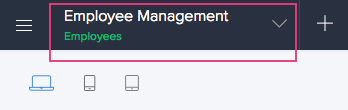
- Hover the mouse on the form's preview, then click Open Builder . The form builder will open.
-
Drag and drop the required field from the field palette, displayed on the left. You can also double-click on the required field to add it to the form.
Related Topics:
Zoho CRM Training Programs
Learn how to use the best tools for sales force automation and better customer engagement from Zoho's implementation specialists.
Zoho DataPrep Personalized Demo
If you'd like a personalized walk-through of our data preparation tool, please request a demo and we'll be happy to show you how to get the best out of Zoho DataPrep.
- Zoho Workerly Home
- Forums
- Connect With Us:


- Zoho Recruit Home
- Forums
- Connect With Us:
You are currently viewing the help pages of Qntrl’s earlier version. Click here to view our latest version—Qntrl 3.0's help articles.
New to Zoho Survey?





Zoho Sheet Resources
Zoho Forms Resources
New to Zoho Sign?
Zoho Sign Resources
Sign, Paperless!
New to Zoho TeamInbox?
Zoho TeamInbox Resources
New to Zoho ZeptoMail?
Zoho DataPrep Resources
Design. Discuss. Deliver.
New to Zoho Workerly?
New to Zoho Recruit?
New to Zoho CRM?
New to Zoho Projects?
New to Zoho Sprints?
New to Zoho Assist?
New to Bigin?
Related Articles
Add OCR field
Refer to this page to learn about the OCR field Prerequisite: an image field in your form Edit your app. Open the builder of the required form. Add the OCR field to the form. Refer to this page to learn how to add a field to a form. If your form ...Add sentiment analysis field
Refer to this page to learn about the Sentiment Analysis field Prerequisite: a single line or multi line field in your form Edit your app. Open the builder of the required form. Add the Sentiment Analysis field to the form. Refer to this page to ...Add keyword extraction field
Refer to this page to learn about the Keyword Extraction field Prerequisite: a single line or multi line field in your form Edit your app. Open the builder of the required form. Add the Keyword Extraction field to the form. Refer to this page to ...Add prediction field
Refer to this page to learn about the Prediction field You need to create a prediction model before adding a prediction field inside your form. 1. Edit your app. 2. Open the builder of the required form. 3. Add at least two prediction supporting ...Add object detection field
Refer to this page to learn about the Object Detection field Prerequisite: an image field in your form You need to create an object detection model before adding an object detection field inside your form. 1. Edit your app. 2. Open the builder of the ...
New to Zoho LandingPage?
Zoho LandingPage Resources