Create Application from Scratch
- Go to the homepage of Zoho Creator. Navigate to Solutions module. Click the Create Solution button in the top right corner.
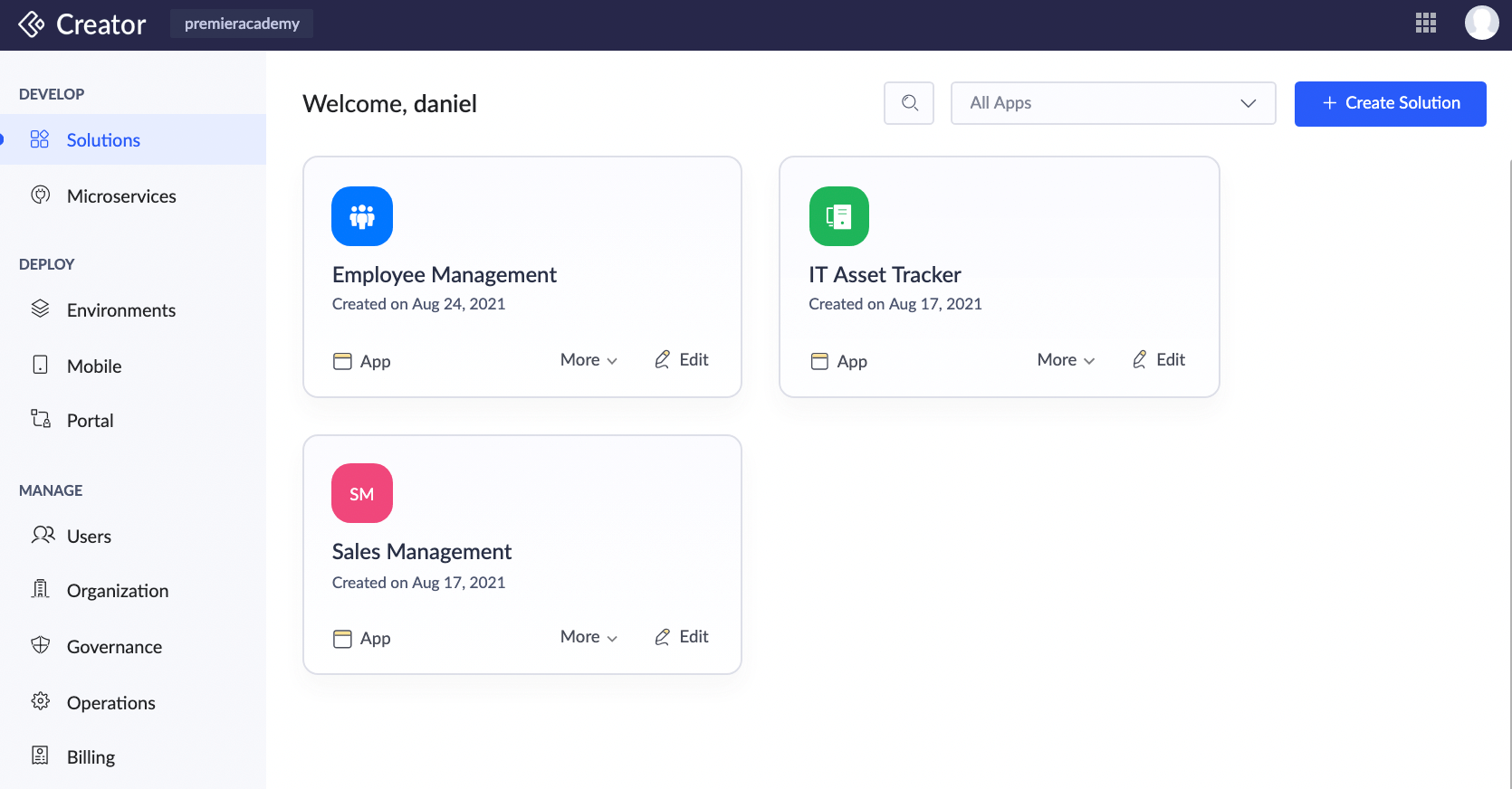
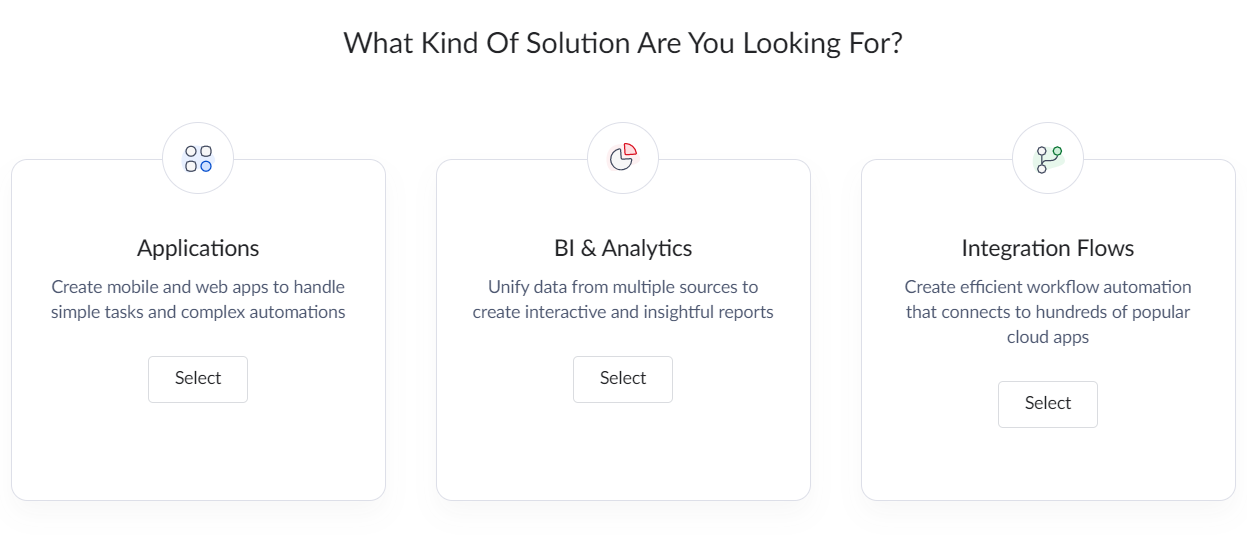
- Three kinds of solutions will be displayed - Applications, BI & Analytics, and Integration flows. Click Select button in Applications.
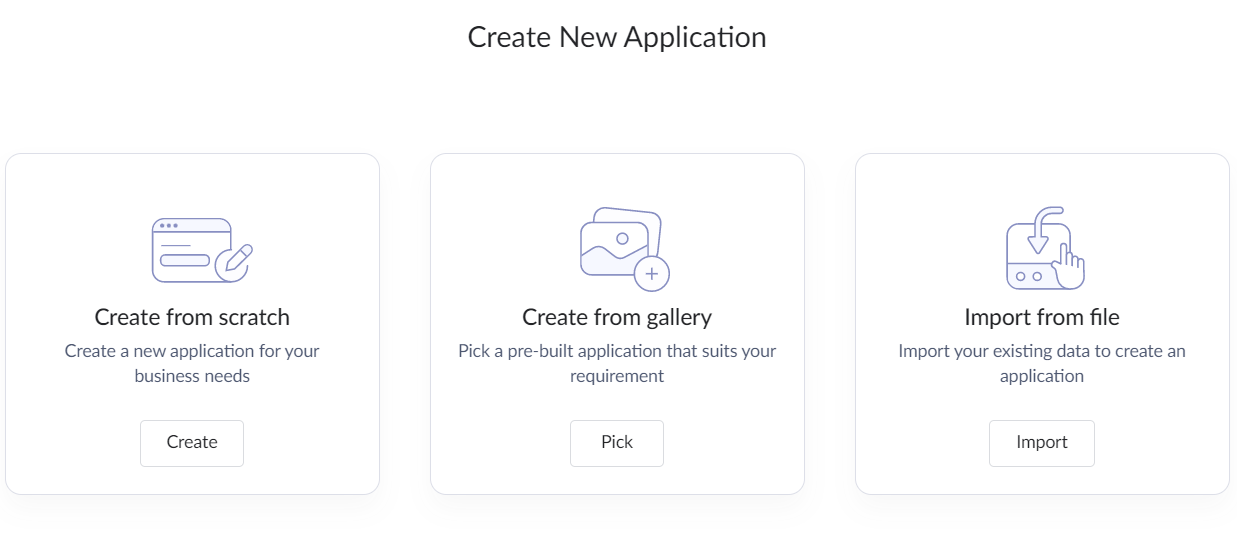
- The different ways to create application will be shown: Create from scratch, Create from Gallery, and Import from file. Click the Create button under Create from scratch to create an app from scratch.
- Name your application and click Create Application.
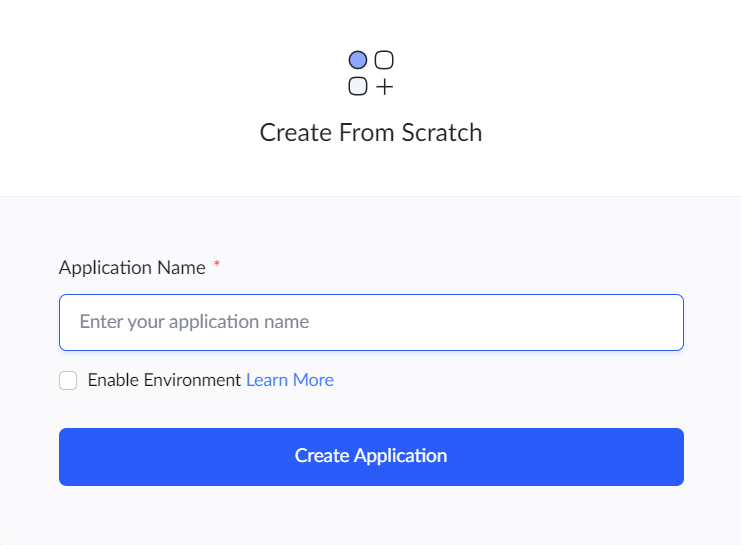
Zoho Creator will create the application and open the design window to make required changes in the application.
Related Topics
Zoho CRM Training Programs
Learn how to use the best tools for sales force automation and better customer engagement from Zoho's implementation specialists.
Zoho DataPrep Personalized Demo
If you'd like a personalized walk-through of our data preparation tool, please request a demo and we'll be happy to show you how to get the best out of Zoho DataPrep.
- Zoho Workerly Home
- Forums
- Connect With Us:


- Zoho Recruit Home
- Forums
- Connect With Us:
You are currently viewing the help pages of Qntrl’s earlier version. Click here to view our latest version—Qntrl 3.0's help articles.
New to Zoho Survey?





Zoho Sheet Resources
Zoho Forms Resources
New to Zoho Sign?
Zoho Sign Resources
Sign, Paperless!
New to Zoho TeamInbox?
Zoho TeamInbox Resources
New to Zoho ZeptoMail?
Zoho DataPrep Resources
Design. Discuss. Deliver.
New to Zoho Workerly?
New to Zoho Recruit?
New to Zoho CRM?
New to Zoho Projects?
New to Zoho Sprints?
New to Zoho Assist?
New to Bigin?
Related Articles
Create an application for solution
Zoho Creator enables you to create an app solution based on your business requirement. You can create an application to run your business in a streamlined manner with the capabilities that Creator has to offer. An application helps you solve problems ...Create New Application
This document provides a brief understanding of how creating an application is different in Creator 6 from Creator 5. Current: In your existing creator account, you will be able to create an application that enables you to collect and manage data ...Manage Application Summary
The application summary page is a cumulative view of the application in Zoho Creator. This page serves as a common navigation point to branch out into various modules and perform actions relevant to those modules from here, and view the details ...Create an Application by Importing .ds file
Zoho Creator also supports creating an application by importing a .ds file. A Deluge Script (.ds) file is a file that stores the structure of a Zoho Creator application in text format. To upload your .ds file Go to the homepage of Zoho Creator. ...Add data to a different application
Requirement Automatically add a record to a form of one application when a record is added in a different application. Use Case A Zoho creator account has two applications: Contact Management and Order Management. All the customer details maintained ...
New to Zoho LandingPage?
Zoho LandingPage Resources